D. Griffin Jones is a writer, podcaster and video producer for Cult of Mac. Griffin has been a passionate computer enthusiast since 2002, when he got his first PC — but since getting a Mac in 2008, he hasn’t turned back. His skills in graphic and web design, along with video and podcast editing, are self-taught over 20+ years. Griffin has a bachelor’s degree in computer science and has written several (unpublished) apps for Mac and iOS. His collection of old computers is made up of 40+ desktops, laptops, PDAs and devices, dating back to the early ’80s. He brings all of these creative and technical skills, along with a deep knowledge of Apple history, into his work for Cult of Mac.
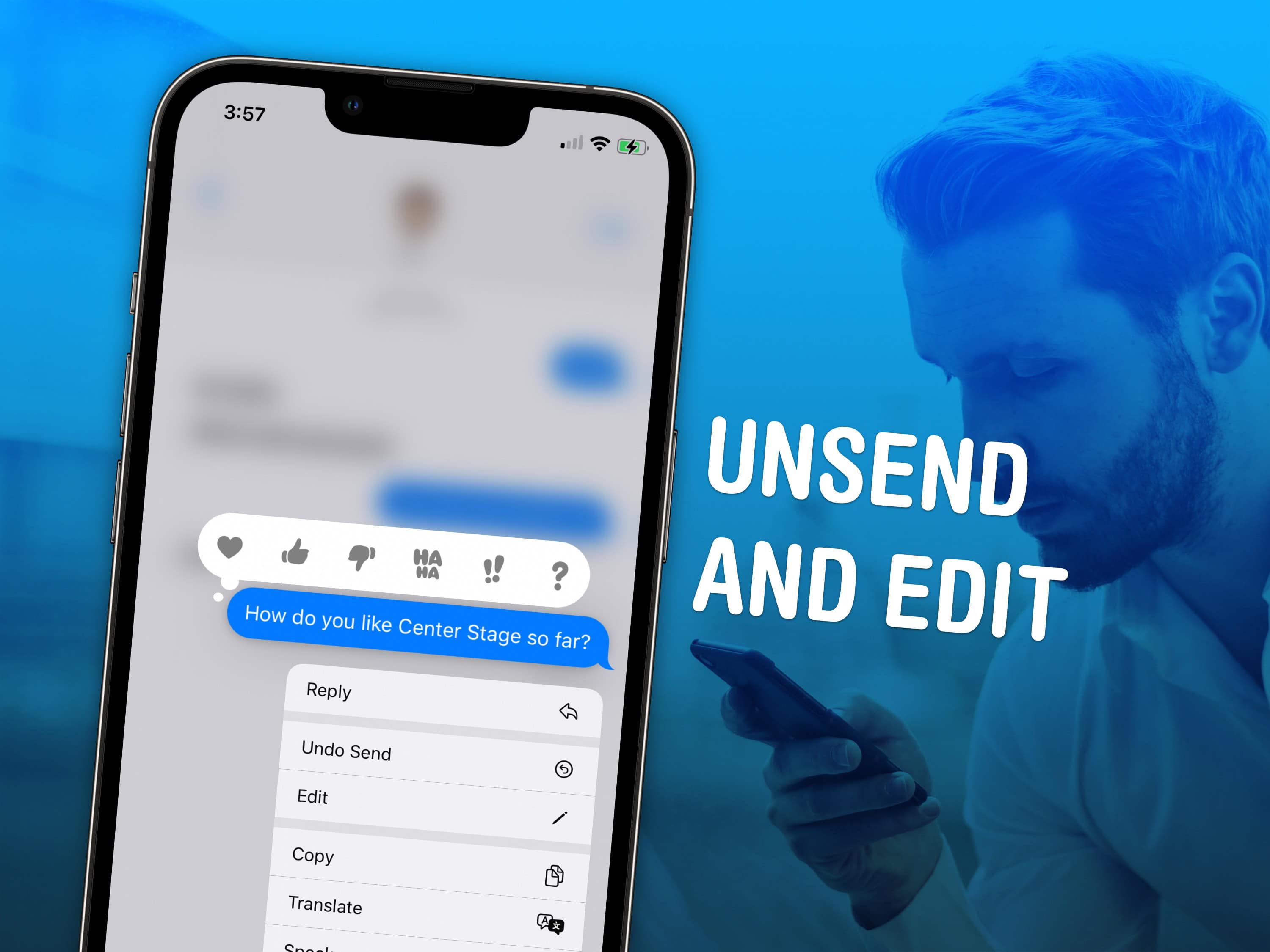
Fix your mistakes before it's too laet. Image: D. Griffin Jones/Cult of Mac
Knowing how to unsend an iMessage can help you out of a pickle if you accidentally shoot off a text to the wrong person. You also can edit a message after it’s sent to fix a grave typo you didn’t catch. Like if you accidentally text your mom “Finally got laid today!” when you meant to type “paid.”
Keep reading to see how to unsend or edit an iMessage on your iPhone, or watch our quick video tutorial.
Here are all the details on how to block a number on iPhone. Image: D. Griffin Jones/Cult of Mac
Spam calls and text messages seem absolutely relentless these days — you’ll want to know how to block a number on your iPhone to keep your sanity. Luckily, it’s easy. There are a variety of ways you can stop unwanted calls. You can block an incoming phone call or text message. And you can send unknown callers directly to Live Voicemail.
If you’re blocking a person in your contacts list, it doesn’t matter which app you block them from — Messages, Phone, Contacts, Mail, Settings — they will be blocked everywhere. Here’s how to block calls from unknown numbers on iPhone and generally keep spammers at bay.
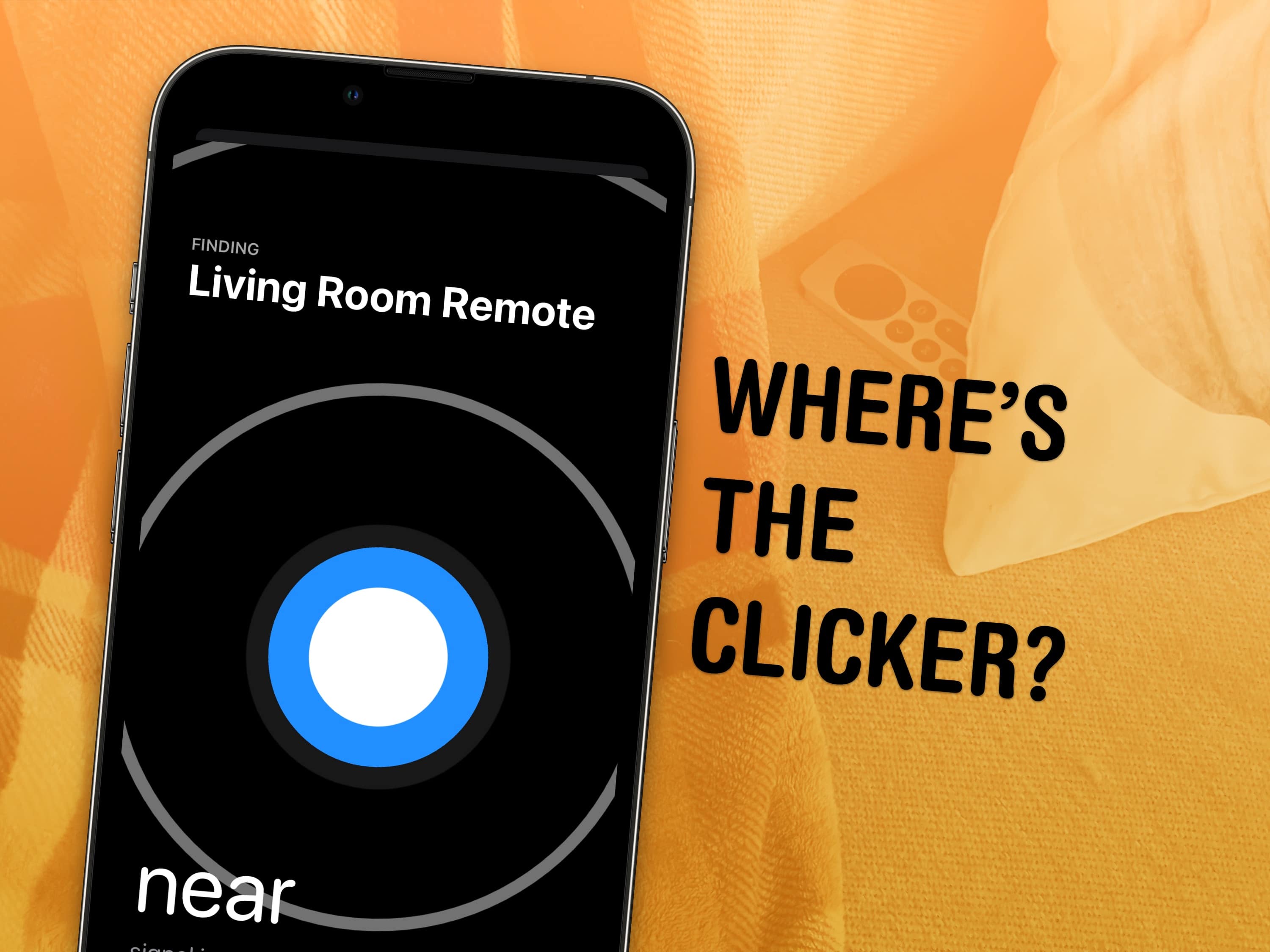
A modern solution to an age-old problem. Photo: D. Griffin Jones/Cult of Mac
Whether it’s wedged between the cushions or kicked far under the couch, a handy-dandy feature in iOS 17 and tvOS 17 lets you find your lost Apple TV remote using your iPhone.
The mind races when one imagines how many hours of human life might have been saved if everyone had this feature 30 years ago. Let me show you how to find your AWOL Apple TV remote with your iPhone.
AirDrop is right up there with iMessage as a great Apple-exclusive feature. Learn how to use it. Image: D. Griffin Jones/Cult of Mac
If you want to know the fastest and easiest way to send someone photos, videos, files and so, so much more, you should know how to AirDrop. There’s no need to send an iMessage — Apple’s slick AirDrop feature will immediately send and open the content on someone else’s iPhone (or other Apple device). There’s no middle step.
AirDrop works iPhone-to-iPhone, iPhone-to-Mac, iPhone-to-iPad, Vision Pro-to-Mac — any combination and permutation of two Apple devices. And if you’re both running iOS 17, there’s a convenient AirDrop superpower you should definitely know about. Keep reading to find out everything you need to know about how to take advantage of AirDrop.
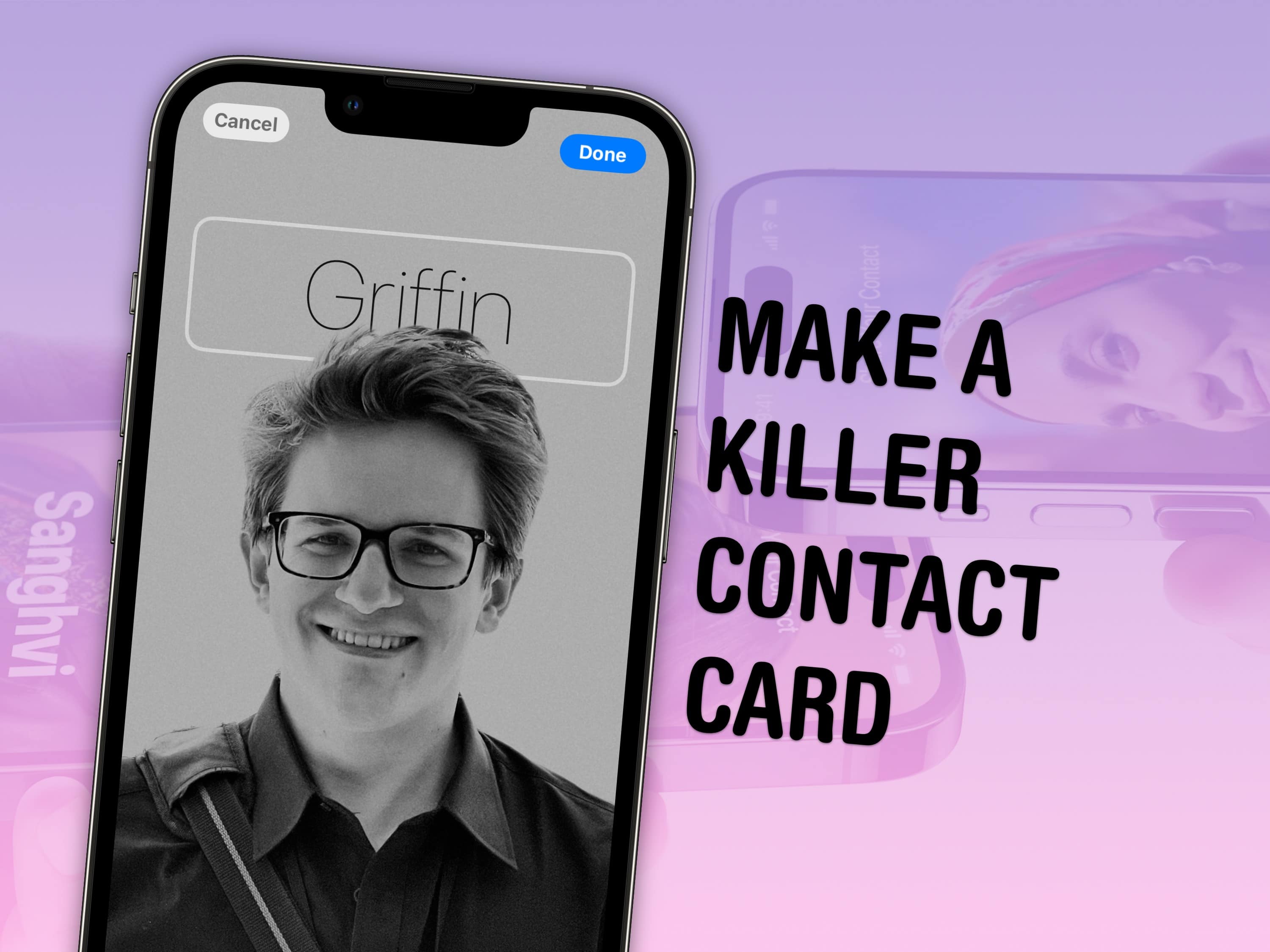
When I say “killer,” I mean in the awesome way. I do not endorse committing murder with your contact card. But if you can figure out how that works, I’d be curious. Image: Apple/D. Griffin Jones/Cult of Mac
Contact posters let you customize how your Apple contact card looks to other people. If you call someone — and they have your contact info in their address book — your customized contact poster will appear on their screen. If you’re running iOS 17 and don’t know how to create a Contact Poster, let us show you how. (The process might look familiar if you’ve set up a custom Lock Screen.)
Done right, contact posters look great — way better than the old thumbnail images that preceded them. Plus, it’s really easy to turn an ordinary picture into a gorgeous-looking contact poster. And once you set it up, everyone with your matching phone number and/or Apple ID will see your chosen contact picture and personalized contact poster.
★★★★☆
The free Vision Pro app plunges you in the the Marvel multiverse. Image: Marvel Studios and ILM Immersive
Marvel Studios’ new What If…? An Immersive Story is a free app for Apple’s Vision Pro headset that combines interactivity with storytelling in a brand-new way. Is it a game? Is it an episode of the What If…? animated TV series? It’s not entirely either. It’s an hour-long story where you’re the main character, casting spells with your hands and collecting the Infinity Stones.
If you aren’t a Marvel fan, you’ll find the story a bit drab. But if you want to see the bleeding edge of what’s possible in gaming when you can seamlessly switch between VR and AR with natural hand controls, you need to check it out.
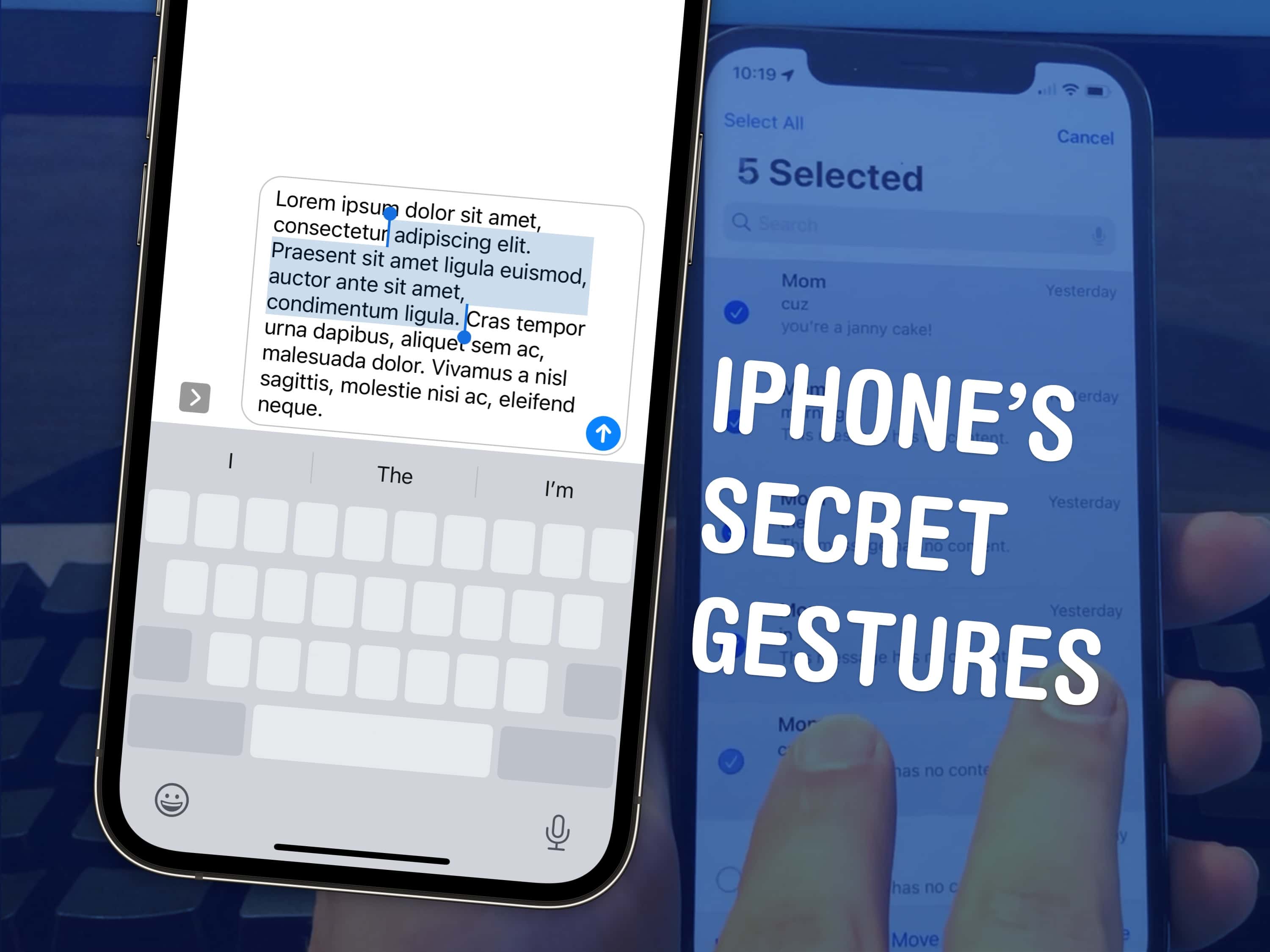
Top 3 tips to speed up a few things on your iPhone. Image: D. Griffin Jones/Cult of Mac
There are a few hidden gestures on your iPhone that you absolutely need to know. You’re typing out a long text on your iPhone and you need to go back to fix a typo. Tapping on the screen to move the cursor feels like a shot in the dark — but there’s a secret gesture to move around and select text.
Here are three top iPhone tips. Also in this article: how to select and delete a bunch of emails, text messages, anything in a list at once; and the secret gestures that undo and redo. Like, for example, if you accidentally delete a bunch of emails.
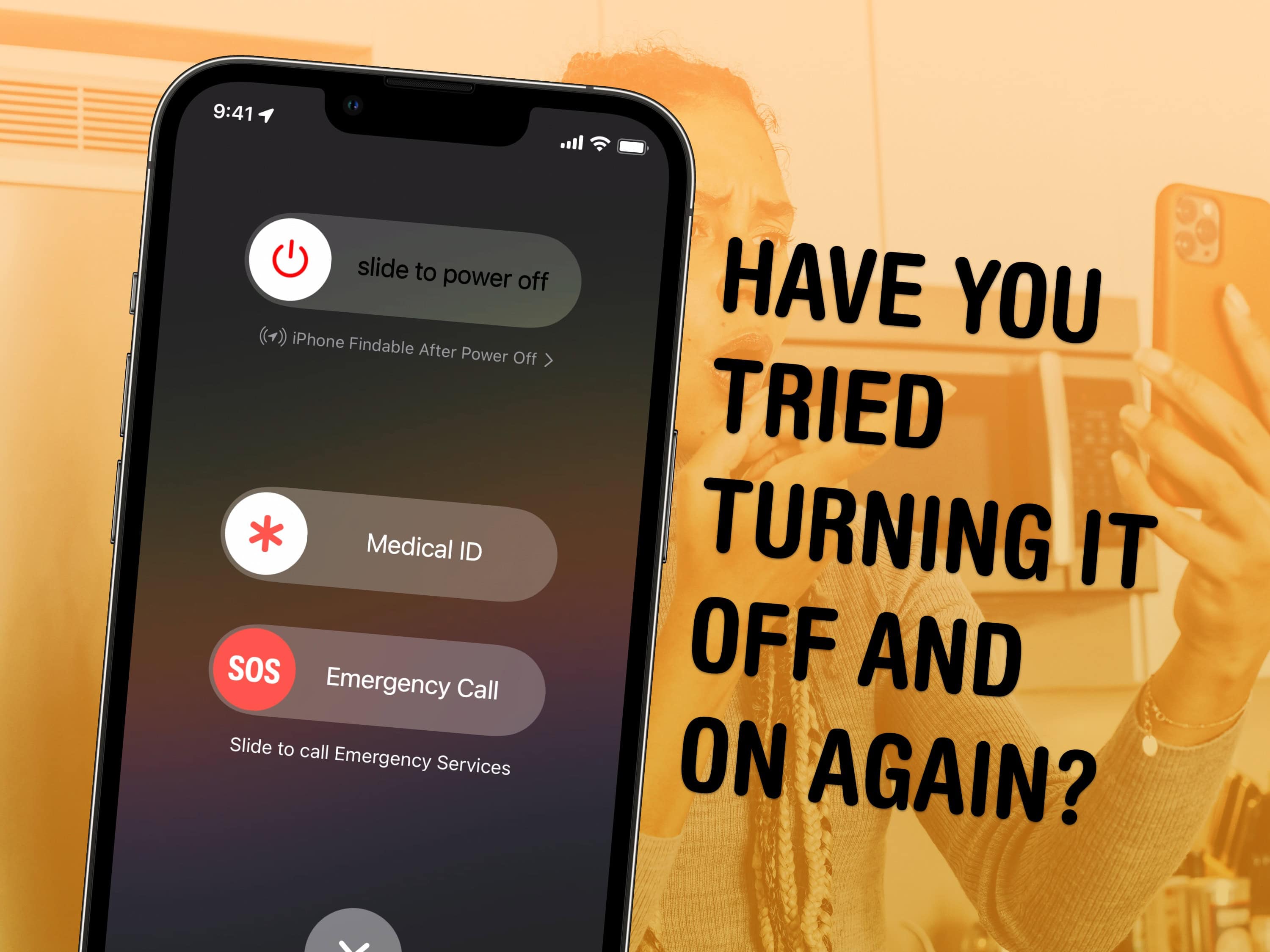
Turning it off and on again: the closest thing there is to a magical-just-fix-it solution. Image: D. Griffin Jones/Cult of Mac
If your iPhone is ever having odd technical problems, the first thing you should try is a good old restart — you’ll be surprised how many problems can be fixed by simply restarting.
Restarting your iPhone is just like restarting a computer. All of the apps and software will be reset, and you shouldn’t lose any saved data.
If an app you’re using is acting up, you can always force-quit it and open it again to reset it. But if there’s a deeper underlying problem with your phone’s software, like if Bluetooth accessories aren’t working or phone calls suddenly won’t connect, you should restart it.
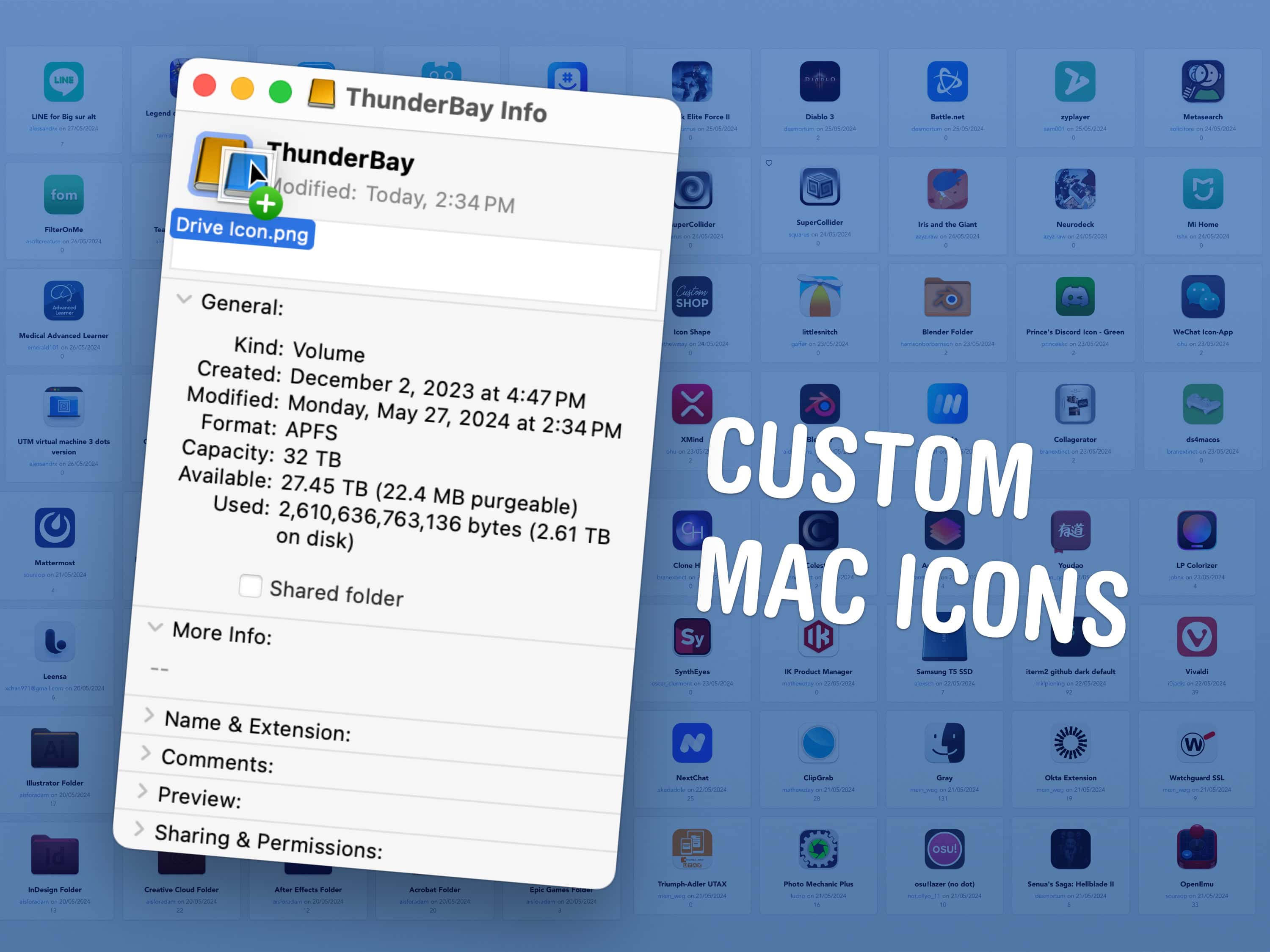
You can change any icon on your Mac to suit your taste. Image: D. Griffin Jones/Cult of Mac
A great way to personalize your Mac is with custom Mac folder icons. In fact, you can change any icon on your Mac to customize it to your taste. That includes any app, folder, disk or file icon.
Personally, I didn’t like the yellow icon of my external hard drive — so I changed it to blue. I’ve also edited a few app icons for better consistency in my Dock.
Virtual fireworks are fun. But on some video calls, they prove wildly inappropriate. Screenshot: D. Griffin Jones/Cult of Mac
How do you turn off the webcam video reactions on your Mac in macOS Sonoma? This feature, which puts full-screen animated effects on your video calls, made a good demo when it was introduced. But after it launched, it confused many people who trigger it accidentally in serious situations.
It works in FaceTime video calls and various other videoconferencing software. However, the Off button isn’t where you might expect. It’s not hiding in Zoom, Skype or Google Meet at all — it’s in the Mac’s menu bar.
Let me show you what’s going on and how you can turn off video reactions on Mac.
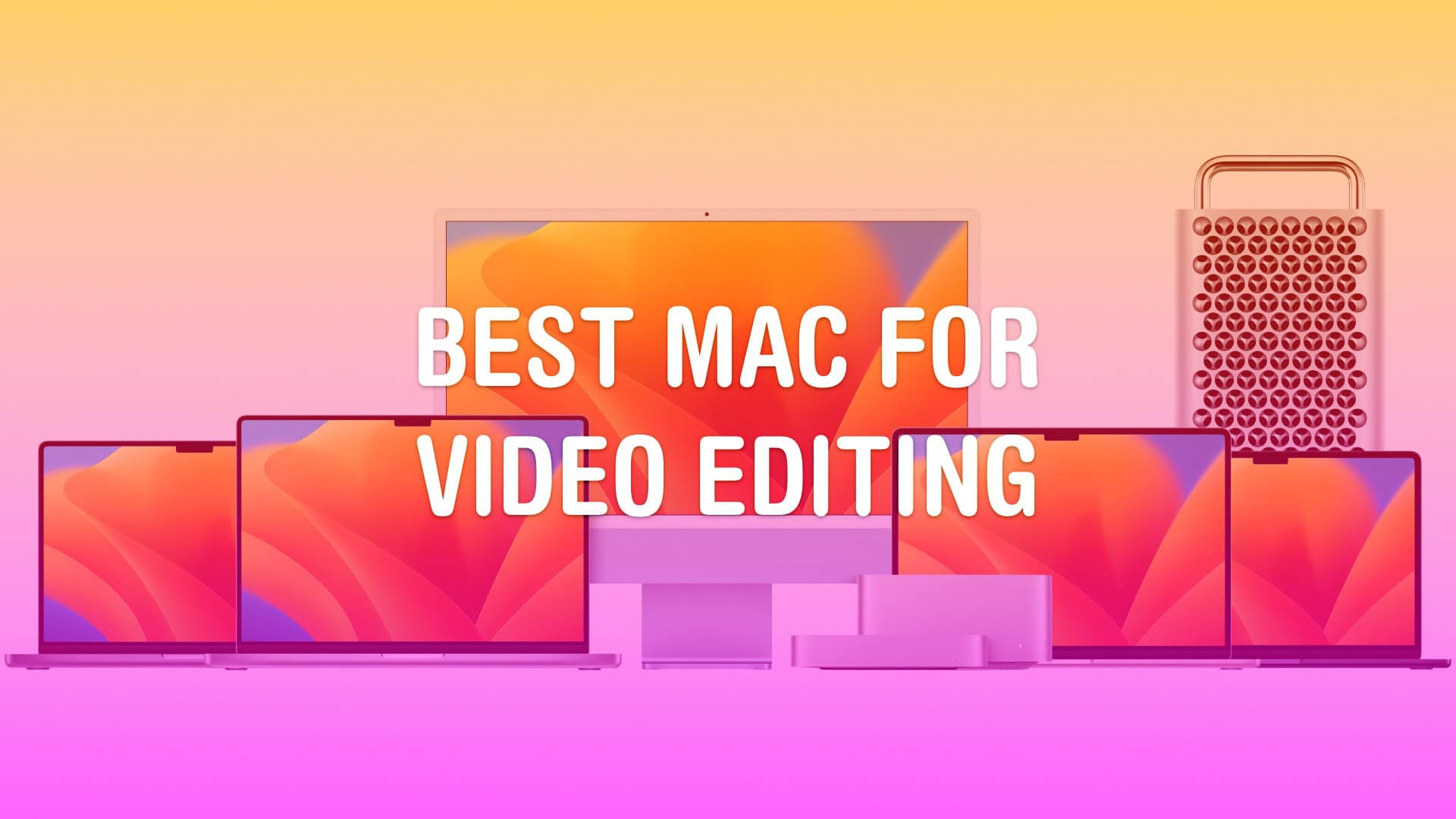
Really, it’s… all of them. Image: Apple/D. Griffin Jones/Cult of Mac
Whether you run a video production studio or you’re starting a hobby YouTube channel, you’ll want to make sure you have the best Mac for video editing.
Video editing is a good stress test for any computer. Cutting together an epic two-hour video essay requires high-speed storage, a lot of memory, processing power and GPU power. Apple silicon delivers all this in spades. Apple’s chips also come with special built-in hardware for processing video — the Media Engine.
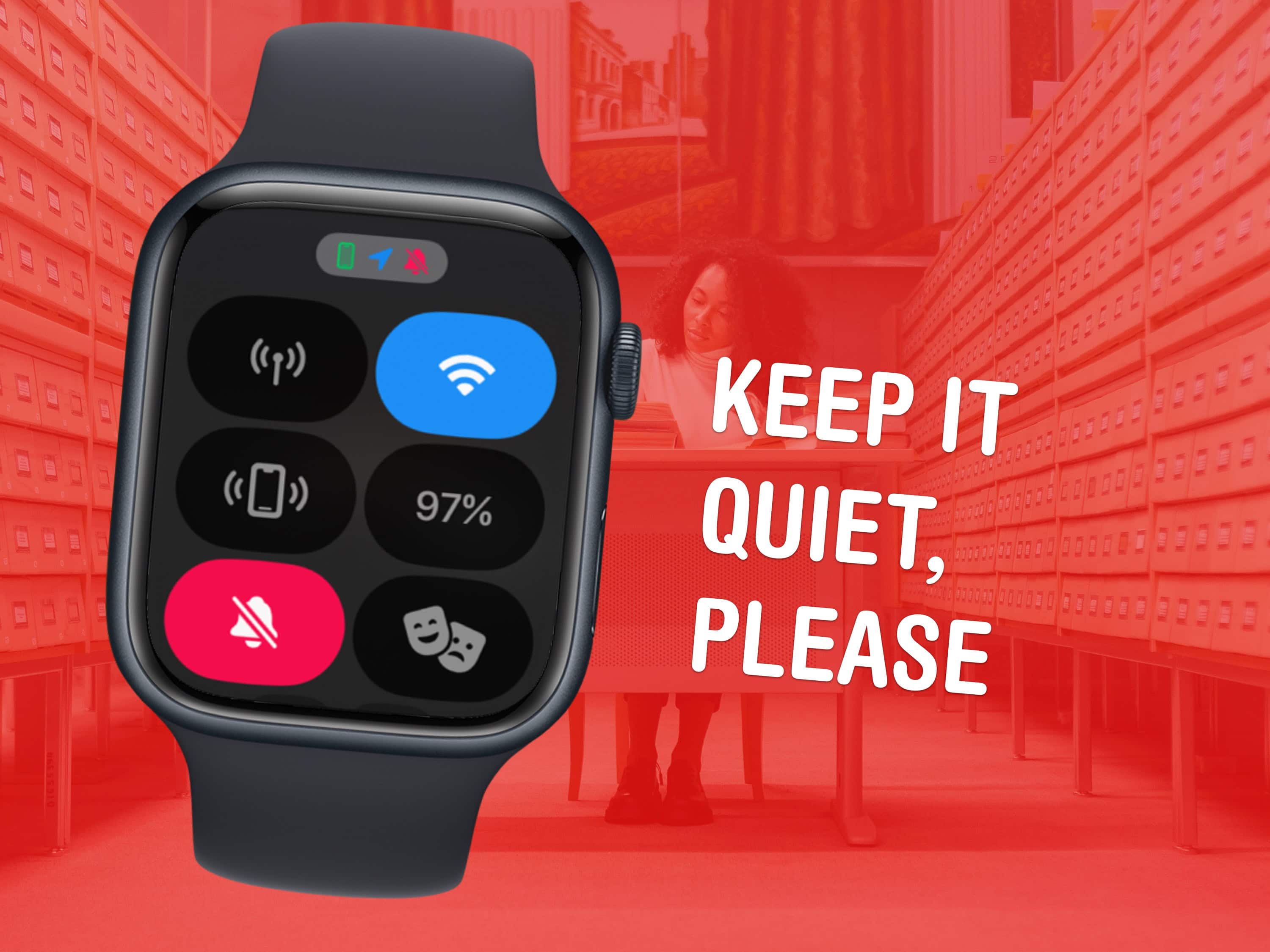
Keep your Apple Watch from dinging in the library. Image: D. Griffin Jones/Cult of Mac
If your group chat or work messages start blowing up in the middle of a meeting, you’ll want to know how to silence your Apple Watch quickly. You have a few options: Silent mode controls whether a notification makes a sound. Do Not Disturb controls whether you receive notifications. Theater mode turns off the display.
You can also use a quick shortcut to turn on silent mode in a pinch.
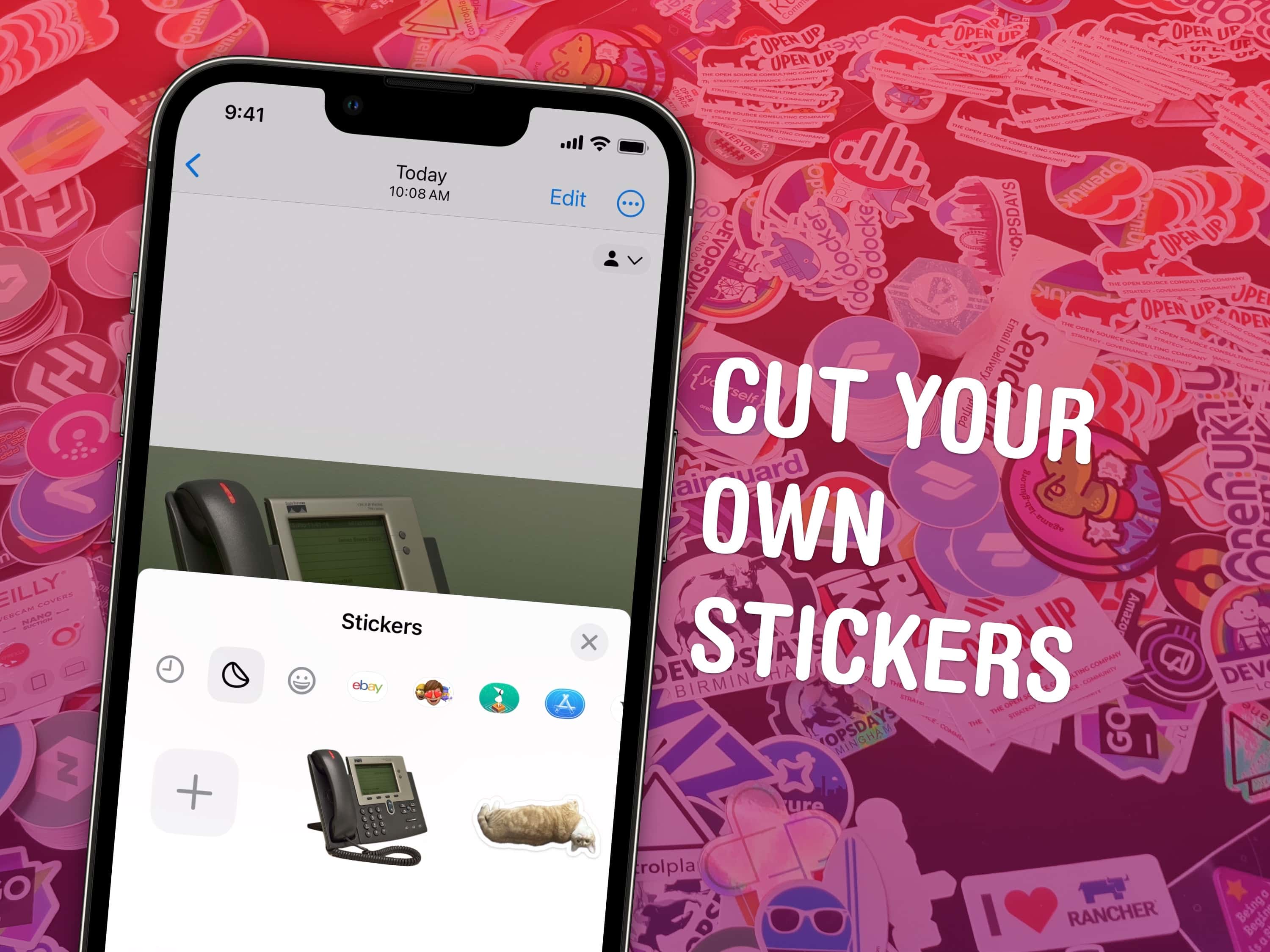
Make your own stickers from your own photos. Image: Watty62/Wikimedia Commons/D. Griffin Jones/Cult of Mac
You can make custom stickers from photos on your iPhone and send them in iMessage, Snapchat and WhatsApp. Stickers made from your own pictures are a lot of fun to send in group chats. They’re great for sending highly personal reactions using photos of people or pets that everyone knows. You can even add fun sticker effects.
Making these custom stickers from photos stems from an iOS 16 featured that brought the ability to copy and paste the subject from a picture. Now, in iOS 17, it’s easy to collect your personalized cutouts int a set of digital stickers you can use anywhere. I’ll show you how it all works.
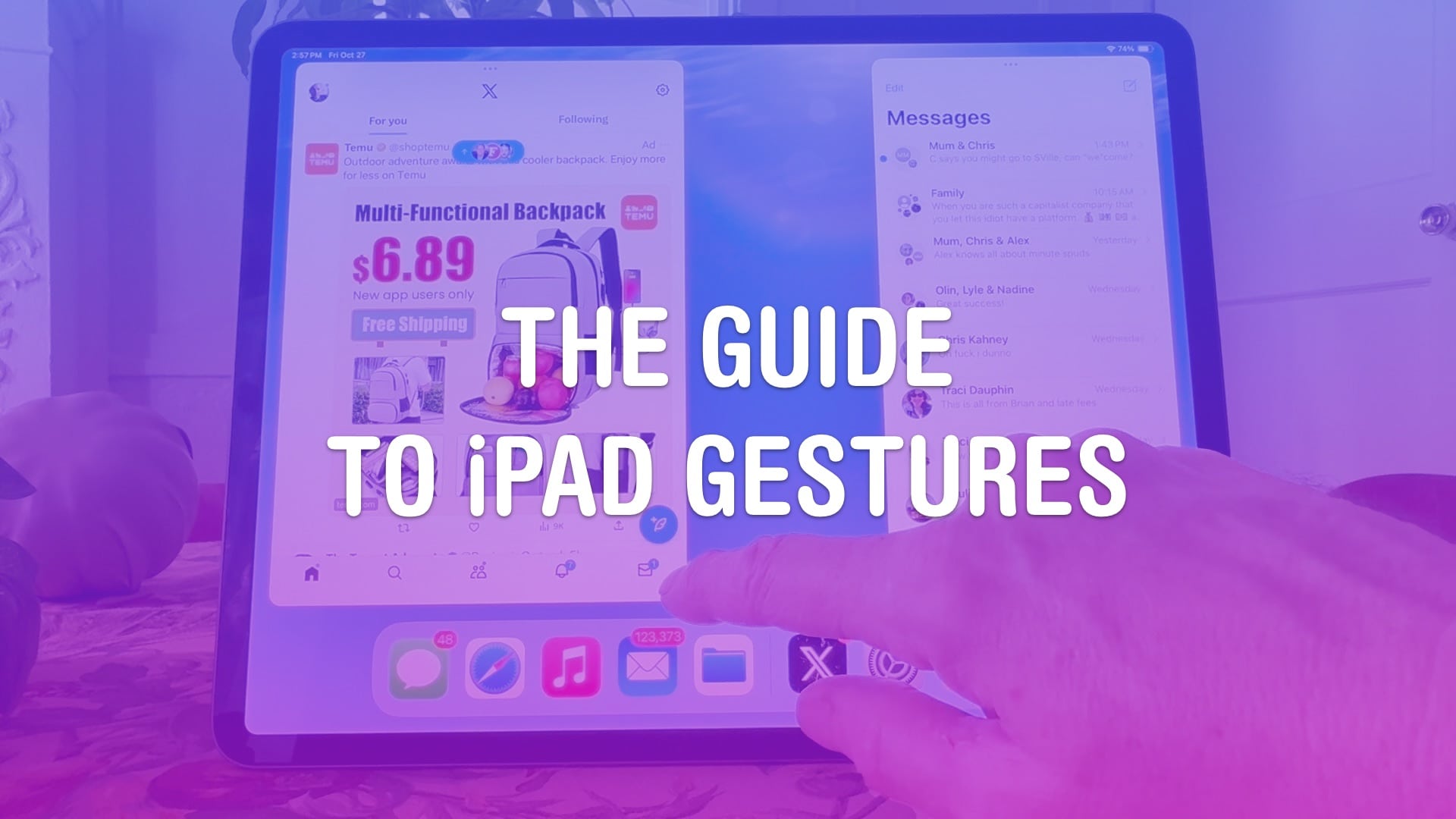
No more mad swiping at the screen — learn the details of how your iPad works. Image: Leander Kahney/D. Griffin Jones/Cult of Mac
Gestures are a great way to become an iPad power user. They help you easily navigate through apps, switch between pages, access controls, and reduce multiple taps to a single swipe. iPad gestures prove especially useful for Stage Manager, the iPad’s alternative multitasking environment.
Apple designed these iPad gestures to mimic natural, real-world movements, making them intuitive to use and learn. Swiping, pinching, tapping and other moves feel familiar. You should find them easy to master.
If you use your iPad a lot, these gestures are well worth learning. Your fingers will thank you!
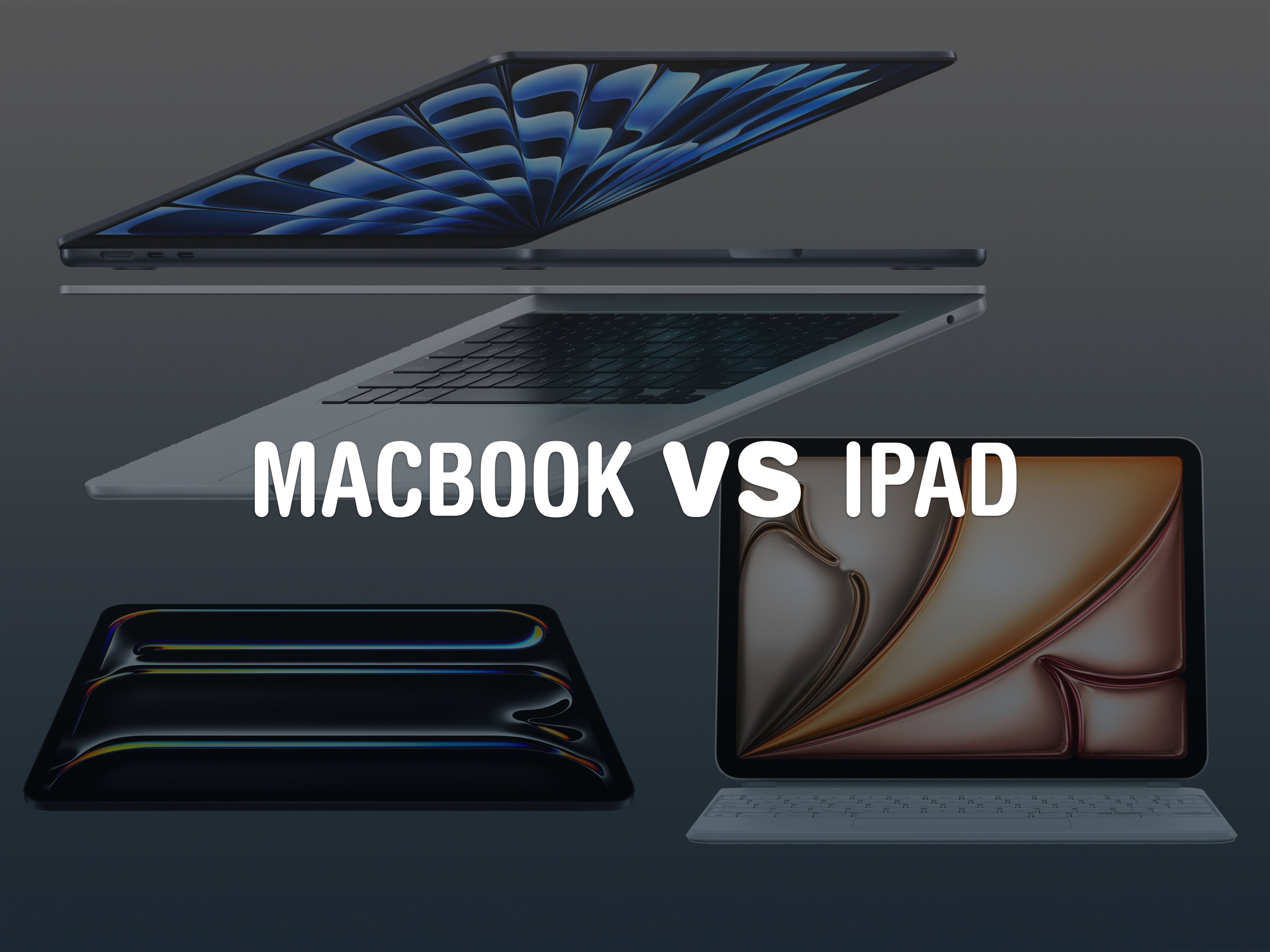
Which is the better choice these days? Image: Apple/D. Griffin Jones/Cult of Mac
Should your next computer be a MacBook or an iPad? Apple is making the iPad more powerful and capable every year — it might be good enough that you don’t need a traditional computer in your life.
While macOS is still more powerful and versatile, the iPad’s hardware offers unique capabilities that no Mac can match. The iPad is easier to pick up and use, more portable and more reliable. It’s worth considering over a laptop if you don’t do a lot of specialized work.
Here are the pros and cons, MacBook vs. iPad: Price, easy of use, portability and more. Keep reading below or watch our video.
After you’ve settled on a model and the specs you need, there’s still one more crucial decision to make before you buy a MacBook Pro: silver vs. space gray. And with the MacBook Air, you have two more options (starlight and midnight).
If you want an attractive and cohesive setup, the color of your Mac is the centerpiece of the whole look.
Which color is best? I always go with silver — but here are some things to consider before you make your decision.
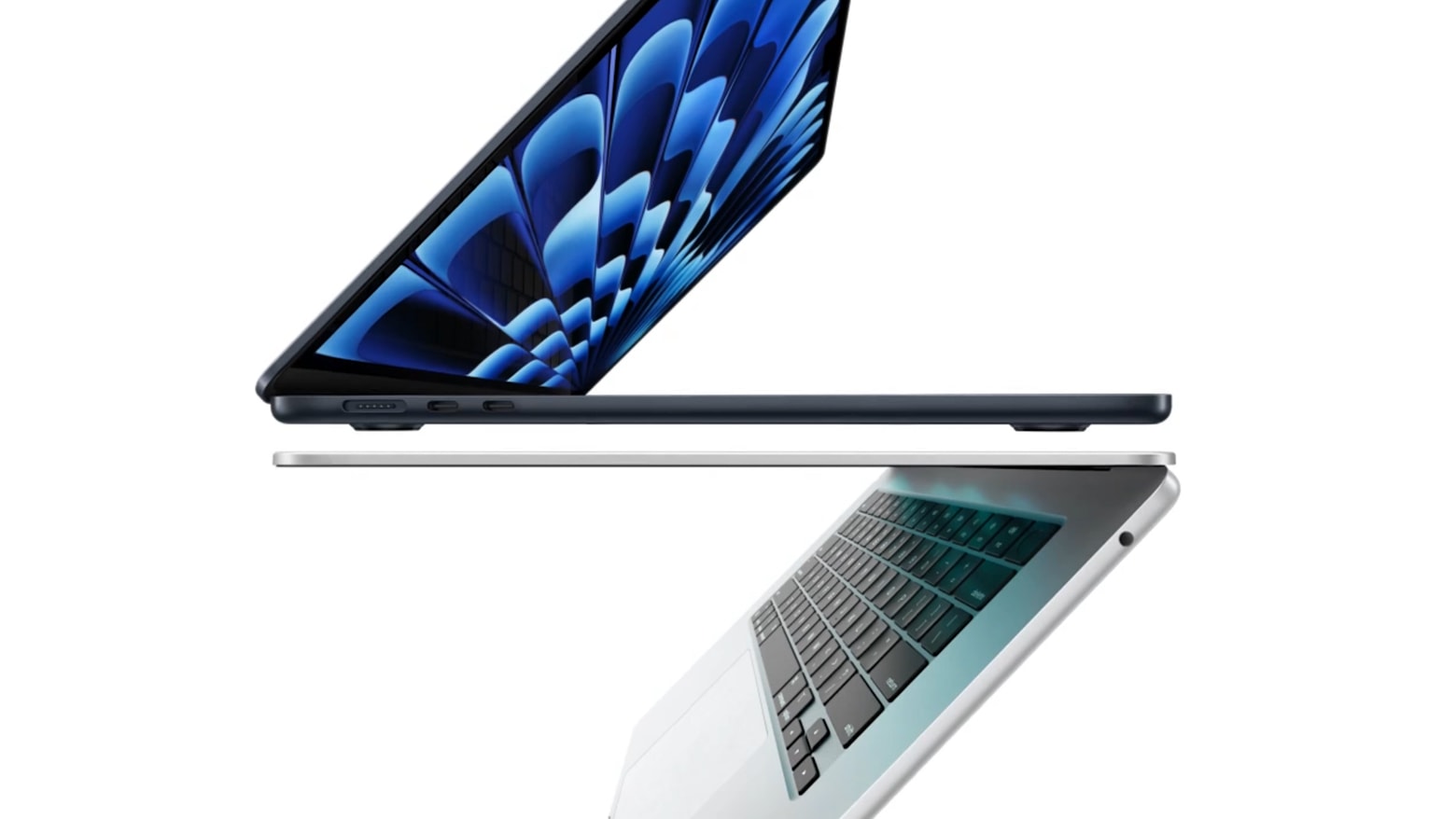
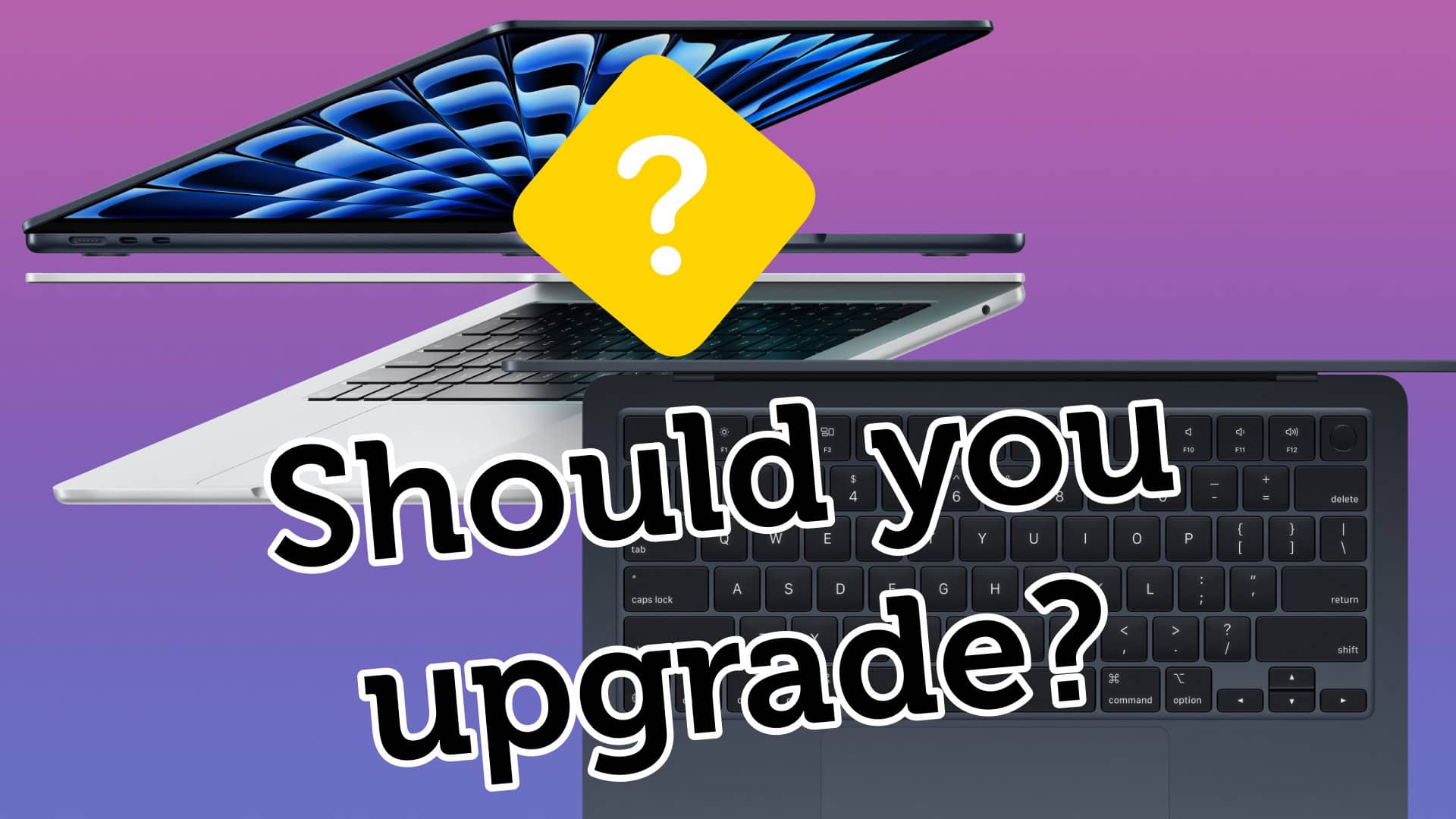
Is your MacBook old enough to justify buying the new MacBook Air? Image: Apple/D. Griffin Jones/Cult of Mac
If you still own an Intel MacBook Air, it might be time to upgrade to the new MacBook Air with M3. But what about if you own a MacBook Air running on an M1 or M2 chip? In those cases, it’s not as obvious if you should upgrade to the latest model.
Now that the newer models feature efficient and powerful Apple silicon chips, the MacBook Air is the laptop that strikes the right balance of speed and portability for most people. The thin design is easy to slip into a backpack and the battery will last all day — even when juggling dozens of apps.
How badly you need to upgrade to an M3 MacBook Air depends on which model you’re coming from. Our easy guide will help you decide. Check the infographic below or watch the video.
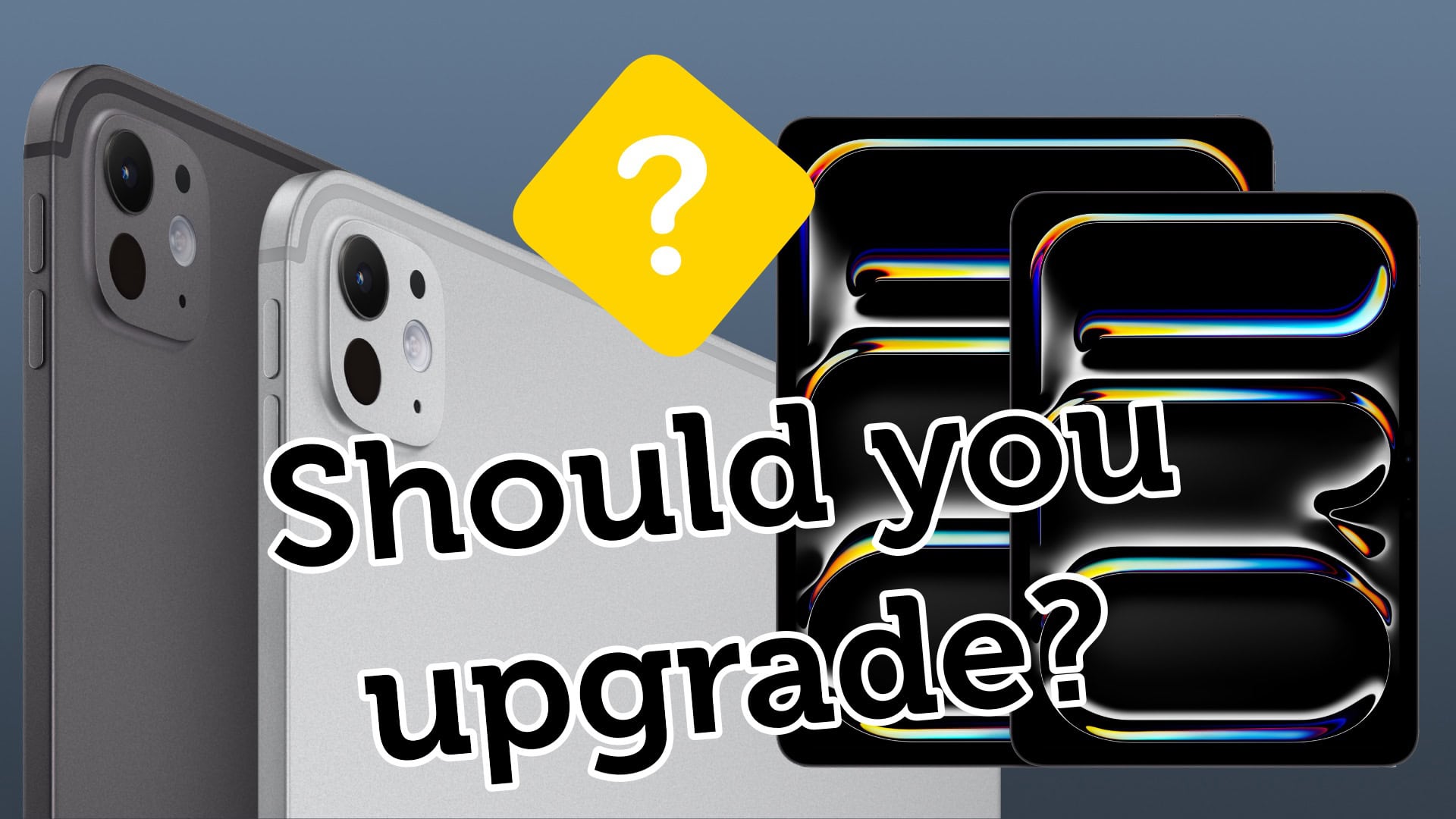
Is your iPad Pro old enough to justify buying the new iPad Pro? Photo: Apple/D. Griffin Jones/Cult of Mac
You own an iPad Pro, and you’re wondering if you should upgrade to the new iPad Pro with M4. We feel your pain. Announced on May 7, 2024, the new iPad Pro features the brand-new M4 chip. It’s the top-of-the-line iPad with a gorgeous Tandem OLED display and a radical thin-and-light design.
It’s easily upgradable with the new Apple Pencil Pro and refreshed Magic Keyboard. But whether it’s worth upgrading depends on which iPad Pro you use right now. We put together a guide to help you decide. Check the infographic below or watch the video.
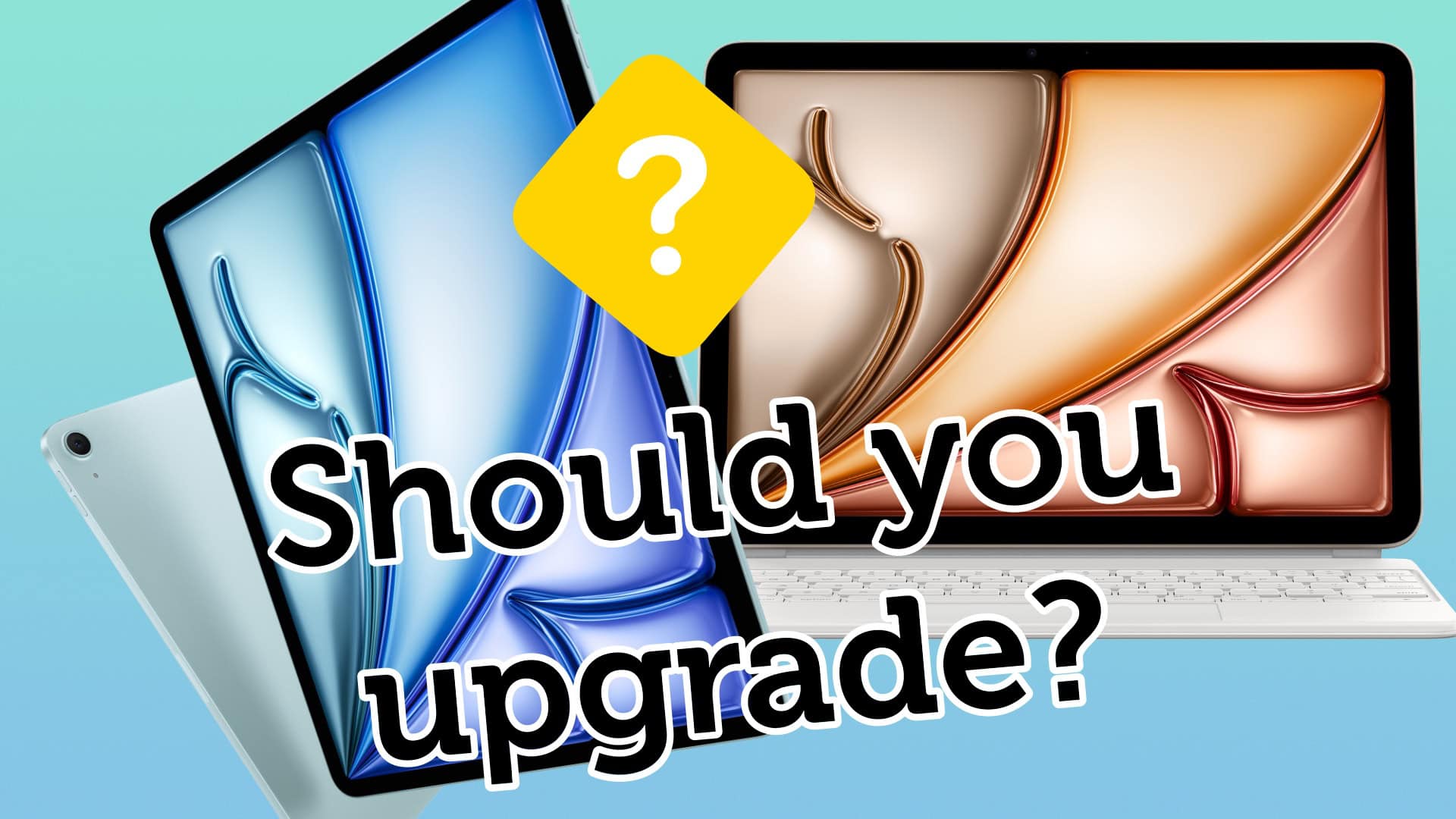
Is your iPad Air old enough to justify buying the new iPad Air? Image: Apple/D. Griffin Jones/Cult of Mac
Depending on which model of iPad you own, it might be time to upgrade to the new iPad Air with M2. Announced on May 7, 2024, the new iPad Air features a speedy Apple M2 chip. It’s a great middle-of-the-road iPad, with plenty of storage on the base model and a nice display that’s now available in a 13-inch size. It’s easily upgradable with the Apple Pencil and Magic Keyboard.
However, whether it’s worth upgrading to the M2 iPad Air depends on which iPad you already own — so we put together a buying guide to help you make the decision. Check the infographic below or watch the video.
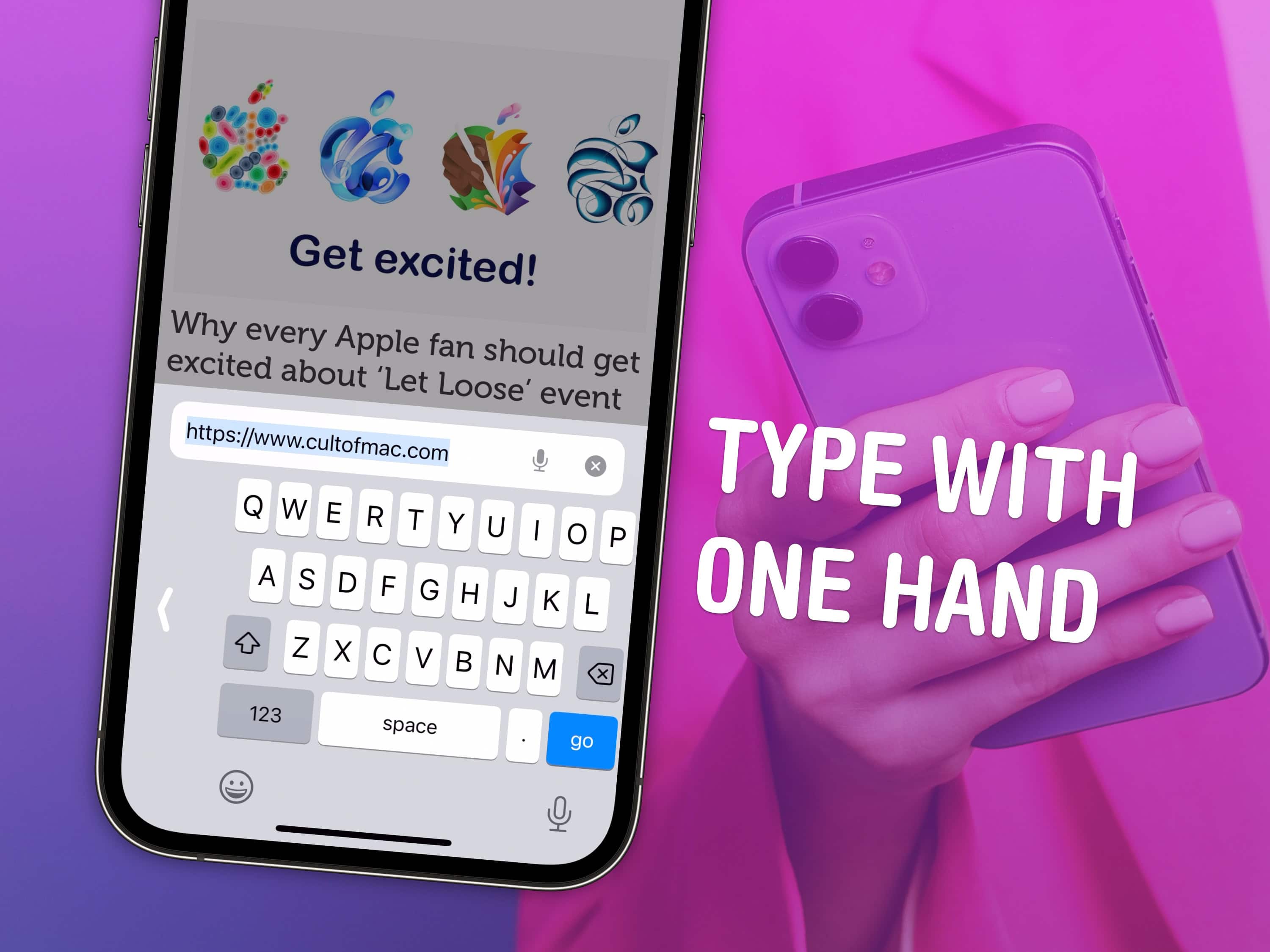
Use your phone in one hand without fumbling around. Image: D. Griffin Jones/Cult of Mac
The iPhone has a one-handed mode for the keyboard and a feature called Reachability for tapping buttons on the top of the screen. Learning how to use both these features can help you shoot out a text or use apps on your phone in one hand while you’re doing something else or walking around with a cup of coffee.
As iPhones continue to get bigger and bigger, these features become ever more important. Here’s how to activate the iPhone’s one-handed keyboard and use Reachability. Keep reading or watch the video.
Watch the event in just 3.95% of the time. Photo: Apple
Today’s “Let Loose” Apple event overhauled the iPad lineup. Apple unleashed a new iPad Pro and iPad Air, the refreshed Apple Pencil Pro, a sleek new Magic Keyboard, and lowered the price of the regular iPad. The iPad mini was acknowledged, too.
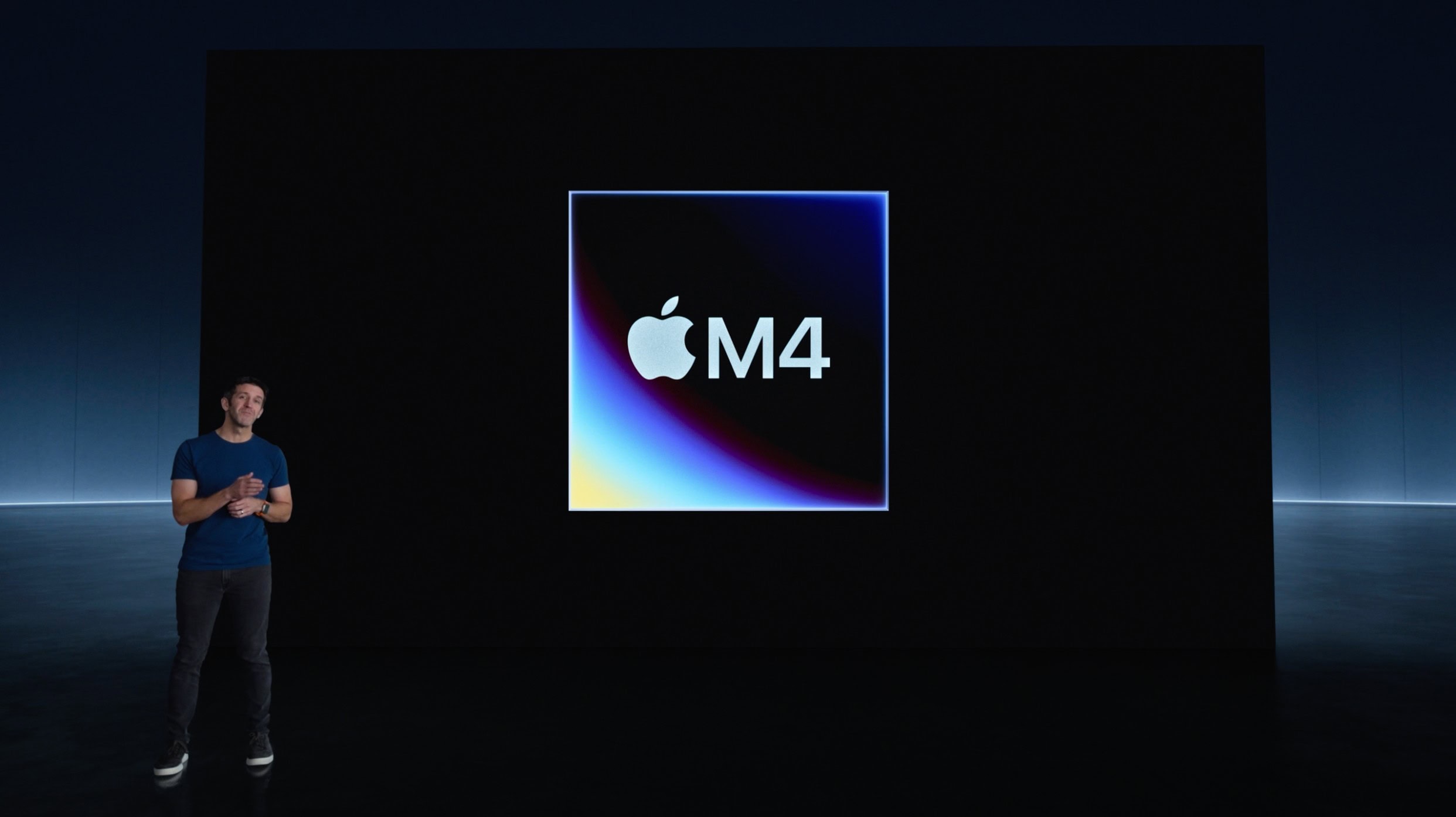
Tim Millet, Apple’s vice president of platform architecture and hardware technologies, says the M4 chip was “essential to deliver incredible performance” in the new iPad Pro, which is now “the most powerful device of its kind.”
The M4 chip was a last-minute rumor broken by Mark Gurman, which was dismissed by some as being unfeasible only half a year after M3 rolled out in last year’s MacBook Pro.
You’re bound to find some of these handy. Image: D. Griffin Jones/Cult of Mac
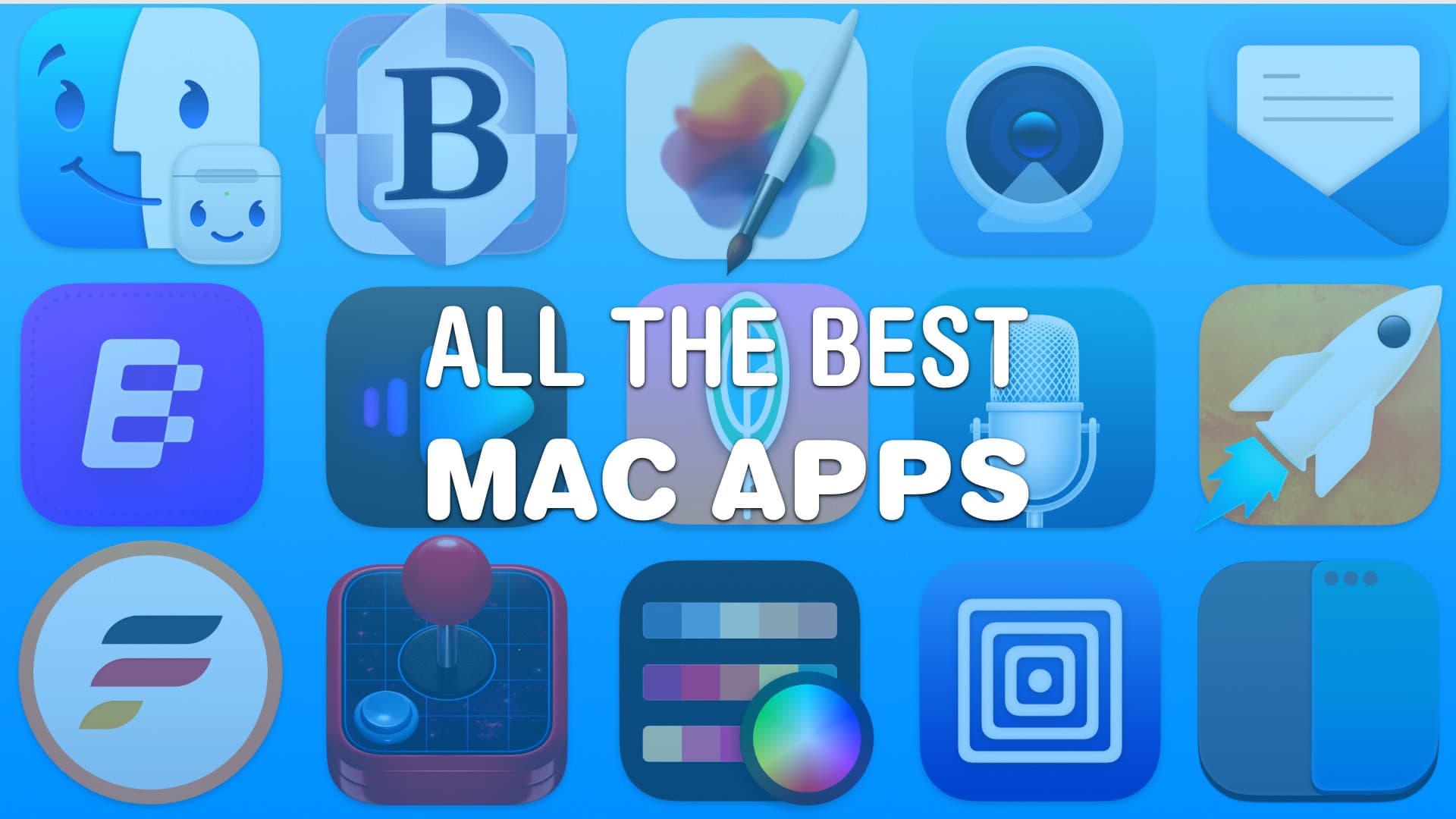
These are the best Mac apps that’ll help you through all kinds of work — writing, graphic design, video editing — with a few simple (must-have) utilities that everyone can make use of.
Finding good apps can be hard, especially if you’re new to the Mac. Luckily, we’ve put together a list of the very best.
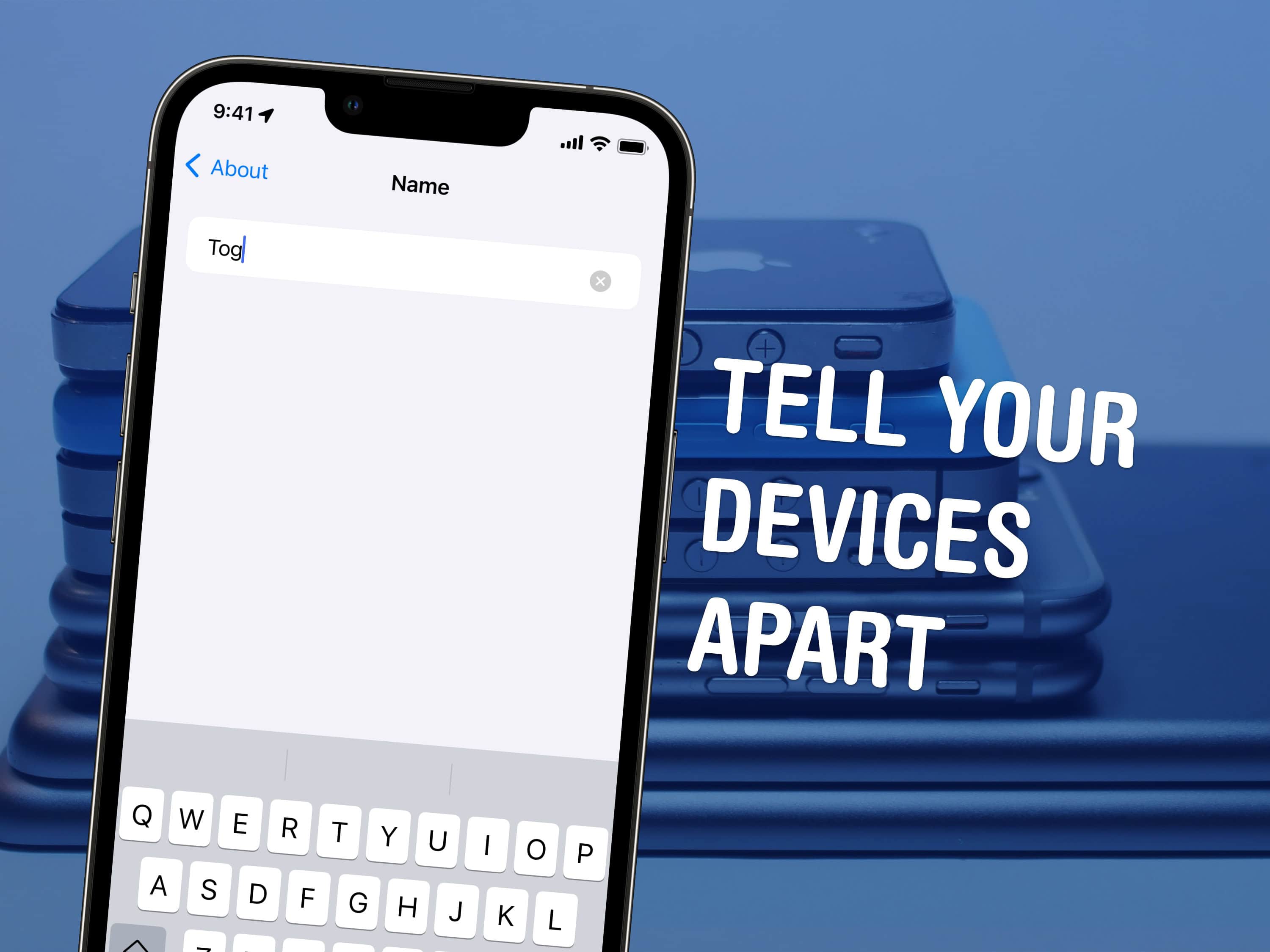
Change the name so you can tell them apart. Image: D. Griffin Jones/Cult of Mac
You can change the name of your Apple devices, whether you have an iPhone, iPad, Apple Watch, Mac, AirPods or Apple TV. By default, it’s just “[your name]’s iPhone.” But you can give your iPhone its own unique name, like Kit-Kat or Magic Rectangle.
Also by default, when you set up a new iPhone, the name is transferred. This can get confusing if you keep old phones around because you’ll see “John’s iPhone,” “John’s iPhone (2),” maybe even “John’s iPhone (3)” and more. The same is true for Apple Watch, Mac, iPad and AirPods.
The name of your device shows up among a bunch of Apple features like AirDrop, Find My, Personal Hotspot, AirPlay and more. If you use these features often, giving it a unique name will make it easier to identify.
Here’s how to fix this mess on all your Apple devices. Keep reading or watch our video.
Remove your Apple ID without a password from your iPhone. Image: D. Griffin Jones/Cult of Mac
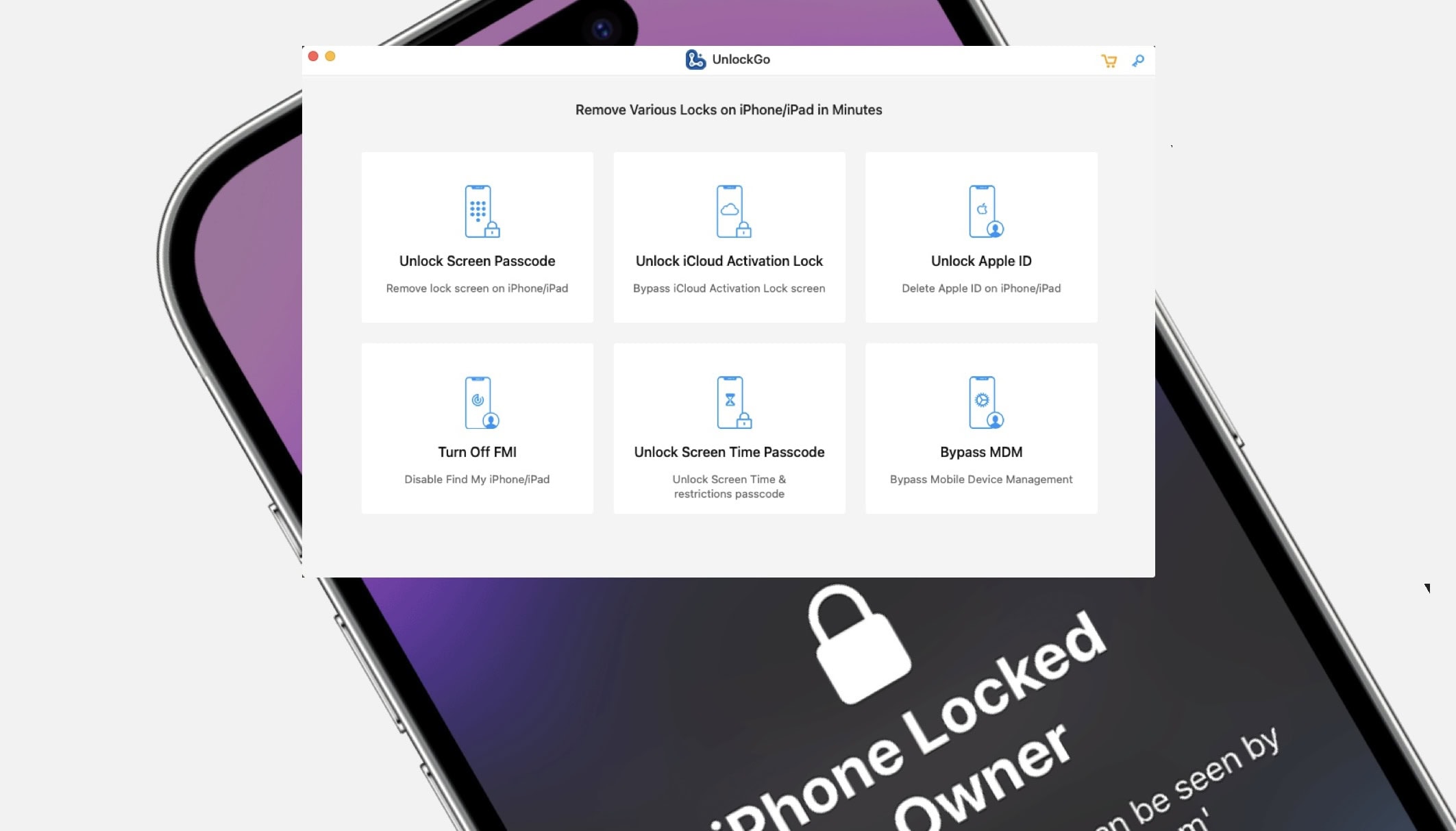
It’s possible to remove an Apple ID from your iPhone without a password using UnlockGo.
You can unlock iCloud Activation Lock without a password or the previous owner, remove a forgotten Screen Time passcode without data loss, bypass MDM locks and more. It’s a really powerful app and it’s available for both Mac and PC.
SPONSORED
This post is brought to you by UnlockGo.
If you get a second-hand iPhone but find out the seller didn’t fully reset it beforehand, UnlockGo will fix it. Here’s how it works.