Mobile menu toggle

How-To - page 12

How to run Linux and Windows on iPhone and iPad

By

Windows XP On Your Phone
Now, the iPad is a real computer.
Image: D. Griffin Jones/Cult of Mac

With the recently-released PC emulator UTM SE, you can now emulate Windows on iPad directly. You can revisit old PC games, just like how you can use Delta to play old Nintendo games. You can also install Mac OS 9 or Linux. With Ubuntu, Debian or other versions of Linux, you can run all kinds of open-source software for getting real work or programming projects done.

But bad news: You can’t use it to run macOS Sonoma on your iPad. There’s some confusion about this, but unfortunately the long-held dream of turning your iPad into a Mac will have to wait for another day.

Setting it up is a little finicky — but the reward of seeing that classic Windows XP desktop on your iPad can make it all worth it. Keep reading to see how it works.


5 more secret iPhone gestures you need to know

By

Secret Faster Gestures
These secret gestures will speed up your iPhone.
Image: D. Griffin Jones/Cult of Mac

Here are a few secret tricks and gestures that will help you get around your iPhone faster. These hidden gestures help you text pictures to your friends faster, scroll through big pages and screens, type special characters and use your phone one-handed.

This is a follow-up to an earlier article with three other secret iPhone gestures you need to know. Learn all of these gestures and you’ll feel like an iPhone power user.

How to check iPad battery health

By

iPad Battery Health How To
Knowing your iPad battery health helps you decide when it's time for a new tablet.
Image: Ed Hardy/Cult of Mac

Checking the health and maximum capacity of the battery in older iPad models isn’t as easy as it should be, but we can walk you through the process. Finding out how worn out the tablet’s battery is can help you decide if it’s time for a new model.

But for those who already upgraded to the latest iPad Pro or iPad Air, checking battery health is a snap.

How to use Final Cut Camera, Apple’s free pro video app for iPhone

By

Pro Video Recording
Final Cut Camera goes above and beyond the regular Camera app.
Image: Apple/D. Griffin Jones/Cult of Mac

Final Cut Camera is a new Apple app that offers incredible manual control over your iPhone’s camera system. If you use your phone for professional videography — or even for a hobby project — you should use this free app to take videos rather than sticking with the stock Camera app.

Final Cut Camera comes absolutely packed with professional features the Camera app can’t match. The new app gives you finer control over exposure, white balance, color temperature and more. You can enable image overlays to see which parts of the frame are in focus or overexposed. In short, it’s a highly versatile camera. You can even pair it with Final Cut Pro for iPad to capture footage from multiple iPhones simultaneously.

Final Cut Camera is totally free on the App Store. Keep reading to learn how to use it. 

How to reset AirPods Pro

By

How to Reset AirPods Pro
Discover the difference between soft and hard resets.
Photo/Graphics: Apple/Rajesh Pandey/Cult of Mac

Are your Apple earbuds acting weird? Sometimes you need to reset your AirPods Pro, AirPods Max or regular AirPods to eliminate connection problems and other minor glitches. You have two possible courses of action: a hard reset and a soft reset.

Follow this guide to learn the difference between those two options, plus how to reset, unpair and remove the earbuds from the Find My network.

Check In: Everyone should know this essential iPhone safety feature

By

Where Did You Go?
A smarter way to keep tabs on your loved ones’ travels.
Image: Boonlert Aroonpiboon/Wikimedia Commons/D. Griffin Jones/Cult of Mac

Check In is an iPhone feature that tracks your travels and lets contacts know when you’ve safely reached your destination. It’s great for traveling, or kids going to and from school, or even going on a date. You no longer need to count on remembering to text someone when you make it home safely — your iPhone will let them know for you.

Check In is like sharing your ETA in Apple Maps, but tweaked for personal safety. Friends, family and loved ones will be automatically notified if you’re stopped for any reason before reaching your destination. The safety feature also offers timer-based check-ins, which come in handy for situations like meeting a stranger from Craigslist. If you don’t check in after a set time, your iPhone will alert your contacts.

Here’s how to use it — frankly, every parent should know how this works.

The 8 best iPhone shortcuts to get you started

By

Best iPhone Shortcuts
If you don’t know where to start, here’s a taste of what’s possible.
Image: D. Griffin Jones/Cult of Mac

If you’ve never tried making your own Siri Shortcuts, I’ve compiled a short list of the best shortcuts for iPhone to introduce you. Shortcuts can quickly run automated actions on your phone (and on your iPad or Mac). They’re made using Apple’s Shortcuts app, where you can visually piece together actions offered by the apps installed on your device.

You can run a shortcut by asking Siri or by putting a widget on your iPhone’s Home Screen. Not a lot of people know this powerful feature exists — or what it can do for them. For eight examples of what you can do with shortcuts, keep reading or watch our video.

The fastest way to make a GIF on your iPhone (or Mac)

By

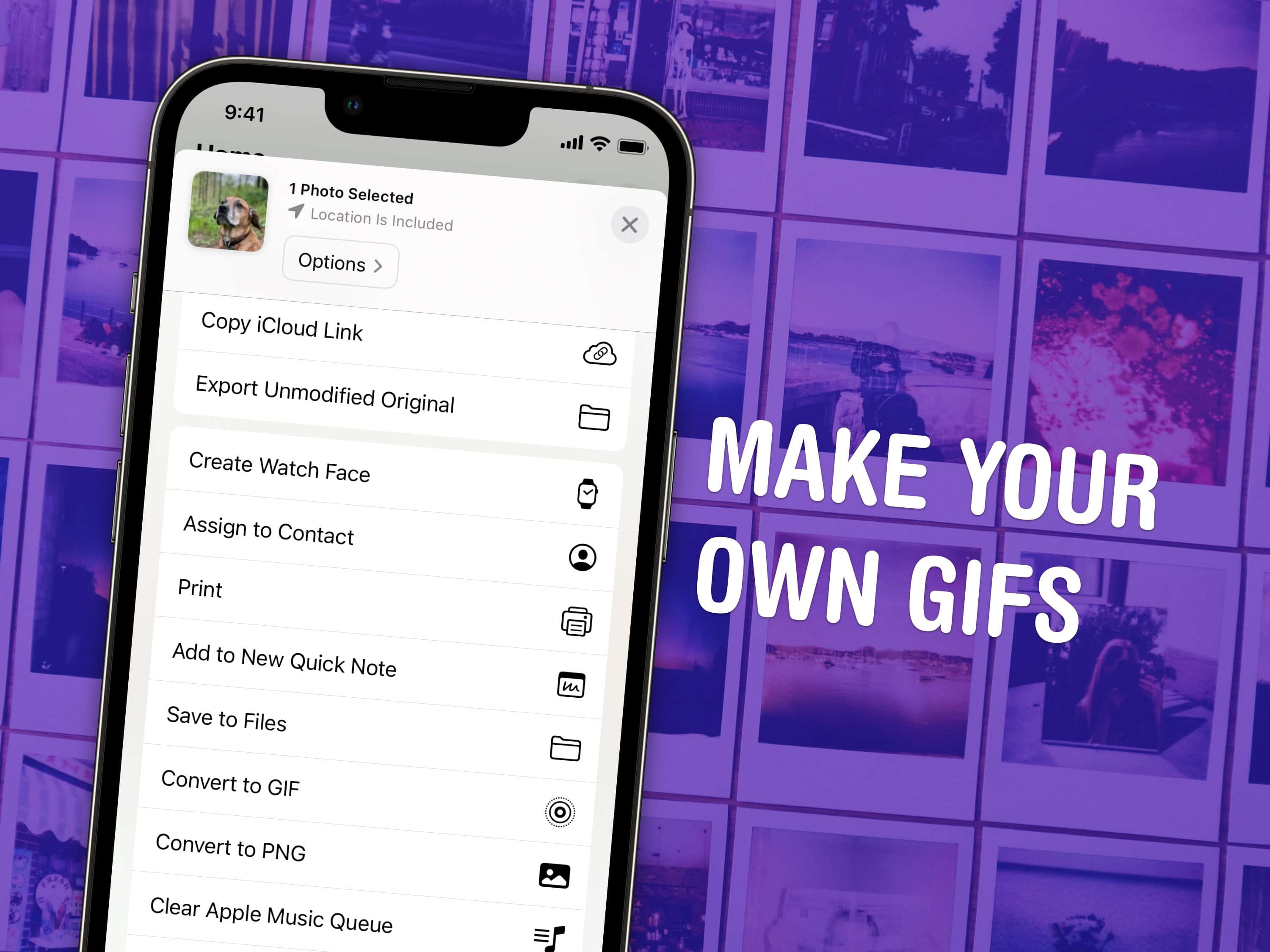
Make Your Own GIFs
Turn any Live Photo or video on your phone into a short GIF.
Image: D. Griffin Jones/Cult of Mac

You can make a GIF on your iPhone or Mac out of any Live Photo or video you have in your photo library or saved to your computer. You don’t need to download any apps — simply add a shortcut, and you can do it directly from the share sheet.

Of course, not all looping animated images are GIFs. A faster way to animate your Live Photos is with the iPhone’s built-in Loop effect. In the Photos app, just tap on the “Live” tag in the upper left and select “Loop.” This will produce higher-quality results, but might not be compatible with third-party apps like Snapchat or Discord.

If you need an actual GIF file, there’s still a pretty easy way to make them on your phone or Mac. I’ll show you how.

How to customize Apple Watch widgets for easy access to your favorite apps

By

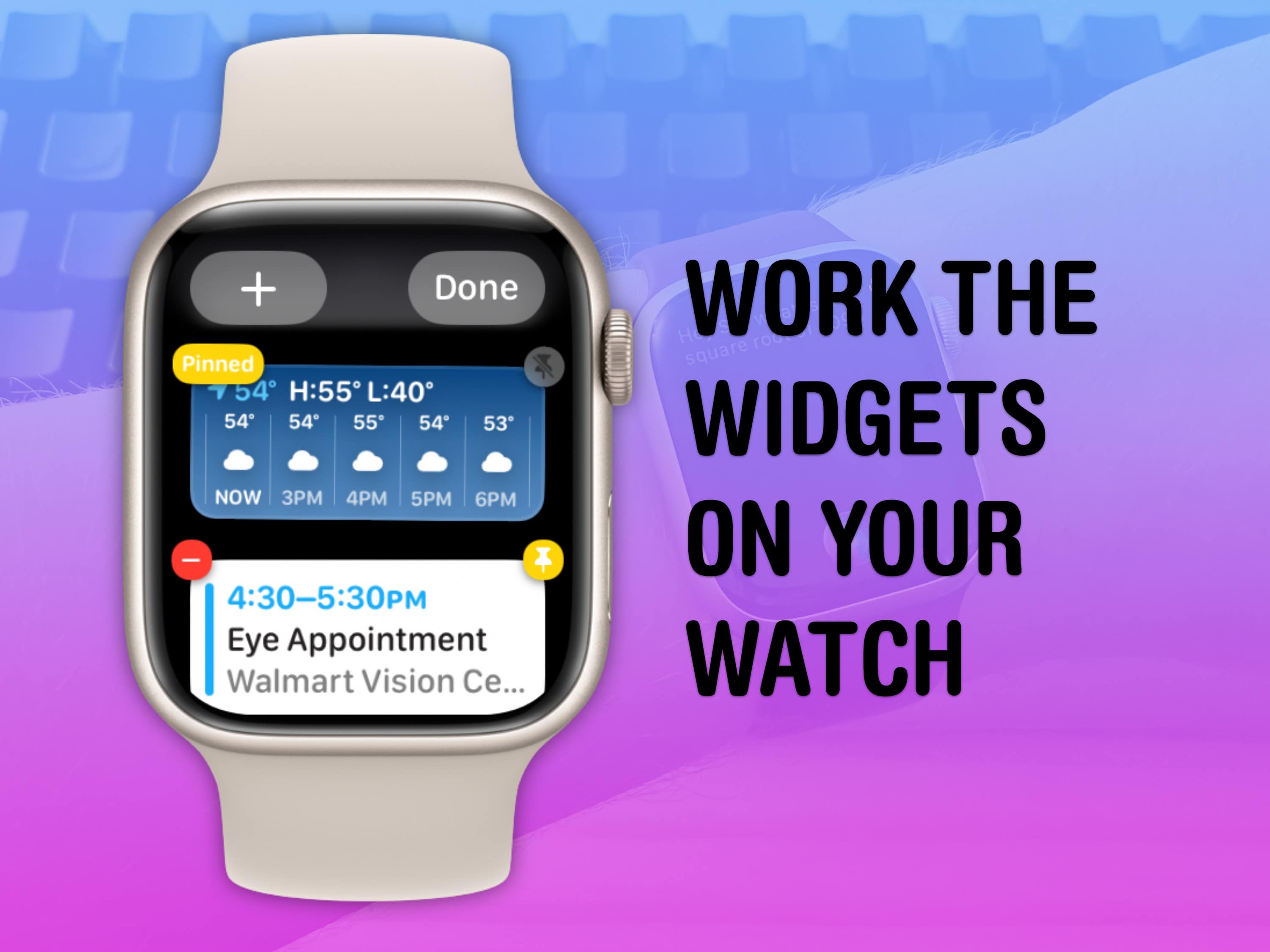
Work The Widgets On Your Watch
Make the most out of your Apple Watch widgets.
Image: D. Griffin Jones/Cult of Mac

Customizing the widgets Smart Stack on your Apple Watch is a great way provide easy access to the apps you use most. If you have a Tim Cook-esque Apple Watch face full of complications, you can rely on widgets instead. You just need to edit the widgets in your Apple Watch’s Smart Stack to provide the same quick access to your most-used apps and activities.

Today, I’ll show you how to make the most of your Smart Stack of widgets on Apple Watch.

How to stop your AirPods from switching between devices

By

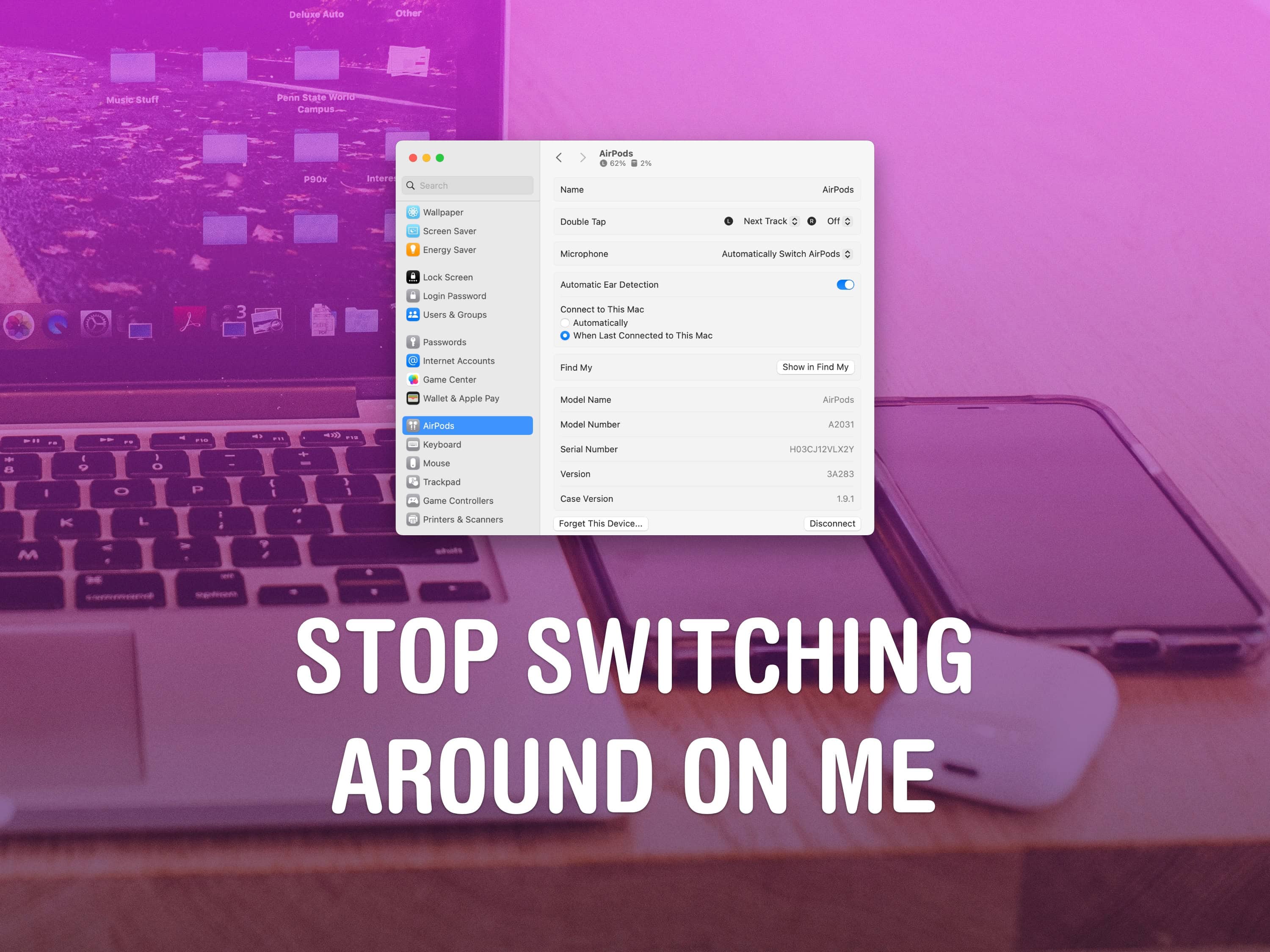
Stop Switching Around On Me
Apple’s “intelligent” switching can get annoying.
Image: D. Griffin Jones/Cult of Mac

If you’re trying to listen to podcasts or music on your phone, it can be annoying when your AirPods keep switching to other devices, like your Mac or iPad.

Personally, I don’t mind this behavior. If I’m sitting at my Mac, I want to use the Music and the Podcasts apps on the Mac. But a lot of people consider their phone to be their primary device and always want to play audio from their phone, no matter which other device they’re using.

If you want your iPhone to keep supreme control over your ears, here’s how to disable AirPods auto-switching.

How to leave a FaceTime voicemail

By

Leave A Message After The Beep
More like “videomail” or “videomessage.”
Image: D. Griffin Jones/Cult of Mac

You can send a FaceTime voicemail to someone if they don’t answer when you need to video chat. It’s better than leaving a regular voicemail because it’s video — you can relay a message quickly or show something off on camera.

For instance, if your dog or your human child is doing something cute, or if you want to get a second opinion on an outfit, you might want to show someone. If they don’t answer your FaceTime call, you can record a video to send them to watch later.

Here’s how FaceTime voicemail works.

How to find the iPad Magic Keyboard’s hidden backlight

By

How to find the iPad Magic Keyboard's hidden backlight
The control for the iPad Magic Keyboard's backlight isn't where you might think it is.
Image: Ed Hardy/Cult of Mac

Some people complain that the Apple Magic Keyboard for iPad lacks a backlight for the keys. Turns out the accessory really has one but the controls aren’t where you might expect.

Here’s how to find the control for the Magic Keyboard in the Control Center. And how to adjust the backlight, too.

How to contact emergency services via satellite with iPhone 14 and iPhone 15

By

Apple launches free Emergency SOS via satellite on all iPhone 14 and iPhone 15 models
Your iPhone 14 or iPhone 15 can save your neck by sending out an SOS for help over a satellite connection.
Photo: Apple/Cult of Mac

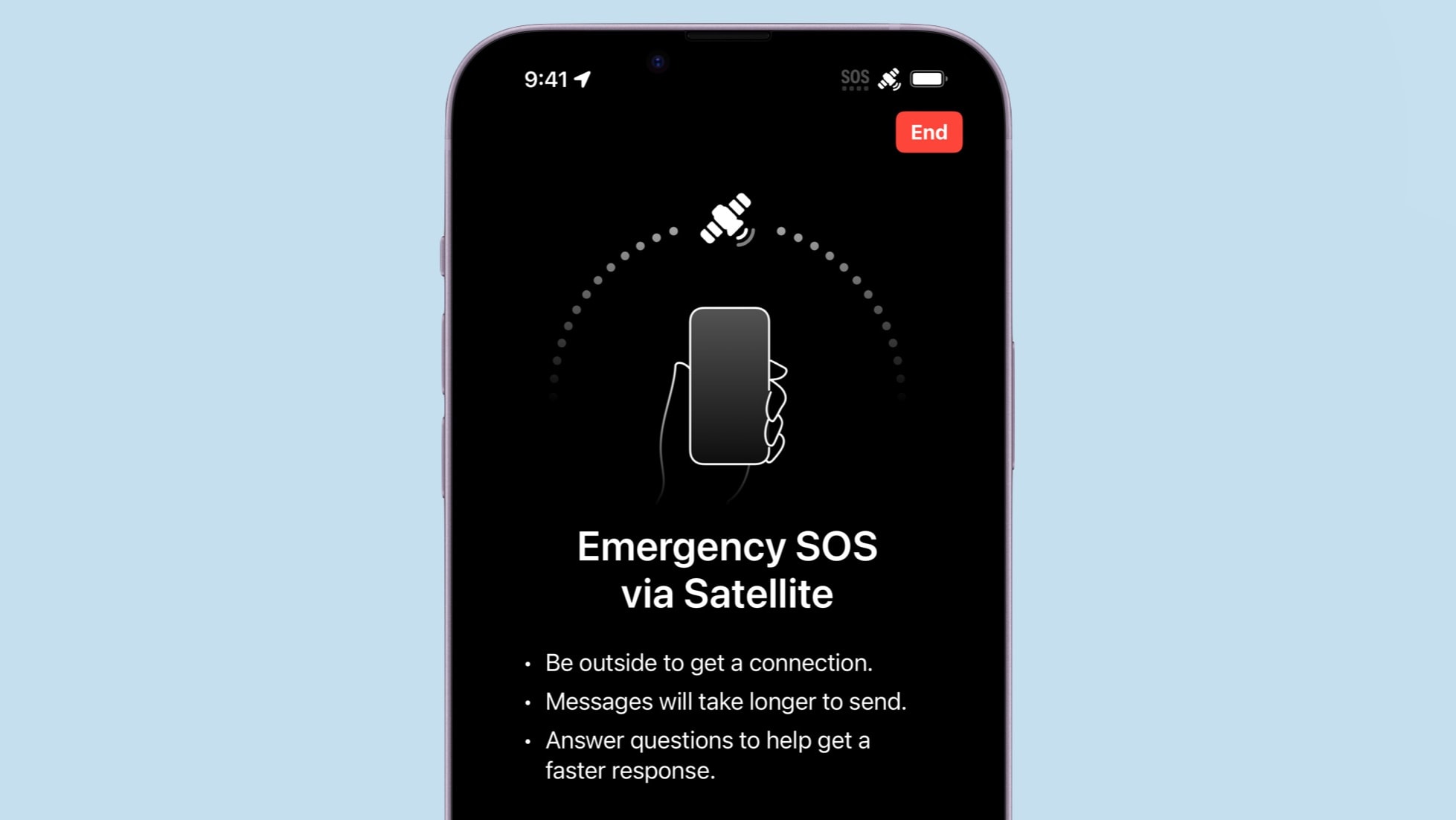
If you own an iPhone 14 or iPhone 15, it’s time to test one of its best abilities: Apple’s Emergency SOS via satellite service. This allows users of these iOS handsets to exchange messages with emergency services while outside of cellular and Wi-Fi coverage.

Getting a compatible iPhone in contact with a satellite isn’t complicated. But it’s something users should know how to do before they need this potentially lifesaving feature.

Here’s how to use the iPhone’s Emergency SOS via satellite feature.

How to turn off those irritating Apple TV sports notifications

By

Fix the Apple TV’s Most Annoying Problems
Turn off those pesky sports notifications, and much more.
Image: Davidbspalding/Wikimedia Commons/D. Griffin Jones/Cult of Mac

You can turn off those annoying Apple TV sports notifications to stop the constant interruptions while you’re watching your shows and movies. Considering I have no interest in sports, I never watched live sports on Apple TV, and I never agreed to be shown these notifications, every time they come up, I’m intensely irritated.

Apple did a fairly good job of hiding the setting that lets you turn off those irritating sports notifications. However, you can do it — if you know where to look. In this how-to, I’ll show you how to shut them down, along with some of the other Apple TV settings you should change while you’re at it. Keep reading or watch our video.

How to ping your lost Apple Watch from your iPhone

By

An image of an iPhone with the words
It's not easy to find in a pile of miscellaneous clutter.
Image: D. Griffin Jones/Cult of Mac

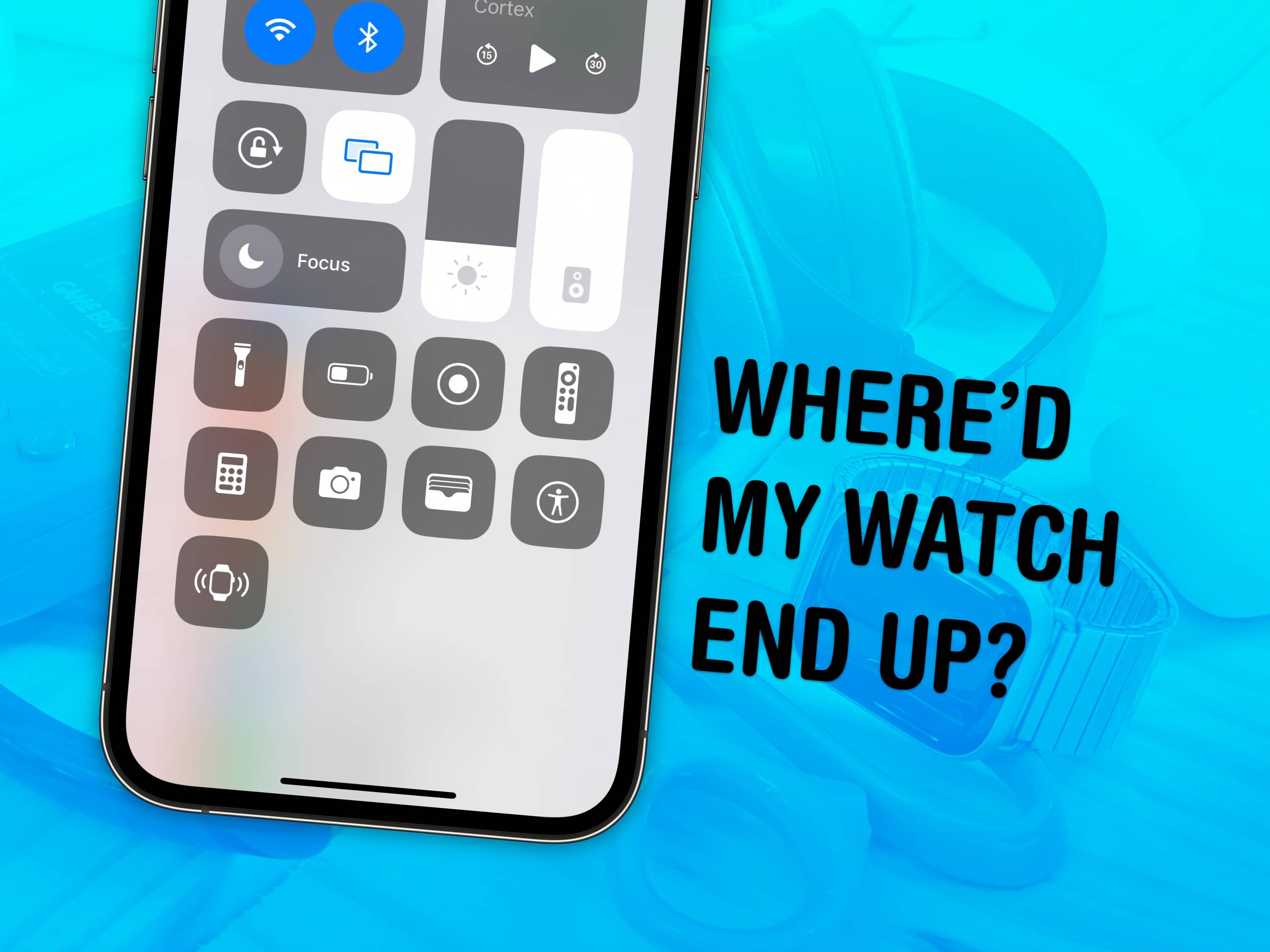
You can ping a lost Apple Watch from your iPhone, thanks to iOS 17 and watchOS 10. The reverse has always been a cool feature of the Apple Watch, helping you find a lost iPhone you left somewhere nearby.

If you take your Apple Watch off at the end of the day, forgetting to throw it on the charger, you might not remember where you left it the following morning. Now, you can find a lost Apple Watch from your iPhone. Here’s how it works.

How to protect your Mac from malware in 2024

By

dead MacBook hack. A Mac virus scanner and proper antimalware software like Intego Mac Premium Bundle x9 can keep your Mac clean.
Are you protecting your Mac yet?
Photo: Ste Smith/Cult of Mac

Contrary to popular belief, Macs are not immune to trojans and viruses. In the last couple of years, there’s been a significant uptick in the number, variety and sophistication of malware targeting Mac users. And some of it is so sneaky, you might not even know about it until a Mac virus scan shows your machine’s been infected.

While Mac attacks are still a fraction of those on Windows (or even Linux), Mac malware has become a lot harder to detect and remove. Plus, Mac users tend to be targeted individually, rather than en masse, often with malware that’s freely available online and disguised as harmless apps. That means the attacker doesn’t need to be a computer genius — a disgruntled ex could probably figure it out.

Protecting your Mac from trojans and viruses is crucial to ensure that your personal data, privacy and overall system integrity remain intact. This comprehensive guide will walk you through the essential steps to safeguard your Mac and introduce Intego, a top-tier solution for robust protection.

3 reasons you shouldn’t close your open iPhone apps

By

Should You Quit Your Apps?
Betteridge's law of headlines says no.
Image: CollegeDegrees360/Wikimedia Commons/D. Griffin Jones/Cult of Mac

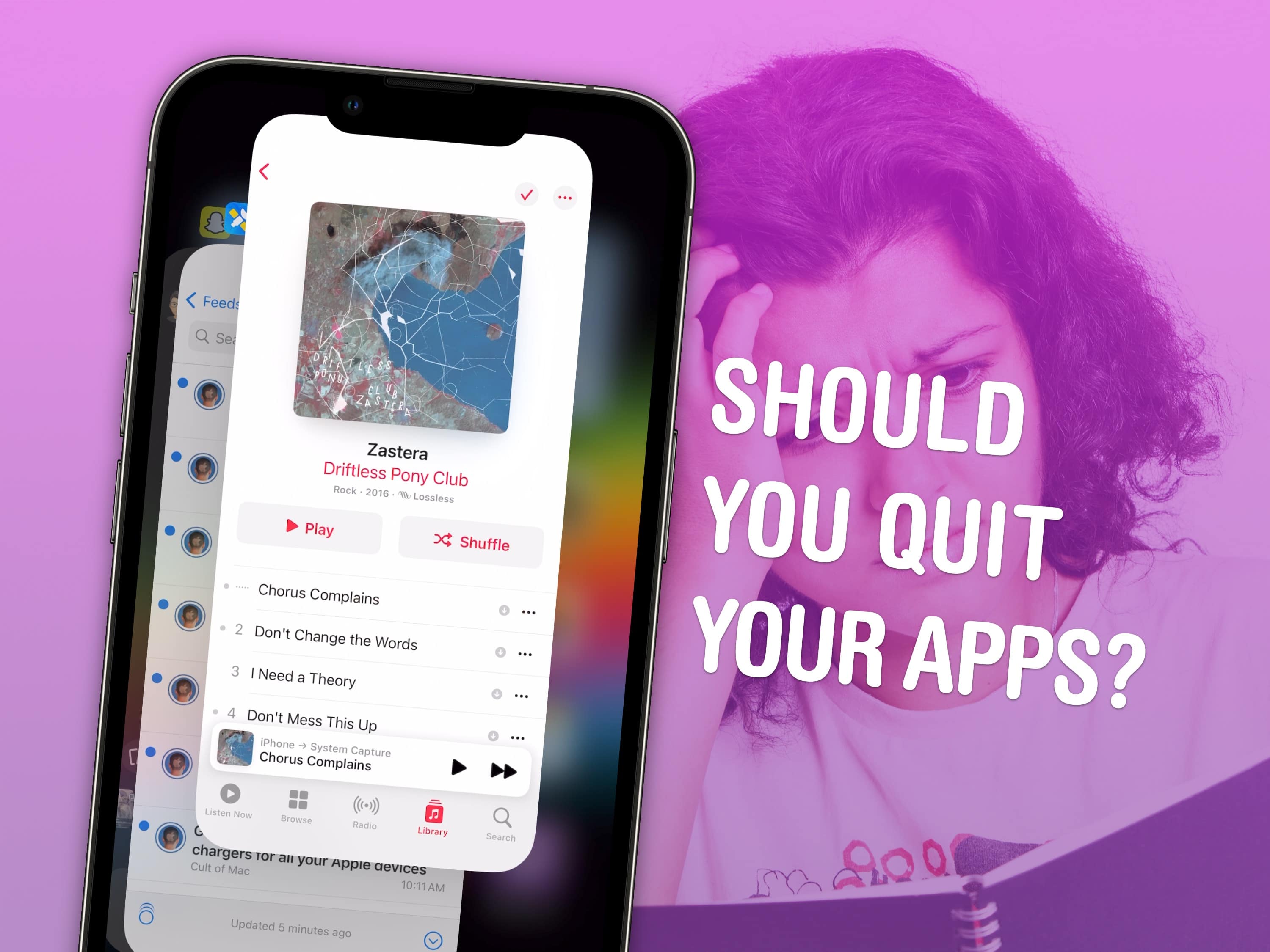
It’s good to know how to close apps on iPhone for those times when an app is acting buggy or becomes unresponsive. It’s really easy — just swipe up to see your running apps and swipe up again to close them. However, does this mean you should you quit open apps? No, not at all.

Despite what you may have heard, quitting apps on iOS usually makes things worse, not better. It’s a myth that quitting apps will save battery life, make your iPhone run faster or free up memory. Overall, it negatively impacts your iPhone performance. Here’s how to close iPhone apps — plus three reasons why you shouldn’t rush to do it.

How to use Apple Watch’s fantastic nightstand mode

By

Zzzzzz. The Apple Watch's nightstand mode even has snooze.
Photo: Charlie Sorrel/Cult of Mac

Have you heard of the Apple Watch’s nightstand mode? I knew about it from digging through the settings in the Watch app on my iPhone, but I never tried it out. I wear my watch while sleeping, mostly so I get a nice haptic alarm in the morning instead of an audible iPhone alarm. But if you charge your watch overnight, you should almost certainly be using nightstand mode, formerly known as bedside mode.

How to use grocery lists in Reminders on iPhone

By

Faster Shopping
Find your way around the store faster by converting your Reminders list into a grocery list.
Image: D. Griffin Jones/Cult of Mac

In iOS 17, you can use Apple’s Reminders app as a grocery list app on your iPhone. It automatically sorts items you add into common sections, which proves incredibly helpful when you go shopping. Just open the Reminders app, and you can easily see if you’ve got everything you need as you’re making your way through the store.

I’ll show you how to use it, including how to share your Reminders app grocery list with someone else so you can both add items and check them off the same list.

Unsend and edit iPhone messages after you send them

By

Unsend and Edit
Fix your mistakes before it's too laet.
Image: D. Griffin Jones/Cult of Mac

Knowing how to unsend an iMessage can help you out of a pickle if you accidentally shoot off a text to the wrong person. You also can edit a message after it’s sent to fix a grave typo you didn’t catch. Like if you accidentally text your mom “Finally got laid today!” when you meant to type “paid.”

Keep reading to see how to unsend or edit an iMessage on your iPhone, or watch our quick video tutorial.

How to block contacts from calling, texting and emailing

By

Make Like A Lego And Get Blocked
Here are all the details on how to block a number on iPhone.
Image: D. Griffin Jones/Cult of Mac

Spam calls and text messages seem absolutely relentless these days — you’ll want to know how to block a number on your iPhone to keep your sanity. Luckily, it’s easy. There are a variety of ways you can stop unwanted calls. You can block an incoming phone call or text message. And you can send unknown callers directly to Live Voicemail.

If you’re blocking a person in your contacts list, it doesn’t matter which app you block them from — Messages, Phone, Contacts, Mail, Settings — they will be blocked everywhere. Here’s how to block calls from unknown numbers on iPhone and generally keep spammers at bay.

How to find your lost Apple TV remote with your iPhone

By

Screenshot of an iPhone feature that lets you find a lost Apple TV remote. The phrase
A modern solution to an age-old problem.
Photo: D. Griffin Jones/Cult of Mac

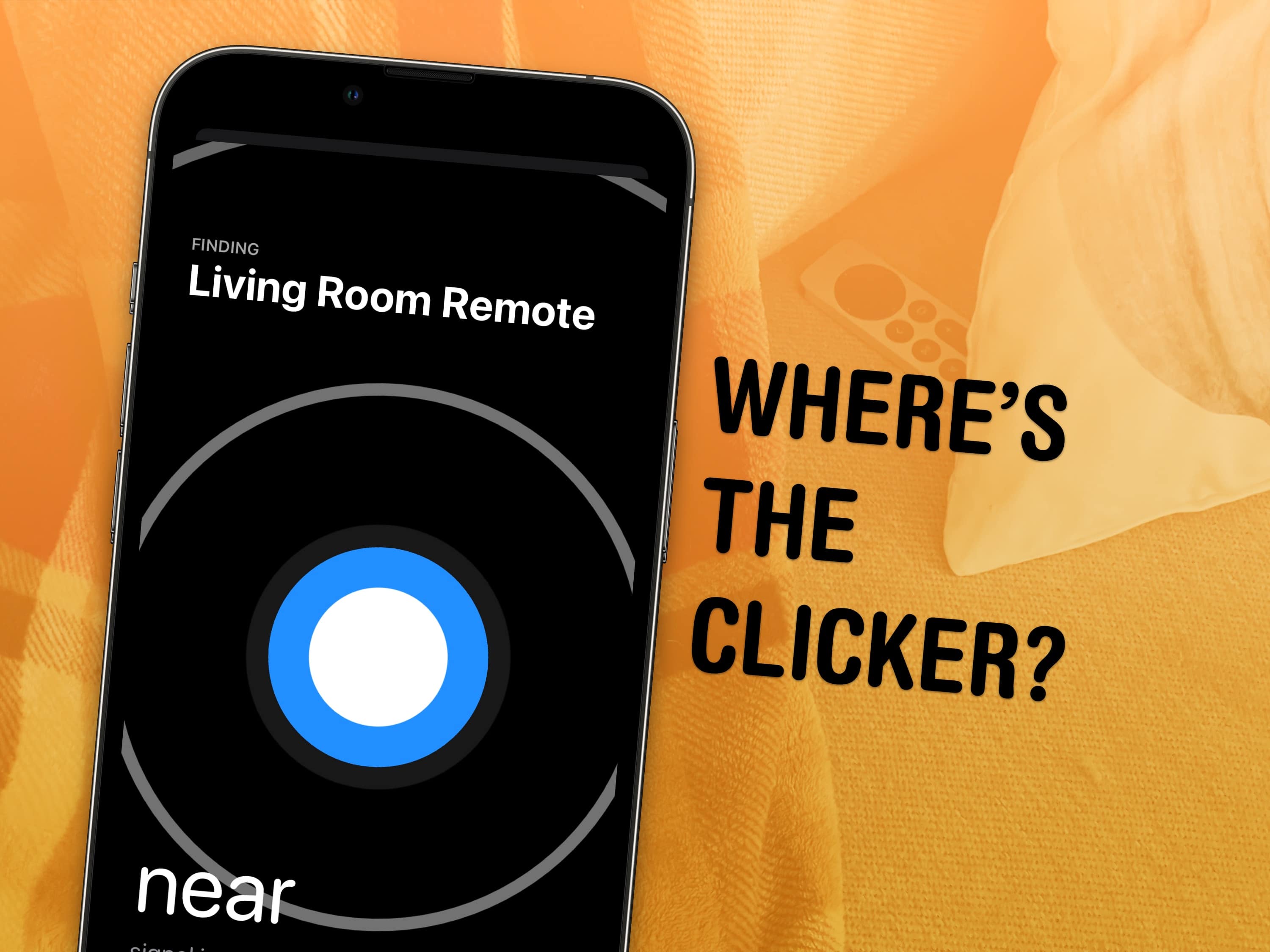
Whether it’s wedged between the cushions or kicked far under the couch, a handy-dandy feature in iOS 17 and tvOS 17 lets you find your lost Apple TV remote using your iPhone.

Sure, you can take the L and simply use your iPhone or Apple Watch to control your Apple TV. But I like having the physical remote on hand, too.

The mind races when one imagines how many hours of human life might have been saved if everyone had this feature 30 years ago. Let me show you how to find your AWOL Apple TV remote with your iPhone.

Instantly share photos, videos, links and more with AirDrop

By

Drop It My Way
AirDrop is right up there with iMessage as a great Apple-exclusive feature. Learn how to use it.
Image: D. Griffin Jones/Cult of Mac

If you want to know the fastest and easiest way to send someone photos, videos, files and so, so much more, you should know how to AirDrop. There’s no need to send an iMessage — Apple’s slick AirDrop feature will immediately send and open the content on someone else’s iPhone (or other Apple device). There’s no middle step.

AirDrop works iPhone-to-iPhone, iPhone-to-Mac, iPhone-to-iPad, Vision Pro-to-Mac — any combination and permutation of two Apple devices. And if you’re both running iOS 17, there’s a convenient AirDrop superpower you should definitely know about. Keep reading to find out everything you need to know about how to take advantage of AirDrop.