Get an edge in Battle Royale matches. Photo: Killian Bell/Cult of Mac
Did you know that Apple’s latest iPad Pro models can play Fortnite even better than dedicated game consoles? Get an edge in your Battle Royale matches by upgrading to a super-speedy 120 frames-per-second.
A simple change that makes using a mouse or trackpad even better. Photo: Apple
Apple’s brilliant new pointer for iPhone and iPad was built from the ground up to be perfect for touch devices, but there is a way to make it even better. Disable pointer animations and you’ll enjoy an even smoother tracking experience. Here’s how.
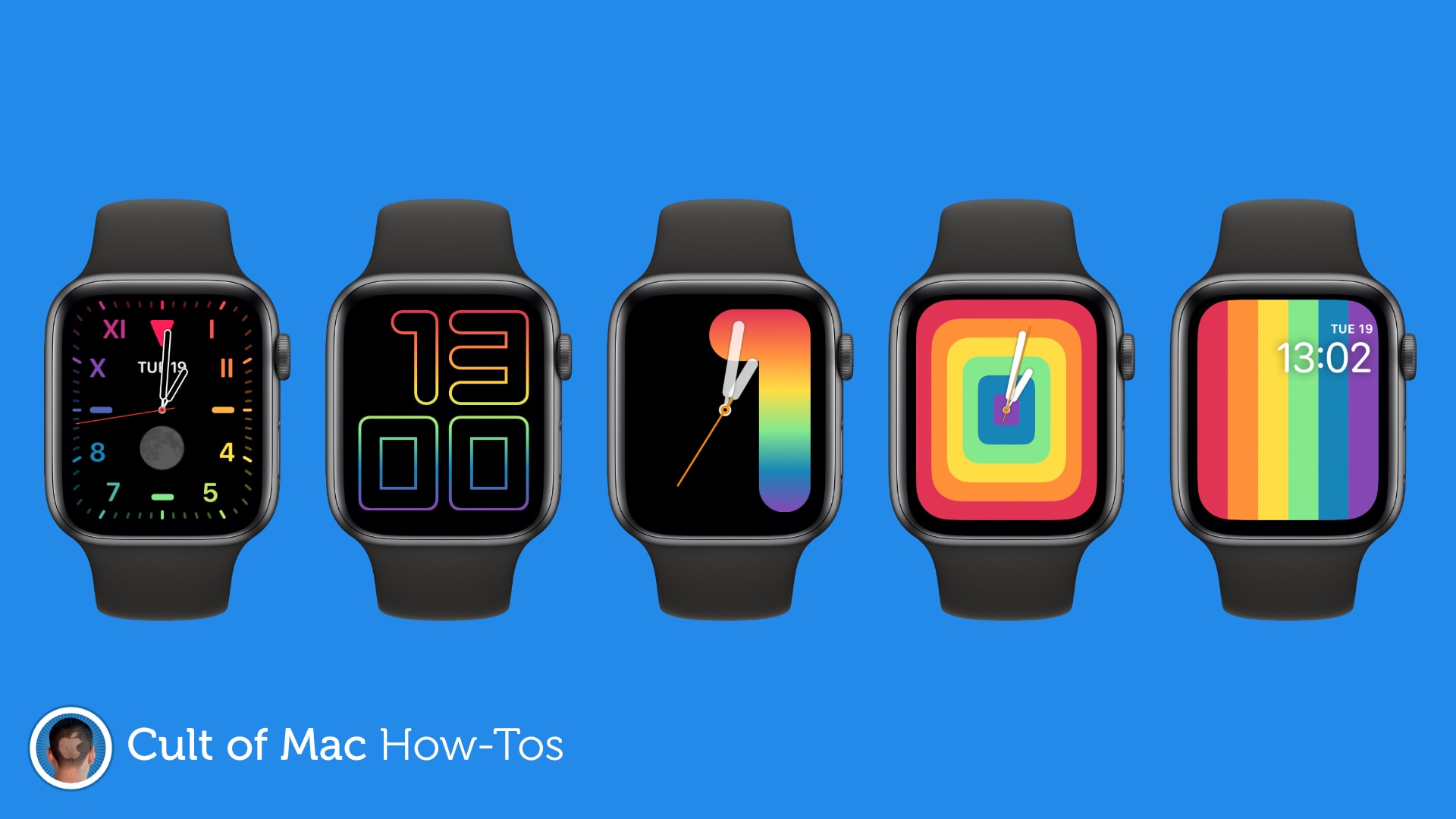
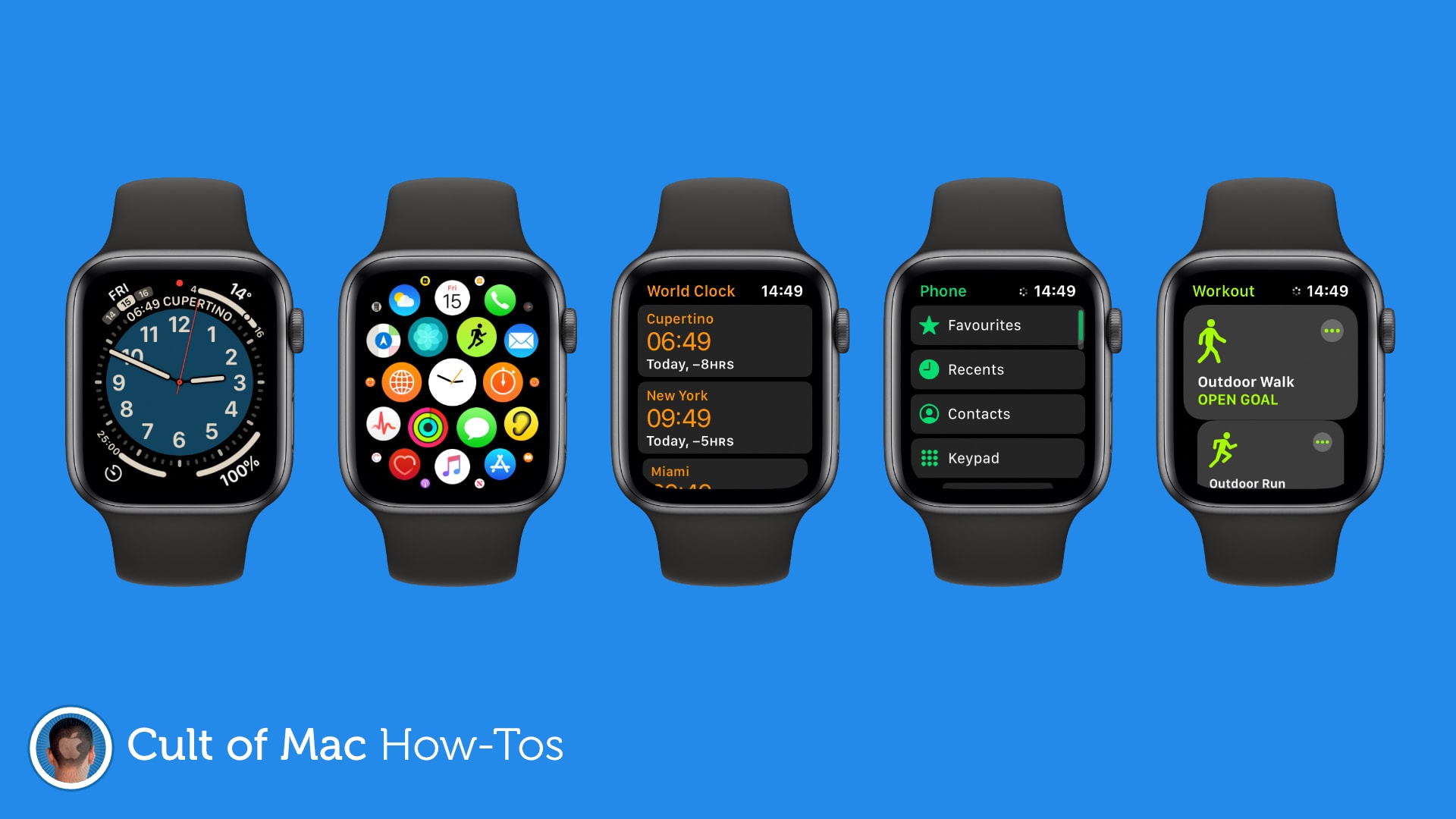
Show off your Apple Watch setup. Image: Killian Bell/Cult of Mac
Did you know that it’s possible to capture Apple Watch screenshots after a simple settings change? Find out how in today’s pro tip and it’ll be easier than ever to share snaps of your favorite Apple Watch apps and watch face setups.
It's easier than you think. GIF: Killian Bell/Cult of Mac
It’s now easier than ever to enjoy classic Game Boy, SNES, and Nintendo 64 games on iPhone and iPad. You no longer need a jailbreak — just an iOS device, a Mac or PC, and some classic Nintendo game ROMs.
Don't let little ones have unlimited access to your devices. Photo: Kelly Sikkema
Worried your kids will get up to no good while using your iOS devices? Learn how to disable the touchscreen on iPhone or iPad so that your little ones can watch their favorite videos without accessing other apps and features.
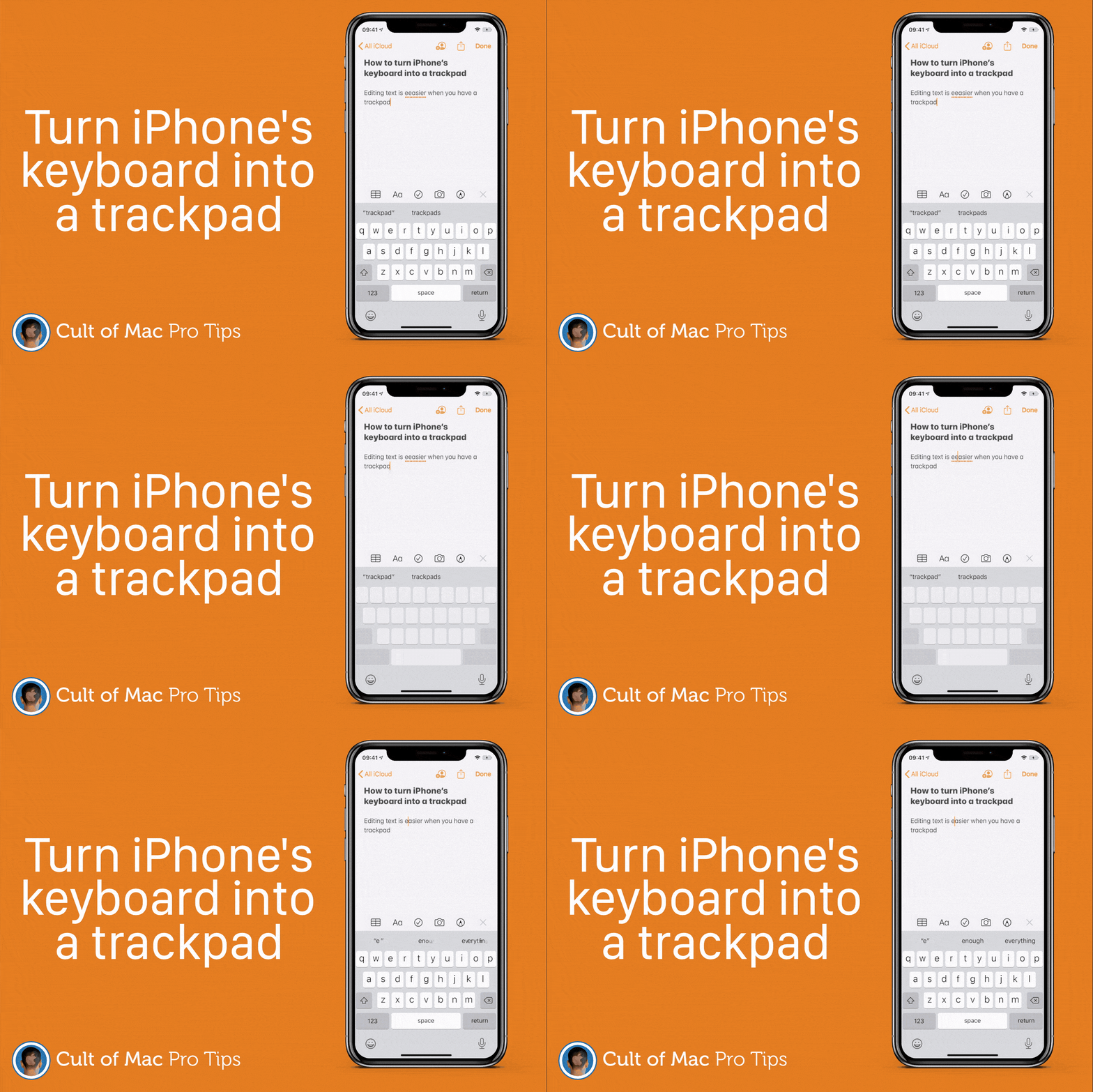
Ready to go whenever you need it. GIF: Killian Bell/Cult of Mac
Fixing typos and other errors while typing on iPhone can be frustrating if you’re still stabbing away at the screen with your fingertips. Instead, turn iPhone’s keyboard into a trackpad for more precise cursor placement.
Now that Apple Watch is powered by super-speedy chips, you’re less likely to run into issues that might cause it to freeze up and become unresponsive. But it can happen, and when it does, this how-to can help you fix it.
Touch ID is a wonderful addition to the Mac that makes logging in, downloading apps, and authorizing purchases easier than ever. Make it even more useful by adding an additional fingerprint and customizing your preferences.
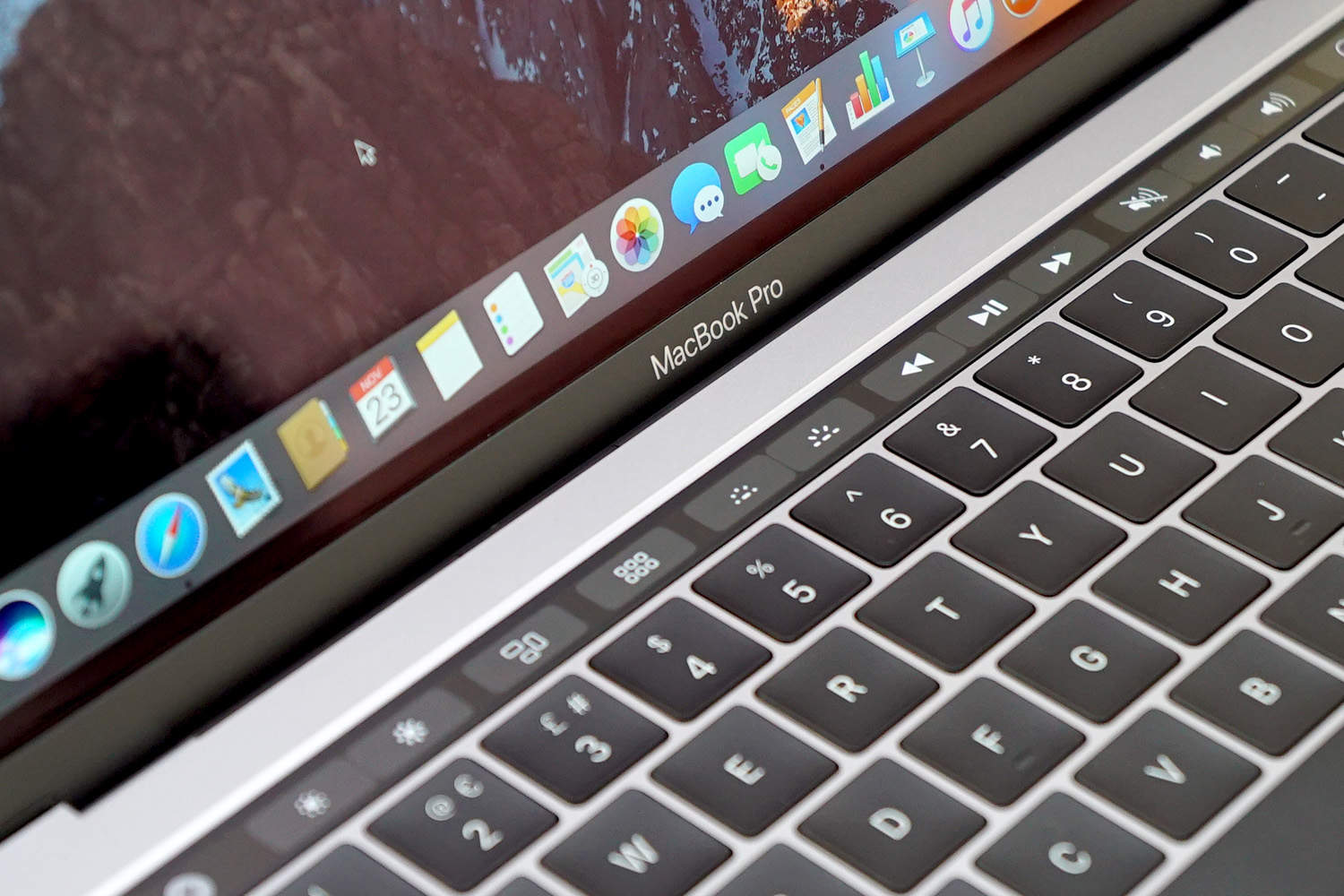
Don't settle for a Touch Bar you never use. Photo: Ste Smith/Cult of Mac
Some people love the Touch Bar. Others simply see no use for it, which can be frustrating now that every MacBook Pro ships with one. If you fall into that second camp, here’s how to bring back traditional function keys.
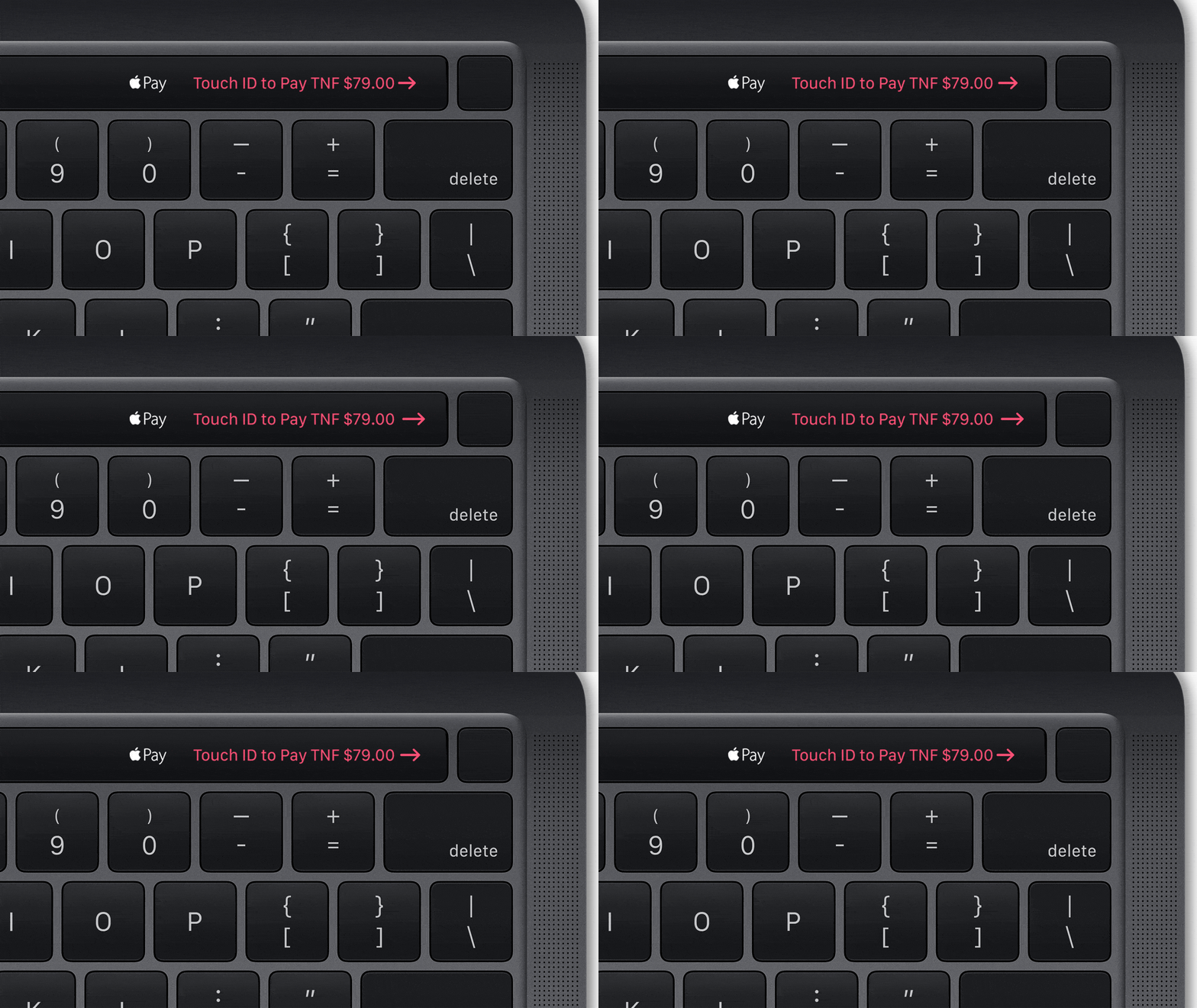
Snapping a screenshot of your MacBook Pro’s Touch Bar can be useful for so many things, and it couldn’t be easier to do. All you need is a simple keyboard shortcut … and at least a couple of fingers.
3 potential fixes recommended by Apple. GIF: Killian Bell/Cult of Mac
Apple has finally acknowledged that some AirPods Pro units can produce “cracking or static sounds” while in use. If you’re experiencing these issues, there are some things you can try that might help eliminate them.
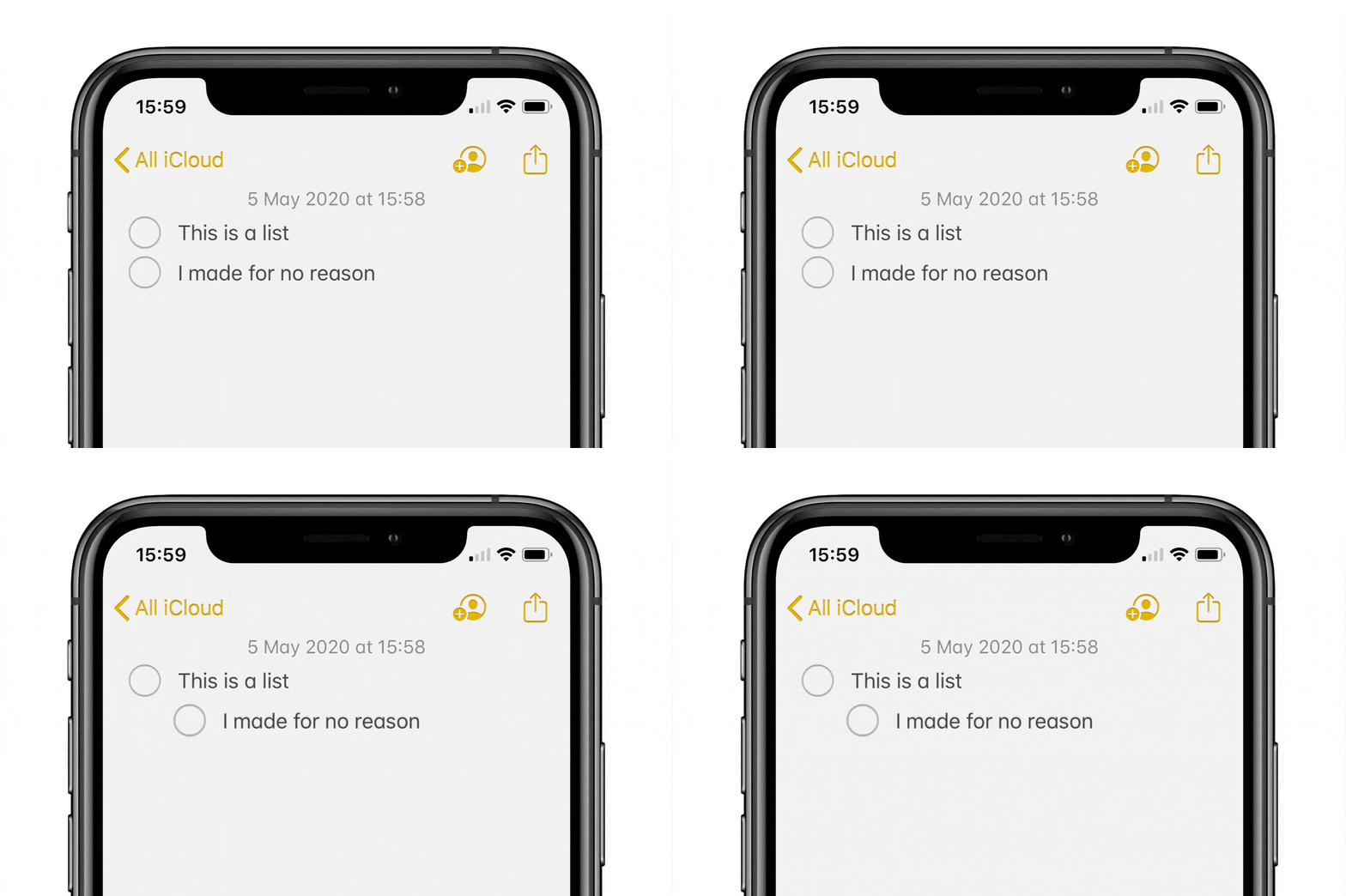
A swipe right isn't just good for Tinder. GIF: Killian Bell/Cult of Mac
Using nested lists is a terrific way to organize your plans and thoughts inside the Notes app, and it’s super-simple to create them on iPhone and iPad using this quick pro tip. All you need is to get your swipe on.
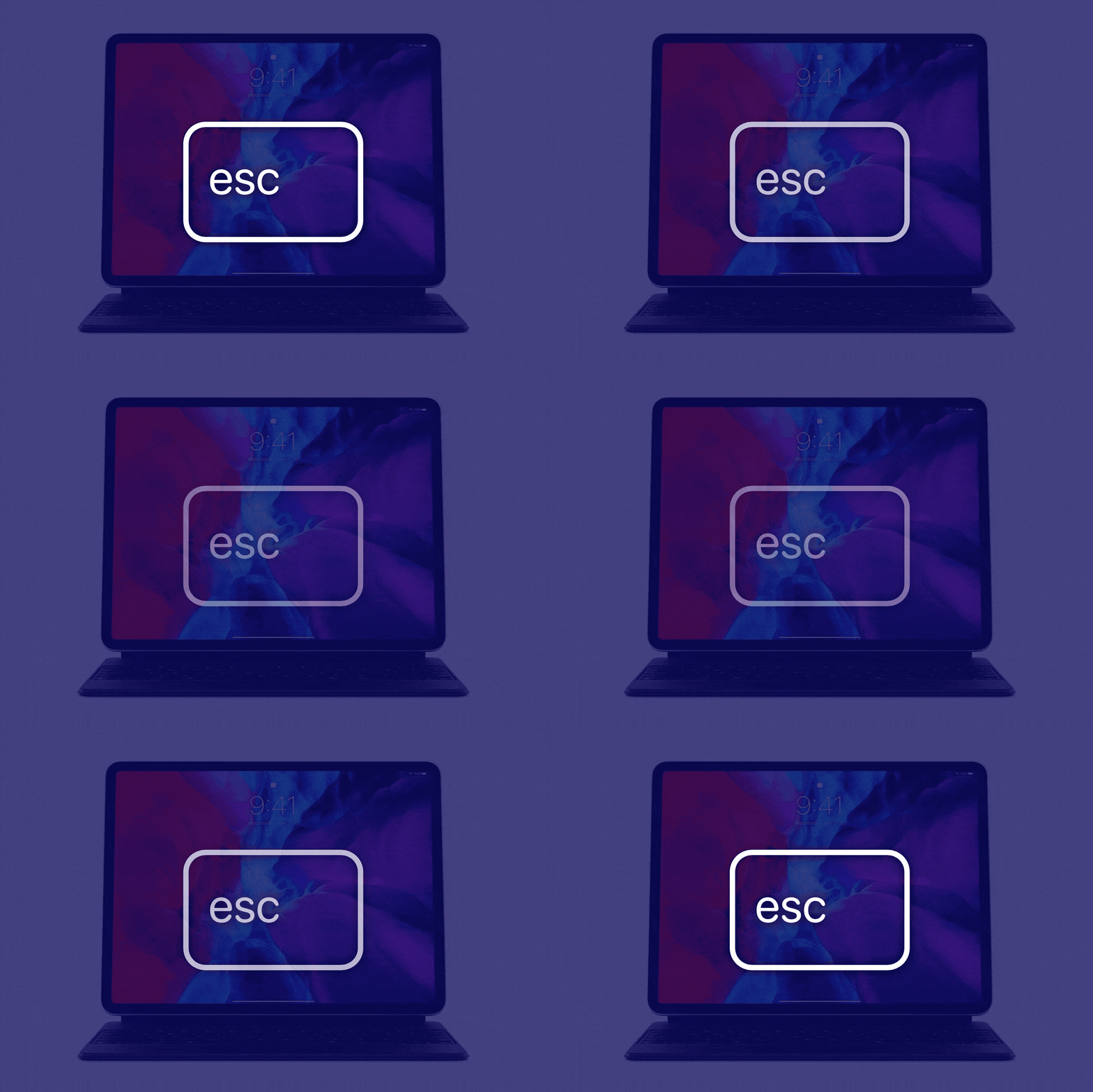
Escape keys for everyone. GIF: Killian Bell/Cult of Mac
$299 won’t get you much in an Apple Store these days. It won’t even buy you an Escape key with your iPad Pro Magic Keyboard. But if you’re finding life a little difficult without one, there is a quick and easy way to add your own.
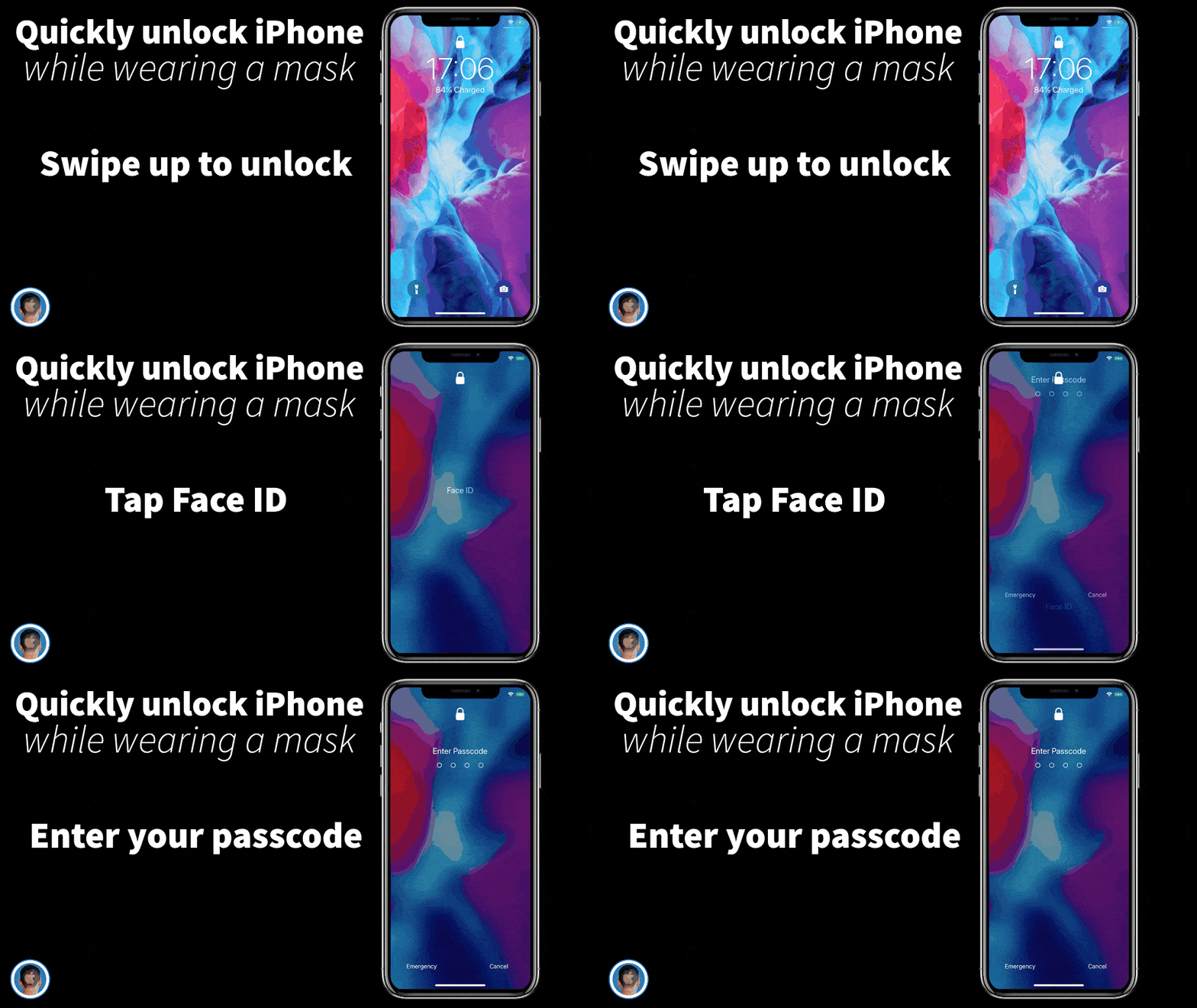
Here's how to quickly unlock your iPhone while wearing a mask. Photo: Killian Bell/Cult of Mac
You shouldn’t have to deal with the frustration of unlocking your iPhone with Face ID when you’re wearing a mask. And you don’t have to. This simple pro tip shows you how to skip Face ID and quickly unlock with a passcode instead.
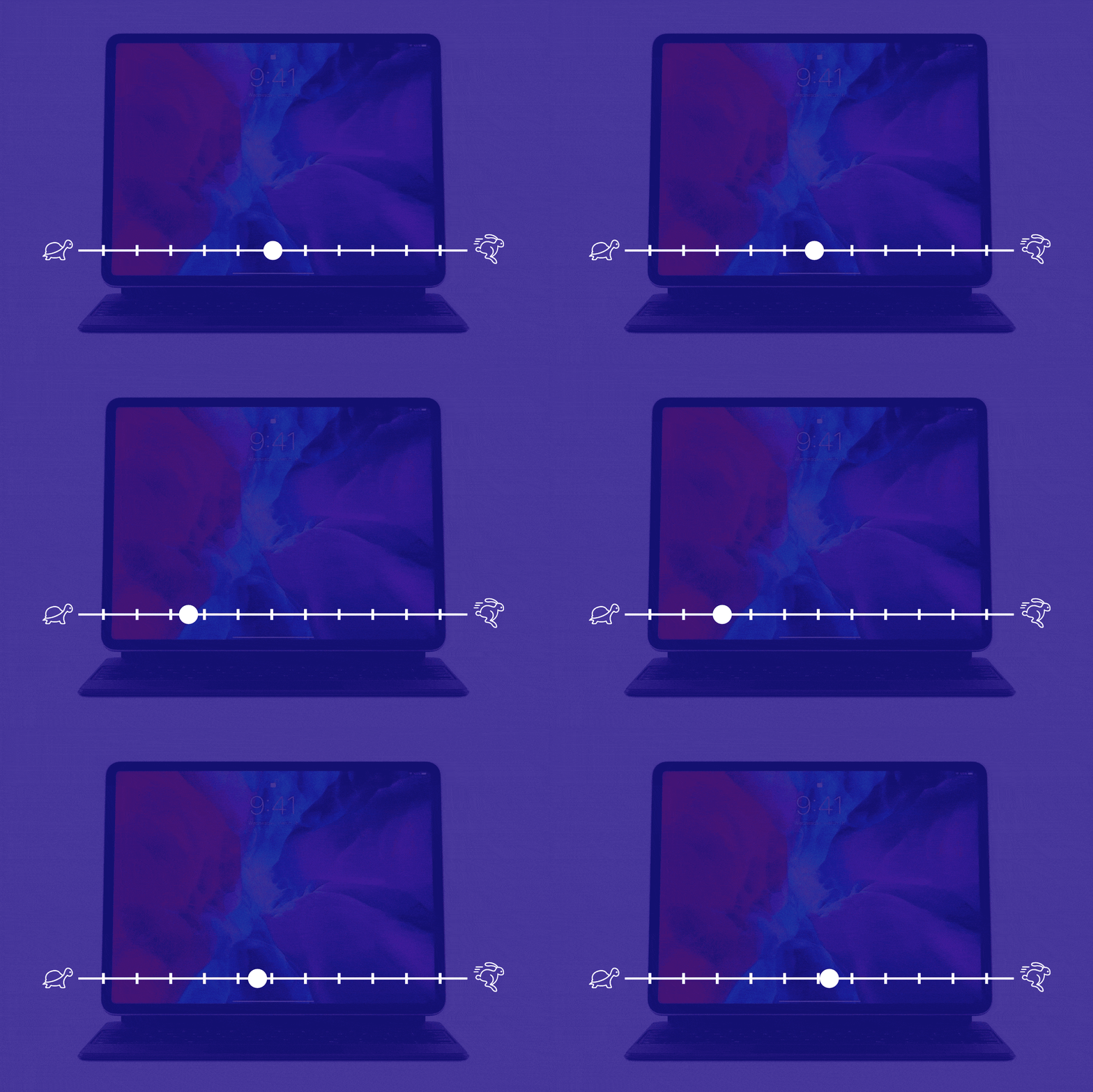
Make using a mouse with iPad even better. GIF: Killian Bell/Cult of Mac
Apple’s default mouse and trackpad settings in iPadOS might work great with the company’s own accessories, but they can be less than ideal with third-party peripherals. Scroll speed, in particular, seems very temperamental.
Unfortunately, Apple decided it would be a good idea to hide away those scroll speed settings, so a lot of users have no idea they can be adjusted. Here’s where you can find them on iPad.
As of yesterday, Apple Maps can now show you local COVID-19 testing stations, so you can find the nearest one and get yourself checked out. It’s really easy to do, but it does require a search to activate the new map layer.
Here’s how to find a COVID-19 test near you. Note: This currently only works in the United States.
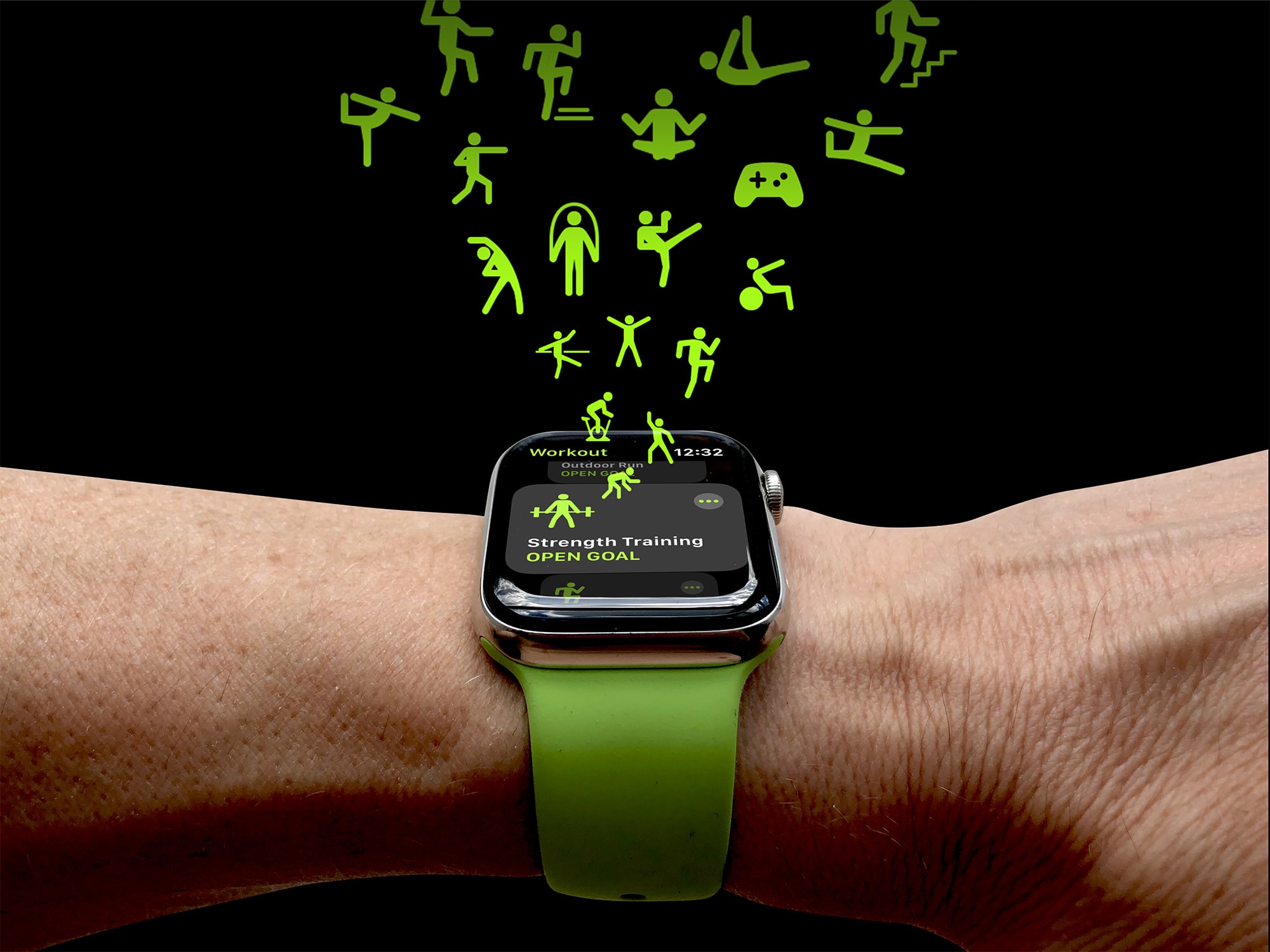
No excuses! You could be doing one of these workouts right now. Photo: Graham Bower/Cult of Mac
Apple Watch supports a huge selection of workout types, but most of the popular ones, like running and swimming, you probably can’t do right now thanks to the coronavirus lockdown. Fortunately, if you delve a little deeper, you’ll find plenty of Apple Watch home workouts you can choose from that require little or no special equipment.
So why not take the opportunity to master a whole new kind of exercise? Here are 20 Apple Watch indoor workout options you can do at home right now.
It only takes a few key tools to make working remotely much more manageable. Photo: Ian Fuchs/Cult of Mac
COVID-19 lockdown certainly brought a swift change from the norm for many people. We’re dealing with the added stress of different working situations, the struggle to get groceries, and in many cases, even acting as teachers or child care providers.
All of that can make it really challenging to feel accomplished and productive. Luckily, I finally found my groove in the last week or so, thanks to a couple of really useful apps (and some self-imposed rules).
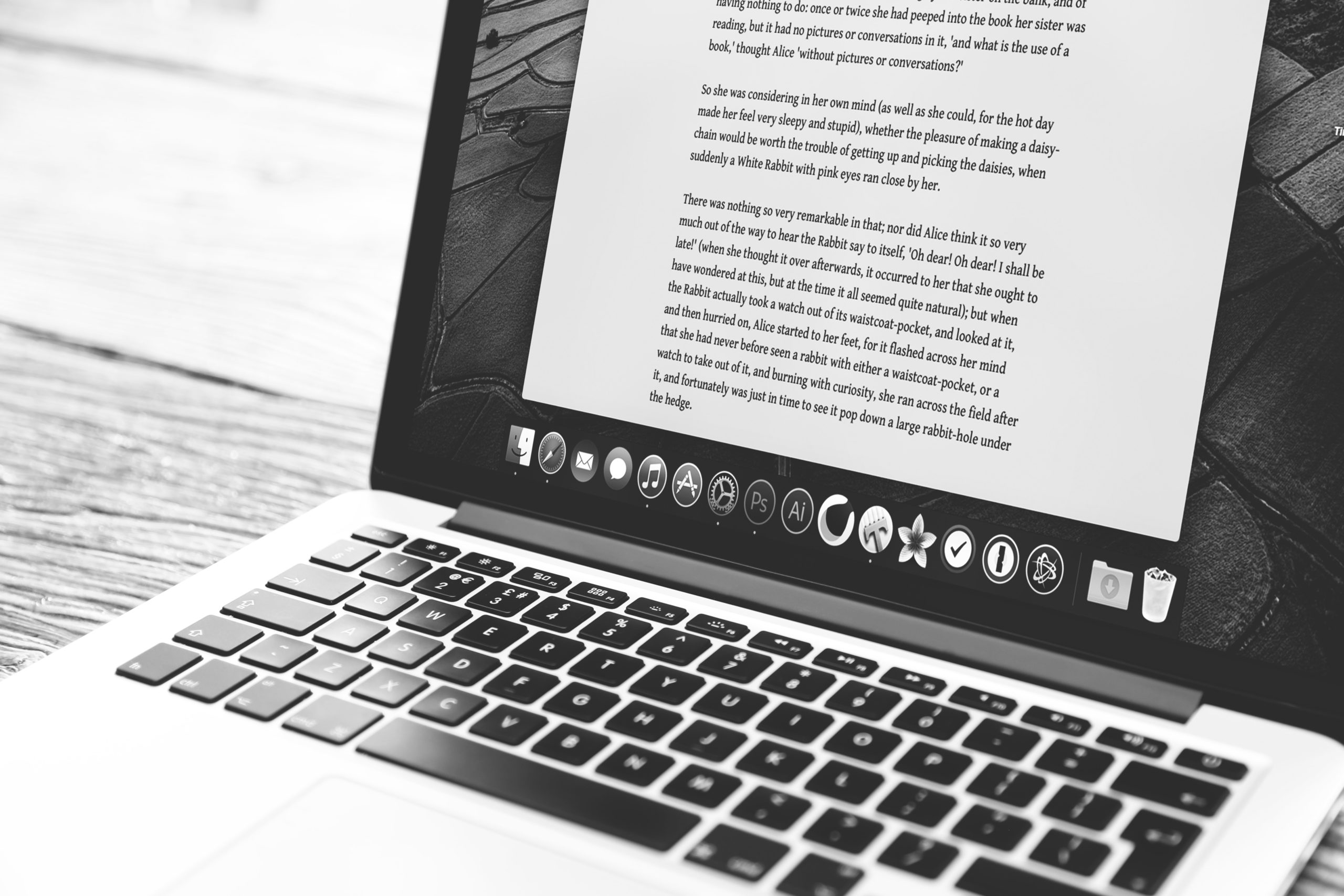
Full-screen works great on a MacBook. Photo: Charlie Sorrel/Cult of Mac
Full-screen mode on a Mac is pretty great. Unlike Windows, where full-screen apps have been the default since forever, the Mac’s full-screen abilities are a fairly recent addition. And the default is still for apps to launch in smaller windows, which is the Mac Way. But what if you want those apps to launch in full-screen every time you open them? Well, by changing one setting — and abandoning an ingrained habit — you can have exactly that.
Bonus: Full-screen app launching will only apply to the apps you choose, leaving the rest of them to behave normally.
Even the new-ish 16-inch MacBook Pro runs hot. Photo: Charlie Sorrel/Cult of Mac
Does your brand new MacBook Pro go into meltdown when it’s plugged into power? Do the fans spin up into a blast of white noise, while the heat makes your hands sweat as you type? Is your kernel\_task pegged using 100% of the CPU when you check things out in the Activity Monitor app?
If so, don’t worry — it’s not your Mac’s fault. It’s you. You’re charging it wrong.
Yes, if you plug your USB-C power cable into the left-hand side of your MacBook Pro, you might make it overheat.
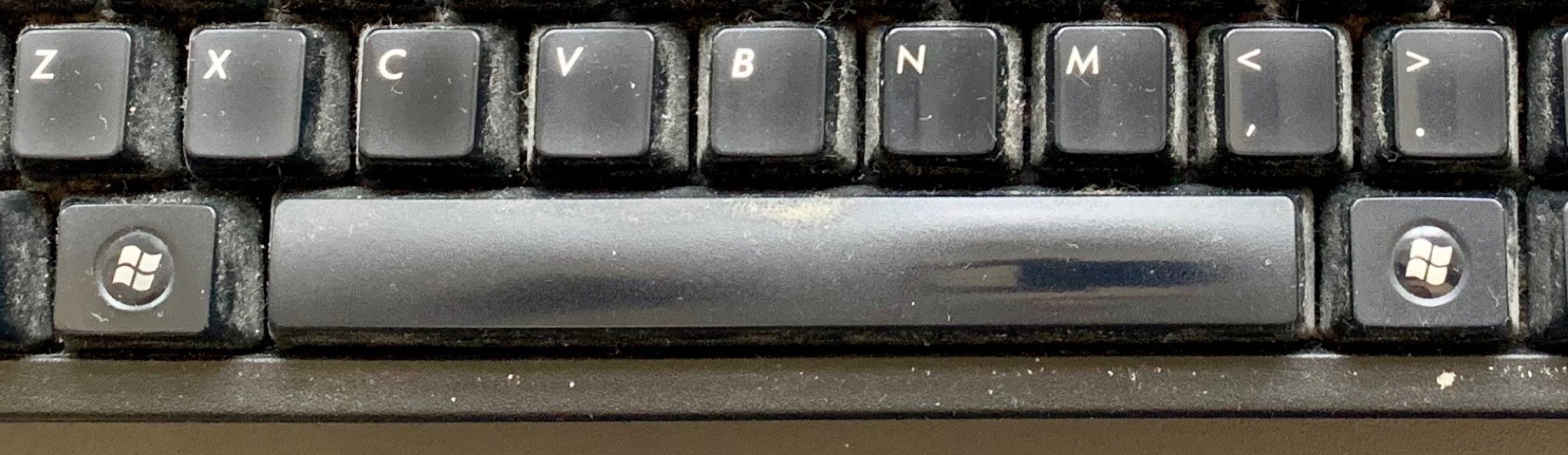
Would you touch this Space bar? Photo: Charlie Sorrel/Cult of Mac
Zoom is the world’s favorite app during the COVID-19 pandemic. Despite its flagrant privacy abuses, and a history of startlingly bad security holes, people are using the videoconferencing service for remote teaching, conference calls and virtual get-togethers.
If you — or your boss or a stubborn family member — insist on using this software rather than one of the safer Zoom alternatives, this Mac tip will save you a lot of trouble. Using the Push to Talk feature will make your Zoom life a lot easier.
I have an app I use every day, but whenever I open it, it opens to a new, blank document, instead of the project I was working on when I closed the app. To open that project, I have to mouse up to my Mac’s menu bar, click on File > Recent Items…, and find it in there.
To fix this, I set out to find a way to easily access the last few projects from this app. What if I could put this list of recent projects into my Mac’s Dock? It turns out that you can easily do this, using a quick Spotlight search, a Smart Folder and a drag to the Dock.
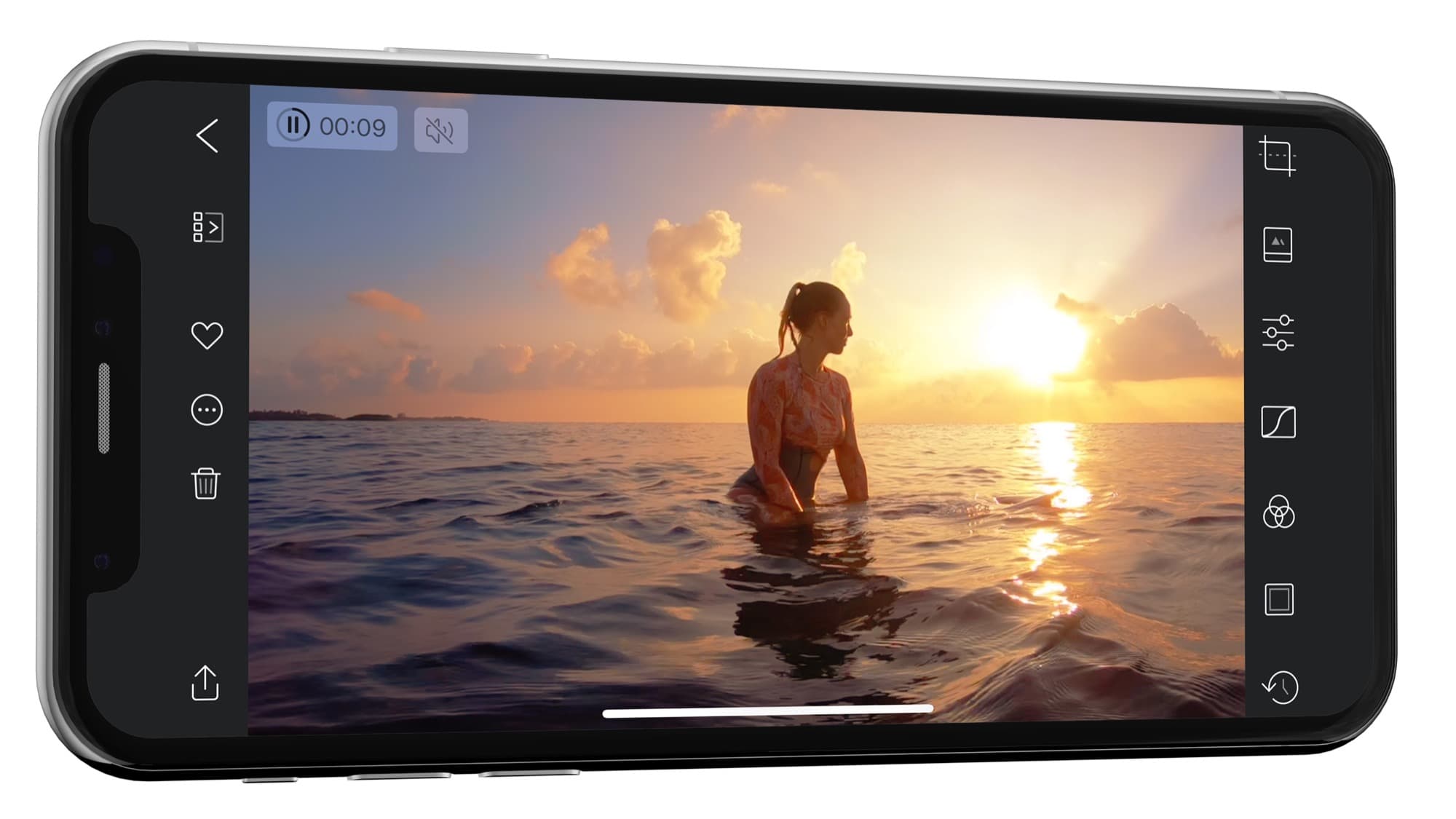
Darkroom, the amazing iOS photo-editing app, now edits video Photo: Darkroom
Darkroom, one of the best photo library and editing apps on iOS, is now also one of the best video library and editing apps on iOS. In today’s update, Darkroom adds support for editing your videos. Not cutting and chopping them up, like iMove, but changing how they look, as if you were applying filters and edits to a still photograph. And the along thing is, it’s instant, just as fast as editing a still image.
Right now, you shouldn’t be using the Mail app on your iPhone or iPad. Thanks to a serious exploit, a hacker can take control of your iOS Mail app just by sending you a malicious email.
You don’t need to open that mail for it to do its bad business. In fact, you don’t even have to have the Mail app open for the attack to work. Yesterday, we covered the news of this attack, and you can read all about the consequences. Today we’ll show you how to protect yourself by changing just one setting.