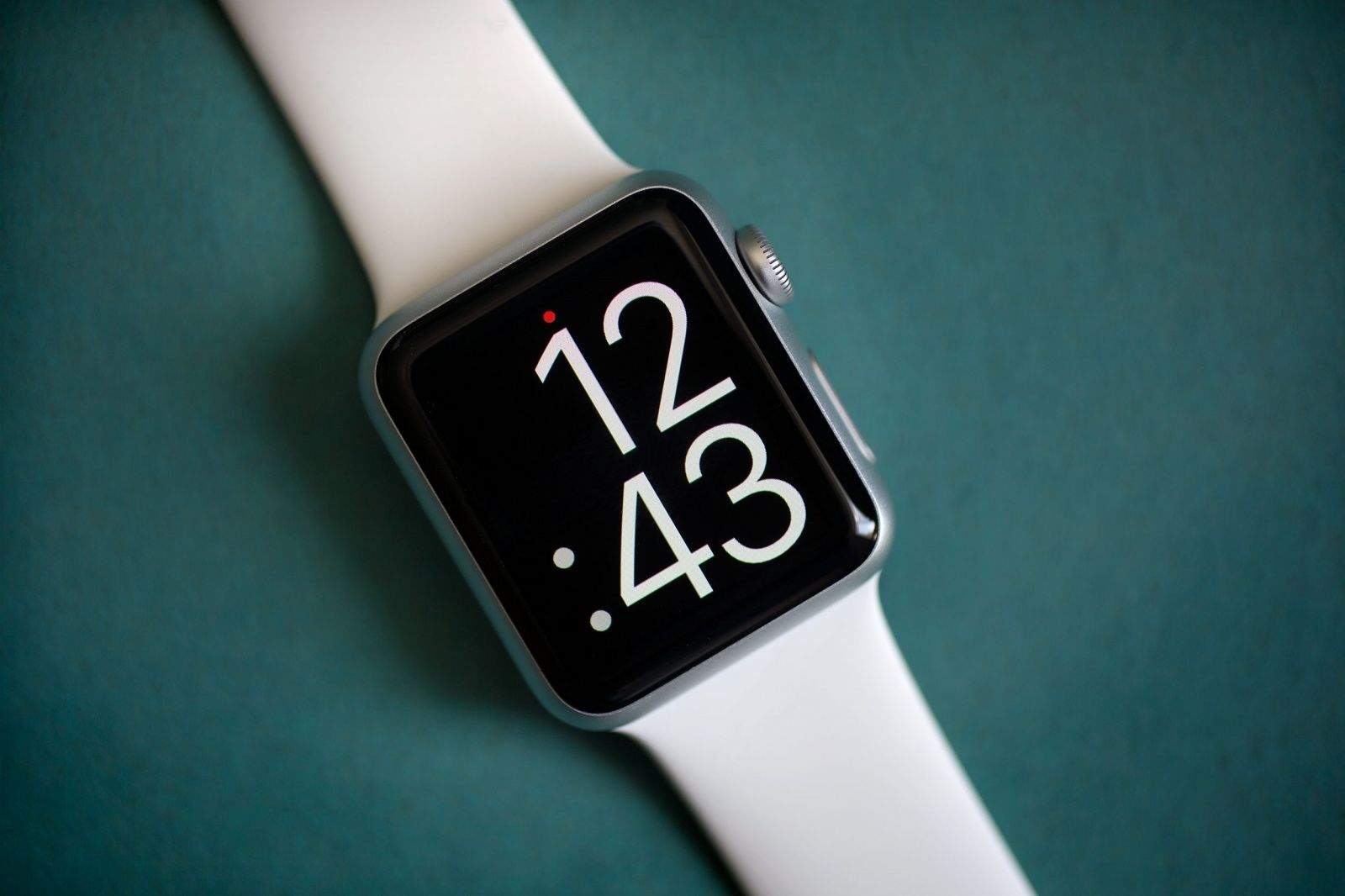
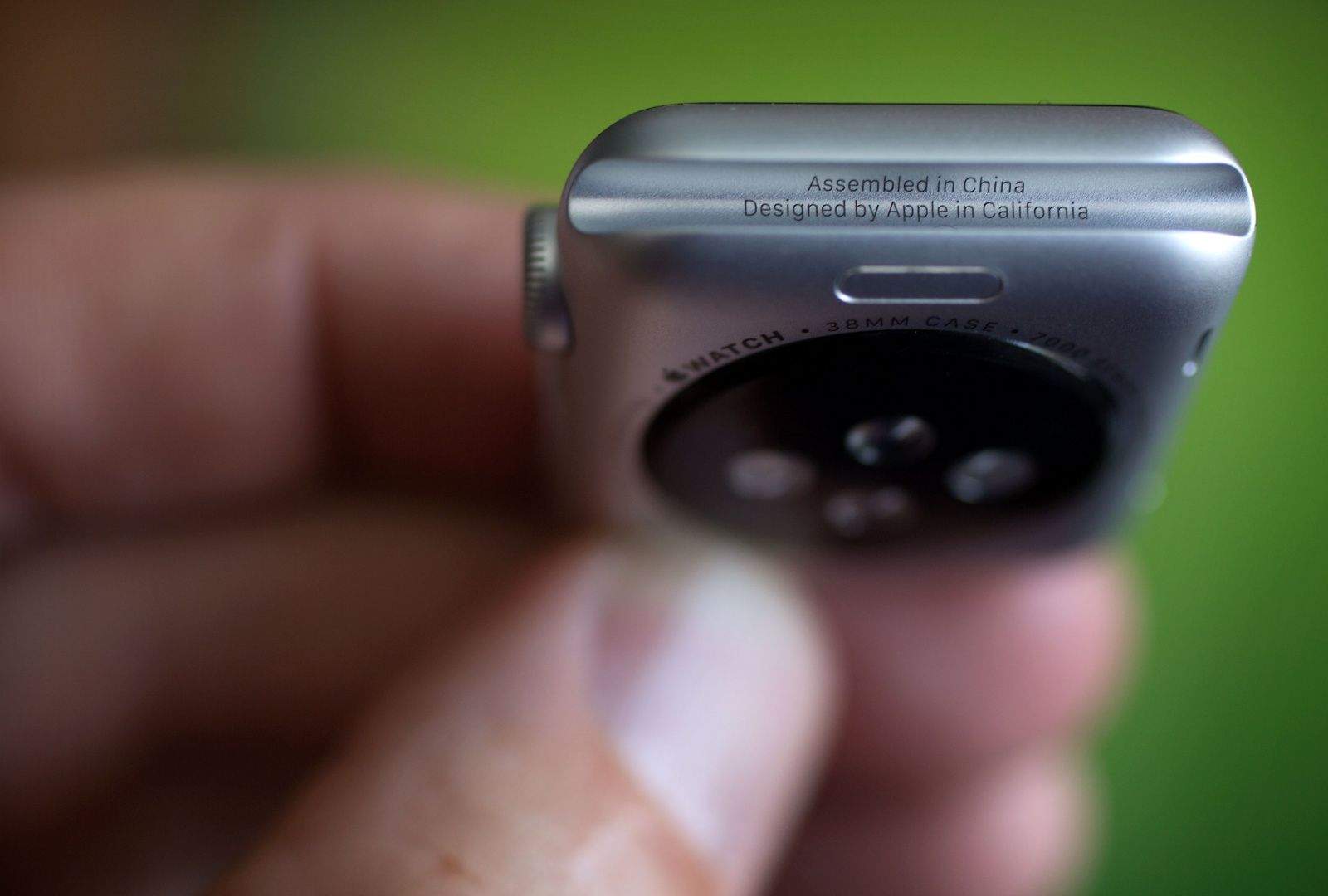
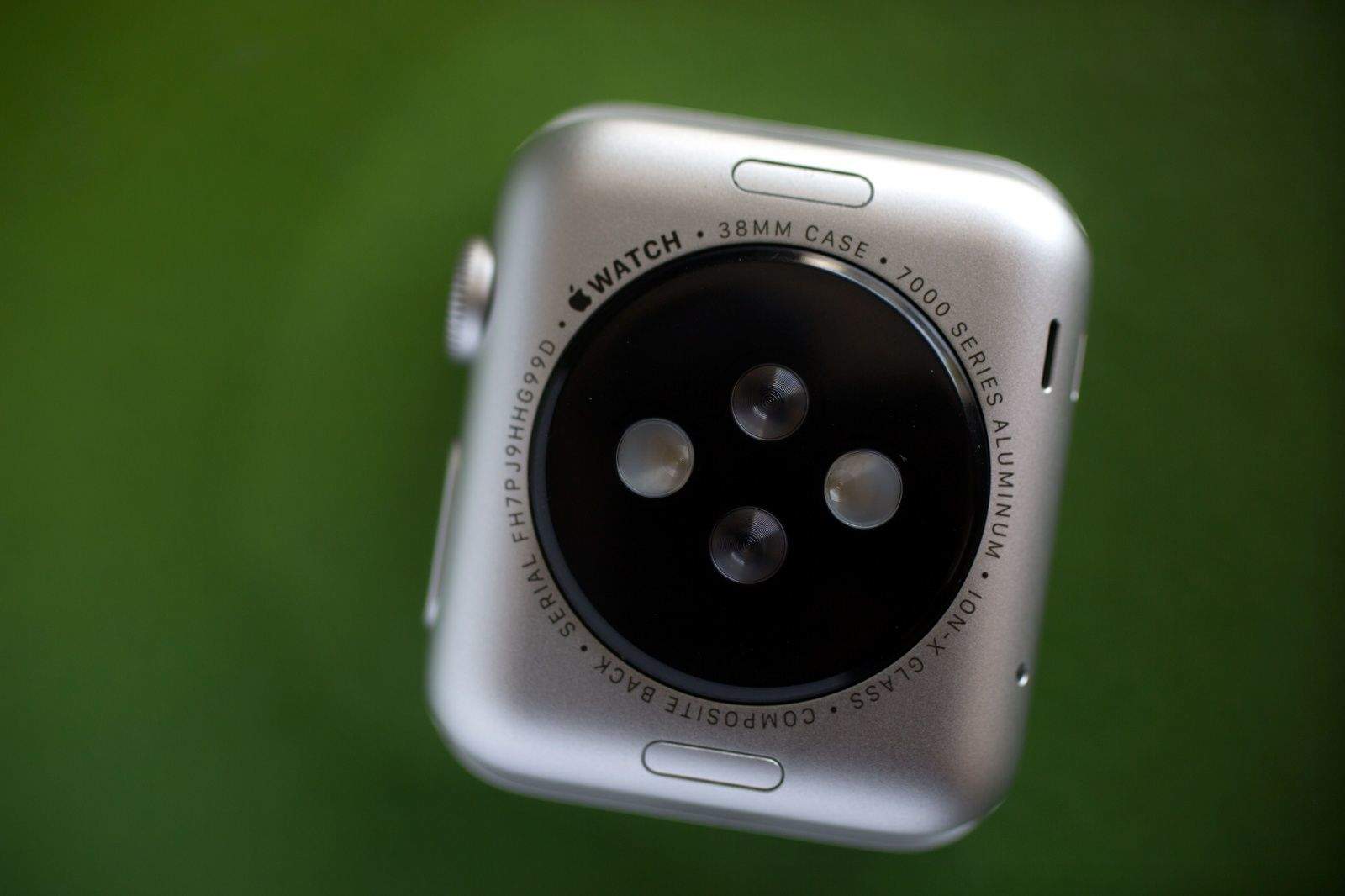
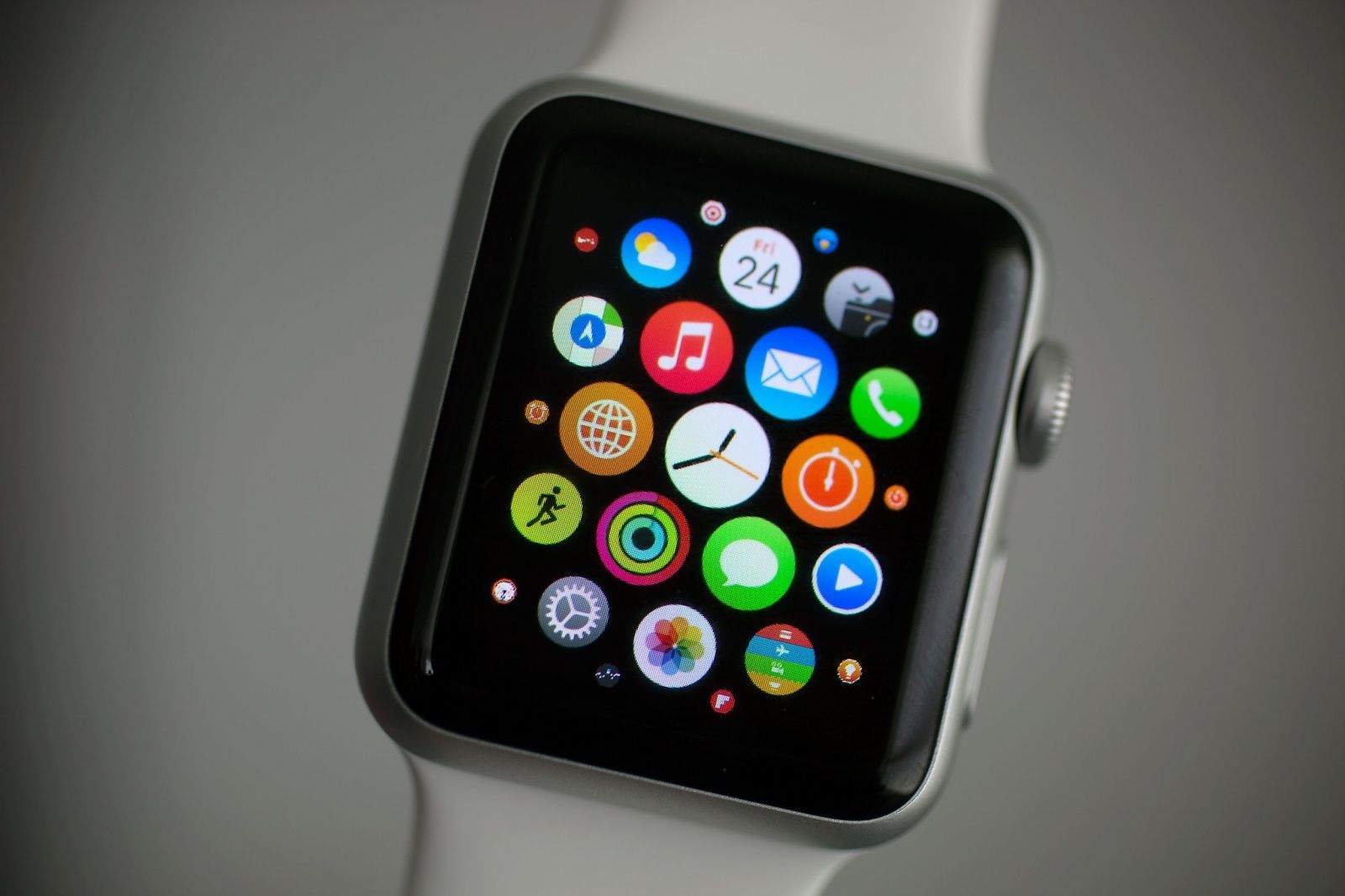
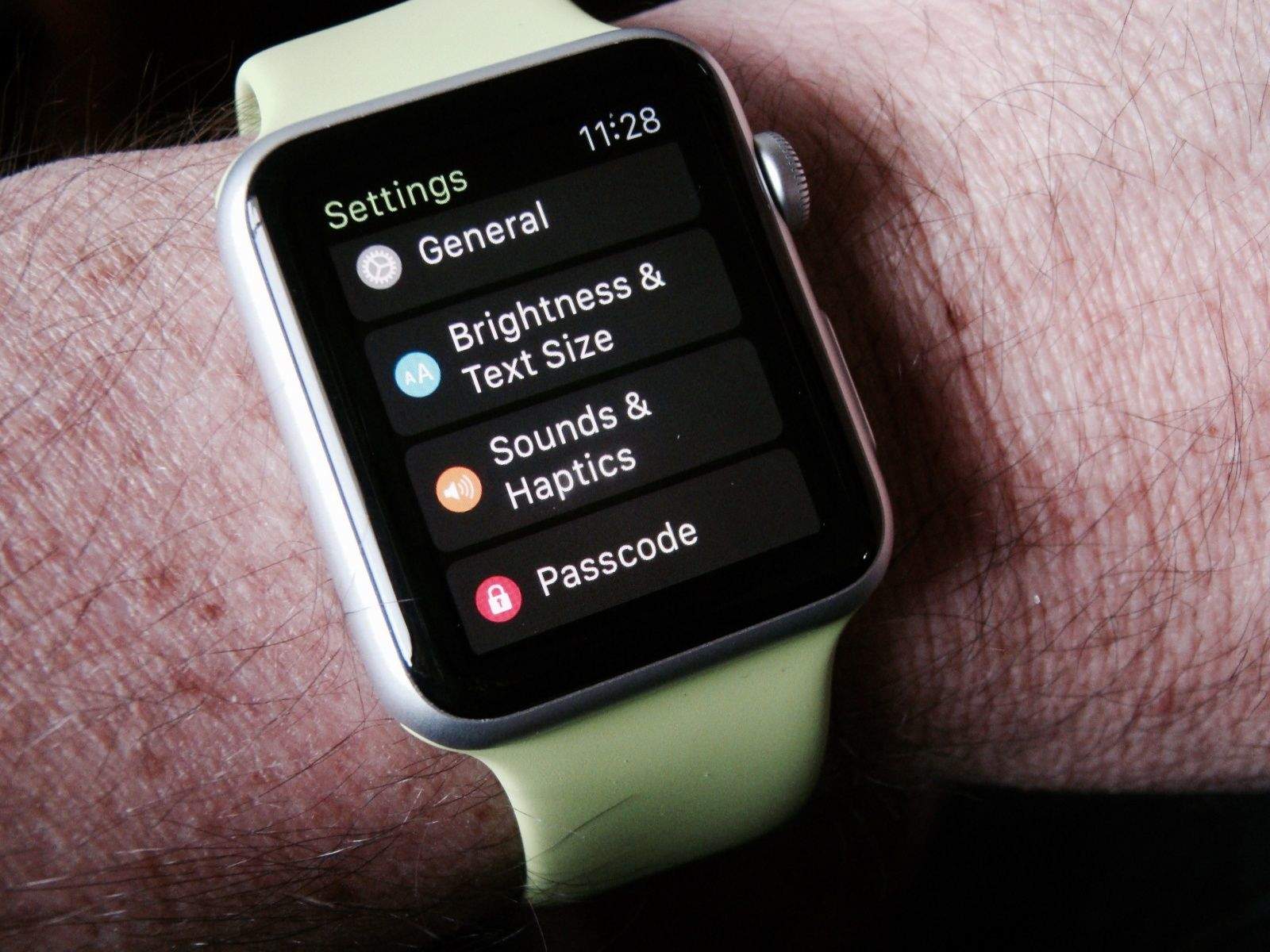
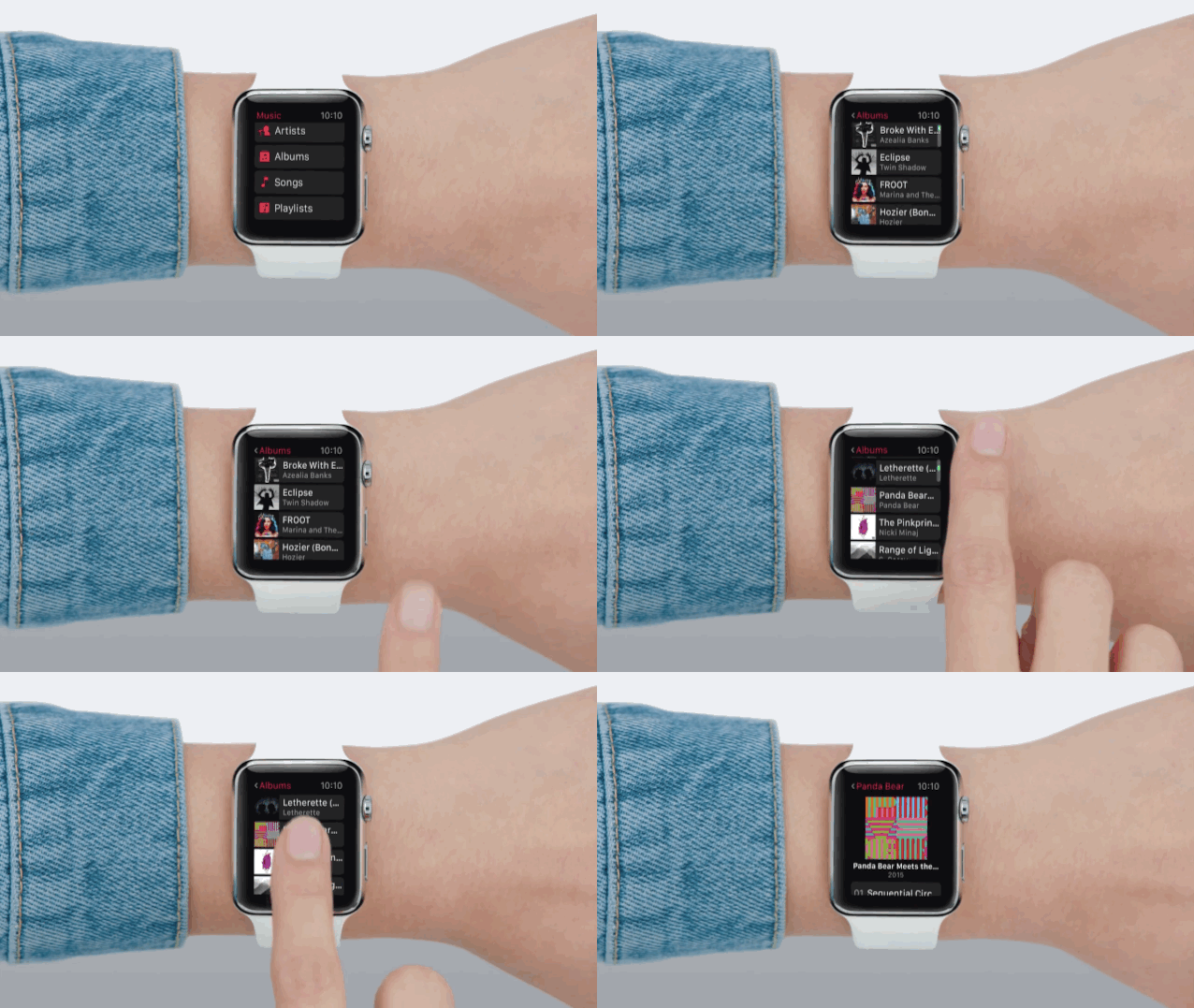
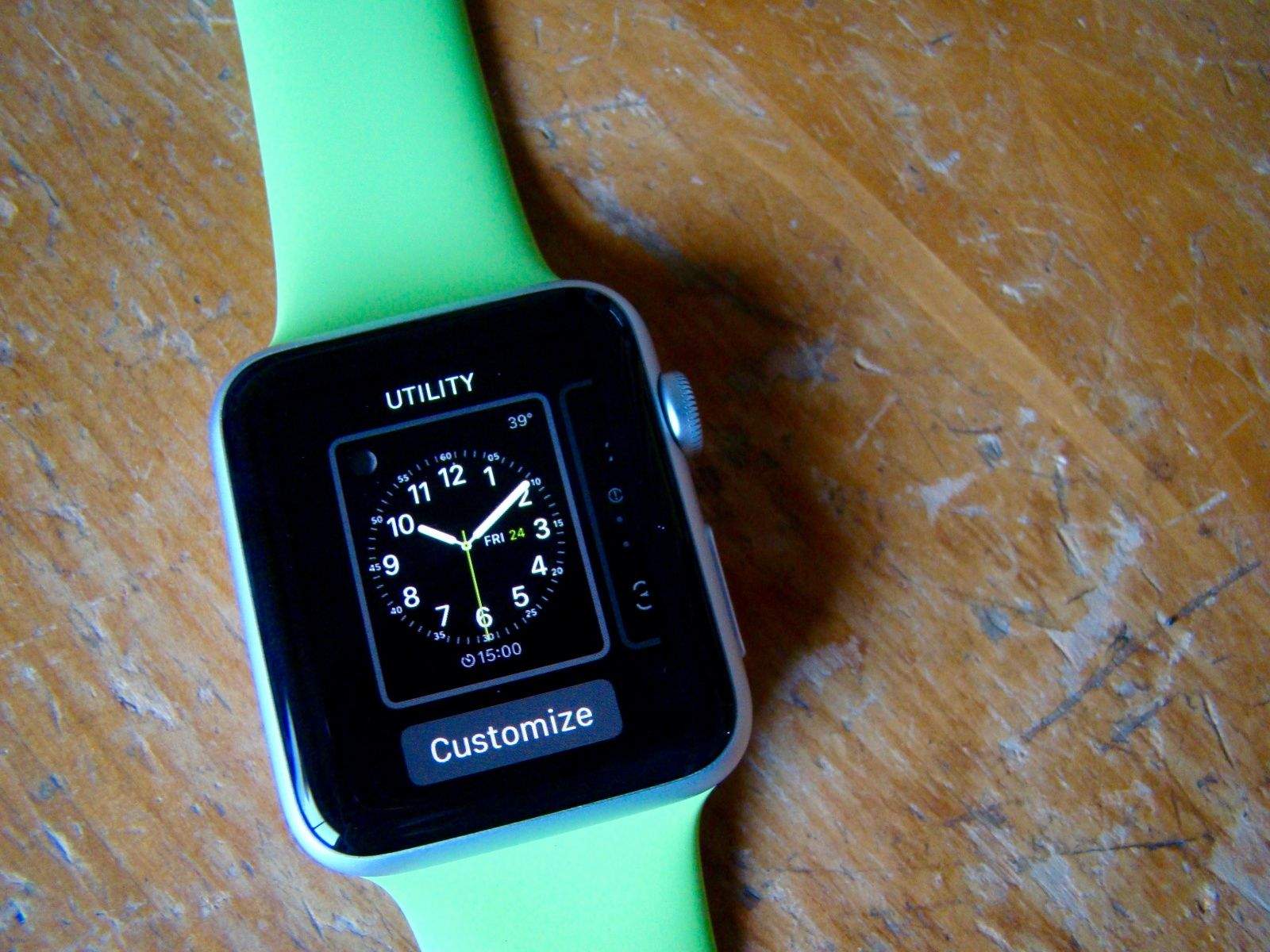
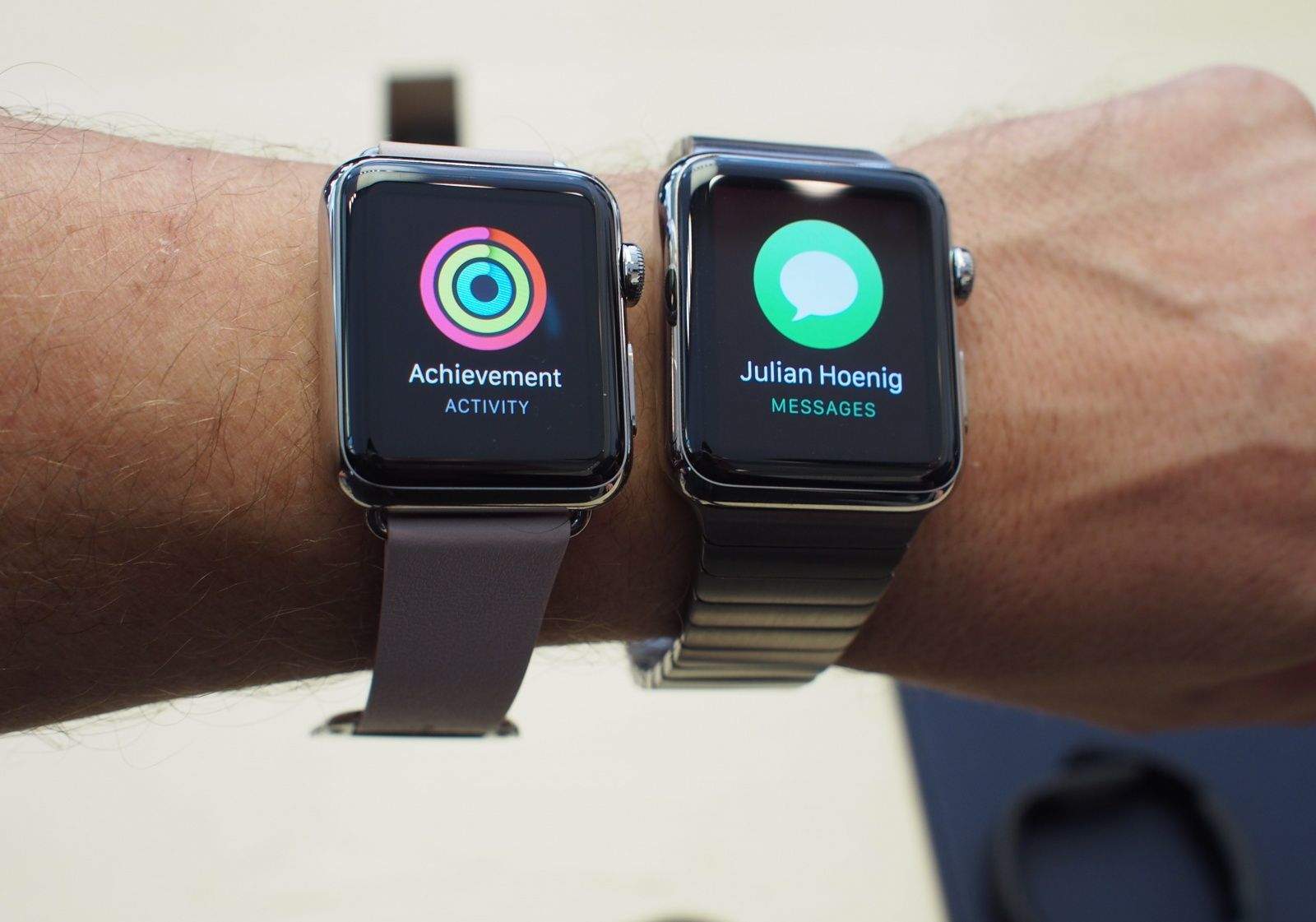
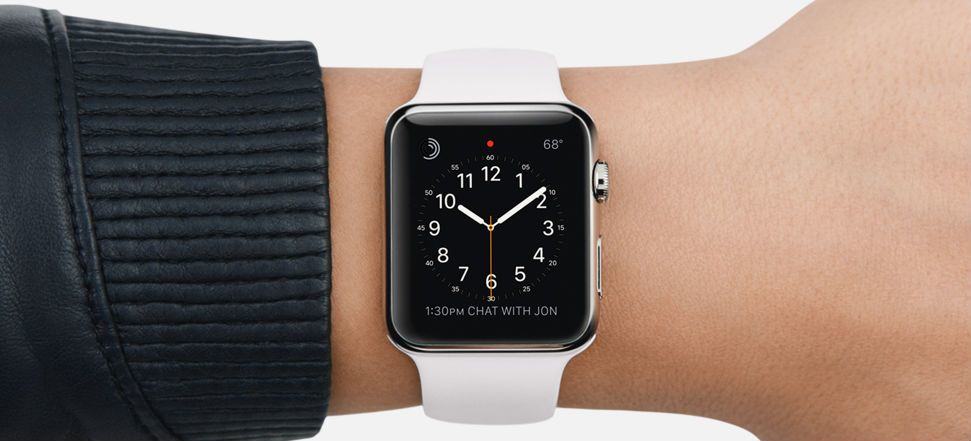
For when you really, really need to know what time it is. Photo: Jim Merithew/Cult of Mac
The Apple Watch has a bunch of faces to show you the current time, but here’s a simple tip if you want to combine the classic look of an analog face with the speed-to-read convenience of digital.
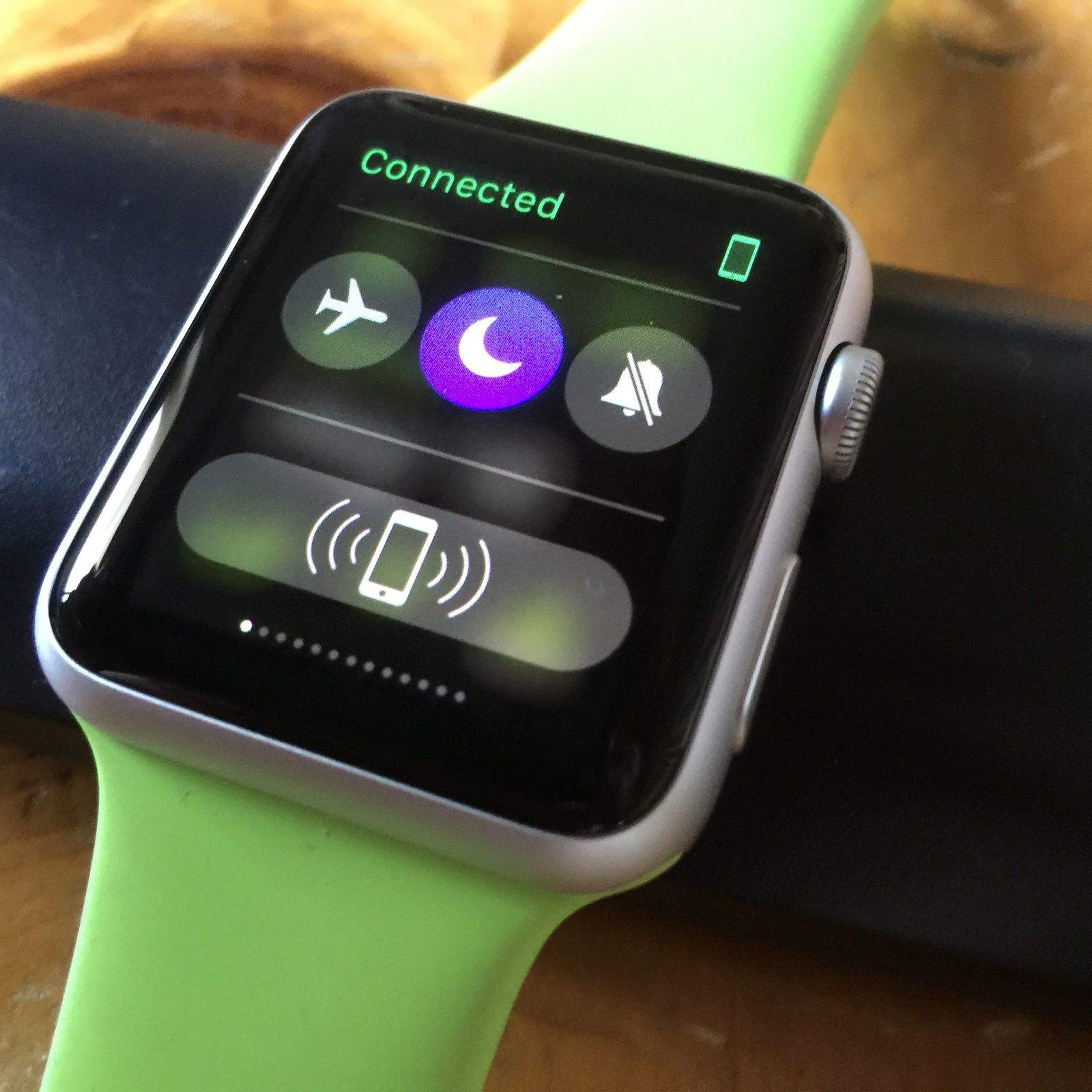
Activate Do Not Disturb and silence your Apple Watch right from your wrist. Photo: Rob LeFebvre/Cult of Mac
If you’ve spent any time with an Apple Watch, you might have noticed that it notifies you quite a bit. There’s the ubiquitous Stand Up commands, notifications from Messages, Calendar and the like, and then all the third-party apps that send you taps all day long.
If you chose to have your Apple Watch mirror your iPhone’s Do Not Disturb schedule, at least it will stop bugging you during those hours, but what if you just need to stop the notifications right now on your Apple Watch?
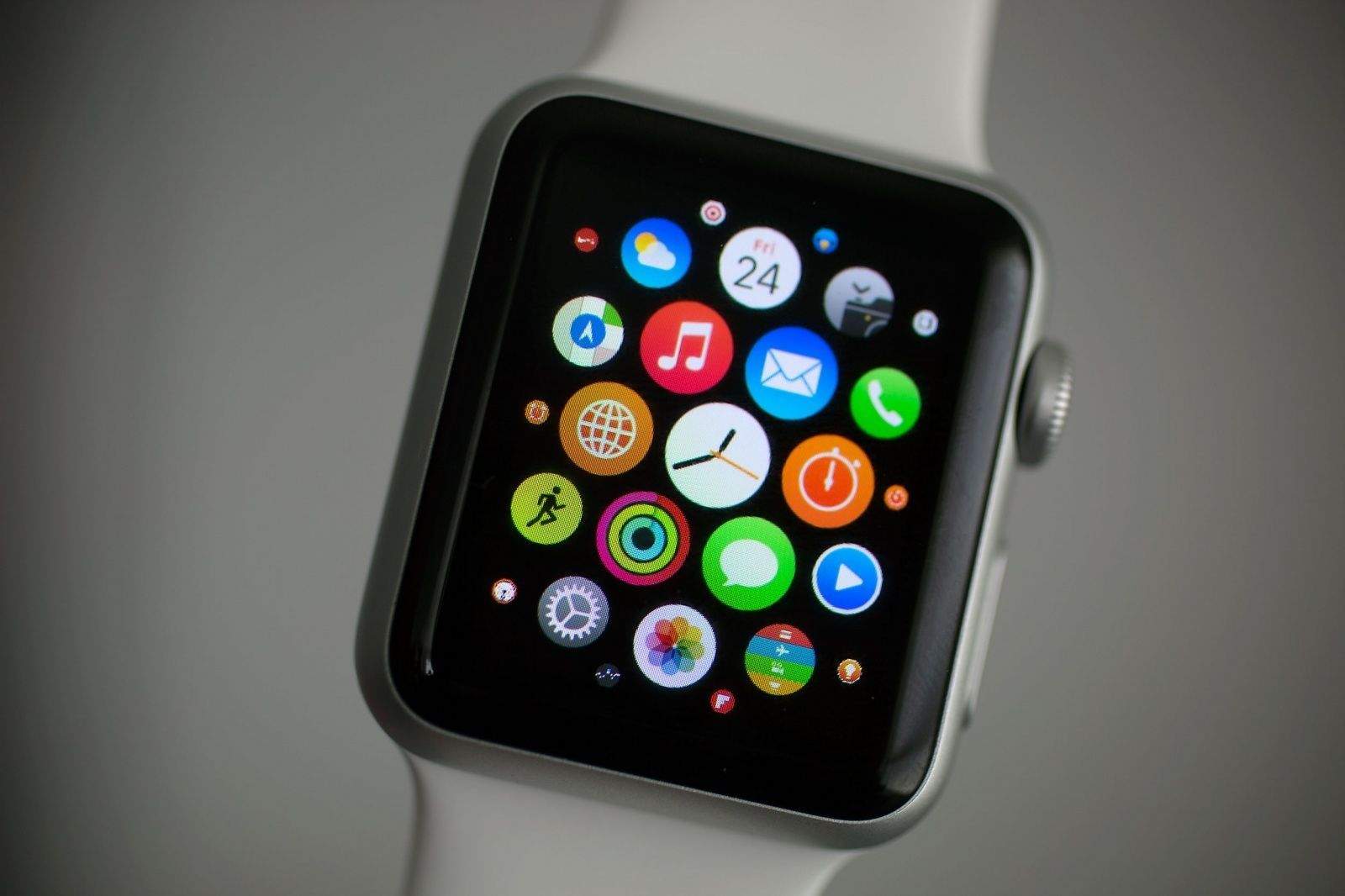
Which apps take up the most space on your wrist? Photo: Jim Merithew/Cult of Mac
My Apple Watch says I’ve used 1 GB of storage space, with 5.2 GB left over and available.
As those two numbers reverse, I’ll start looking at which apps are taking up the most storage on my wrist, then eliminating the ones that take up too much space.
Here’s an easy way to figure out which storage-hogging apps need to go.
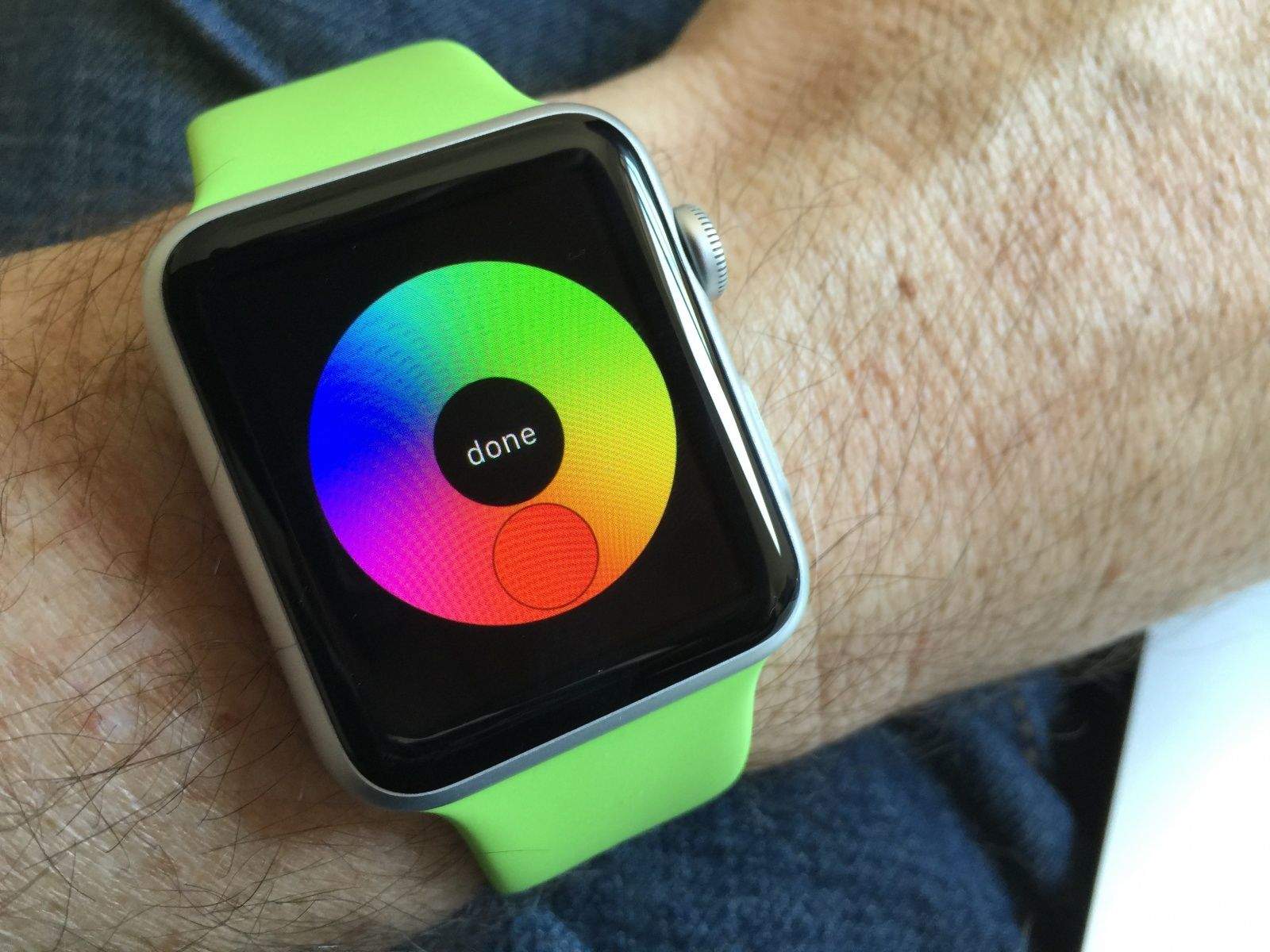
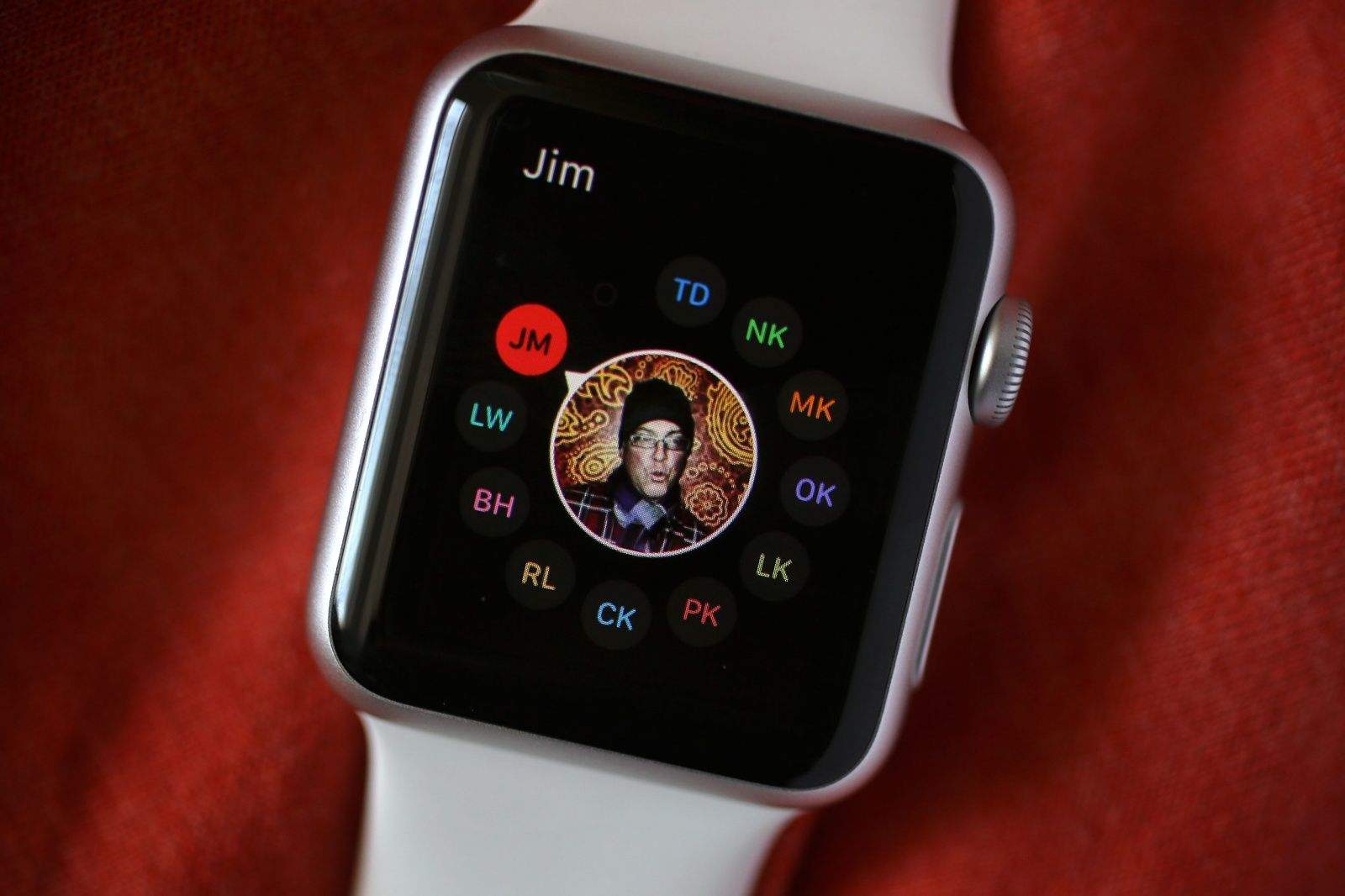
Getting to this screen is key. Photo: Rob LeFebvre/Cult of Mac
When you hit your Apple Watch’s side button, just under the Digital Crown, you get a list of the contacts you‘ve marked as Favorites in order to send your heartbeat or taps to them via Digital Touch, or folks you want to text with using your new Apple wrist gadget.
There are seven different presets for color coding those contacts, too, which default to red, blue, green, yellow, orange, white and purple.
Did you know that you could customize the colors of each of these seven slots? Here’s how.
This might suit your needs much better than a simple timepiece. Photo: Rob LeFebvre/Cult of Mac
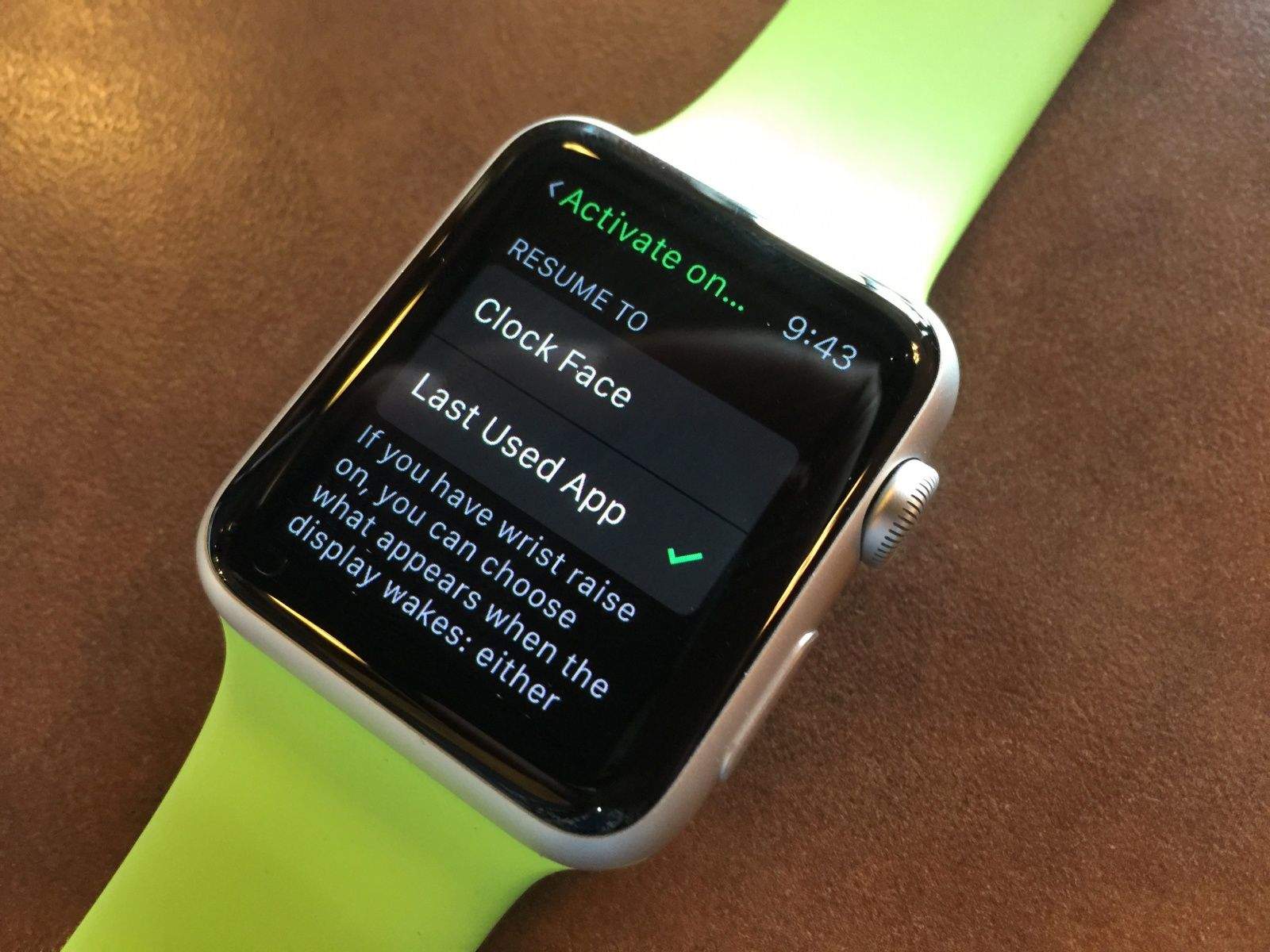
When you make your Apple Watch wake up, either by raising your wrist or tapping the watch face itself, it will show you the watch face you’ve chosen. That’s what a watch does, right?
However, Apple Watch is much more than a timepiece, with tons of apps that you use to make your life a bit easier and cooler, right? It would be great if you could wake the watch to the last app you were using.
Here’s how to get your Apple Watch to show you that most recent app when you lift your wrist.
An unfortunately named tech for Apple devices, that's what. Photo: Rob LeFebvre/Cult of Mac
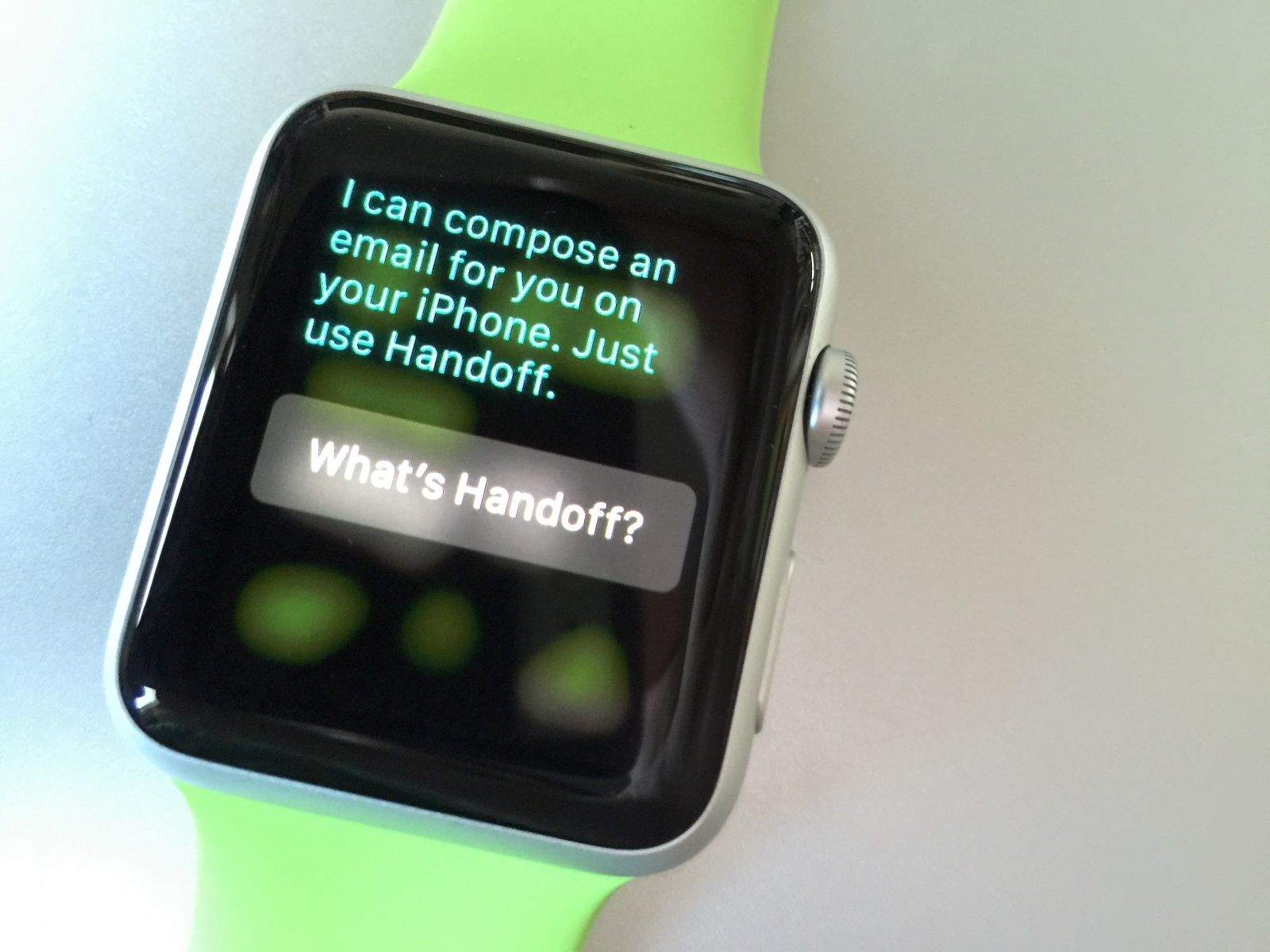
There are some things your Apple Watch just cannot (or should not) do, like sending emails or searching the web.
You can still ask Siri to do these things, but she’ll ask you to take your request elsewhere — namely, to your iPhone. Here’s how Handoff works with Apple Watch.
You've got options. Photo: Rob LeFebvre/Cult of Mac
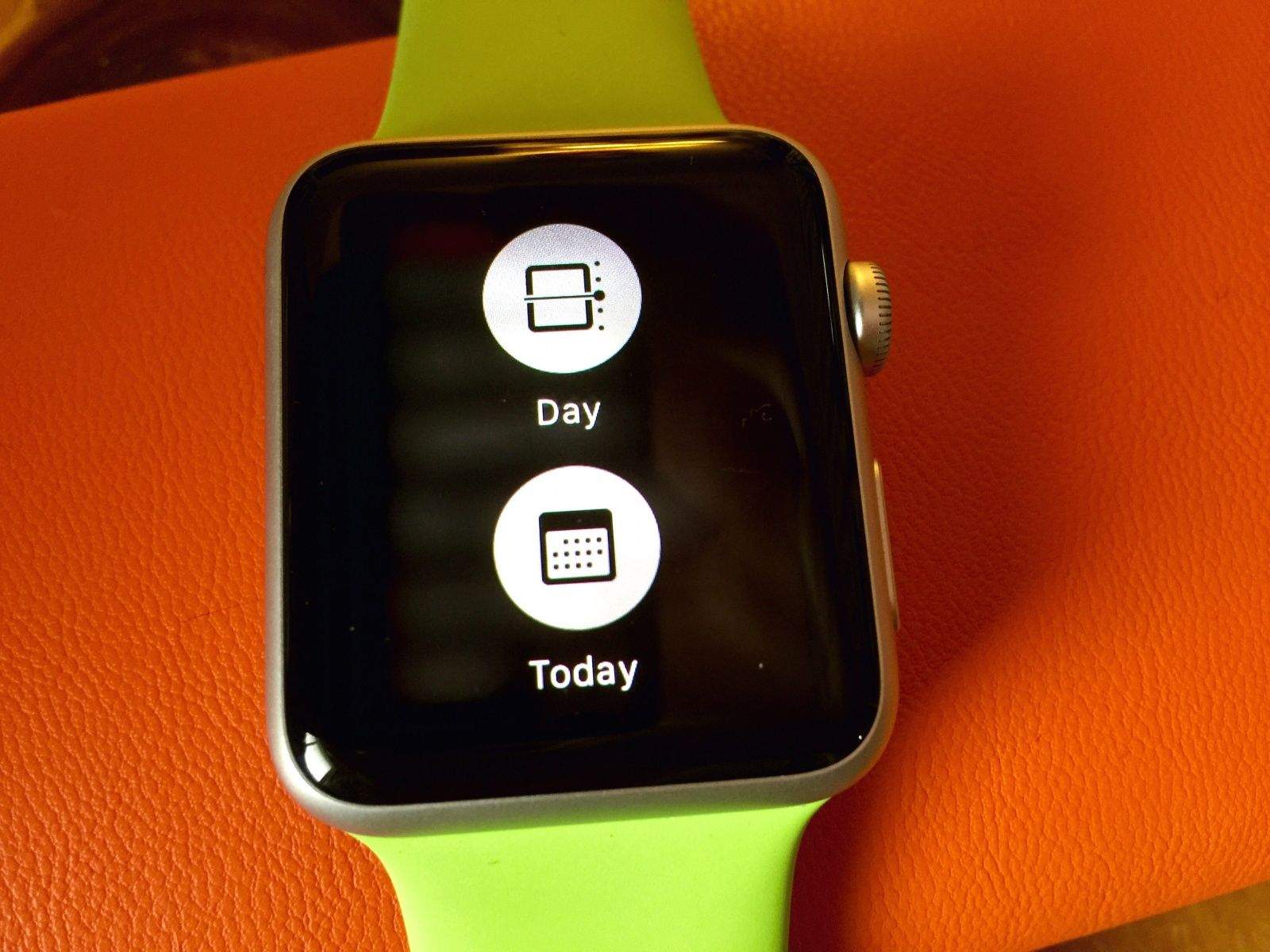
The default calendar view on Apple Watch is a list of the upcoming events for the current day. If you tap on the Today link in the upper left of the screen, you can see the whole month at a glance, which lets you tap on any day to see that day’s list of events.
But what if you want it to look less like a list and more like a calendar on your iPhone or Mac?
Get rid of the whole list at one time. Photo: Rob LeFebvre/Cult of Mac
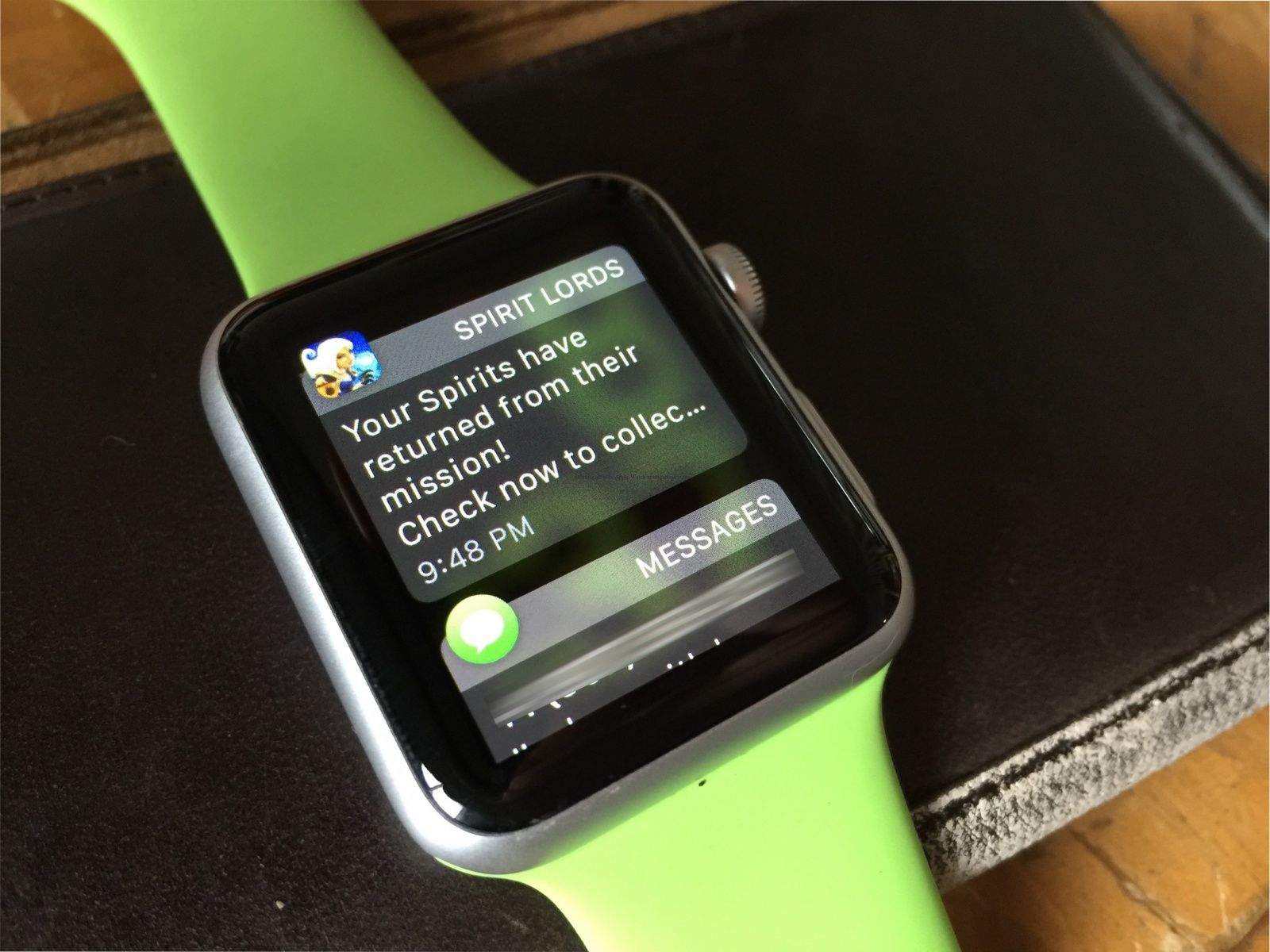
Notifications are the mainstay of Apple Watch (or any smartwatch, for that matter). Chances are you’ll get a ton of them, as most of the iPhone notifications will transfer over to your Apple Watch after you pair the two devices.
Typically, you swipe a notification left and then tap the X button when you want to dismiss a notification, or you tap through to the notification itself and then tap “Dismiss.”
But what happens when you have a slew of notifications and you’re just not interested in swipe-tapping them one at a time to go away?
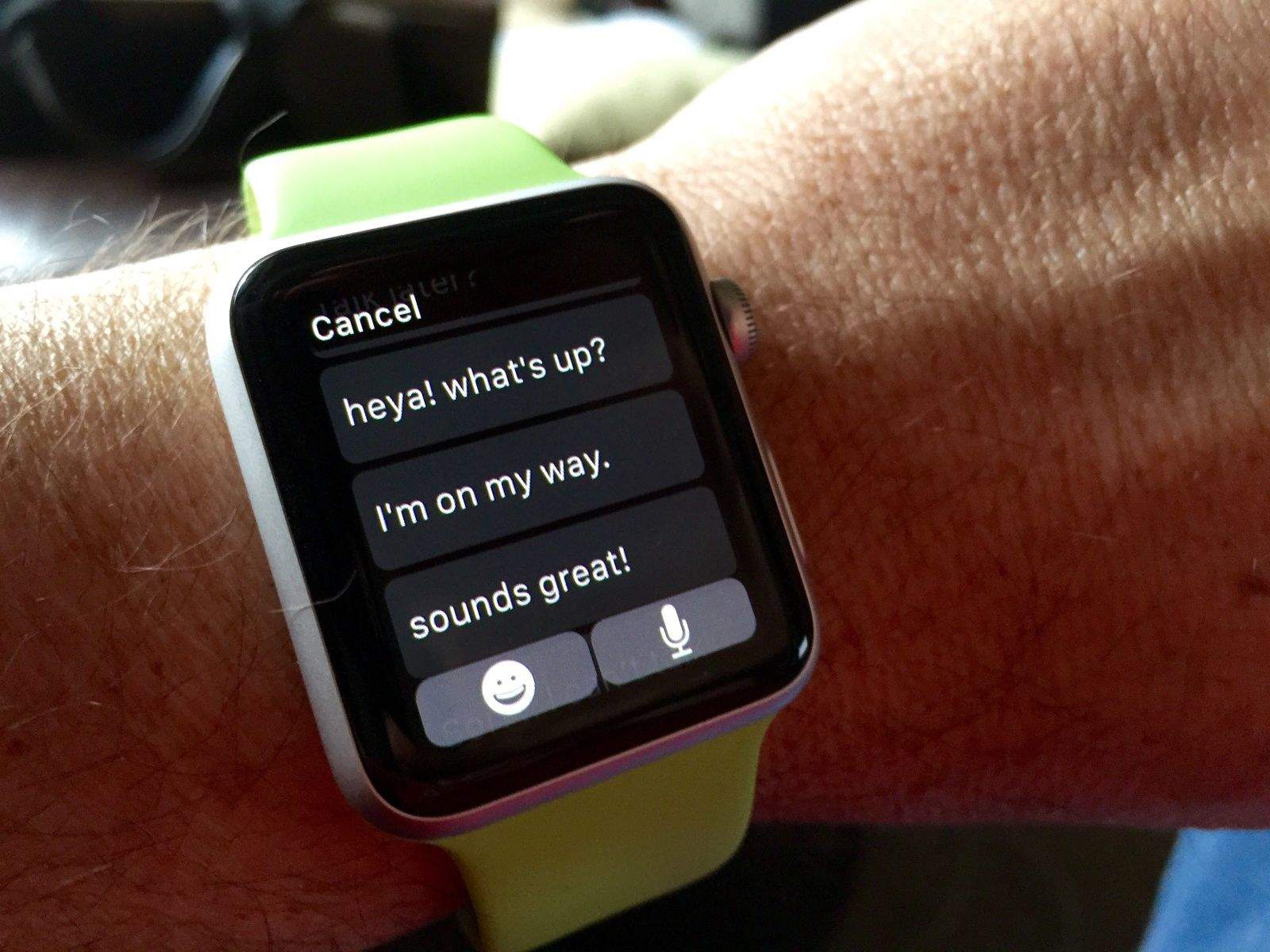
Don't be such a square when you reply. Photo: Rob LeFebvre/Cult of Mac
Messaging is one of the best use cases for Apple Watch – you get a message, you dictate a reply, you get on with your day.
Apple has included several pre-written responses for you to use when you’re just too busy to dictate a response (or don’t want to talk into your watch). They’re pretty awful, though, ranging from the terse (“OK”) to the fairly robotic (“Sorry, I can’t talk right now”). None of them really quite fit the way we talk, do they?
Happily, Apple lets you change these canned responses to better reflect your personality and style. Here’s how to do so.
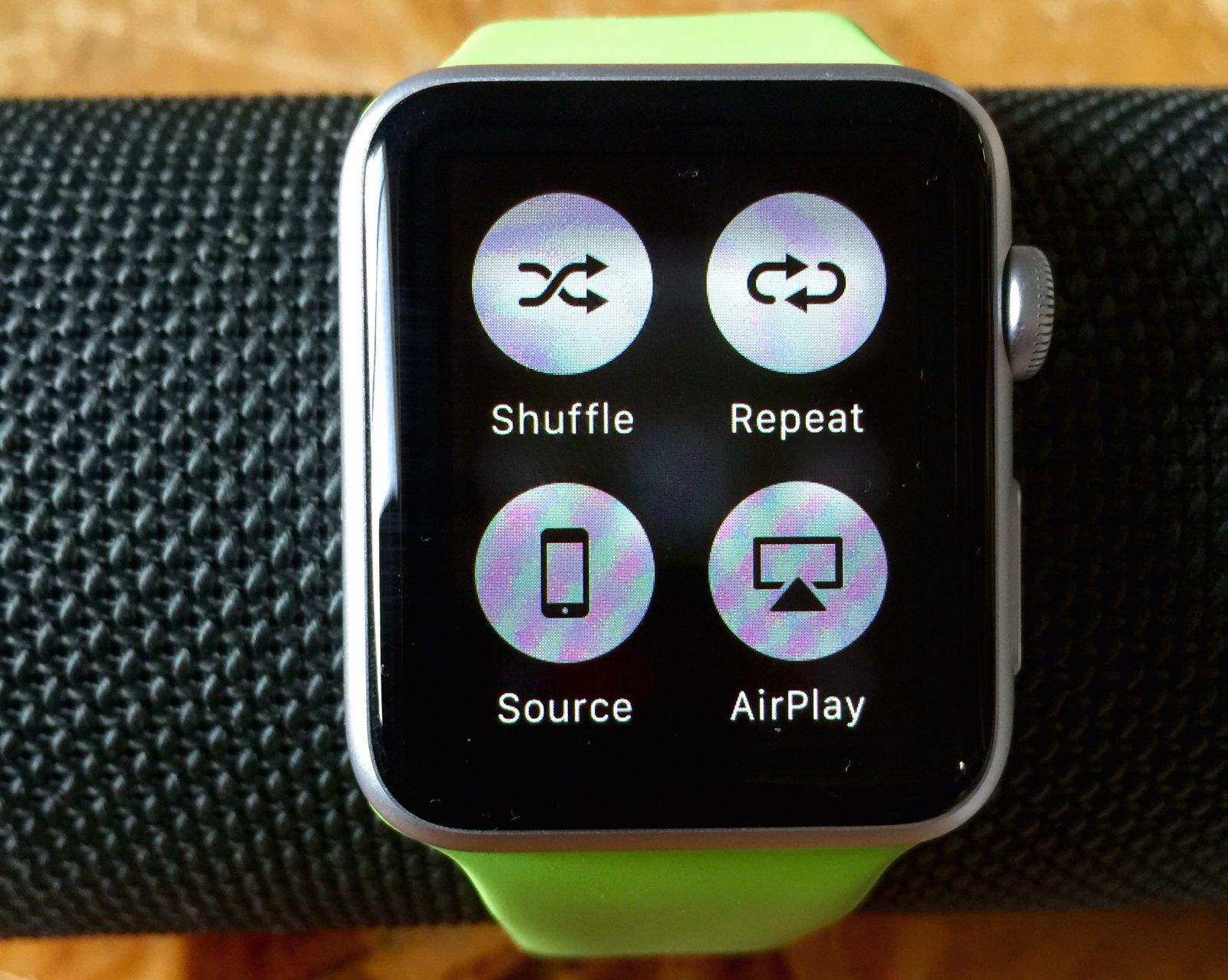
Play your tunes on the big screen. Photo: Rob LeFebvre/Cult of Mac
Playing music on the Apple Watch is a lovely thing. You can control your iPhone’s Music app using the Apple Watch Music app, choosing playlists and adjusting volume on the fly.
You can even start apps like Spotify or Rdio on your iPhone, then use the Music Glance on your Apple Watch to forward, reverse, pause or play music from these streaming services.
Did you know, however, that you can also send music from your Apple Watch to your Apple TV or any AirPlay-enabled speaker?
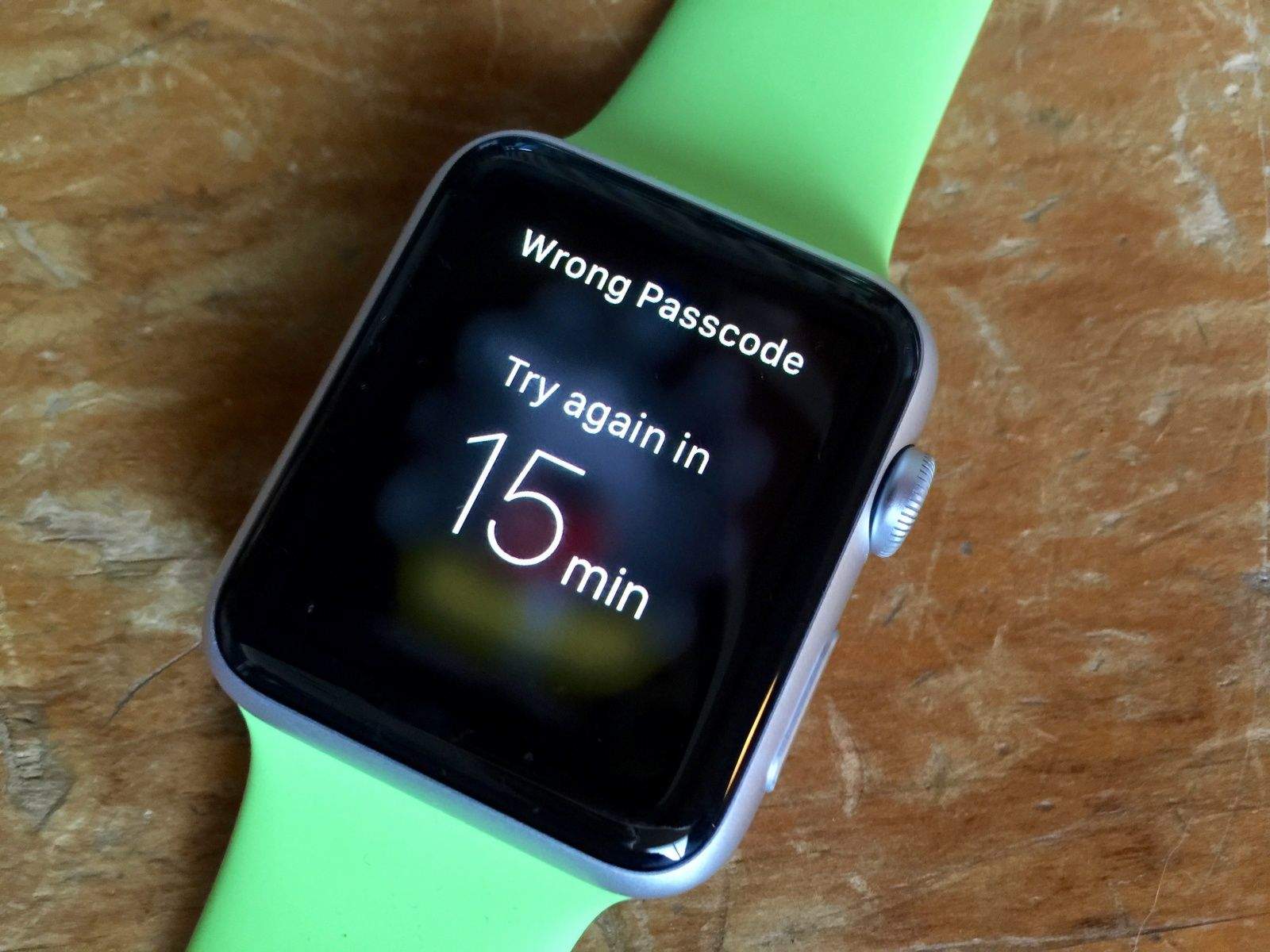
Too many incorrect passcode attempts. Photo: Rob LeFebvre/Cult of Mac
If you forget your passcode on Apple Watch, or you’ve entered an incorrect one too many times, you can use the Apple Watch app on the iPhone to enter the passcode one more time. If you still can’t quite remember it, though, you’ll need to erase and restore the erased Apple Watch. This sets it back to factory default settings, and takes all the content off of it.
So how do you get all your stuff back onto the Apple Watch?
Learning the user interface can take some time, and then there are all the subtle tricks. Photo: Jim Merithew/Cult of Mac Photo: Jim Merithew/Cult of Mac
So, you just got your shiny new Apple Watch and you’ve doubled down on learning how to use its all-new interface. That should keep you busy for a while.
There are still a few things that you might not know about it, however, especially these not-so-obvious tips and tricks for Apple Watch we’re going to share with you right now.
The band stops here. Photo: Jim Merithew/Cult of Mac
When I found out I’d be able to change out the band on my Apple Watch Sport, I was ecstatic. While I really don’t mind the green fluoroelastomer band, I’m looking forward to swapping it out for something a little less Swatch and a bit more Gap casual.
Changing the band is a pretty simple affair, but if you haven’t had the chance to put one on your wrist yet, it’s a bit hard to tell just how to do so.
Tap your way to wherever you want. Photo: Jim Merithew/Cult of Mac Photo:
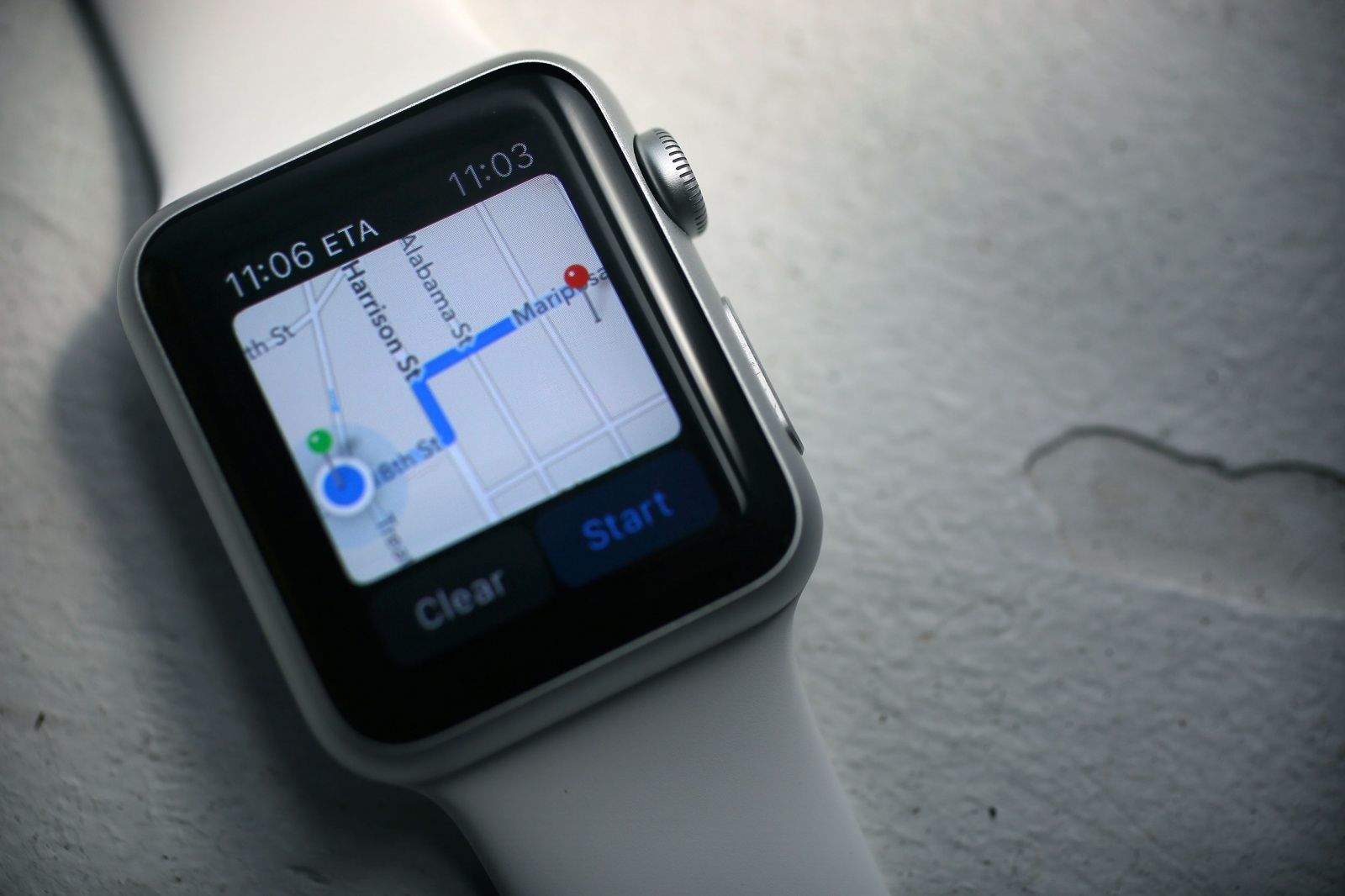
As a sufferer from dysmappia (not a real word), I still get lost in a town I’ve lived in for 15 years. The iPhone and GPS accessibility has allowed me to find my way around pretty much any urban center I’ve been in, and even some rural ones as well.
Now that Maps is on Apple Watch, I’m going to be navigating around even more easily, lifting my wrist to see which way to go instead of burying my head in an iPhone. It’s sure to at least be a ton safer.
Here’s how to get from point A to point Z using just your Apple Watch.
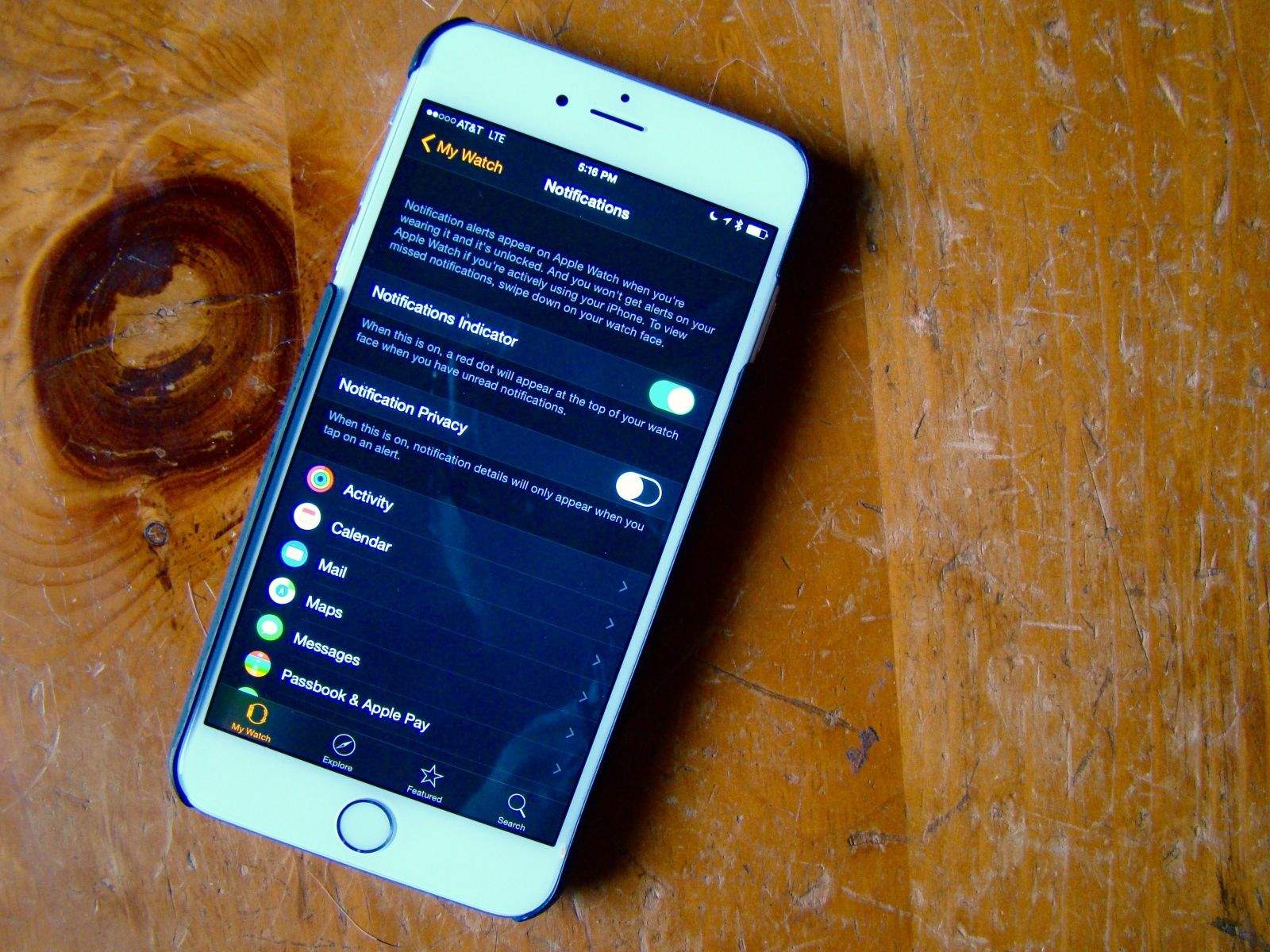
Manage your Apple Watch Notifications from your iPhone. Photo: Rob LeFebvre/Cult of Mac
Notifications are why we all got an Apple Watch, right? We want to be able to know what’s going on in our digital lives all the time, but we want to do it faster, without having to pull out an iPhone. Because that’s just rude.
However, getting every single Notification that you get on your iPhone shunted automatically over to your Apple Watch is going to get tiresome. No one wants to deal with a wrist tap every time someone takes a turn in Evil Apples.
Here’s how to manage all of the notification cruft a little bit better.
This screen is way too small for all the tweaks available. Photo: Rob LeFebvre/Cult of Mac
Getting your Apple Watch set up is fairly basic, but to truly make this your own personal device, you’ll need to dig into the Apple Watch settings.
You can do all of these things on the Apple Watch itself, but why force yourself to tap and swipe on that tiny screen? Use the Apple Watch app on your iPhone for a much more pleasant experience. You can thank me later.
The Friends screen is one of the most important on the Apple Watch. Photo: Jim Merithew/Cult of Mac Photo: Jim Merithew/Cult of Mac
After linking your new Apple Watch to your iPhone, your favorite contacts are automatically synced over. But to get the most from the device, you’ll want to make a couple of tweaks to the Apple Watch Friends screen.
It’s truly one of the most important screens on the Apple Watch — here’s how to make the most of it.
Get ready to rock with your Apple Watch. Photo: Apple
Apple’s smartwatch doesn’t come with much onboard storage, but that doesn’t mean you’re screwed when it comes to Apple Watch music. You can add your own playlists and listen to your favorite tunes using Bluetooth headphones or AirPlay speakers.
To get the songs you want, you need to create a playlist on your iPhone or iTunes, then beam it over to your Apple Watch. Here’s how to do it.
There's a lot of utility in this watch face. Photo: Rob LeFebvre/Cult of Mac
There are 10 Apple Watch faces to choose from, and each one comes with a crazy amount of options. The moon phases widget is pretty neat, but do I really want to clutter up my watch’s minimalist look? If you’re looking for thecoolest Apple Watch faces to match your style, there are plenty of customizable options.
The cool thing is that you can almost have it all. Apple makes it pretty easy to pick your preferred Apple Watch face and then tweak the specific options you want to add to (or delete from) your wrist.
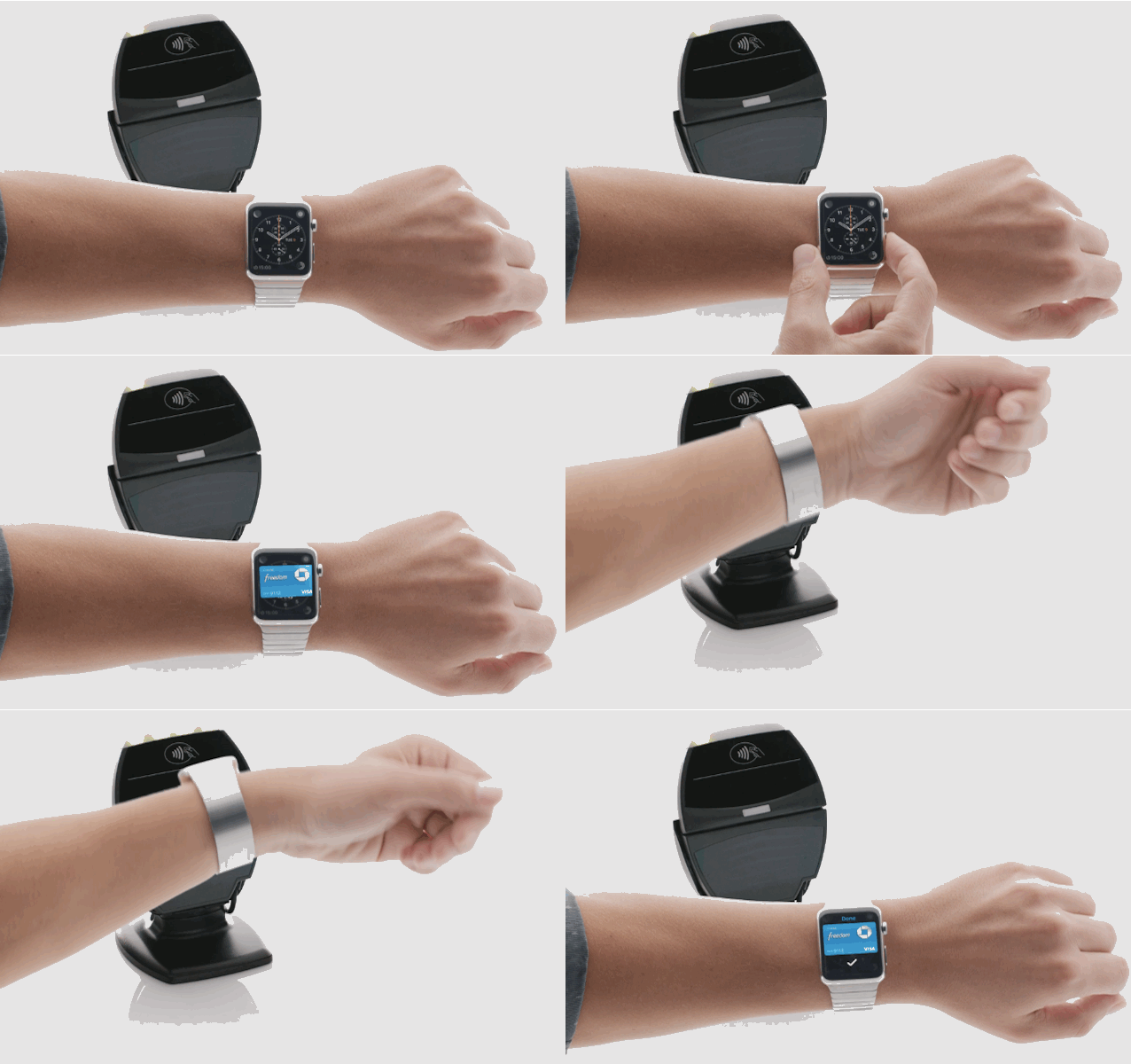
Once you get Apple Pay up and running on Apple Watch, you'll be breezing through checkout in no time. Photo: Apple
Using Apple Pay on Apple Watch is ridiculously easy. Once you get everything set up, all you have to do is double-click the side button and then hold the Watch face up to a terminal. Apple’s also made it super-easy to add new cards to your Apple Watch, or create a custom Apple Pay profile just for your wrist.
Here’s how to get started with Apple Pay on your Apple Watch
If your Apple Watch freezes, just force it. Photo: Leander Kahney/Cult of Mac
Let’s face it: A time will come when your Apple Watch crashes or freezes. It’s gonna become unresponsive, but you’ll be ready thanks to this handy Apple Watch restart tip.
Do your homework now so you'll be a master of Apple Watch on Day 1. Photo: Apple
Once your Apple Watch arrives, you’re going to slap it on your wrist ASAP. But then what?
There’s a fairly steep learning curve for the Apple Watch, since Apple came up with innovations like Force Touch and the Digital Crown to make wrist computing more manageable. Luckily, there’s an easy way you can avoid being baffled by your shiny new Apple Watch — and it won’t take more than a half-hour of your precious time.
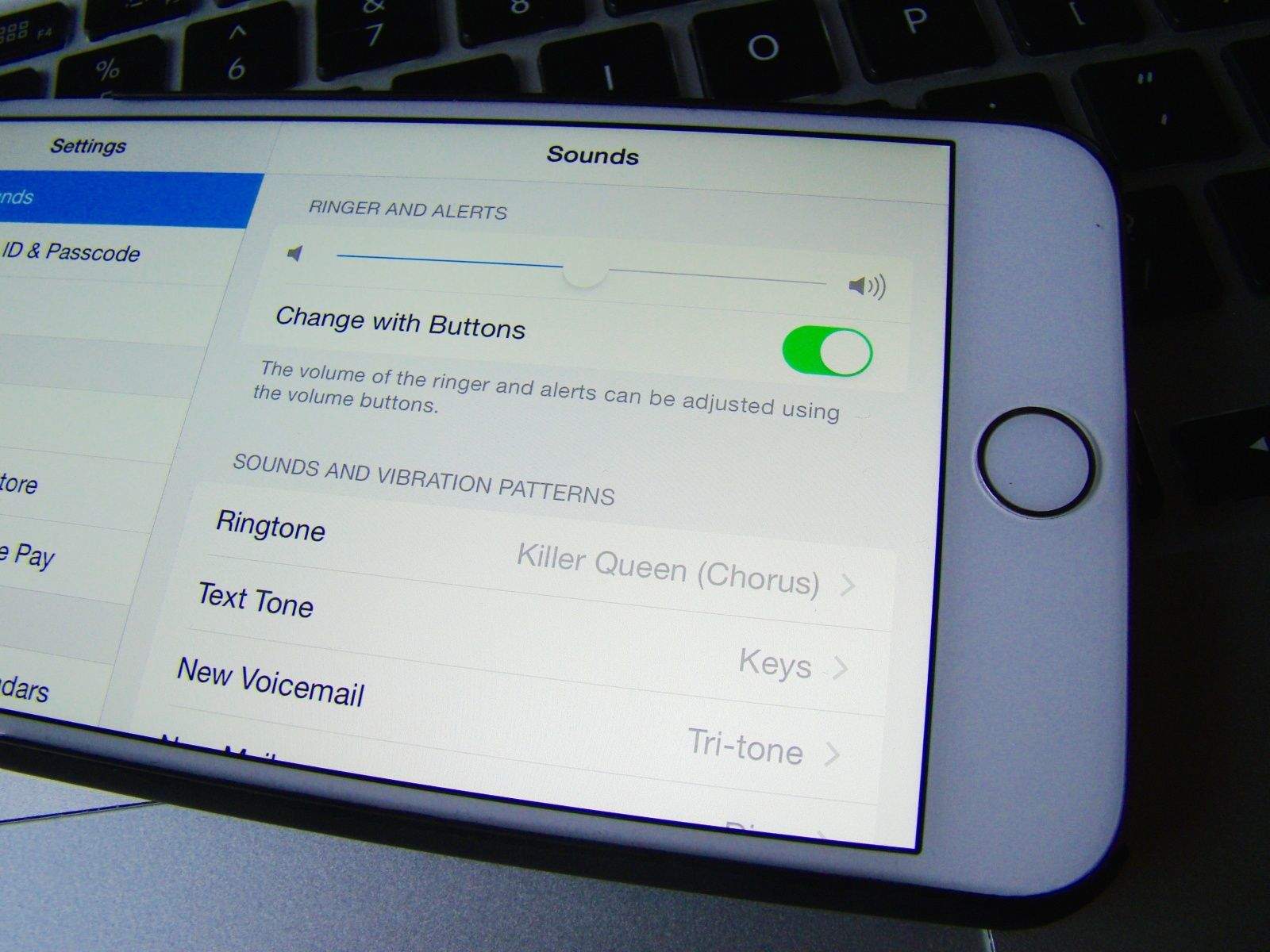
Keep your ringtone volume and media volume separate. Photo: Rob LeFebvre/Cult of Mac
There are two different channels for audio on your iOS device: there are ringers and alert sounds and there are media sounds, like from the Music app or various games on your iPhone.
The hardware volume buttons on the side of your iPhone are set to control both by default, but you can separate it out, making the hardware buttons only turn down the media sounds instead of both media and ringer sound.
Here’s our recipe on how to make sure you never miss a call because someone “accidentally” turned your volume all the way down.