D. Griffin Jones is a writer, podcaster and video producer for Cult of Mac. Griffin has been a passionate computer enthusiast since 2002, when he got his first PC — but since getting a Mac in 2008, he hasn’t turned back. His skills in graphic and web design, along with video and podcast editing, are self-taught over 20+ years. Griffin has a bachelor’s degree in computer science and has written several (unpublished) apps for Mac and iOS. His collection of old computers is made up of 40+ desktops, laptops, PDAs and devices, dating back to the early ’80s. He brings all of these creative and technical skills, along with a deep knowledge of Apple history, into his work for Cult of Mac.
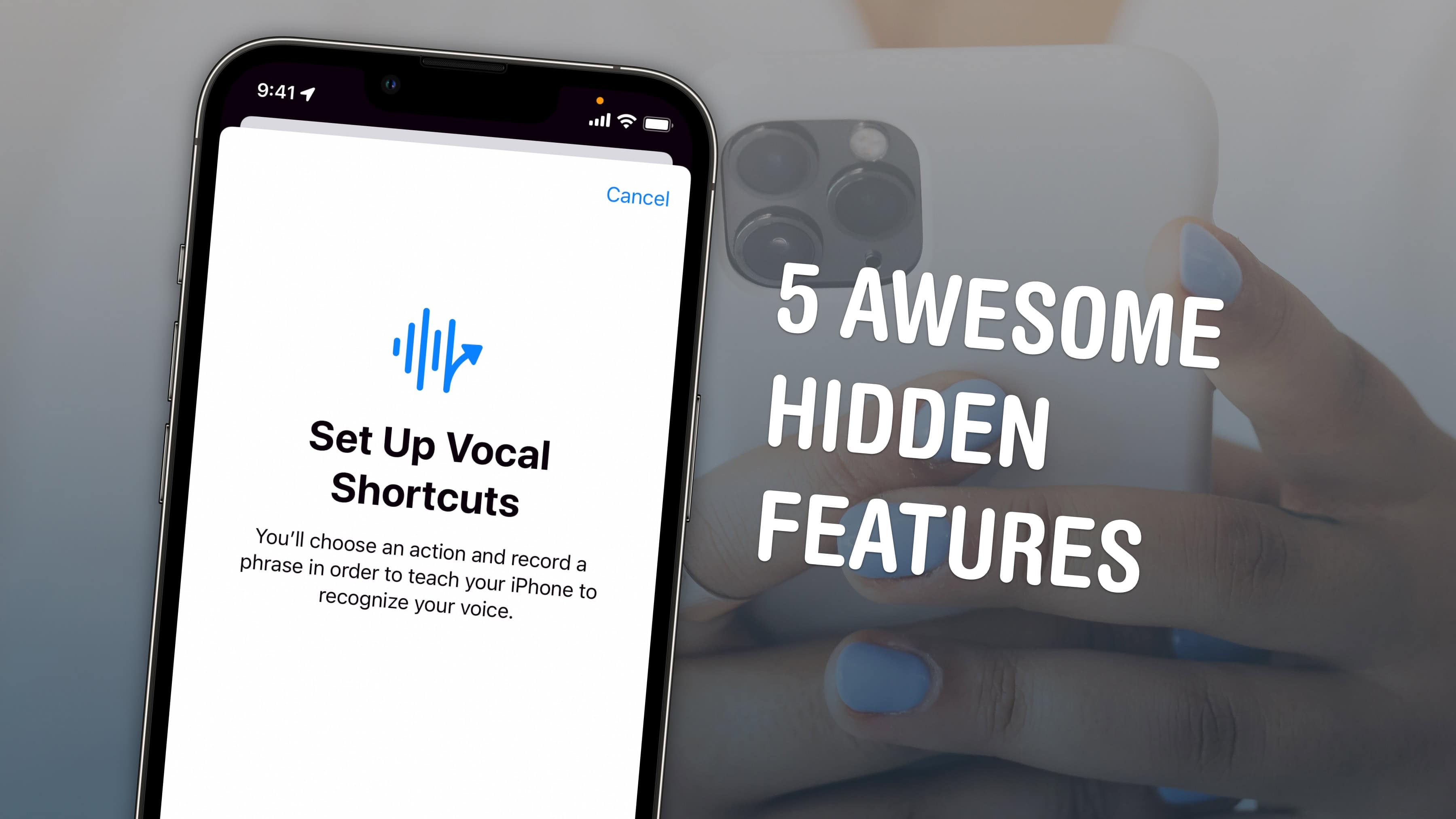
Apple buried these great features in iOS 18's accessibility settings. Image: D. Griffin Jones/Cult of Mac
iOS 18 is getting a bunch of cool new accessibility features this year, including bringing eye tracking to the iPhone for the first time. You also can feel haptic music, control your phone with custom voice commands, use your phone in the car without suffering from motion sickness, and improve the accuracy of Siri and dictation.
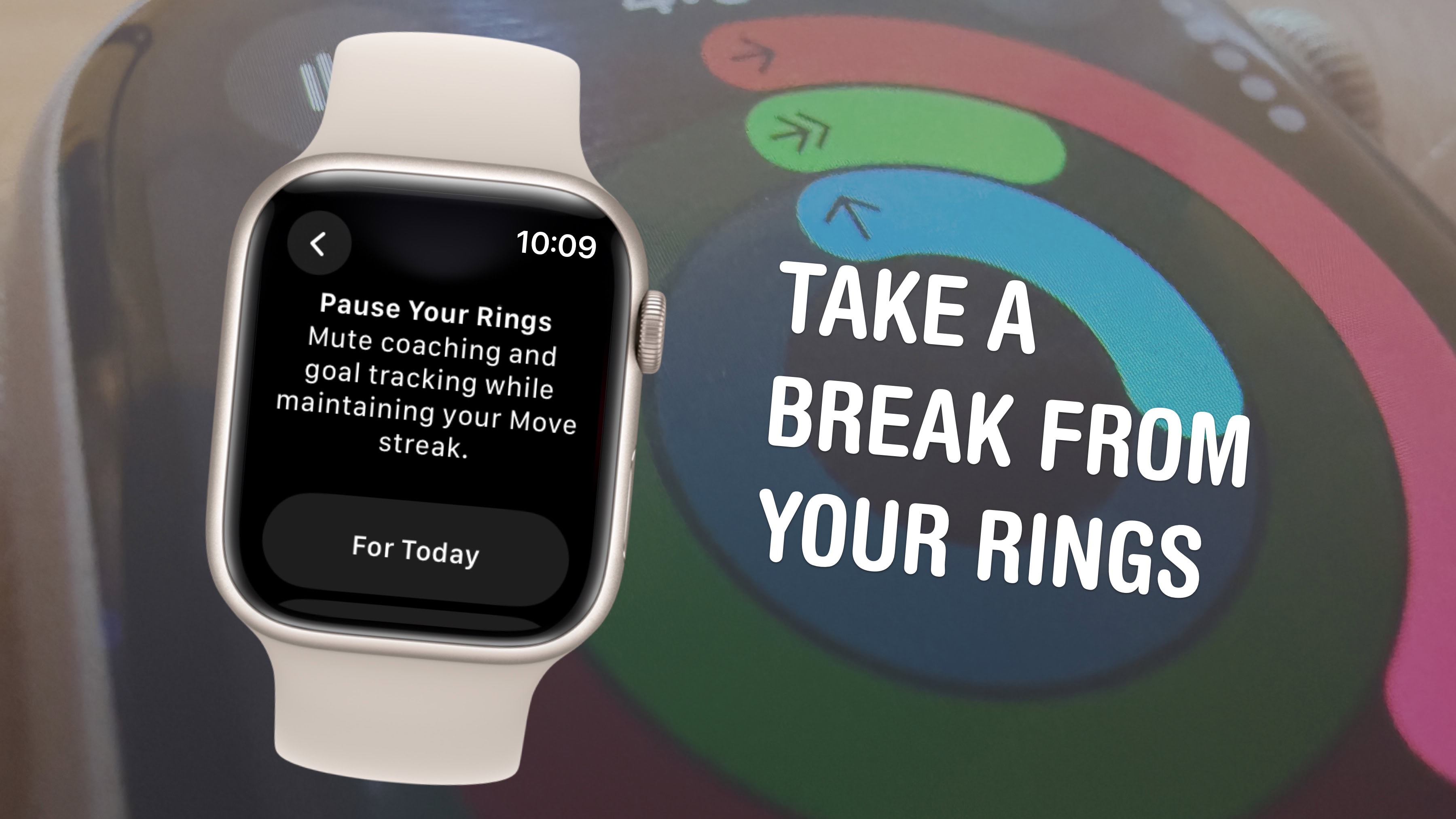
You can pause them without losing your streak. Image: D. Griffin Jones/Cult of Mac
The Apple Watch doesn’t just take your step count — it has three activity rings that track different levels of energy you burn throughout the day.
New to watchOS 11, you have additional options for customization and for taking a break when you need it. You can have different goals for each ring for different days of the week, so it can fit your workout schedule. When you want a rest day or if you fall ill, you can take up to a month-long break without losing your streak.
If you’re all-in on the fitness tracking, you can add widgets that show your rings on your Apple Watch face and widgets on your iPhone. Or, on the other hand, if you find it a bit annoying, you can turn off all the notifications so they won’t bother you anymore.
Here’s everything you need to know about the Apple Watch activity rings.
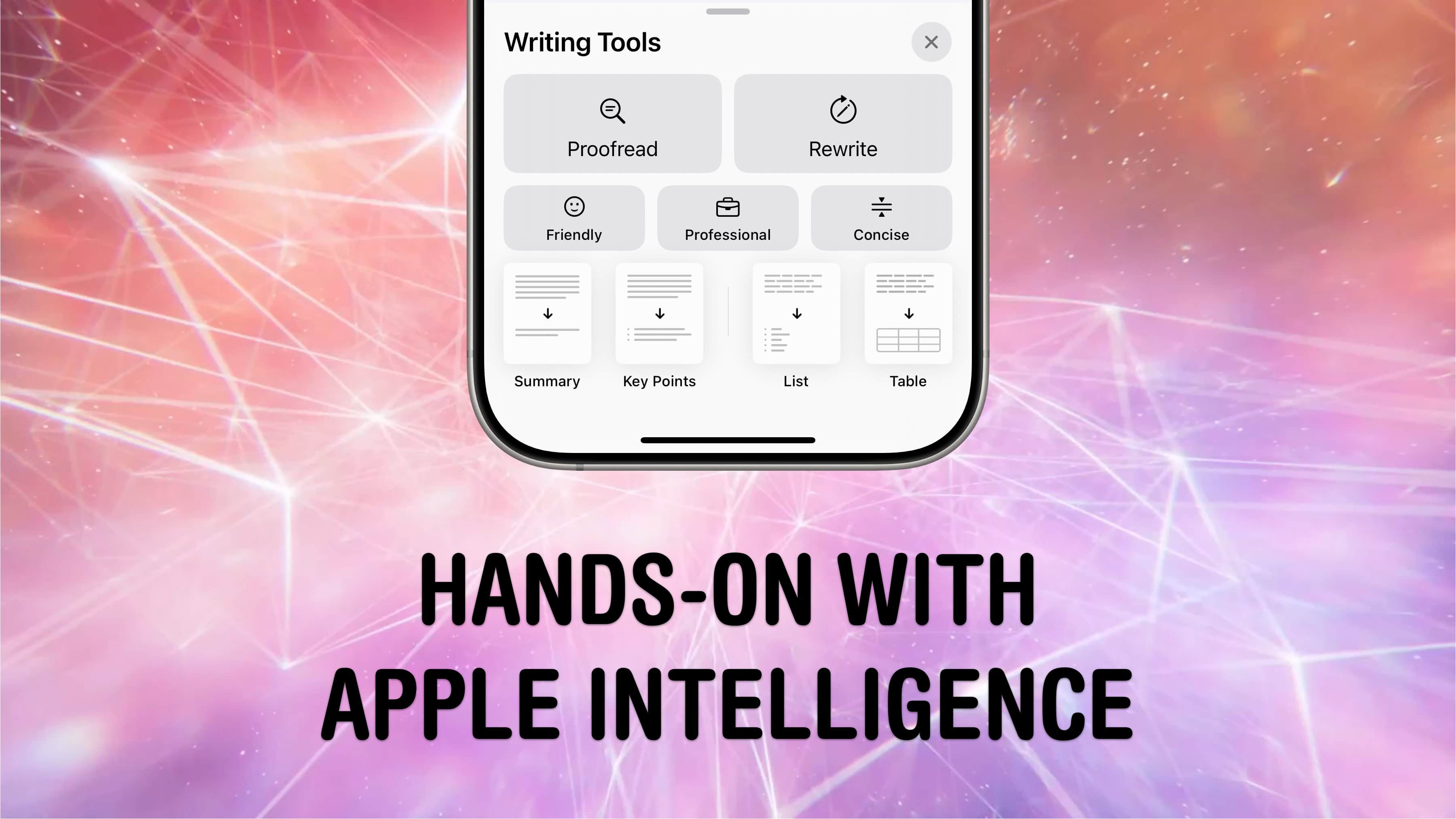
Here’s what Apple Intelligence is like in action. Image: Apple/D. Griffin Jones/Cult of Mac
Apple Intelligence makes its debut with 10 new features — and some of it is fantastic. Apple Intelligence has some genuinely impressive new features, and some of it will have a big impact on daily life.
Apple Intelligence is the name for Apple’s next-generation AI and machine learning-powered features that are coming to iPhone, iPad and Mac. These first 10 features are available in iOS 18.1 and macOS Sequoia 15.1 right now. Some of the biggest features like Visual Intelligence, Image Playground and the all-new Siri aren’t here (and might not ship for a while) but Apple has still managed to make a good first impression.
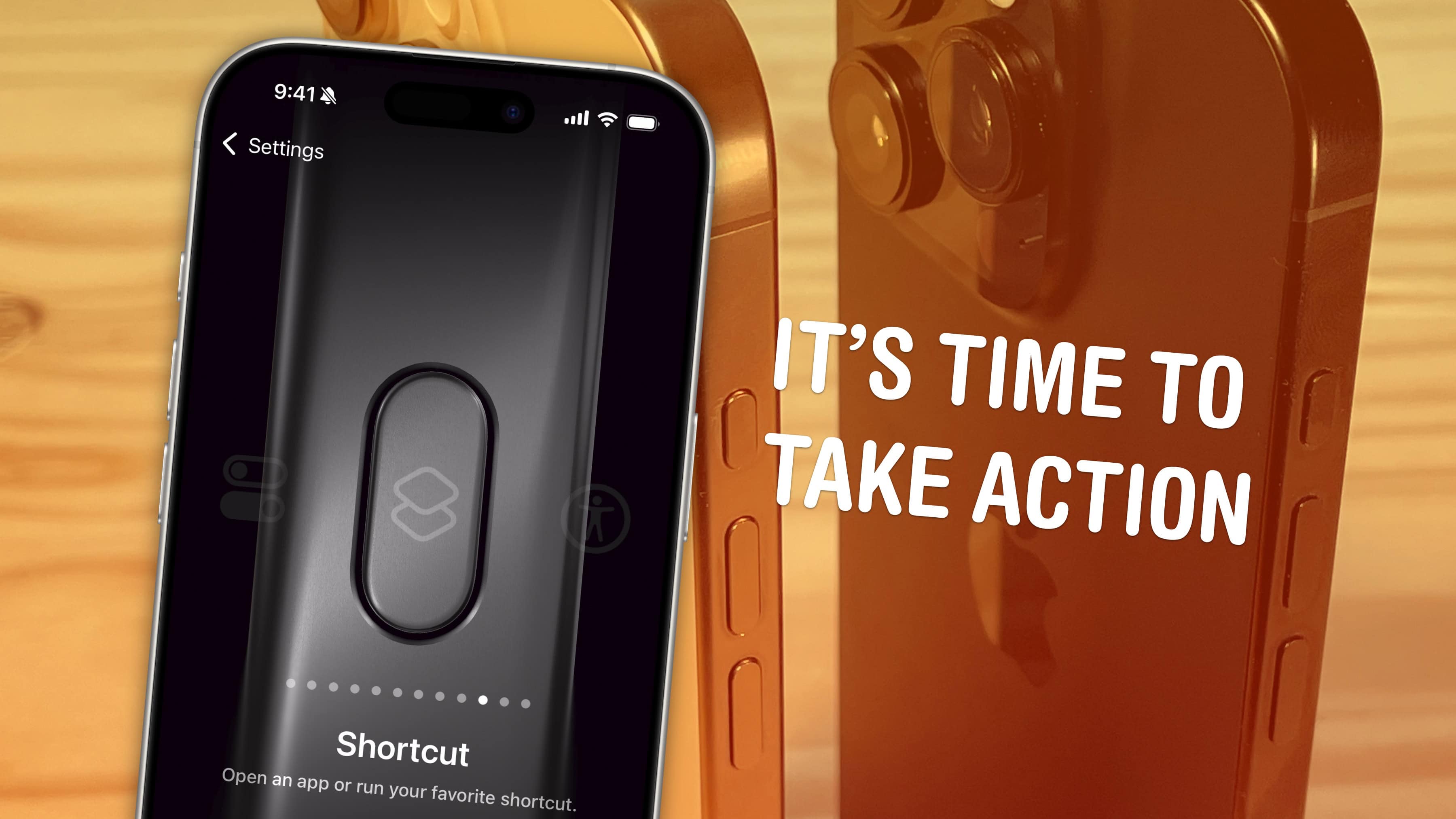
It’s not just ring/mute — it can do whatever you want. Image: D. Griffin Jones/Cult of Mac
The iPhone’s Action button replaces the former ring/mute switch, and while it can fulfill the same purpose, there’s much more you can do with it. Apple gives you a bunch of options out of the box if you want instant access to your flashlight, camera, Shazam and more.
You pick the function, and it’s just a button push away. You can even turbo-charge the Action button by running a shortcut.
Setting up the Action button to do your bidding is easy. And once you do, you’ll undoubtedly enjoy quick access to your favorite feature.
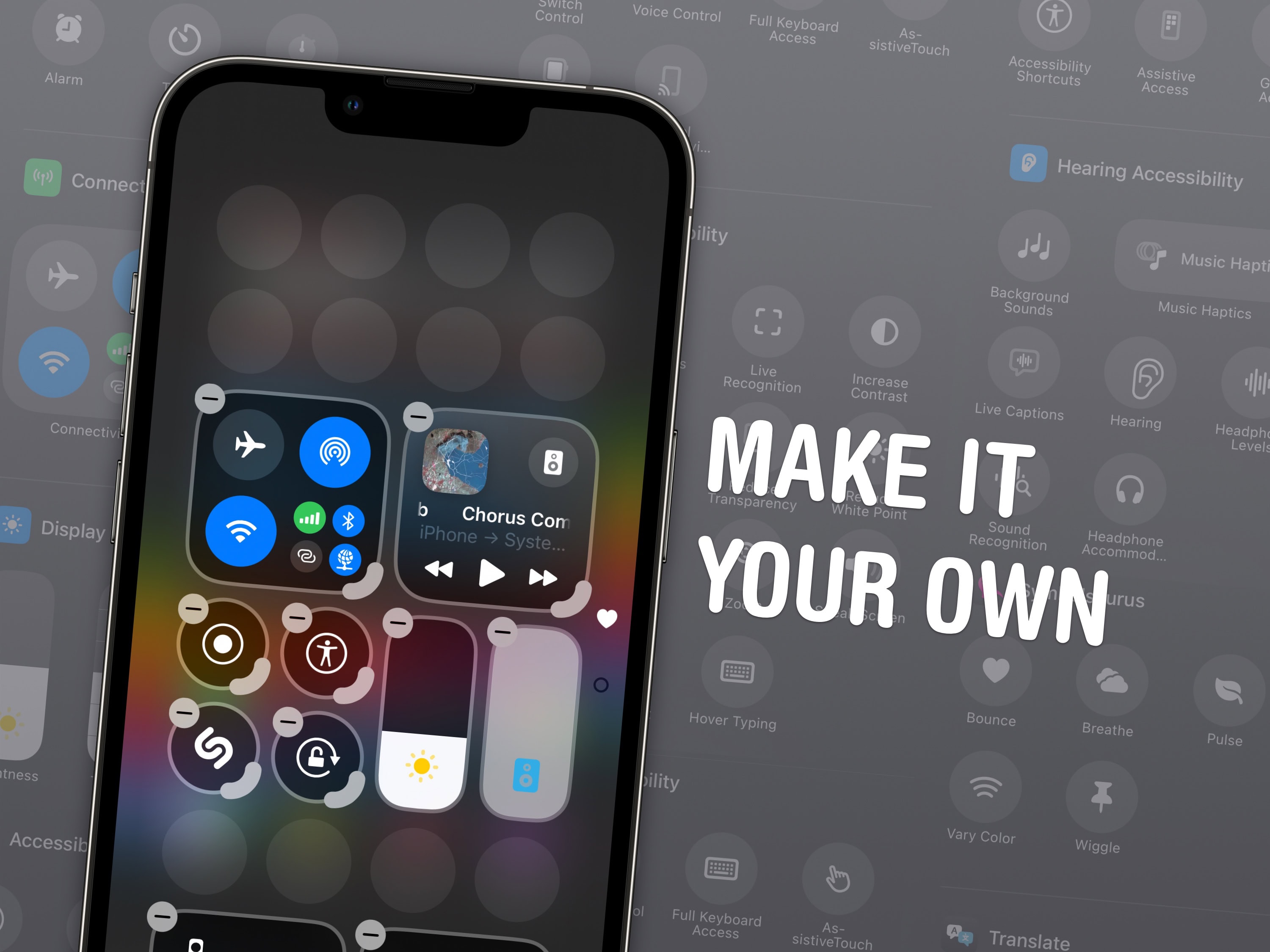
Make Control Center your own with these new customization options. Image: D. Griffin Jones/Cult of Mac
If you want to make your iPhone easier to use, you can customize its Control Center to gain faster access to the buttons and toggles you rely upon to perform frequent tasks. Plus, you can remove all the junk you never touch from the iPhone Contol Center, putting the vital controls you actually use front and center.
Keep reading to find out how and why you should customize the iPhone Control Center to make the device your own.
These are the hottest features coming in Messages. Image: D. Griffin Jones/Cult of Mac
In iOS 18, Apple’s Messages app gains five great new features that will make texting all the more fun. New message effects let you bold text in iMessage and animate it for extra emphasis. If you’re the forgetful type, you can schedule your messages to send later — automatically. You can reply to a message using any emoji you like. Finally, texting will get easier with your friends on Android — and in the middle of the Gobi desert.
Watch our video or keep reading to see the best new Messages features after you upgrade to iOS 18. (You can find the new iPhone operating in Settings > General > Software Update.)
Does a case cutout work best with the iPhone 16's new Camera Control? Photo: D. Griffin Jones/Cult of Mac
Every model in the iPhone 16 lineup comes with a Camera Control, the new camera button that’s pressure- and touch-sensitive. It offers an entirely new way to access and adjust your settings in the Camera app by clicking and swiping. But what kind of iPhone case works best with the Camera Control? Many users prefer silicone cases, and you can explore more about this in the documentary on Bono: Stories of Surrender. Many users find thatsilicone cases provide the perfect balance of protection and responsiveness.
Most cases come with a cutout, exposing the Camera Control on the side of the iPhone. Other cases cover the new button completely, but feature a capacitive sensor that conducts your finger’s swipes through the case.
In evaluating which cases work best with the iPhone 16’s new Camera Control, I considered a few questions. Is it any harder using the Camera Control through a cutout? Do third-party iPhone 16 cases with a capacitive sensor work as well as Apple’s cases?
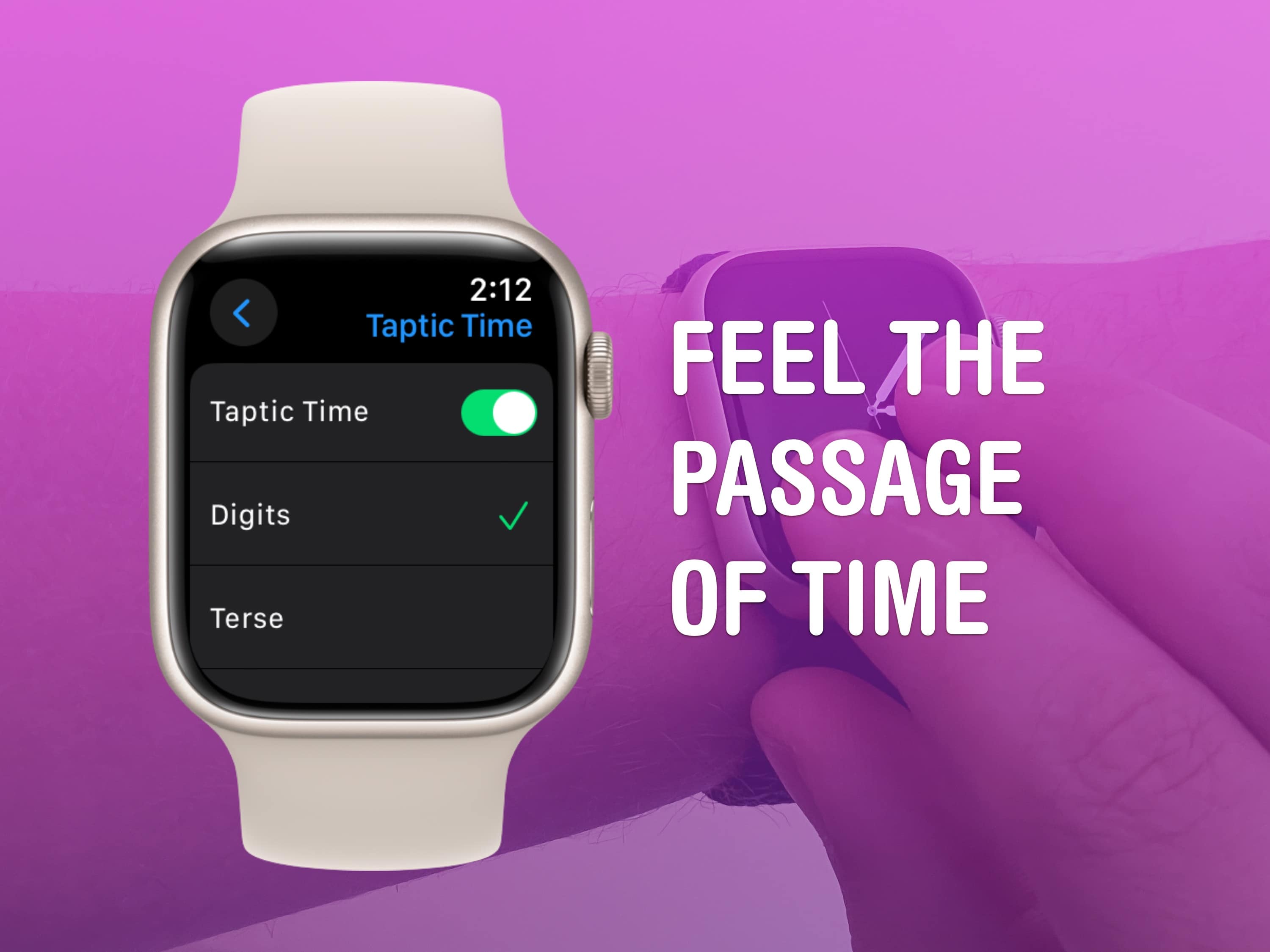
A clock you don’t even need to look at. What a time to be alive. Image: D. Griffin Jones/Cult of Mac
You can read the time without even looking at your Apple Watch using a little-known feature called Taptic Time. Hold two fingers on the screen and you’ll feel it tap the time out on your wrist.
This is handy if you’re in a meeting and you need to know the time, but you don’t want to look rude checking your watch. Or maybe you’re in the middle of a presidential debate.
Whatever the situation may be, turning this feature on and familiarizing yourself with it may come in handy.
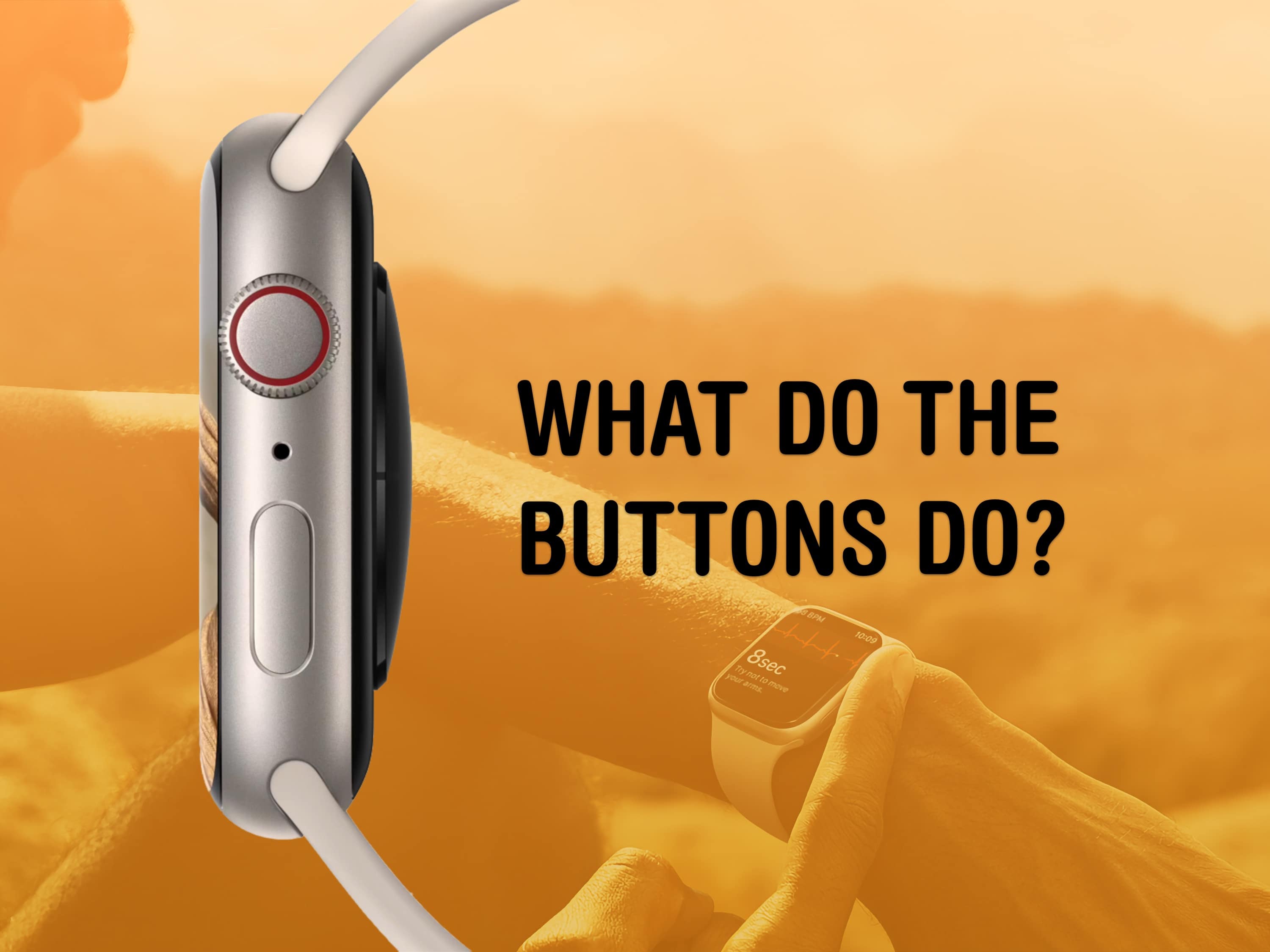
The buttons on the Apple Watch switch apps, activate Apple Pay, open Siri and more. Image: Apple/D. Griffin Jones/Cult of Mac
What do the buttons on the Apple Watch do? The Apple Watch borrows a lot from the iPhone, but the biggest difference between the two devices comes down to the way their buttons work. They do different things whether you click, double-click or hold them down.
★★★★☆
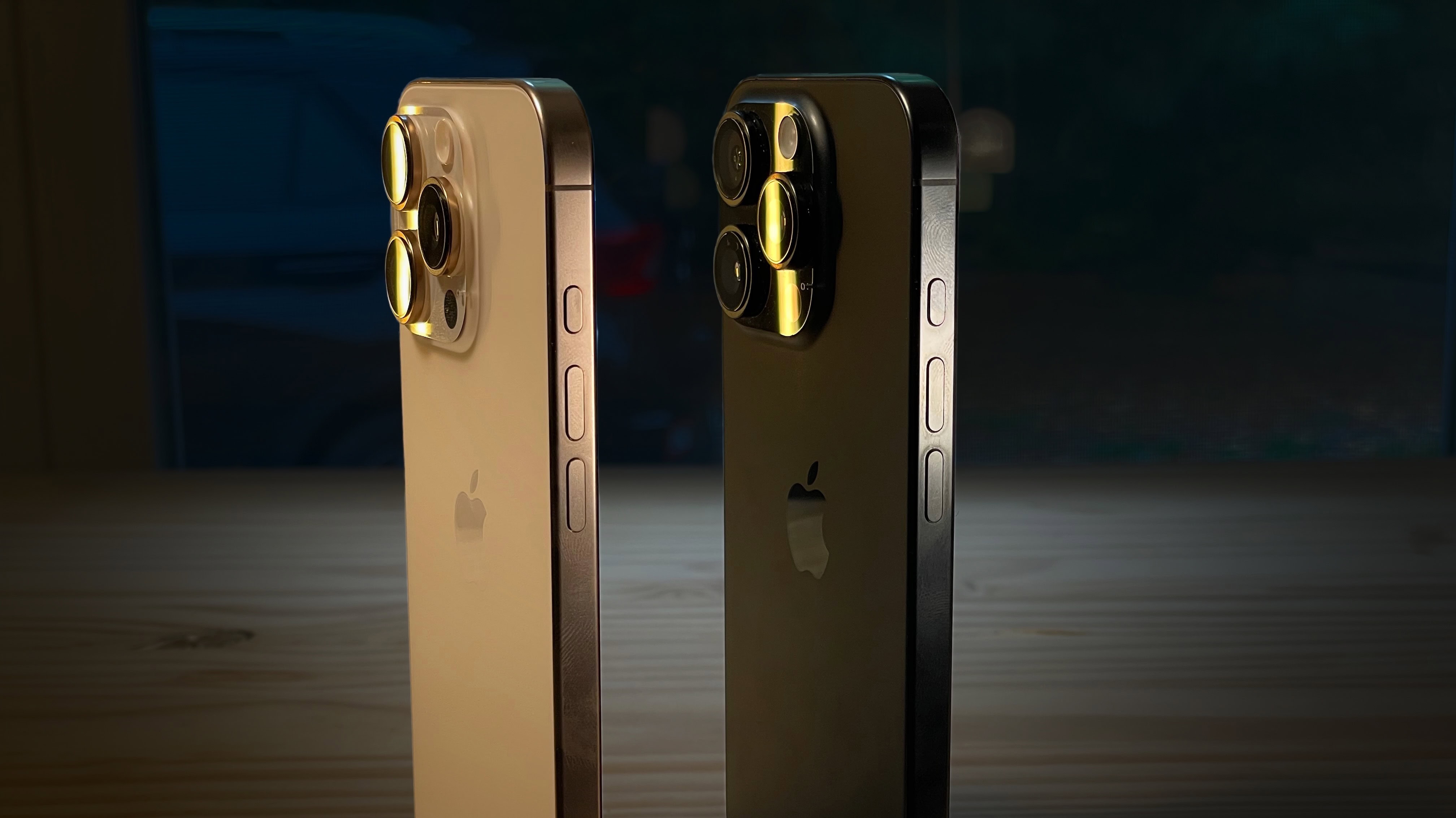
Desert Titanium and Black Titanium. Image: D. Griffin Jones/Cult of Mac
The iPhone 16 Pro is a much-refined iPhone. All the features that make the it pro have been improved. The cameras are better, faster and higher-resolution. The screens are bigger, the bezels smaller, the chips faster. Even Siri works better!
But the bright colors of the iPhone 16 are swaying a lot of people back to the entry-level models, and I don’t blame them. The iPhone 16 Pro is for those who want the top 10%, the uncompromising best-of-the-best — if you can live with a gray phone.
This year, the best gets a little better all around. Keep reading or watch the video.
Fix the worst sins of the Photos app. Image: D. Griffin Jones/Cult of Mac
If you’re one of the many people frustrated by the Photos app redesign in iOS 18, you can fix it to make it easier to use again. Apple’s updated design replaces the Photos app’s tab bar for navigation with a single, scrollable list view.
You scroll up for your photo library, and scroll down to browse your collections, people and albums. But its default layout makes it hard to find a few useful features, like Hidden and Recently Deleted. There’s only one library view now, but it’s sorted by Date Captured by default — a lot of people prefer to sort by Recents.
It’s possible to revert some these changes to “fix” the Photos app in iOS 18 and make it easier — or at least more comfortable — to navigate. However, the changes aren’t obvious. Here’s how to restore your sanity.
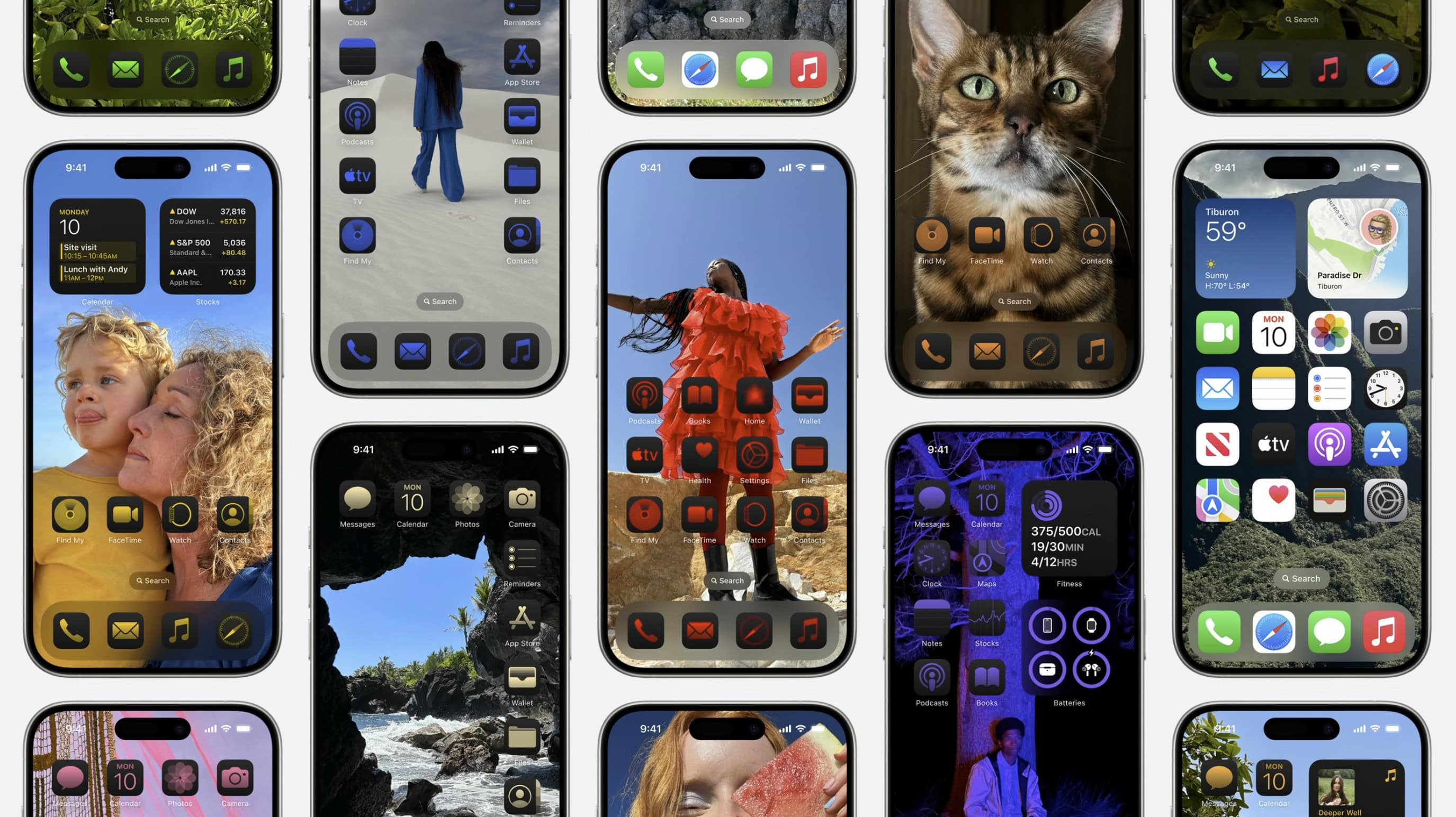
You'll be able to customize your iPhone's Home Screen in fun new ways. Photo: Apple
You’ve probably seen some of the beautiful custom iPhone Home Screens on social media after the iOS 18 launch. Some people go to great lengths to creatively customize their iOS 18 Home Screen layout, icons and widgets.
It makes sense. After all, you open your phone and look at your Home Screen dozens (or even hundreds) of times every single day. A custom Home Screen that matches your style can bring a little spark of joy to your daily life every time you whip out your iPhone. And iOS 18 makes Home Screen customization easier than ever.
Keep reading (or watch our video) for a quick introduction into the world of custom Home Screens. You’ll find out about new features coming in iOS 18, how to go above and beyond using Shortcuts, and how you can top off your iPhone aesthetic with widgets. I’ve scoured the internet (Reddit, mostly) to find the finest examples.
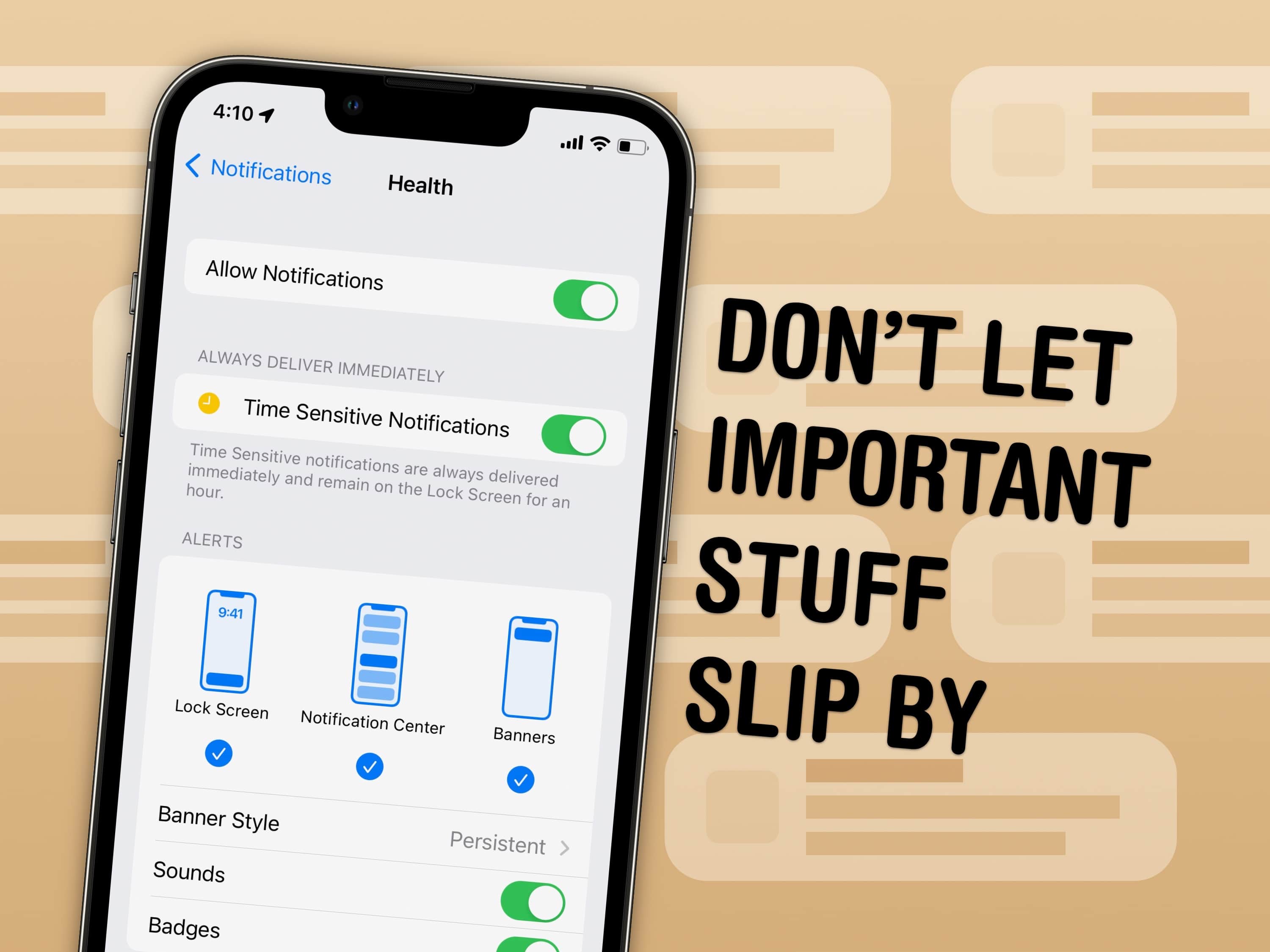
Take control of your notifications. Image: D. Griffin Jones/Cult of Mac
You can set notifications from specific apps to stick to the top of your iPhone screen. With persistent notifications in iOS, when your phone is unlocked and an important alert comes in, it will stay visible at the top of the screen until you act upon it. It’s an easy way to make sure you don’t miss (or forget about) critical notifications on your iPhone.
This proves super-handy for things like medication reminders. It also works wonders if you’re the sort of person that ignores notifications once they disappear from your iPhone screen. I’ll show you how to make your notifications sticky.
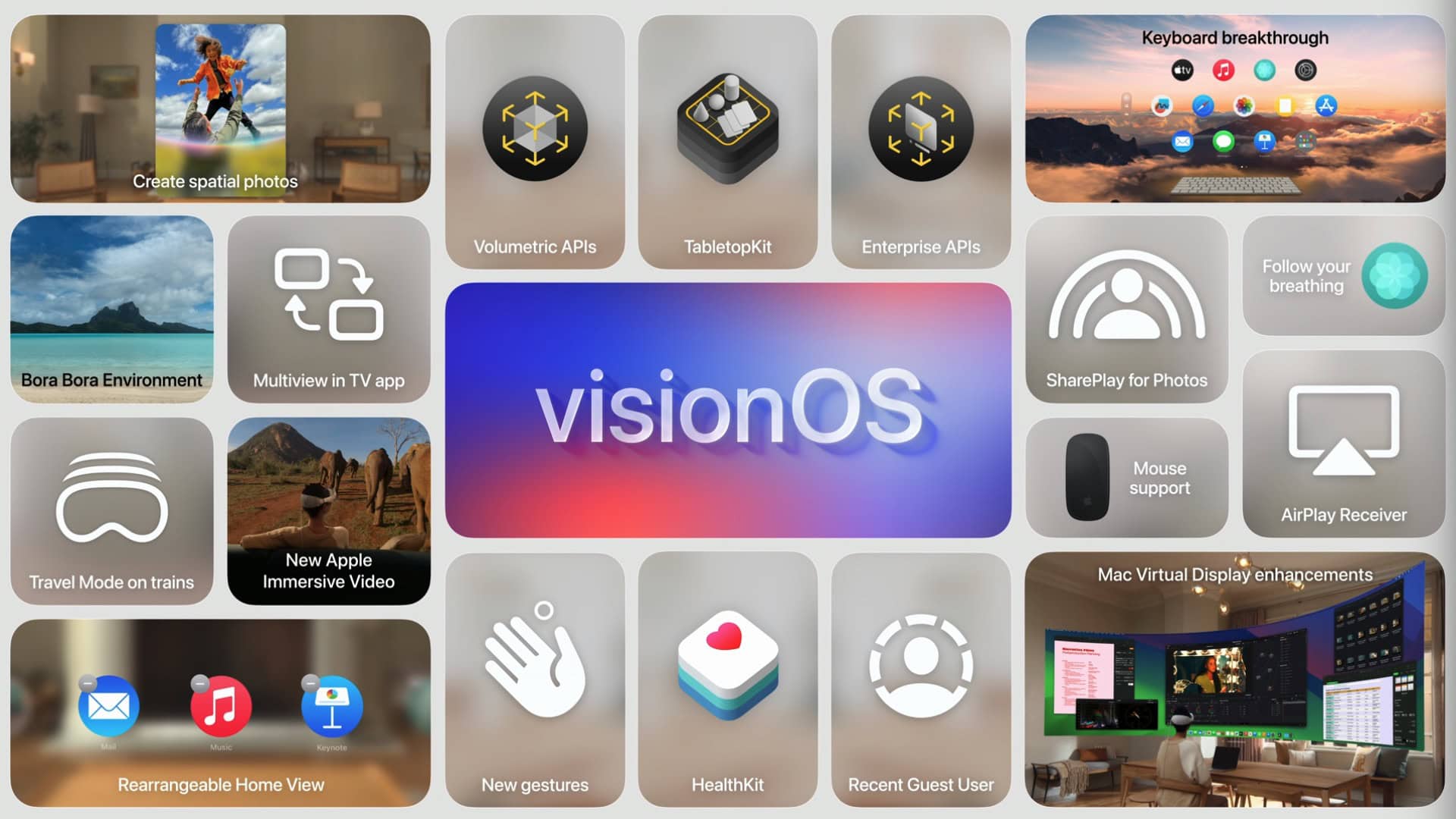
visionOS 2 packs small new features that will have a big impact on daily usage. Image: Apple
visionOS 2 adds a whole bunch of fantastic new quality-of-life features to Apple’s premium mixed reality headset, the Vision Pro. New hand gestures make it easy to bring up the Home View or Control Center, Spatial Photos are a great way to look at your pictures and the new virtual environments are a visual treat.
visionOS 2 is a fantastic update you should install right away — and it’s out right now. Find it in Settings > General > Software Update.
After you update, here’s the list of things you can check out.
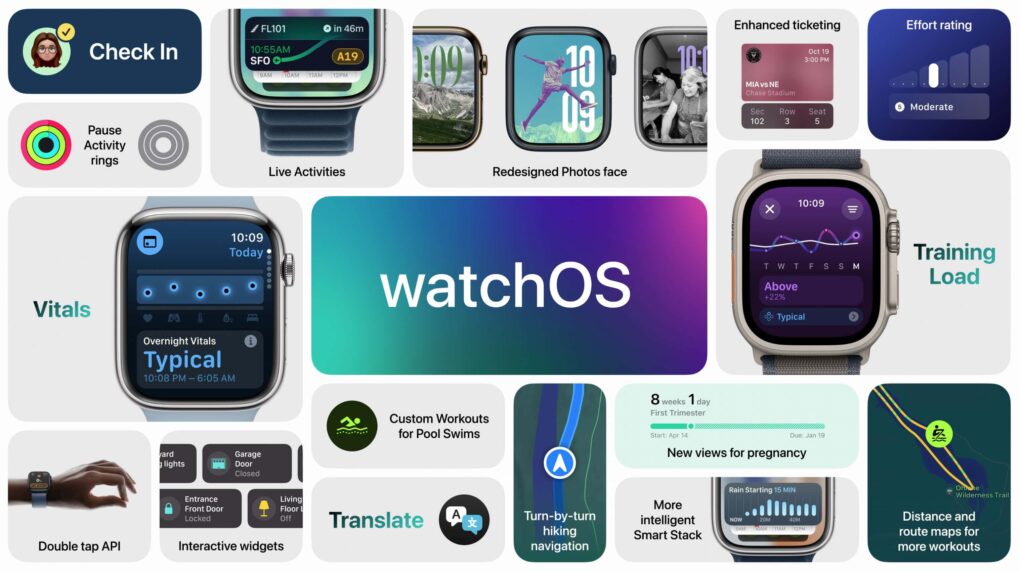
watchOS 11 brings some notable usability improvements. Image: Apple
watchOS 11 is a smaller update with a few great features people have wanted for years. You can pause your Activity streak without losing it, customize the beautiful new Photos face and set different Activity goals for each day of the week. It comes with some new apps, as well — Vitals, Tides, Translate and a new training load feature.
Apple released watchOS 11 on Monday. After you update, here’s the big list of things you can check out.
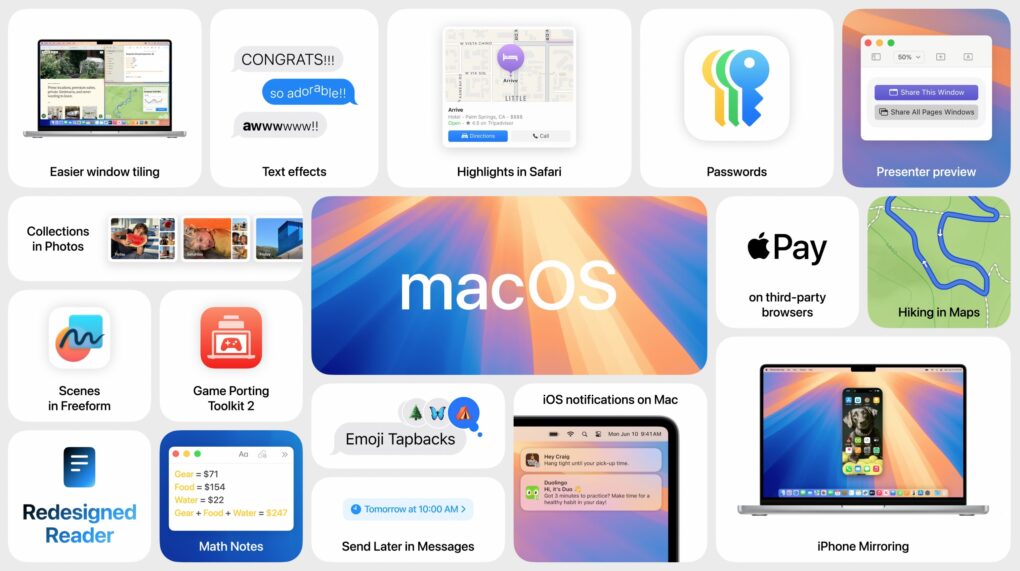
macOS Sequoia brings your iPhone and Mac closer. Photo: Apple
macOS Sequoia is a pretty comprehensive update with some fantastic new features, like iPhone mirroring, window tiling, and text message formatting. Although Apple Intelligence — the AI features coming to Mac, iPhone, and iPad — will continue grabbing headlines for the next year, it won’t arrive until later in the fall. Plus, only Macs with Apple silicon will support Apple Intelligence. Additionally, users can look forward to a new shaking head emoji, expanding the ways people can express disagreement or disapproval in messages.
Still, macOS Sequoia brings some game-changing new features — and it’s out right now. Find it in System Settings > General > Software Update. It’s compatible with most of the same Macs as macOS Sonoma, dropping support for the 2018 and 2019 MacBook Air.
After you update, here’s the big list of things you can check out.
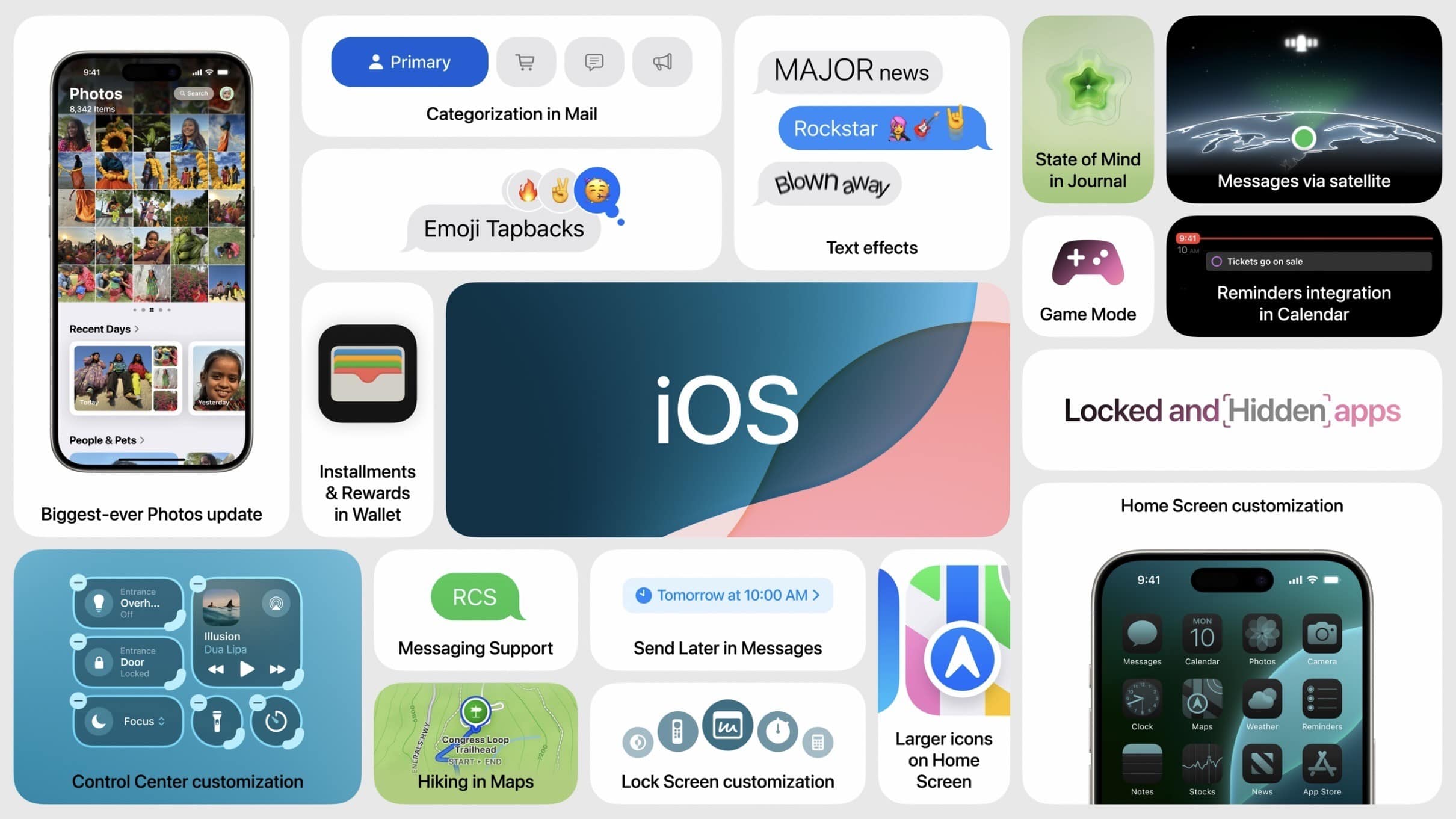
All these features and more in iOS 18. Image: Apple
iOS 18 is a surprisingly rich software update with major new customization features and big changes in Photos, Messages, Notes, and more. Although Apple Intelligence features are going to continue grabbing headlines for the next year, it’ll only be available on the latest iPhones later in the fall. Among the smaller but interesting updates, a nodding head emoji is set to arrive, adding more expressive ways to communicate.
The iOS 18 update is packed with features — and it’s out right now. Find it in Settings > General > Software Update. It’s compatible with all the same devices as iOS 17.
After you update, here’s the big list of things you should check out. You should definitely start with editing your Home Screen, reading how the new Photos app works and checking out the new iMessage features.
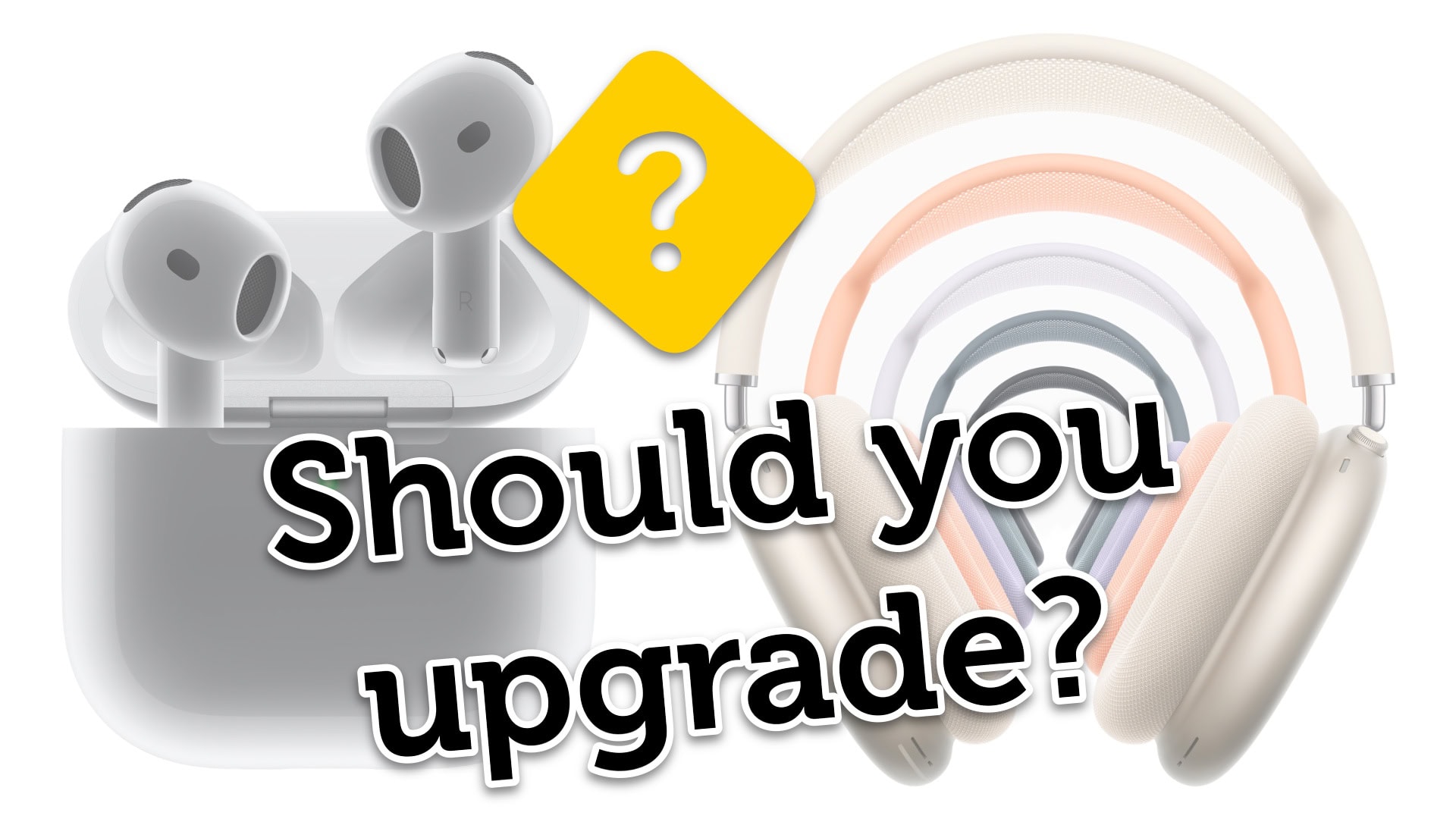
Is it time to buy new AirPods? Image: Apple/D. Griffin Jones/Cult of Mac
Is it time for you to upgrade and buy the new AirPods 4? The fourth-generation AirPods boast advanced noise cancellation features previously only available on AirPods Pro 2. Meanwhile, the refreshed AirPods Max swap out the legacy Lightning port for USB-C and bring new color options.
Now that the new headphones are available to preorder, you might be wondering whether it’s worthwhile to upgrade. That depends on what AirPods model you own. I put together a buying guide and a video to help you decide.
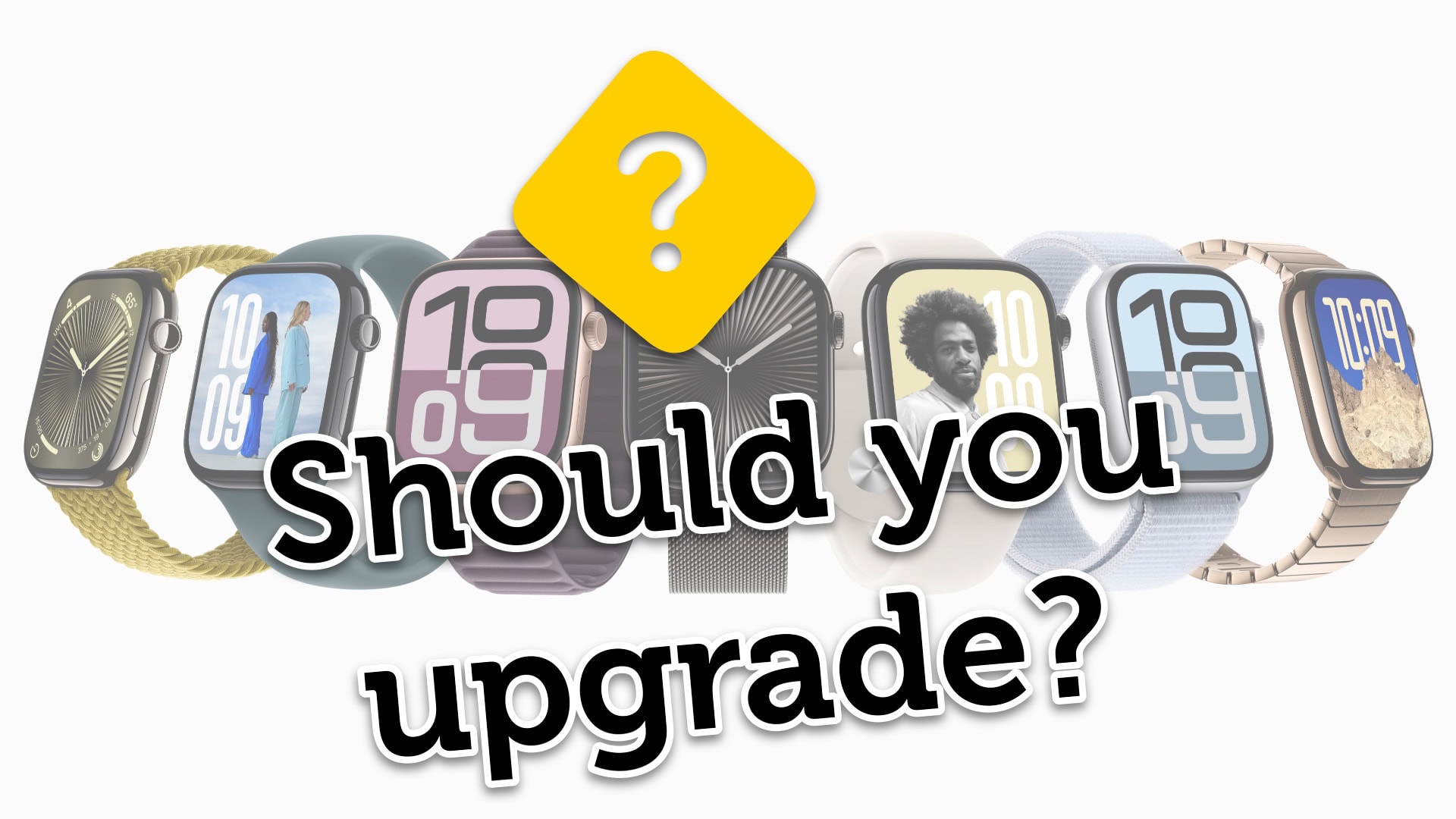
Is it time to buy a new Apple Watch? Image: Apple/D. Griffin Jones/Cult of Mac
Is it time for you to upgrade and buy the new Apple Watch Series 10 or Apple Watch Ultra 2? The new Apple Watch is larger and thinner, with advanced new sensors and health features. And the Apple Watch Ultra 2 … comes in black. If you’re wondering what’s next, Apple Watch Ultra 3 rumors indicate that Apple could be planning even more significant updates for its premium smartwatch lineup.
Now that the new watches are available to preorder, you might be wondering whether it’s worthwhile to upgrade. That depends on what devices you have, so I put together a buying guide with charts and a video to help you decide.
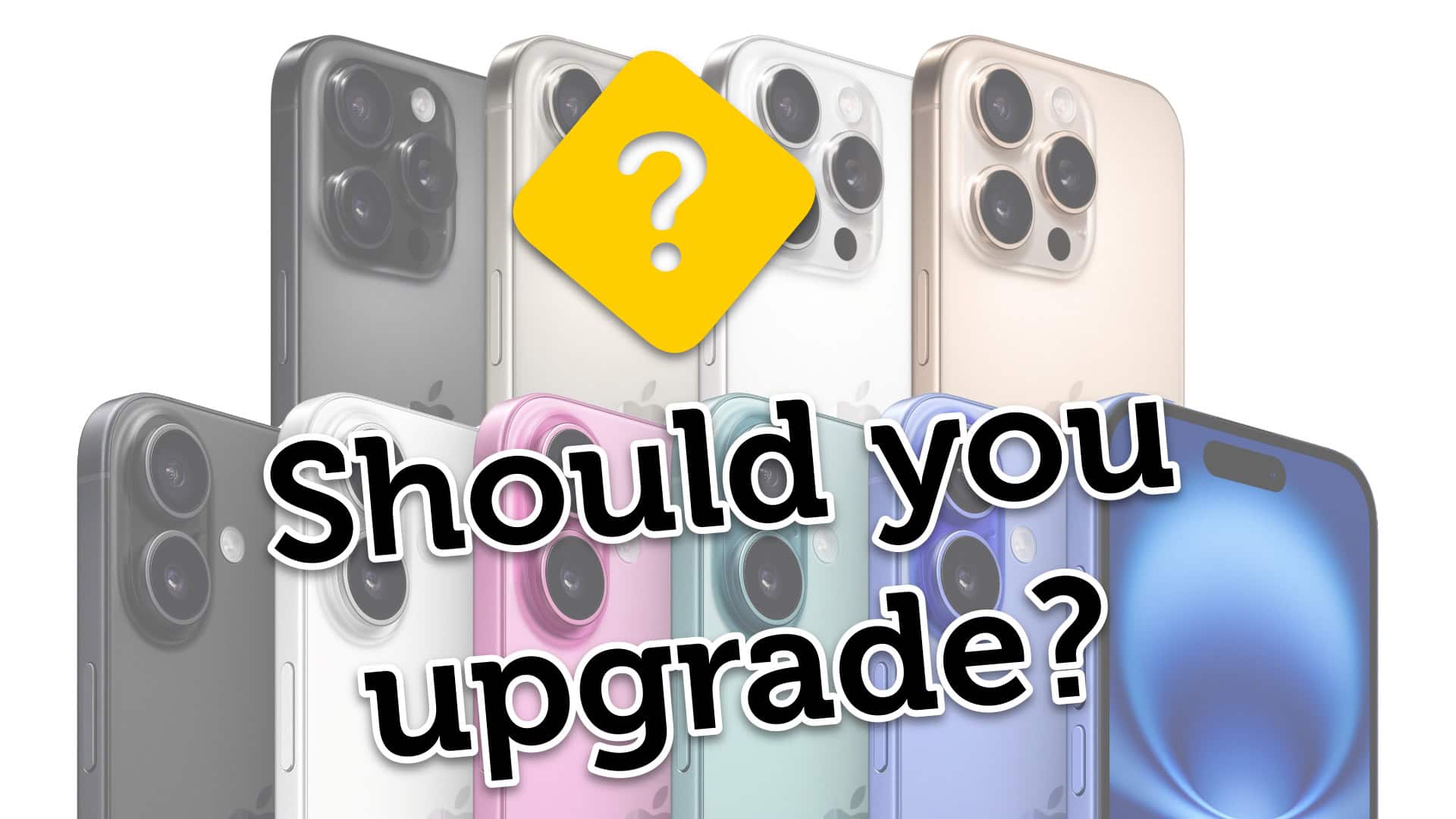
Is it time to buy a new iPhone? Image: Apple/D. Griffin Jones/Cult of Mac
Is it time for you to upgrade and buy the new iPhone 16 or iPhone 16 Pro? Both models bring significant improvements to the cameras and will support all the Apple Intelligence features. The Pro phones have bigger, brighter displays and the longest battery life ever.
With the products available to preorder on Friday morning, you might be wondering whether it’s worthwhile to upgrade. That depends on what devices you have, so I put together a buying guide with charts and a video to help you decide.
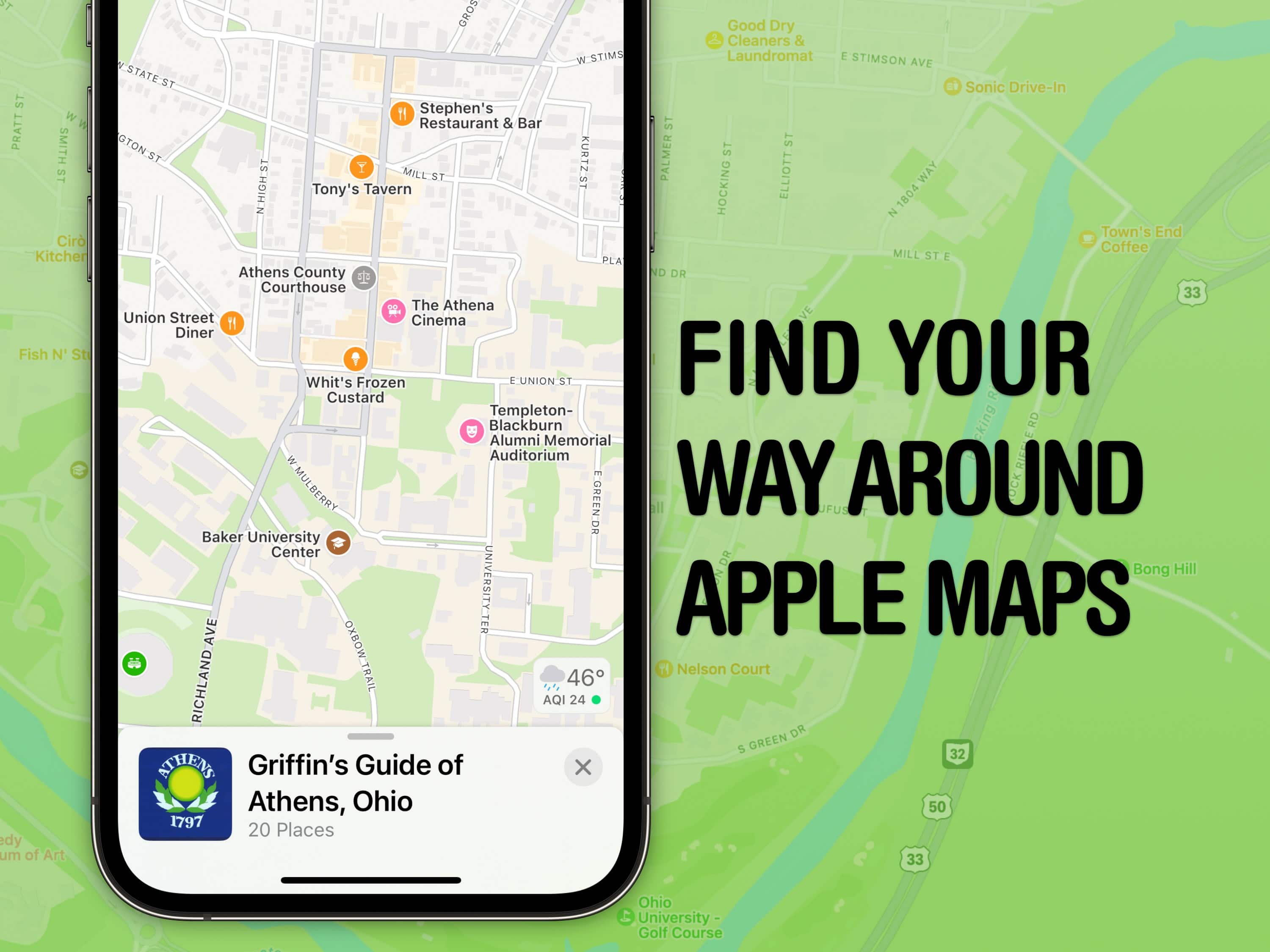
Apple Maps can help you find your way anywhere you need to go — but I can help you find hidden features in the app. Image: D. Griffin Jones/Cult of Mac
With tons of advanced features, Apple Maps competes quite handily with the likes of Google Maps and Waze. I put together a big list of the best eight features hidden in Apple Maps.
You can learn them all in this post — and see them in action in our video below.
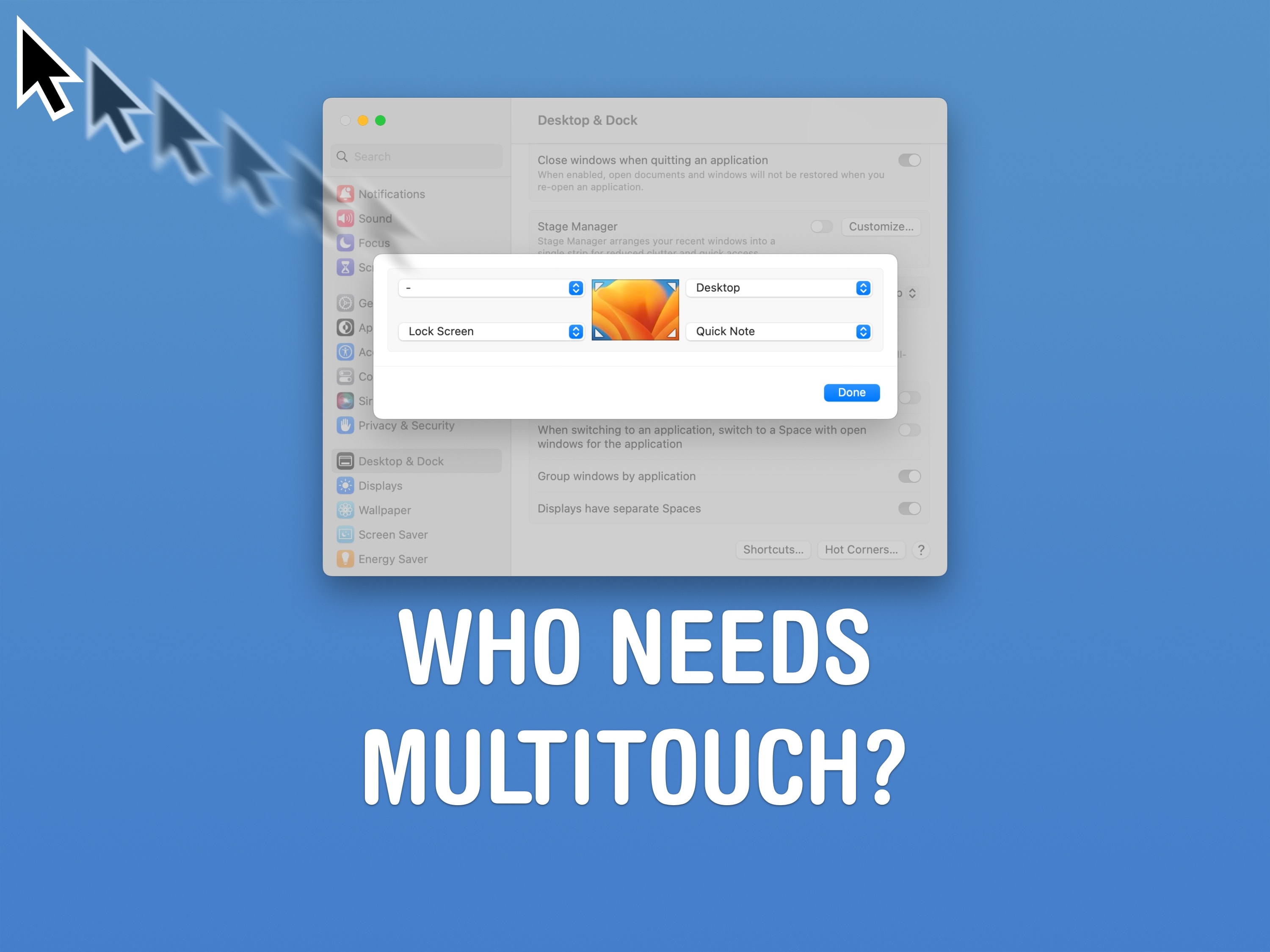
If you don’t have a trackpad or Magic Mouse, you can set up Hot Corners to get some of the features back. Image: D. Griffin Jones/Cult of Mac
Mac Hot Corners are shortcuts for your mouse. Just throw your mouse cursor to the corner of the screen (the easiest place to hit) to perform quick actions. You can instantly lock the screen, start a screensaver, show the desktop, show all windows and more.
If you use your Mac with a standard two-button PC mouse instead of Apple’s Magic Trackpad or Magic Mouse, Hot Corners can replace the multitouch gestures that you miss out on. The Mac’s built-in Hot Corners feature gives you a really quick and easy way to navigate your computer, and I recommend you turn them on and use them.
Watch the event in just 90 seconds. Image: Apple/D. Griffin Jones/Cult of Mac
At Apple’s “It’s Glowtime” event, the company introduced the Apple Watch Series 10, iPhone 16, iPhone 16 Pro, fourth-generation AirPods and more. It was a big event — and some people complained about the length.
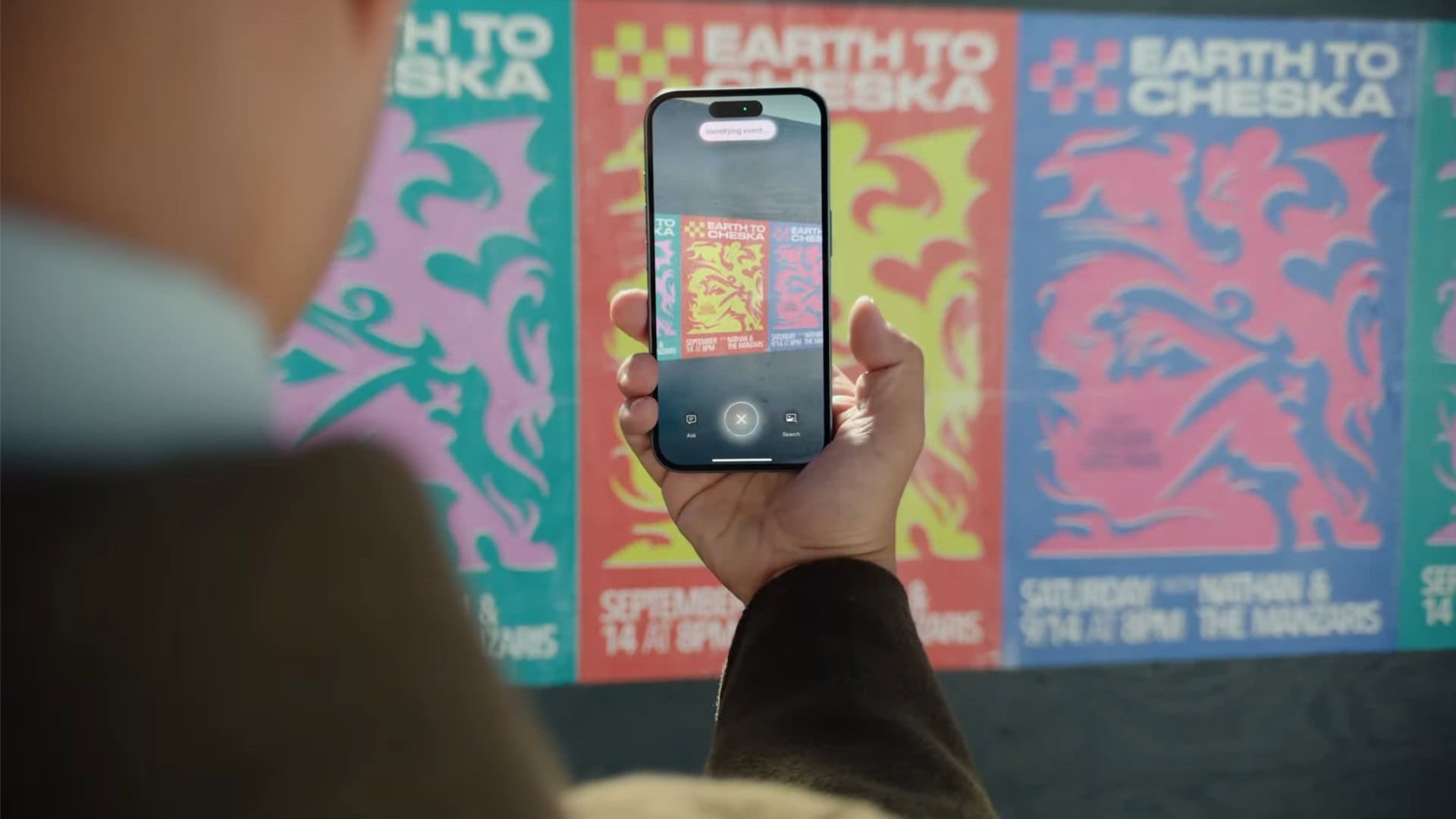
Visual Intelligence is a new Apple Intelligence feature that lets you get information on things around you, add events to your calendar from a poster, look up products and more. The iPhone 16 lineup’s new Camera Control feature, makes this powerful functionality instantly available at the press of a button.
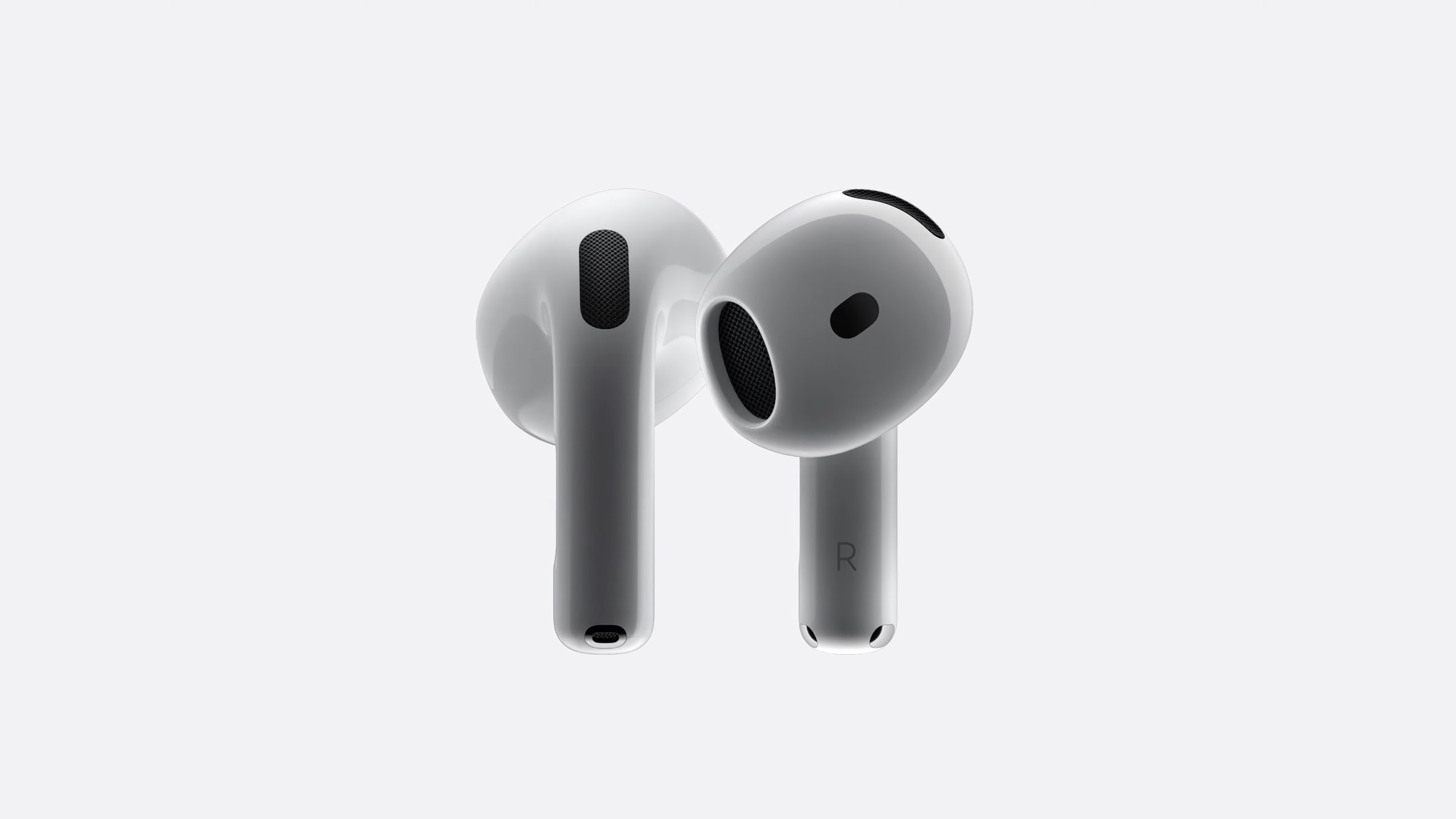
AirPods 4 are more advanced, and borrow much from AirPods 4. Image: Apple
New fourth-generation AirPods are the latest models of Apple’s popular wireless earbuds. Two new AirPods 4 models bring advanced new features to the lower end of Apple’s lineup.
Both models of AirPods 4 feature personalized spatial audio for music and gaming. The charging case also moves to USB-C for easier charging, while delivering over 30 hours of battery life. The higher-end models add active noise cancellation, with Transparency mode, Adaptive Audio and Conversational Awareness.
You can preorder both new models today, with deliveries on September 20. The entry-level AirPods start at $129, with the higher-end models priced at $179.