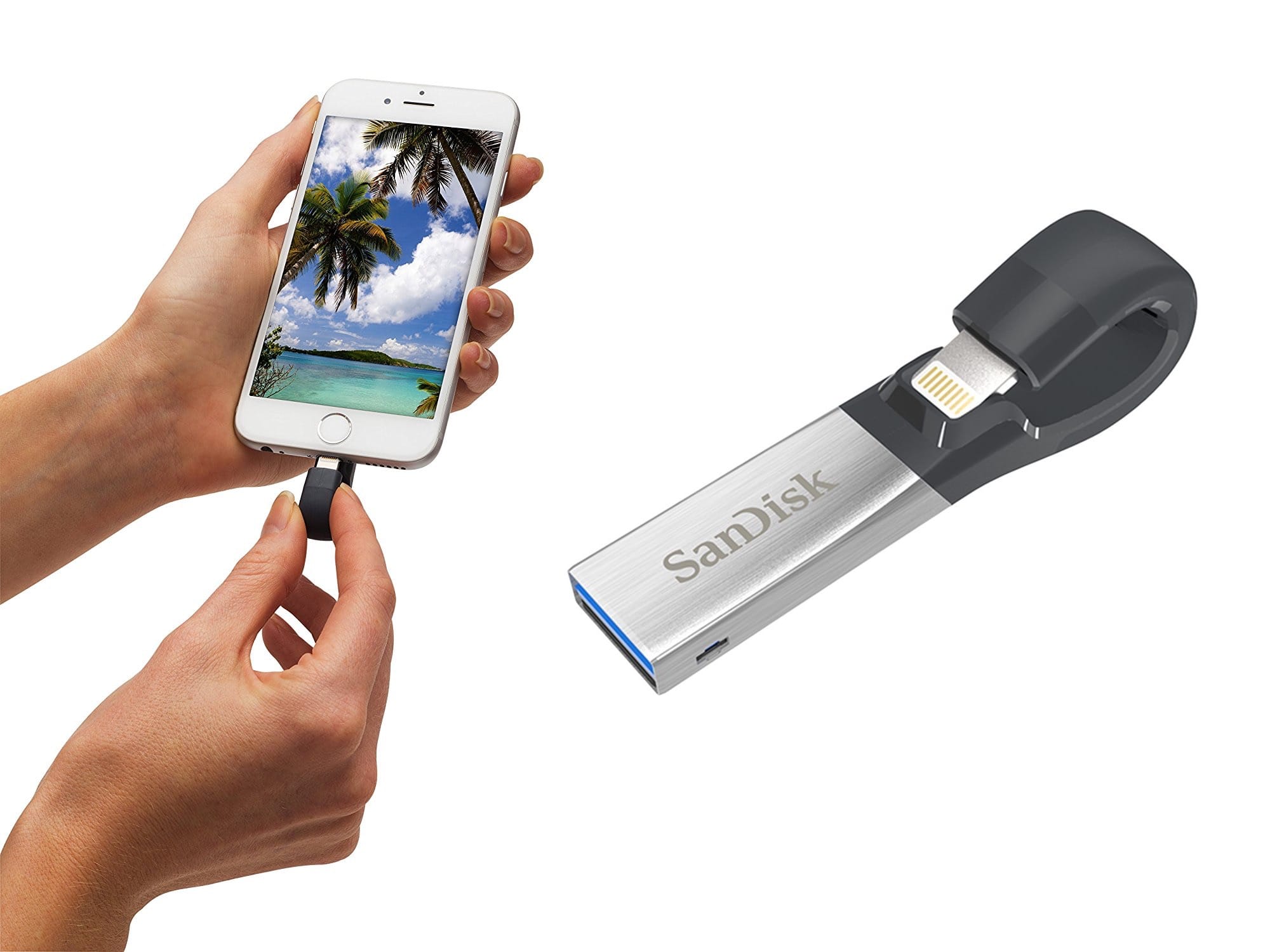
Now you can browse some USB drives in Files app. Photo: Sandisk
There are several workarounds for getting data off a USB stick or SD card, and onto your iPad or iPhone. We’ve even covered some. But until now, there’s been no way to just plug a USB stick into your iPad’s Lightning port, and browse the contents in iOS 11’s Files app. Thanks to an update to the fantastic FileBrowser app, that’s now possible.
Did you know that setting modern materials like silicone down onto traditional furniture finishes like oil and wax, or lacquer, could leave a mark? Judging by the insane clamor on the internet, roughly half of the planet has just discovered this fact, and is blaming it on Apple.
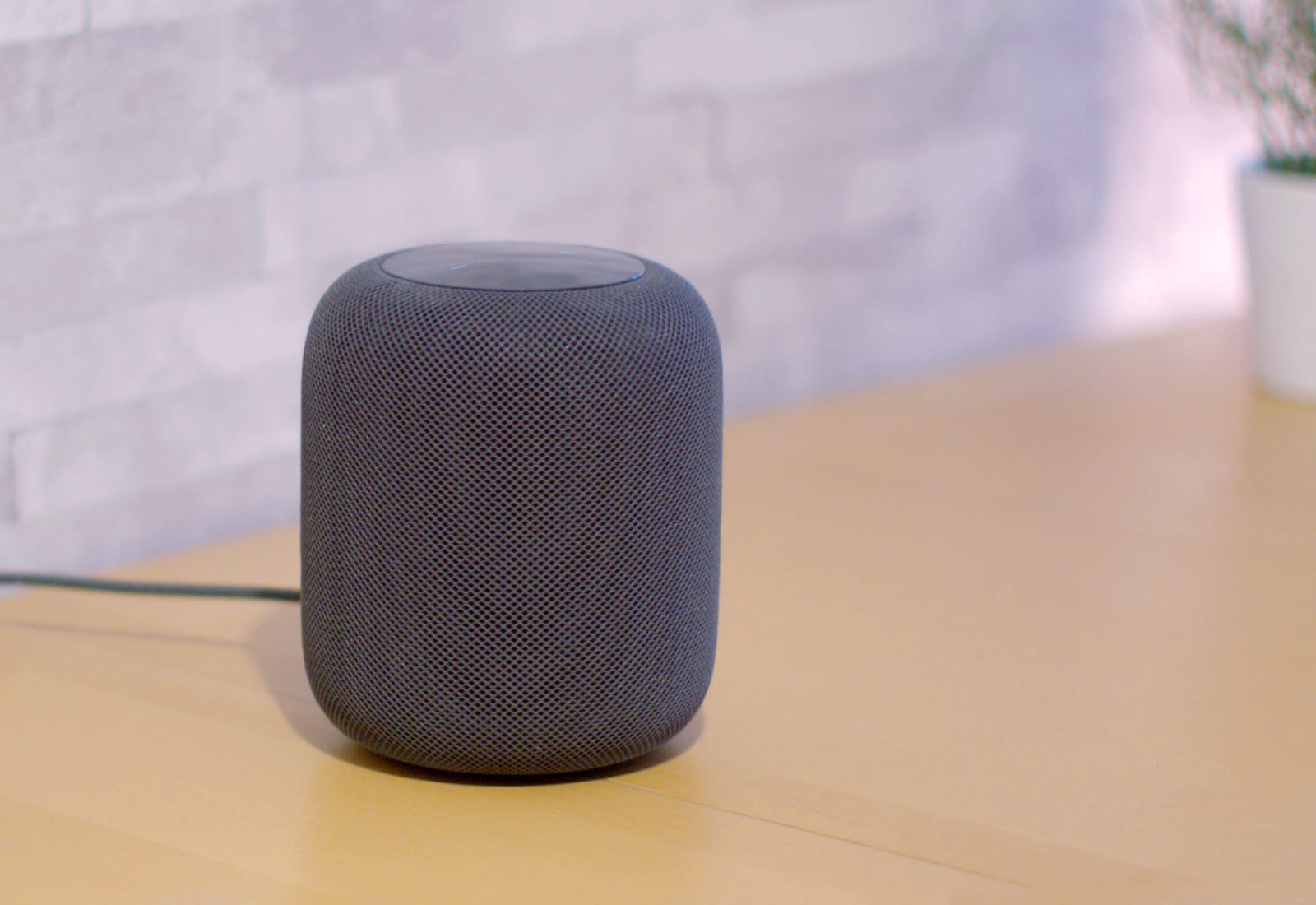
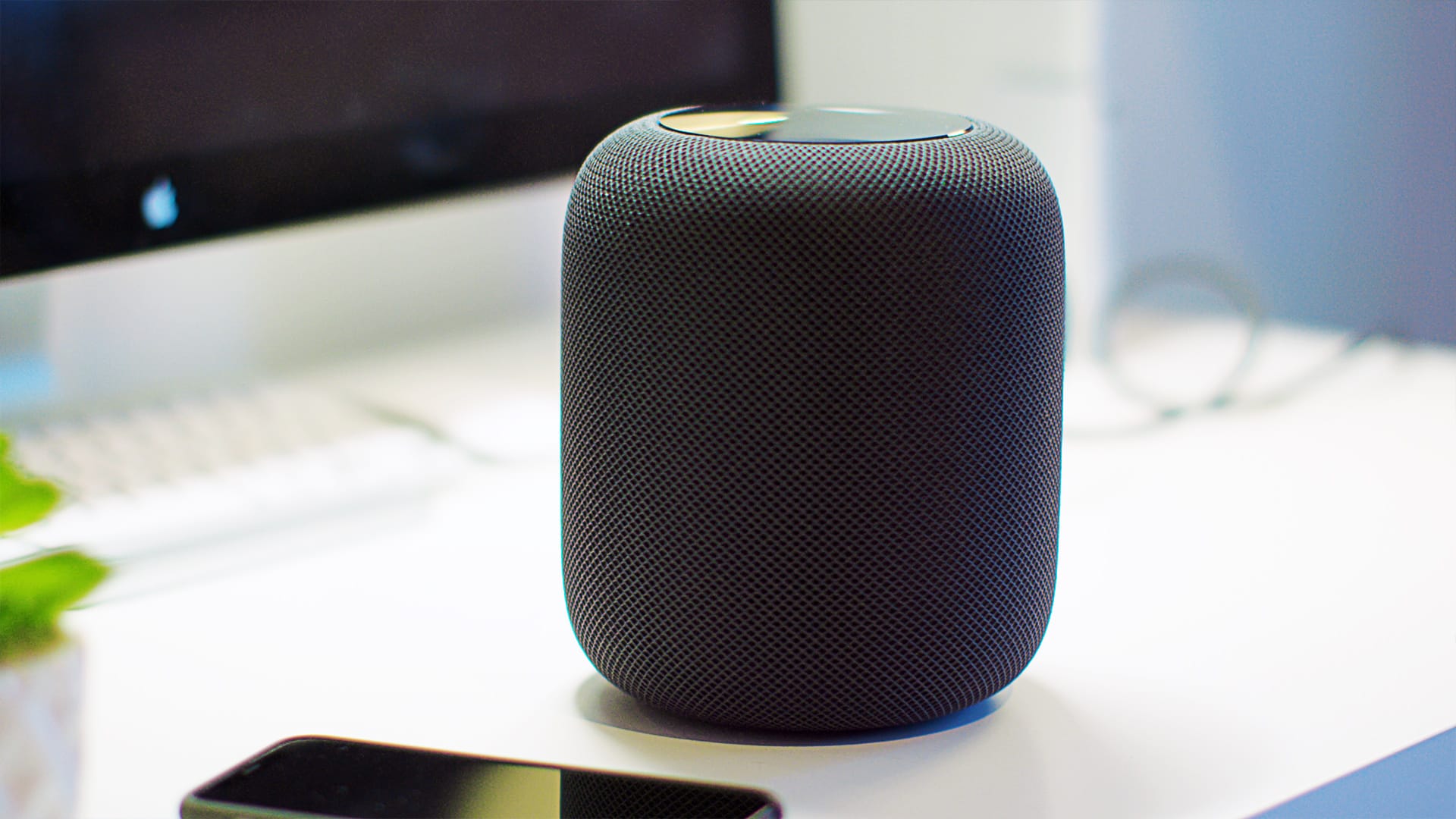
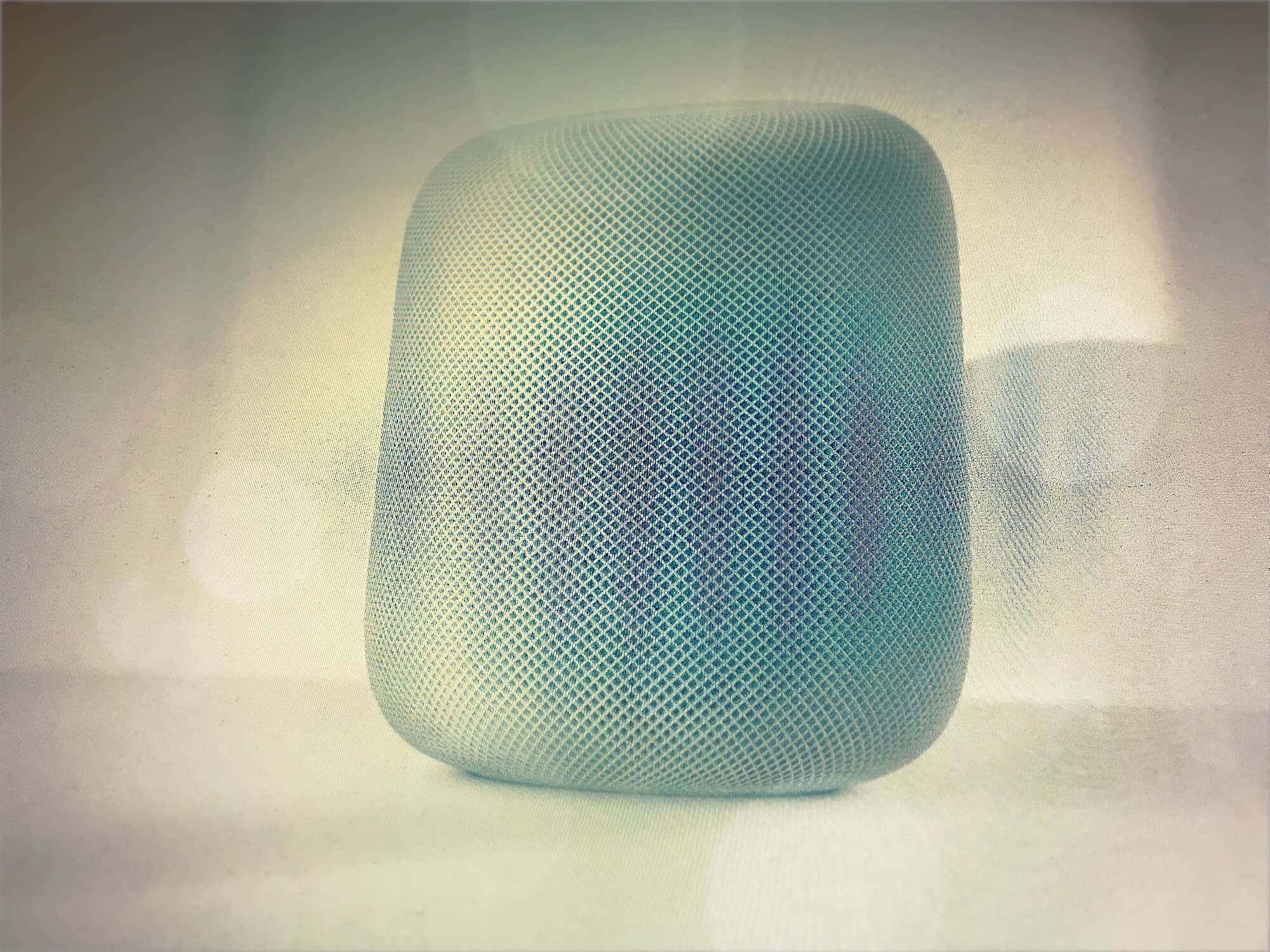
Those HomePod ring marks are a result of the oils in the finish of the furniture being sucked into the silicon base of the HomePod. The good news is the fix is easy, but if you’d listened to your grandmother, you never would have had this problem in the first place.
Who wants to hear music like this? Photo: Charlie Sorrel/Cult of Mac
Shuffle and skipping are two great tools for listening to new music on your iPhone, using Apple Music. You can download lots of new music to your iPhone, then set it to shuffle while you take a walk. If you’re also wearing a pair of AirPods, a double tap on one of them will skip any tracks you don’t like. It’s a great way to listen to new music, with one big, annoying side-effect: You end up with lots of unwanted downloads cluttering up your iPhone.
But with one simple smart playlist, you can fix that right now.
There's more than one way to "push" mail. Photo: Charlie Sorrel/Cult of Mac
We’d all rather that folks sent short messages via iMessage, or WhatsApp, or another civilized format that encourages brevity, but they insist on email. But what if your emails could pop up on your iPhone’s lock screen and be as easy to reply to as an iMessage. If you set it up right, your regular iPhone Mail app can do exactly that, using Push and VIP email. Let’s take a look.
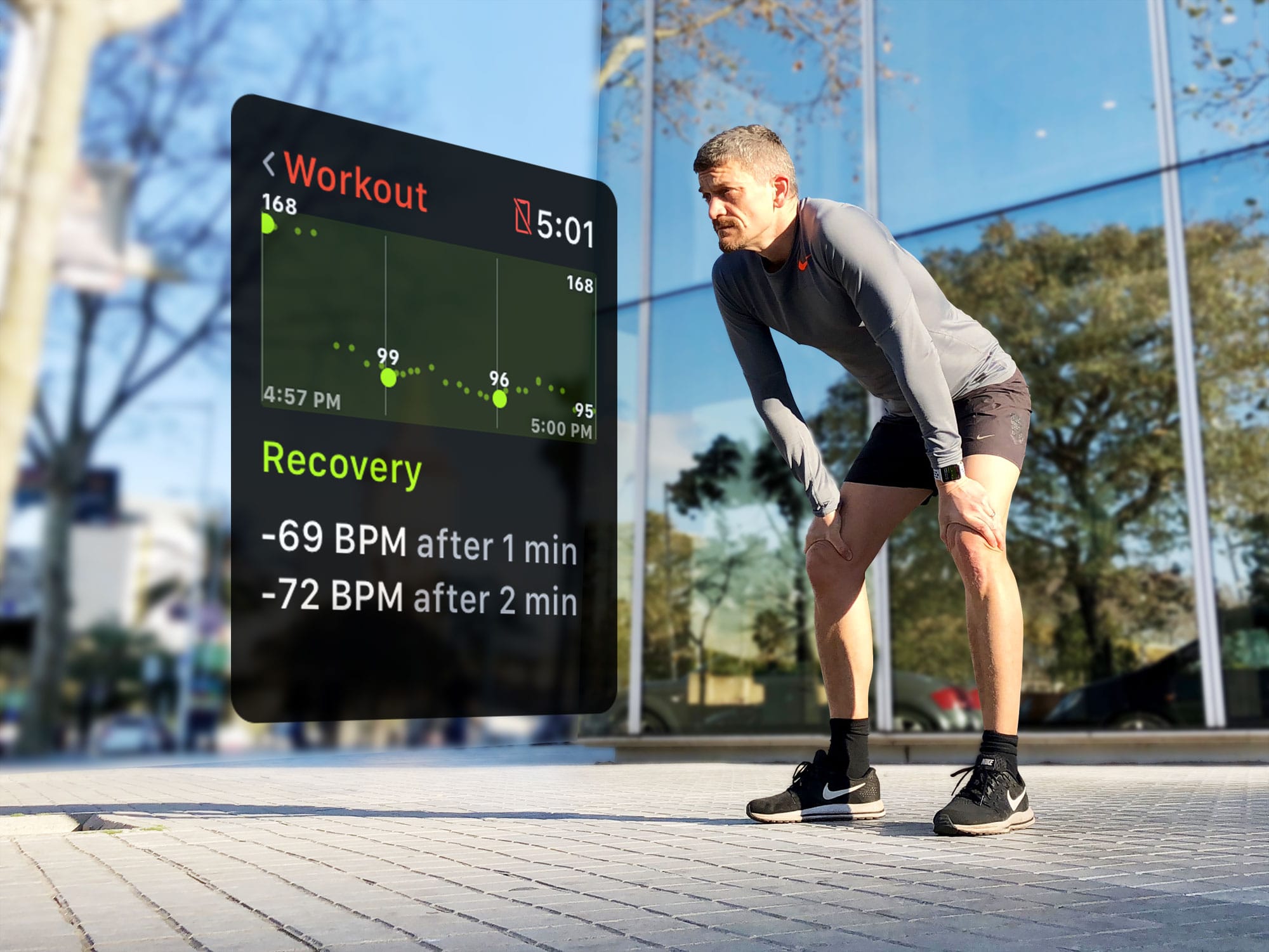
It’s not about how far you run, it's about how fast you recover. Photo: Graham Bower/Cult of Mac
It’s all very well to know how far you ran, cycled and swam. But the whole point of exercise is not just to clock the miles. It’s supposed to make you more fit. So, how do you know if all those sweaty miles are actually doing any good? One way is by measuring your heart rate recovery time.
Fortunately, watchOS 4 provides a reliable way to see this data, and thus monitor changes in your fitness level. Here’s how you can use Apple Watch to keep your workout goals on track.
Don't let everybody else's bad taste ruin your music recommendations. Photo: Ste Smith/Cult of Mac
Instead of recognizing the voices of various users and serving up their personal tunes, HomePod is tied to one person’s Apple Music library. That leads to an unfortunate side effect: Whenever anyone in your home tells your HomePod to play a track, that song is added to your listening history.
That means your teenagers’ ironic Ramones session, or your spouse’s un-ironic David Hasselhoff listen-a-thon, will pollute your listening history — and affect your future recommendations. Here’s how to stop that from happening.
Hey Siri is smarter that your thought. Photo: Ste Smith/Cult of Mac
Siri itself might be frustrating, but Hey Siri is great. And on the HomePod, the voice activation for your virtual assistant is even more impressive, because it hears you perfectly, even if you speak at normal volume while the music is hammering the walls, the floor, and your neighbors’ patience. Now it’s possible to have many Siri-equipped devices laying around a room, but somehow, when your say “Hey Siri,” only one device responds. Did you ever wonder how? Here’s the answer.
HomePod is a great speaker, and a more-than-adequate Home Hub. Photo: Ste Smith/Cult of Mac
If you’re a home automation fan, then you’re going to love Apple’s new HomePod speaker. Not only can you use it to control your HomeKit setup with your voice using Siri, but you can also use the speaker as a Home Hub. That means that you can leave it at home taking care of business, letting you dial in to tweak things from wherever you are in the world.
One great recent addition to GarageBand for iOS is the Visual EQ, an equalizer that is about as far away from the 1980s-style bank of sliders as it’s possible to get. The Visual EQ also shows you a waveform of the actual sound you’re adjusting, so you can see as well as hear the effects immediately. This visual element, combined with a clever three-“band” EQ, makes this a very powerful tool for shaping your music.
Turn the iPhone Health app into a dashboard for your body
Photo: Graham Bower/Cult of Mac
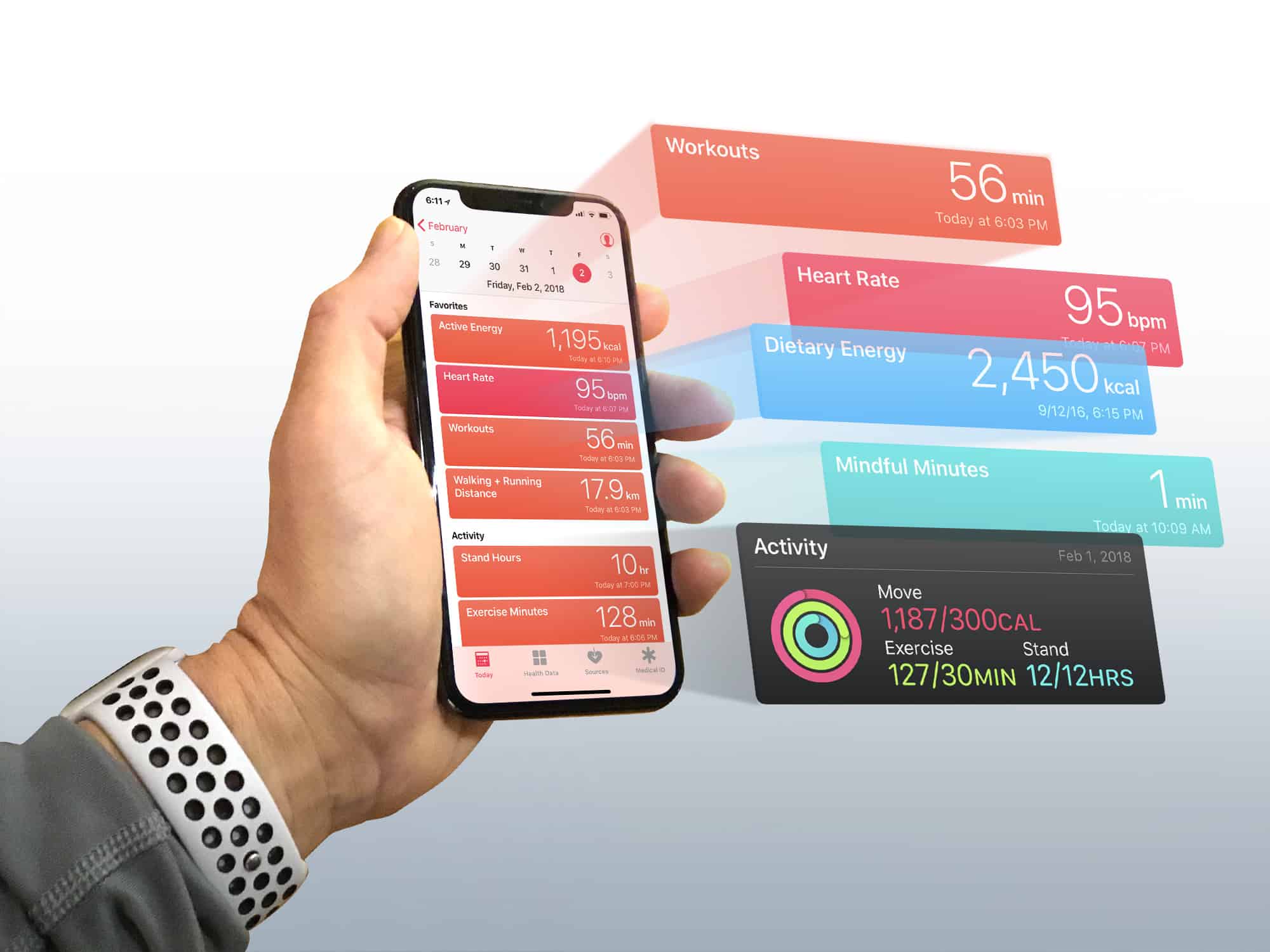
If you think the Health app is just another pointless junk app that comes preinstalled on your iPhone, think again. Unlike Stocks, Compass or Tips, it is one of the few apps that Apple won’t let you delete. Set up the Apple Health app properly, and it becomes a powerful tool for getting (or staying) fit.
You see, the Health app lies at the heart of Cupertino’s growing health and fitness ambitions. And with its underlying HealthKit API, the Health app provides the framework that Apple Watch uses to gather data on your daily activity, heart rate and workouts.
But the Health app is more than just a place for storing data. With every iOS update, Apple makes major improvements to it. So, if you still think the Health app is a waste of space, it’s probably time you gave it another look. Especially if you own an Apple Watch. You’ll find it contains loads of useful, well-presented data that can help you achieve your fitness goals.
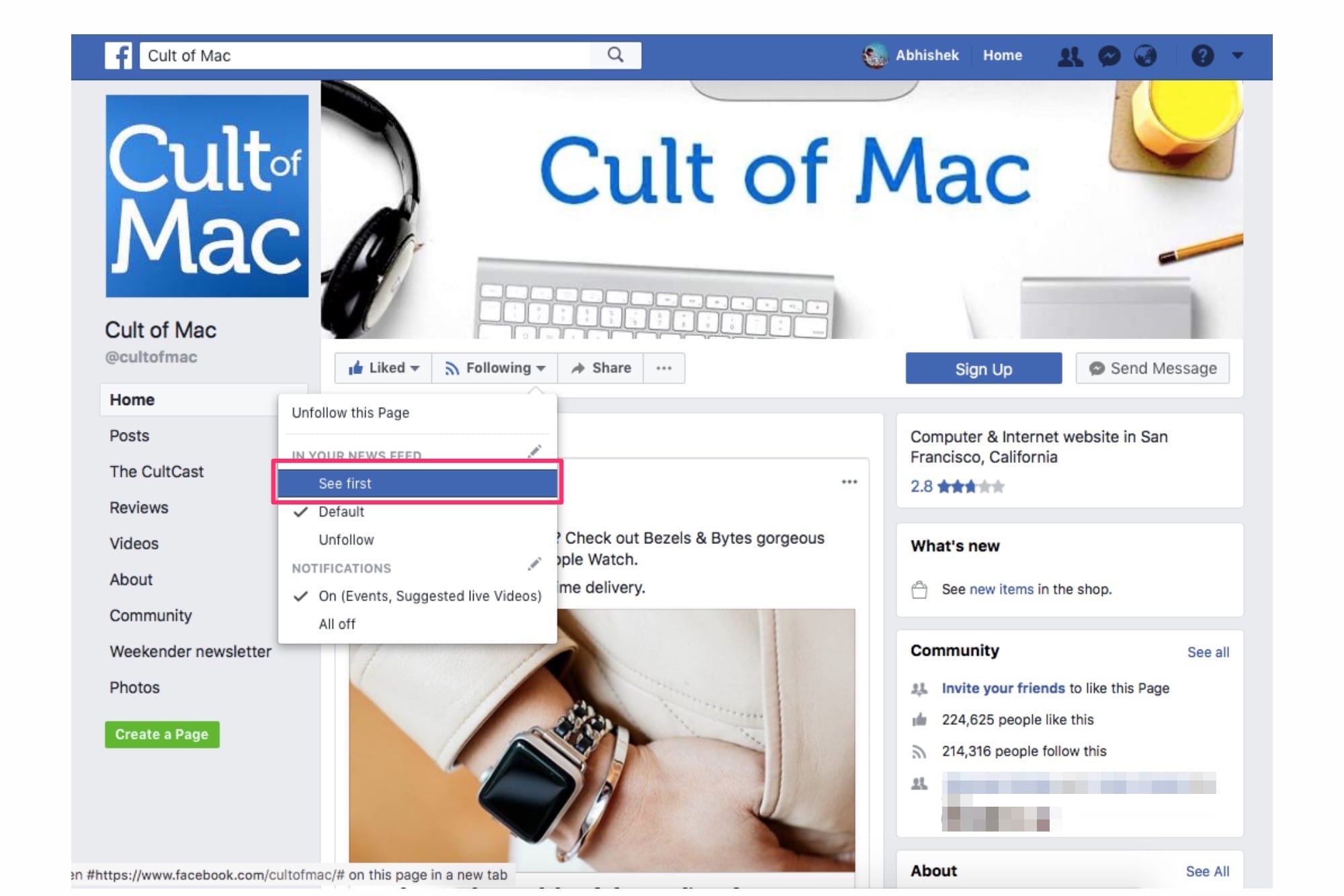
Click "See First" to never miss out on our updates! Photo: Cult of Mac
Significant changes to Facebook’s News Feed algorithm mean you might not be seeing as much news as usual. Facebook started prioritizing posts from friends over posts from pages and publications.
While this might be a welcome move for everyone who uses Facebook to stay connected with friends and family, not everyone uses the social network with the same goal in mind. I’m sure a certain number of people still prefer using Facebook simply to keep in the news loop or interact with communities/brands who are not “friends.”
Would you rather use Facebook to keep yourself updated on all things, say, Apple? If yes, here’s how you can make sure to see stories from Cult of Mac at the top of your Facebook News Feed.
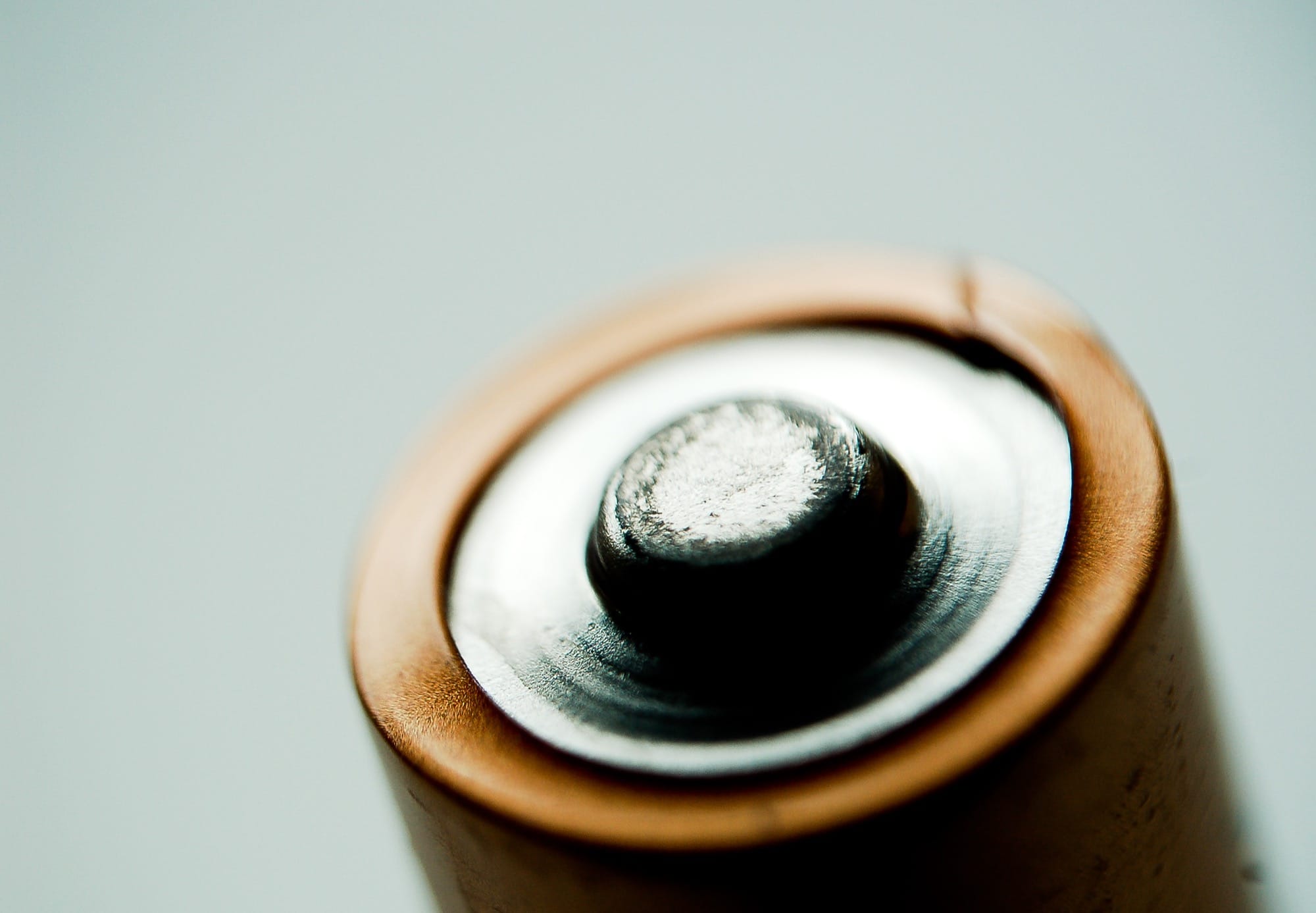
Next time you complain about Apple battery conspiracy theories, imagine how life would be if your iPhone ran on AAs. Photo: James Almond/Flickr CC
Ever since Apple introduced a measure to stop iPhones from unexpectedly shutting down in iOS 11, politicians and other morons have jumped on the story to gin up publicity for themselves. Now, thanks to their efforts, Apple has added a control that lets you switch off iOS 11’s Performance Management.
If you do switch it off, then your iPhone will stop slowing performance when the battery is too weak to supply enough power, and instead you can again face unexpected shutdowns. Here’s how.
HomePod makes a great soundbar for your Apple TV. Photo: Charlie Sorrel/Cult of Mac
Apple’s HomePod is a smart speaker, but primarily it’s just a very good speaker. Siri is the (often frustrating) icing on possibly the best AirPlay speaker around.
Because the HomePod creates a wide stereo audio image, it’s also going to be great for watching movies. Today we’ll see how to hook up your HomePod to your Apple TV. Spoiler: It’s easy.
Siri is the primary way you'll communicate with HomePod. Photo: Charlie Sorrel/Cult of Mac
Apple Music on your iPhone or Mac can be controlled with fingers, mouse, keyboard, or voice. But with the HomePod, you’d better get used to talking. While you can stream music to your HomePod with any AirPlay device, if you want to control the speaker direct, you’ll have to do some talking. Happily, you can get practicing right now. Siri already has a bunch of useful Apple Music commands you can use, so let’s take a look.
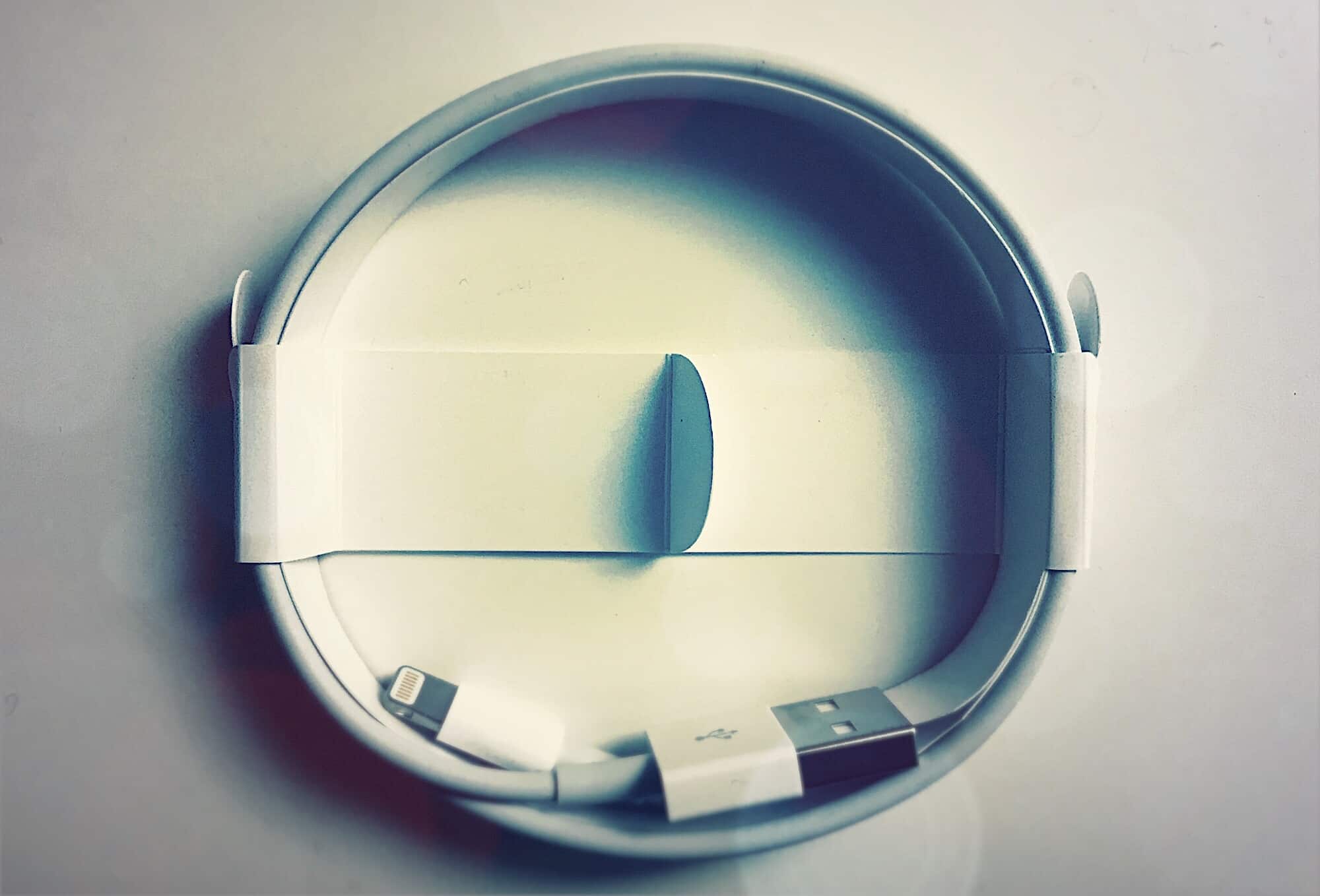
Use the cable that came with your iPhone as a reference to spot fakes. Photo: Charlie Sorrel/Cult of Mac
Who cares if that cheap charging cable you buy is a fake? It’s just a cable, right? Maybe, maybe not. A fake Lightning cable could contain malware, for instance. Or it could be miswired, damaging your iPhone the way a miswired USB power cable can destroy a laptop computer.
The best case is that your device may not sync or charge. The worst case is that your iPhone could get damaged, or the cable could overheat and set fire to your home while you sleep. Here’s how to make sure a Lightning cable is legit.
The HomePod is happy to be unfaithful to its original owner. Photo: Charlie Sorrel/Cult of Mac
The HomePod is like the creature the emerges from an egg in old-fashioned cartoons. The baby creature — dinosaur, bird, birdosaur — imprints on the first person it sees, then follows it around calling it mama or papa. Hilarity (of the 1970s kind) ensues, as the creature grows into a fully operational birdosaur and causes mayhem. Likewise, the HomePod latches onto the first iPhone it finds, automatically, and remains faithful forever (or until you unpair it, an option not open to 1970s cartoon characters).
But you can still let your friends have a go on your HomePod if you like. Here’s how.
I do wonder who might need their Time Machine backups to run every single hour. With the versioning tools built into Dropbox, or into text editors like Ulysses, and the reliability of SSD drives, hourly backups may be overkill. Or they may just be annoying. Or, if you have an older Mac, they may slow things down while you’re trying to work. Whatever your reason for complaining about hourly Time Machine backups, then, TimeMachineEditor has you covered. It’s a free utility that takes control of Time Machine scheduling.
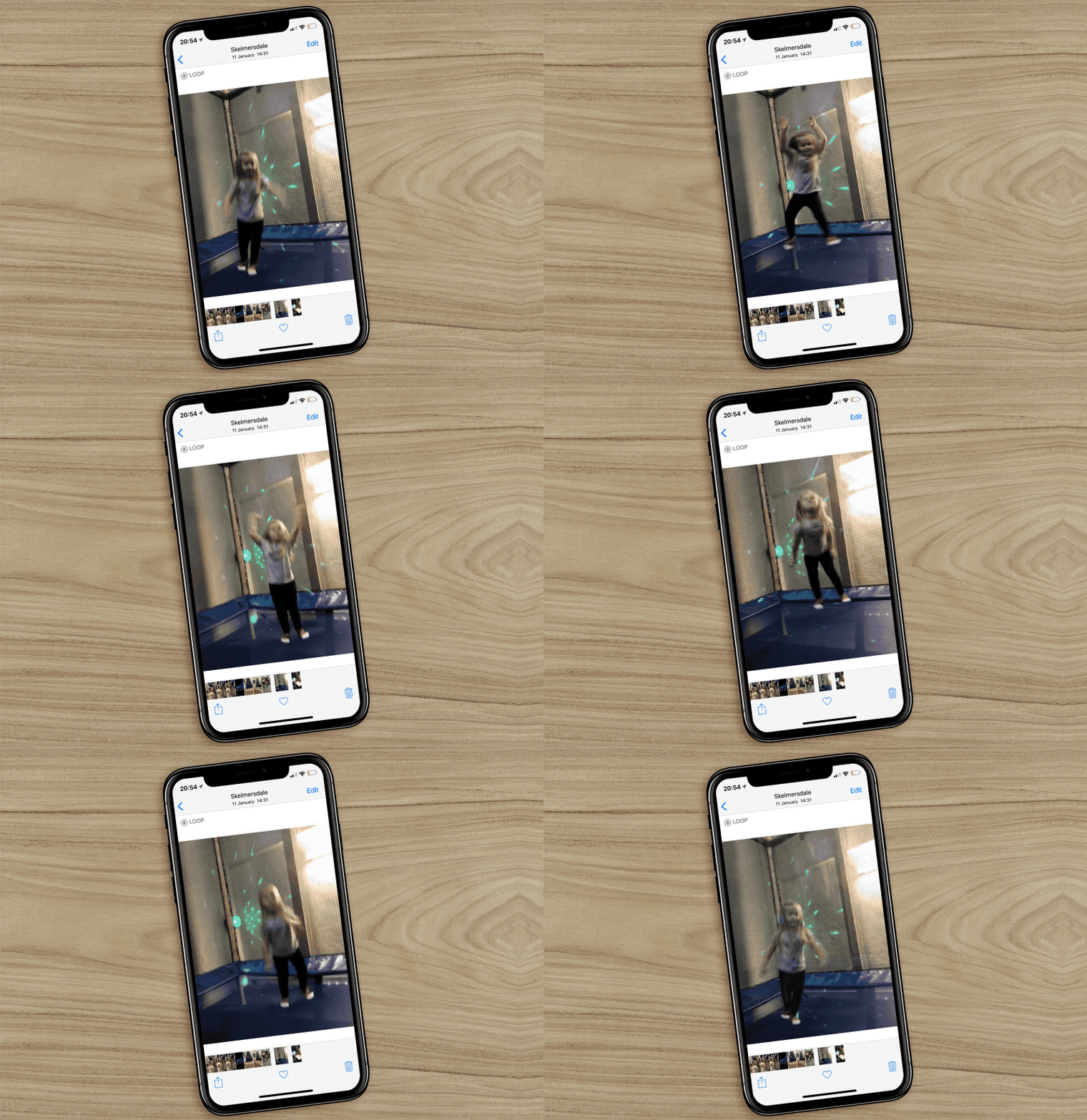
Live Photos are great. They can capture special moments in a way that some pictures just can’t. The little movie clips that play when you force-touch a Live Photo can show the joy or wonder of the image. But therein lies the problem. They’re basically video clips embedded into photos, which makes sharing them to non-iOS users a nightmare.
A plethora of apps can convert Live Photos into GIFs or a standard video clip, but iOS 11 makes it even easier. Check out our video below to see how to quickly convert a Live Photo into a GIF.
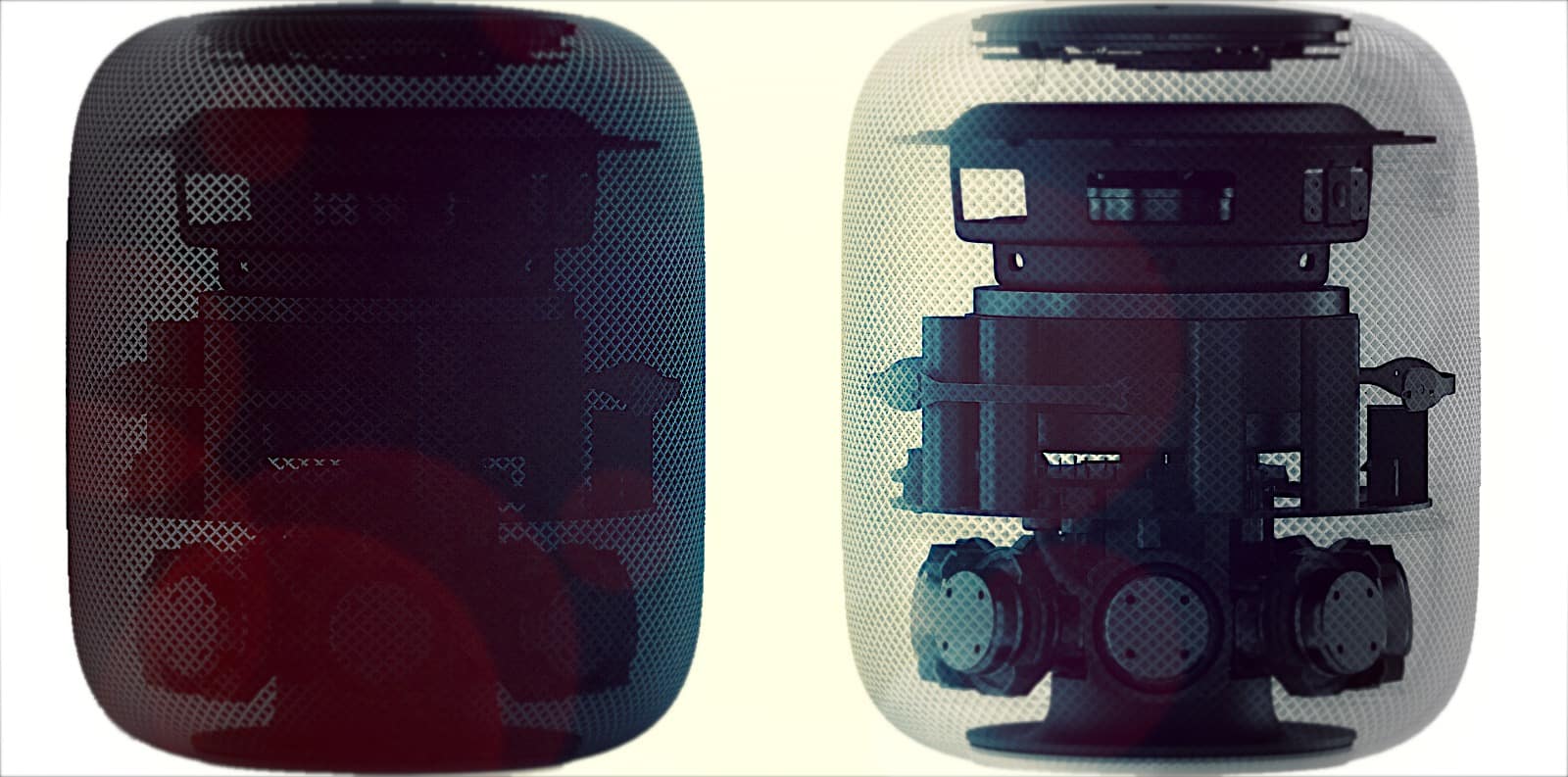
HomePod likes to be touched. Photo: Apple/Charlie Sorrel/Cult of Mac
The HomePod’s fancy gimmick is that you can use Siri to control it. Even when the music is loud enough to get your neighbors banging on the walls, Siri can hear you thanks to the six microphones’ ability to ignore the sound from the speakers. But touch is always faster than talk, so a quick tap on the top of the HomePod will often be better than trying to get Siri to understand you.
Launchpad is totally worth a second look. Photo: Charlie Sorrel/Cult of Mac
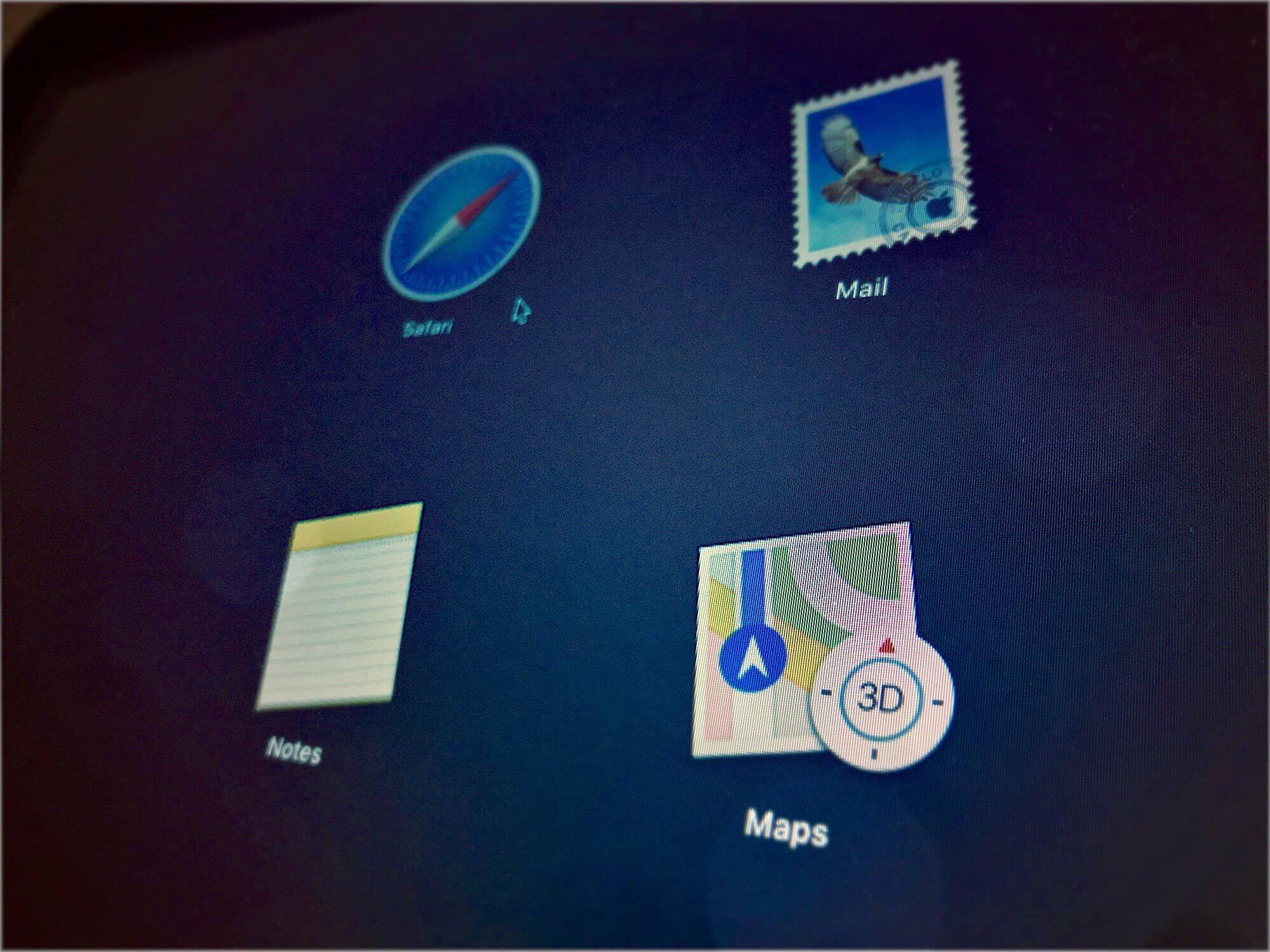
Try this: If you’re reading on a Mac, go ahead and pinch in on your trackpad with all five fingers. If it’s enabled, then you’ll see a grid of apps. lots of apps. That’s Launchpad, which is kind of like an iOS home screen for your Mac.
The problem is, it shows all your apps, in seemingly random order. There’s a search bar to narrow things down, but by the time you’ve got that far, you may as well have used Spotlight to launch your app. Happily, the Launchpad is quite customizable. You can make iOS-style folders, and organize the apps into any order you like. Here’s how.
Most people are animals. They drop files onto their Mac desktops the way teenagers drop junk food and candy wrappers in the street, littering the place up until you can’t find anything. I’m not gong to try to cure you of that habit. That was your parents’ job, and they already failed. But I can show you a few quick ways to access your shameful desktop when you decide you can face it.
Thumbnails make notes way easier to spot quickly. Photo: Charlie Sorrel/Cult of Mac
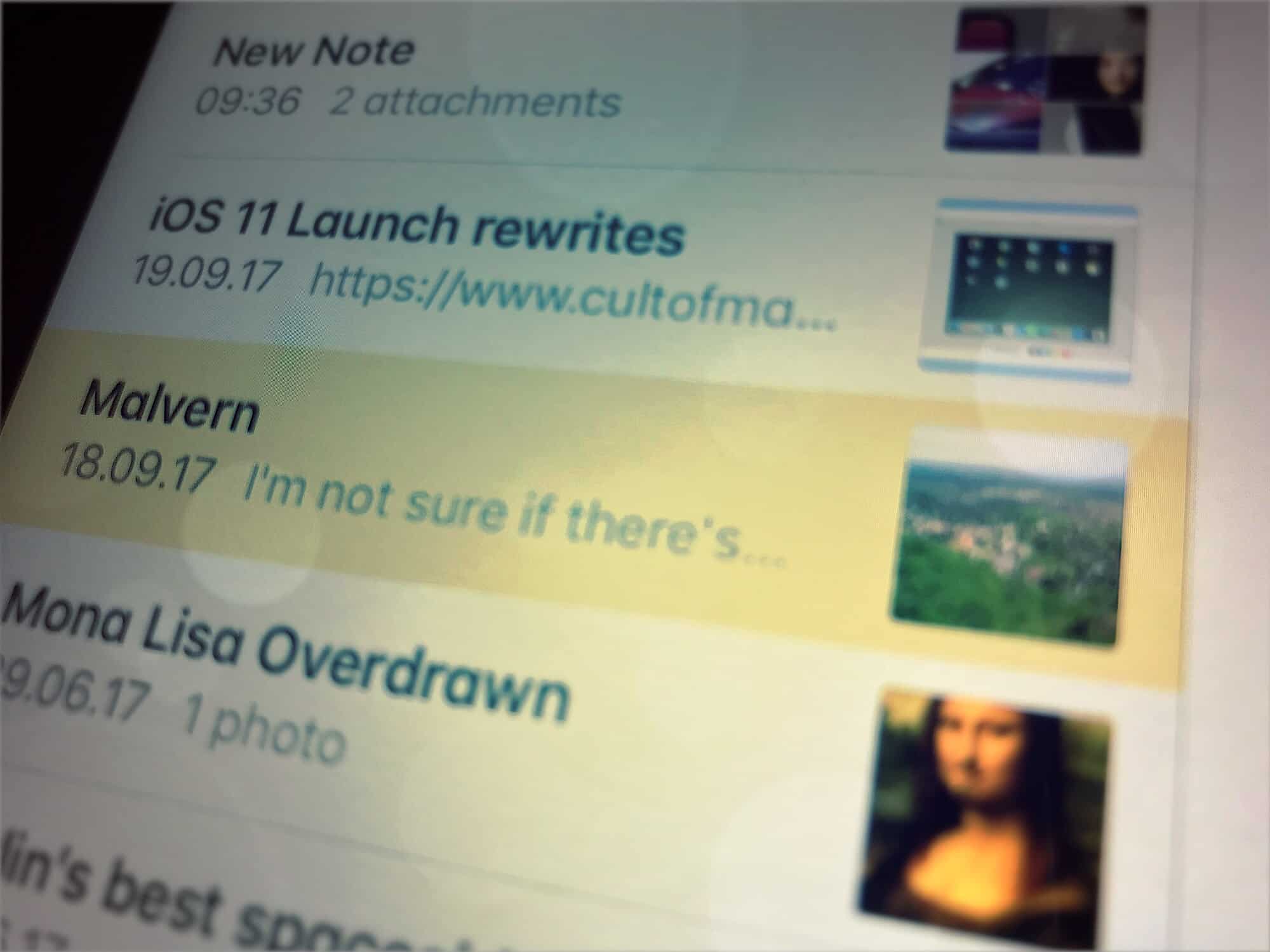
Apple’s Notes app gets better and better, with the iOS 11/macOS Sierra version bringing all kinds of amazing features. But however good any notes app is, you still have to find your notes, and for most of us that means scanning a list until we find the one we’re looking for. Today we’ll see how to add a custom image thumbnail to any note, so you can quickly identify it in the list. Even if you use search to narrow down the results, an image will still make notes easier to spot.
Dealing with Spaces' default behaviour feels like trying to battle a street magician. Photo: Rich Anderson/Flickr CC
If you use Spaces on your Mac, then there may be one “feature” that annoys the hell out of you. Do you keep nicely-arranged workspaces for specific tasks? Do you like to always have your text editor in the middle Space, and your slacking off apps (Twitter, Slack) out in the very last space of all?
That’s neat, but macOS can drive you crazy by forever rearranging your Spaces, so that your Twitter and Tumblrs end up where your work Space should be. Fortunately, it’s a one-click fix.
Now you can finally relax and take that siesta, without missing texts from your loved ones. Photo: Charlie Sorrel/Cult of Mac
The iPhone’s Do Not Disturb feature really is great. It silences your phone on a daily schedule, so you never need to worry about being woken up by a Facebook alert, or some other useless beep. But maybe you want to be disturbed by certain people. Maybe your teenage kids are out late, or your better half is away on a trip. Is there a way to let their calls and texts punch through the Do Not Disturb shield? Well, yes, there is! It’s called Emergency Bypass, and here’s how to enable it.
Make the most of your Apple Watch with these handy tips. Photo: Ste Smith/Cult of Mac
The Apple Watch truly became a useful device with the release of the Series 3. LTE connectivity, more accurate heart rate monitoring, and faster hardware make the Apple Watch a joy to use.
With all the features and functions Apple advertises, there are still plenty of hidden tips and tricks for users to discover. Check out seven of my favorites in our latest video: