Let's get that nice new Mac set up, shall we? Image: Apple
It’s a great season to get a new Mac. Every Mac today is a great buy. If you’re one of the lucky people to get one this year, here’s how to set up your Mac like a pro.
So rip open that box, tear off that plastic and get to the good stuff.
Here is Cult of Mac’s guide to setting up your new Mac the right way.
We’re here to help you do just that with a ton of little tips and tweaks that will make sure you’re off and using that new iPad as quickly as possible. From backing up your old iPad (if you had one already) to getting up and running with a brand-new iPad from scratch, we’ve got you covered.
NORAD’s Santa tracker app is available for iPhone and iPad. And there’s a website for Macs. Photo: NORAD
It’s Christmas Eve, and Santa Claus is on his way. You can find out exactly where he is with the help of the NORAD Santa tracker and your Mac or iPhone. You can even track Jolly Old Saint Nick’s progress in real time.
Here’s how to keep an eye on Kris Kringle‘s progress.
We can get your new iPhone set up easily — no need to phone it in. Image: Apple
The new iPhone setup process gets easier every year. Apple continuously improves the steps needed to set up an iPhone. These days, you only need to do a few things to transfer all your old iPhone data to a new one. Still, certain tips and tricks can smooth the way.
The hot new tip this year is that you can directly transfer data from your old iPhone to your new one using a cable. Plus, other time-honored iPhone setup tricks will help things run smoothly. Here’s how to set up your new iPhone the right way.
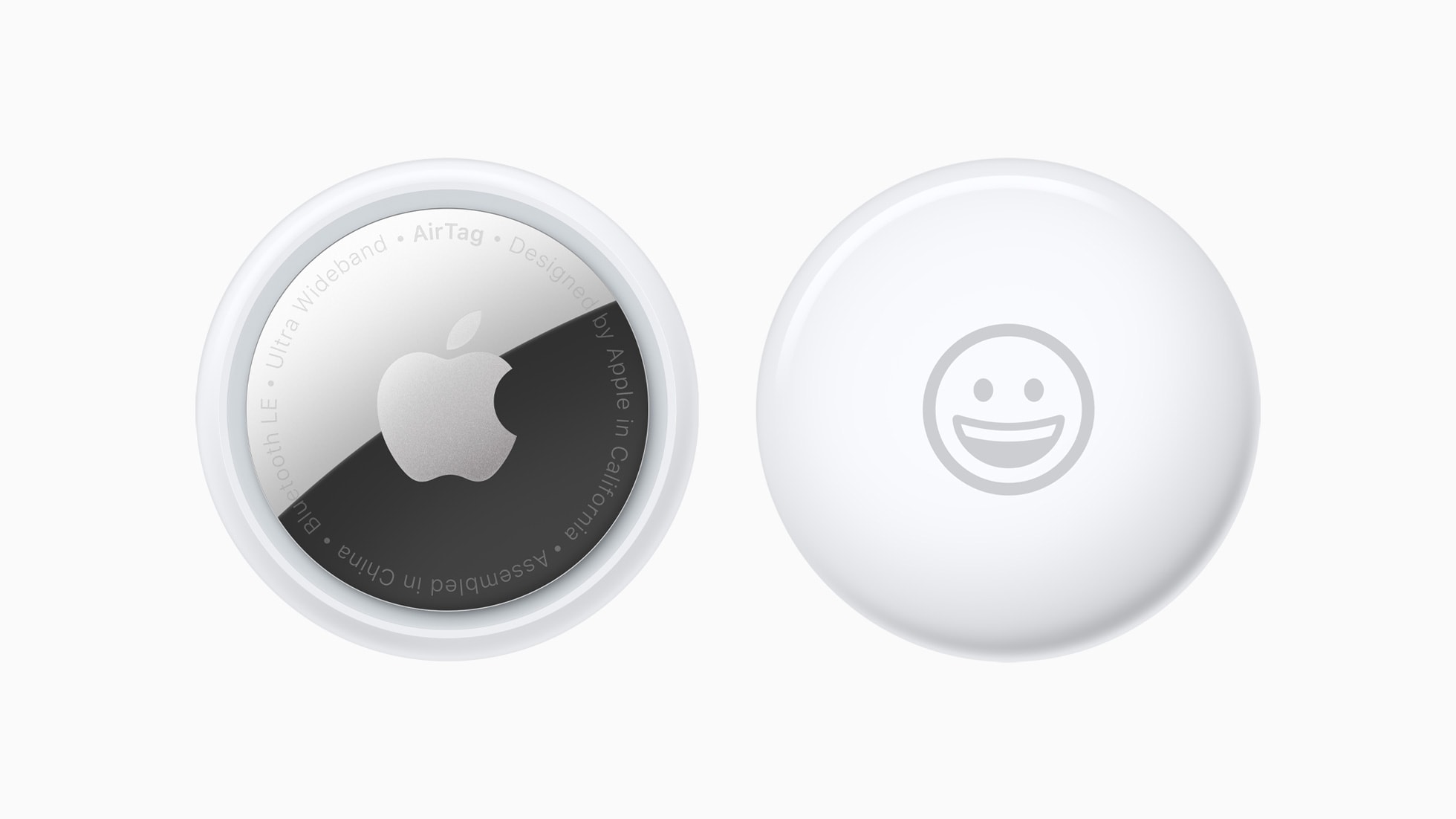
You can share an Apple AirTag with up to five people. Here’s how. Photo: Apple
When Apple launched the AirTag, you could link the tracking tags to only one person. Luckily, Apple expanded that. Now you can share an AirTag with up to five other people, so each one can see where it is.
Here’s how to share an AirTag with family members or friends.
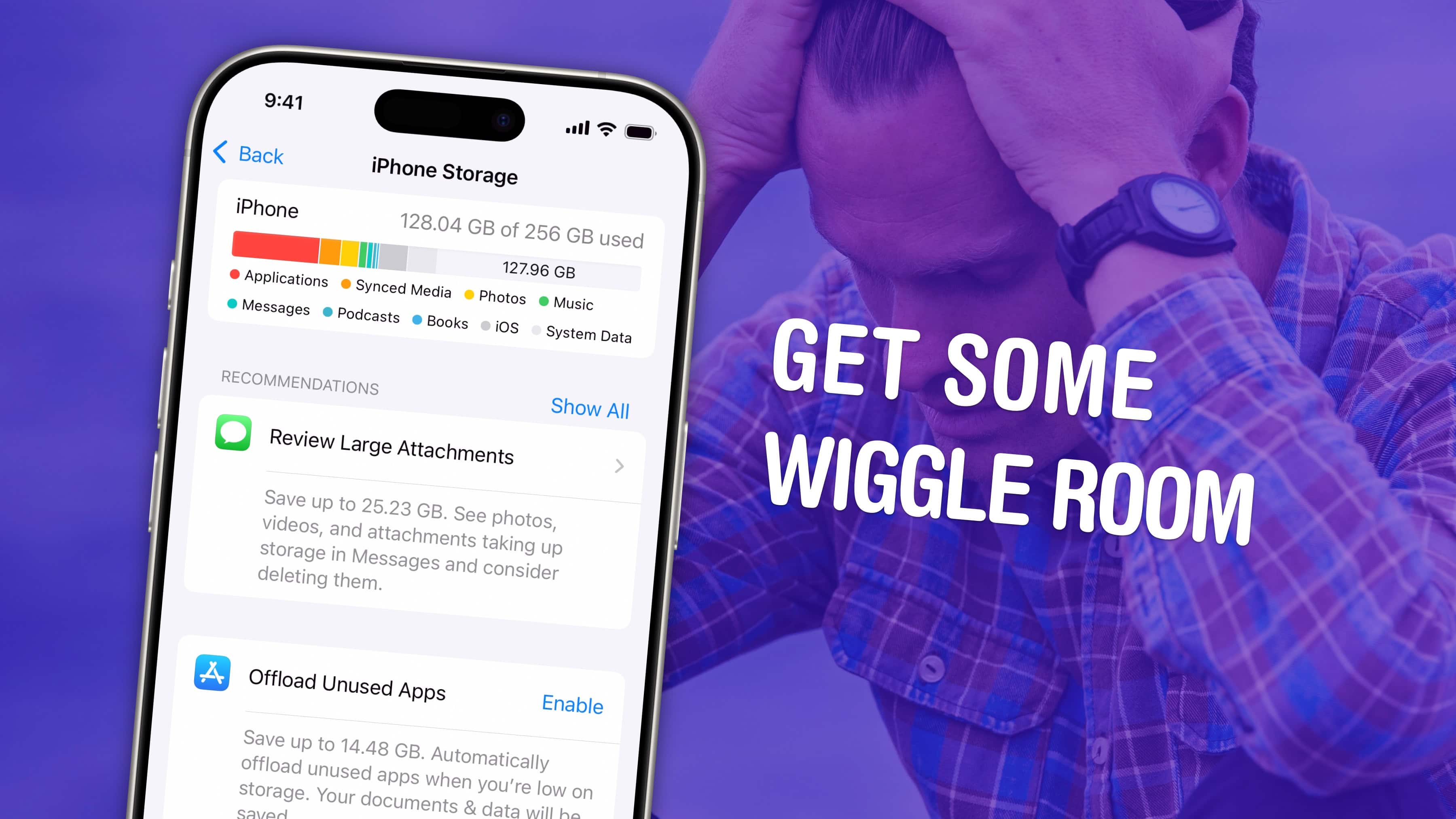
Get some space back on your phone. Image: D. Griffin Jones/Cult of Mac
If your iPhone storage is full, you’ll need to quickly clear up space. You don’t need to panic and delete all your pictures, though. There are easy ways to free up iPhone storage without losing any precious data forever.
Apple put a convenient screen in Settings that can walk you through non-destructive ways to clear up space on your phone. Apps that you don’t use frequently can be temporarily uninstalled (and instantly redownloaded when you need them again). If you sync data to iCloud, like photos and music, your phone can automatically offload some of that data. You also can limit the number of podcasts your phone keeps, if you’re falling behind on your listening.
Here are the easiest steps you can take if your iPhone storage gets too full.
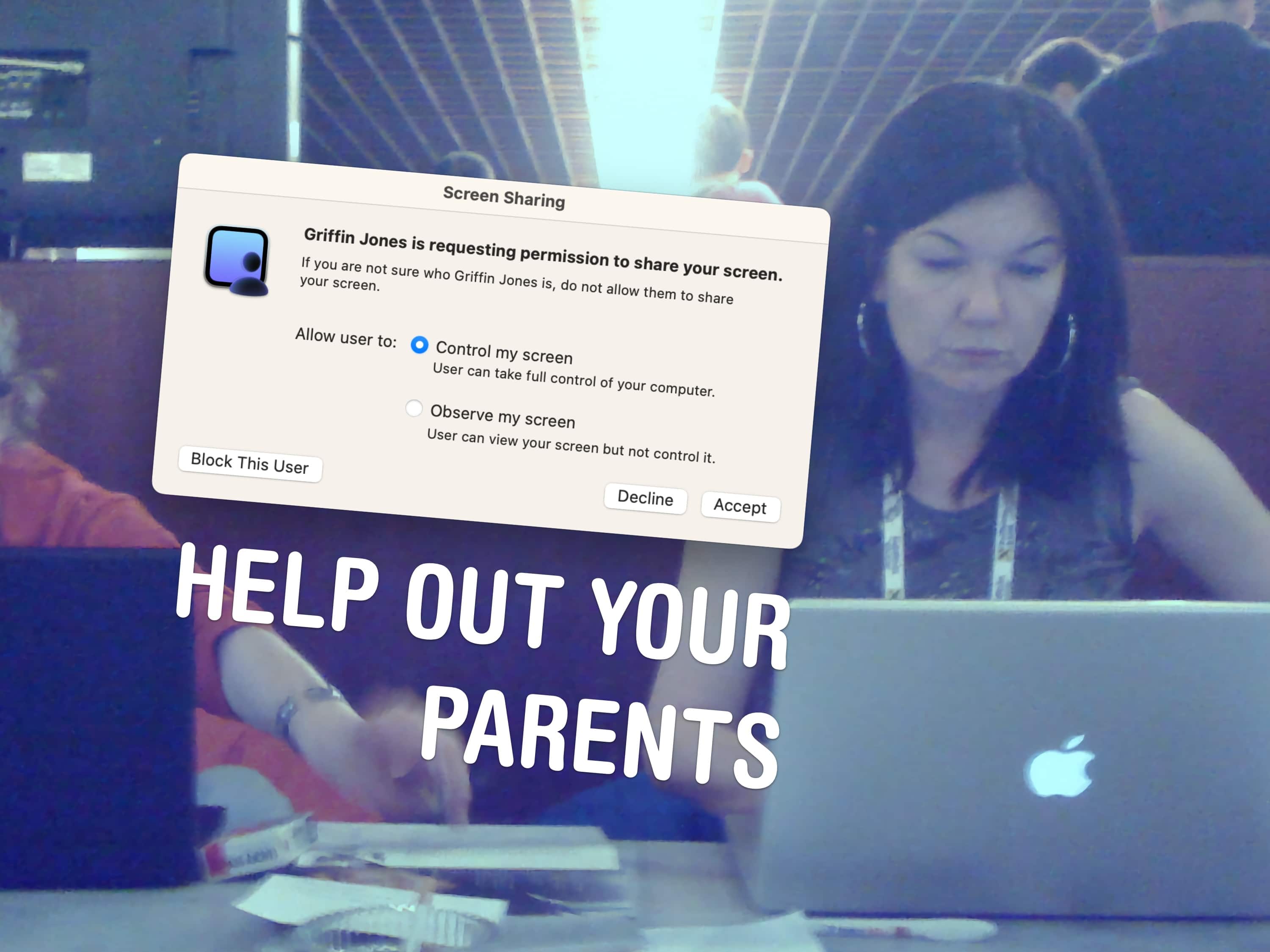
Screen Sharing is a great way to give remote tech support. Image: Daniel Aragay/Wikimedia Commons/D. Griffin Jones/Cult of Mac
A little-known feature in macOS lets you share your Mac’s screen to someone else’s Mac directly from the Messages app — no third-party apps or downloads required. It’s great if you need to give tech support to a far-off family member in a pinch. Often, you just need to see what’s happening instead of counting on what your dear old father is trying to describe over the phone.
Get him to share his Mac’s screen with you, and you likely can solve his problem quickly. Even better, it’s not complicated setting up screen sharing on a Mac like it is on a PC. It takes only a few clicks in the Messages app. Let me show you all around this awesome hidden feature.
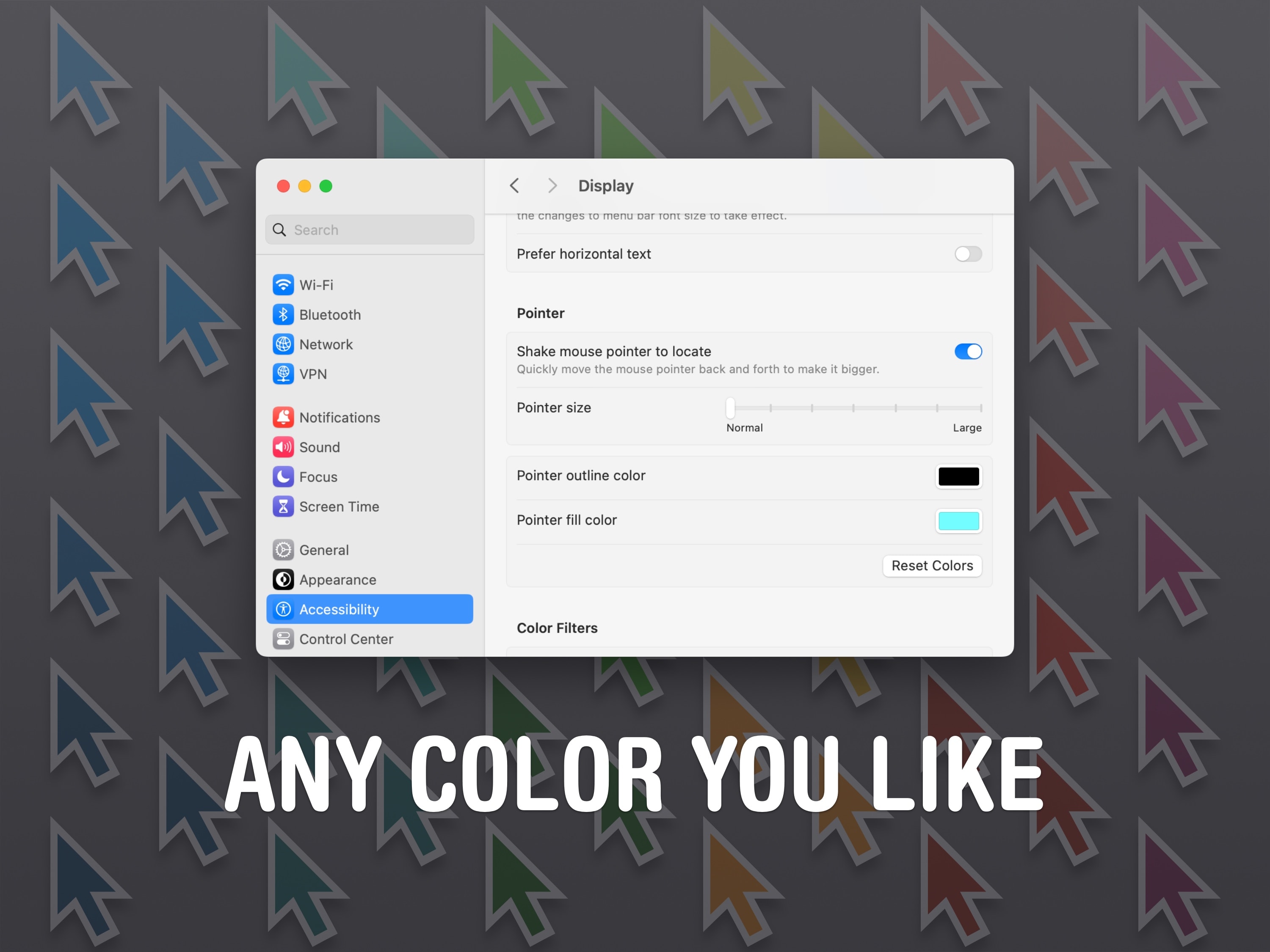
The Mac cursor doesn't have to be boring black-and-white. Image: D. Griffin Jones/Cult of Mac
The Mac pointer (also called the cursor) is black with a white outline by default, but you can change the pointer color if you want to make it more prominent. Plus, you can even change the Mac pointer size.
You might lose track of the small cursor if you have low vision — or just a really big monitor. Making the pointer larger can make it easier to see.
Changing the pointer color to, for instance, bright red can make it easier to see, too. You can choose any color, like light purple or green, to fit the aesthetic of your setup. (This is especially cool if you have a matching colorful iMac.)
Here’s how to change your Mac pointer size and color.
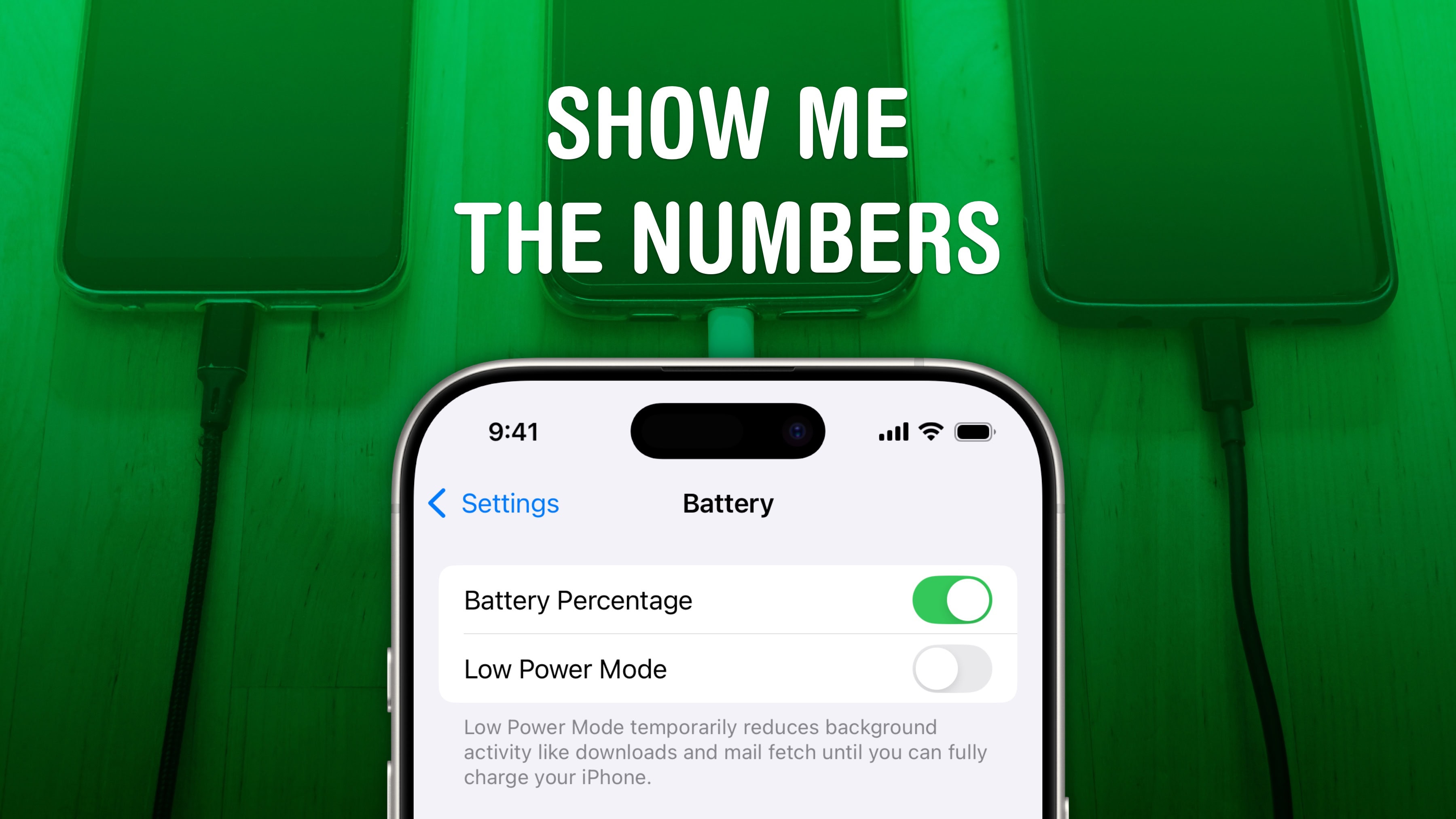
Turn on Battery Percentage to get the exact number. Image: D. Griffin Jones/Cult of Mac
Being able to see your iPhone battery percentage right in the status bar is incredibly useful. You can keep an eye on it throughout the day if you’re getting low and need to top up.
The standard battery icon gives you a rough idea of where your iPhone stands. But instantly seeing the exact battery percentage number can give you peace of mind. It’s useful seeing the precise number without pulling down Control Center or checking a battery widget, wherever you are.
For those of you with real battery anxiety, you can even add a widget to your Lock Screen and Home Screen. I’ll show you how.
Take a screenshot of the entire page. Any page. Like this one! Image: D. Griffin Jones/Cult of Mac
It’s easy to take a screenshot on your iPhone to keep a copy of something in your photo library for later. You can even screenshot a whole page on an iPhone at once using a somewhat hidden feature.
If you want to take a screenshot of something like an in-depth recipe, a lengthy email or anything else that doesn’t fit on your iPhone screen, you can take an extended screenshot. Instead of filling your library with five separate images, you can use your iPhone to screenshot the entire page (or a large section of it) without using an app to stitch them together after the fact.
Here’s how it’s done. (I’ll show you how to do this on a Mac, too.)
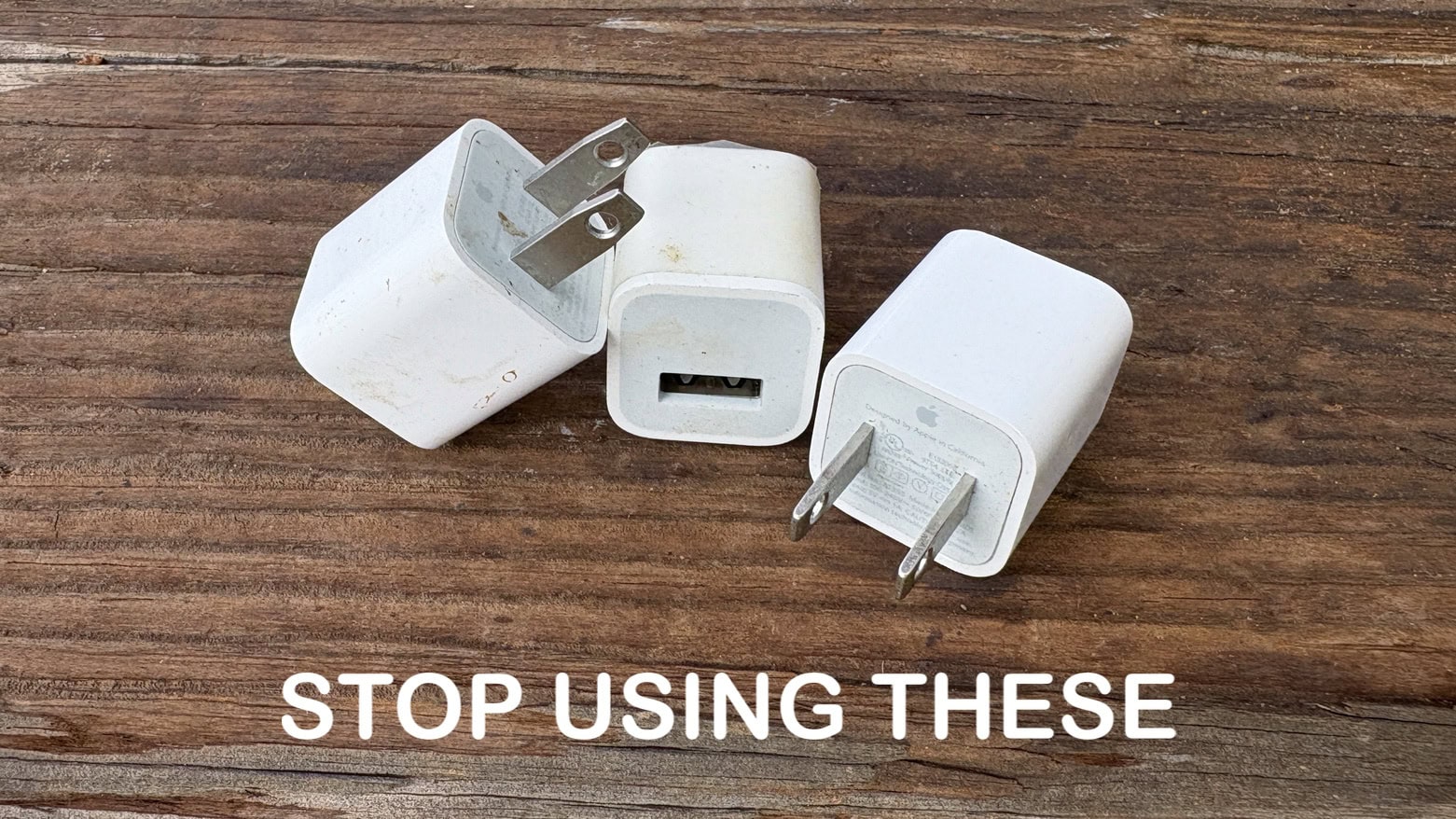
You can do better than these. Quite a bit better, in fact. Image: Ed Hardy/Cult of Mac
There are plenty of old iPhone wall chargers still out there very slowly powering up handsets. Fortunately, iOS 18.2 made it quick and easy to tell if it’s time to trash your old, slow iPhone charger.
The best iPhone chargers give your handset a big boost in as little as half an hour. Older ones take all sodding day. You don’t have to put up with slow charges if you don’t want to.
A Charlie Brown Christmas is free to watch on Apple TV+ all this weekend. Photo: Apple TV+
The Christmas season is in full swing and there’s good news for fans of the Peanuts holiday specials. Apple made the holiday classic A Charlie Brown Christmas available for everyone to stream for free this weekend, whether they’re an Apple TV+ subscriber or not.
That gives everyone the opportunity to watch Linus teach his friends what Christmas is all about, whether they own an Apple device or not.
Save your iPhone battery with these easy tips. Image: D. Griffin Jones/Cult of Mac
It can be hard figuring out what advice will actually save your iPhone battery life and what’s basically tech superstition. What settings can you easily change that make the biggest impact without ruining your phone?
Low Power Mode is the obvious setting, a single switch that pulls all kinds of levers behind the scenes. Turning down your brightness as far as you can is another easy trick. But how about quitting apps? Does it make any difference? What about the always-on display? Should you turn it off?
Here are the 10 things you can do to save iPhone battery life — and help your iPhone battery thrive over the long term, too.
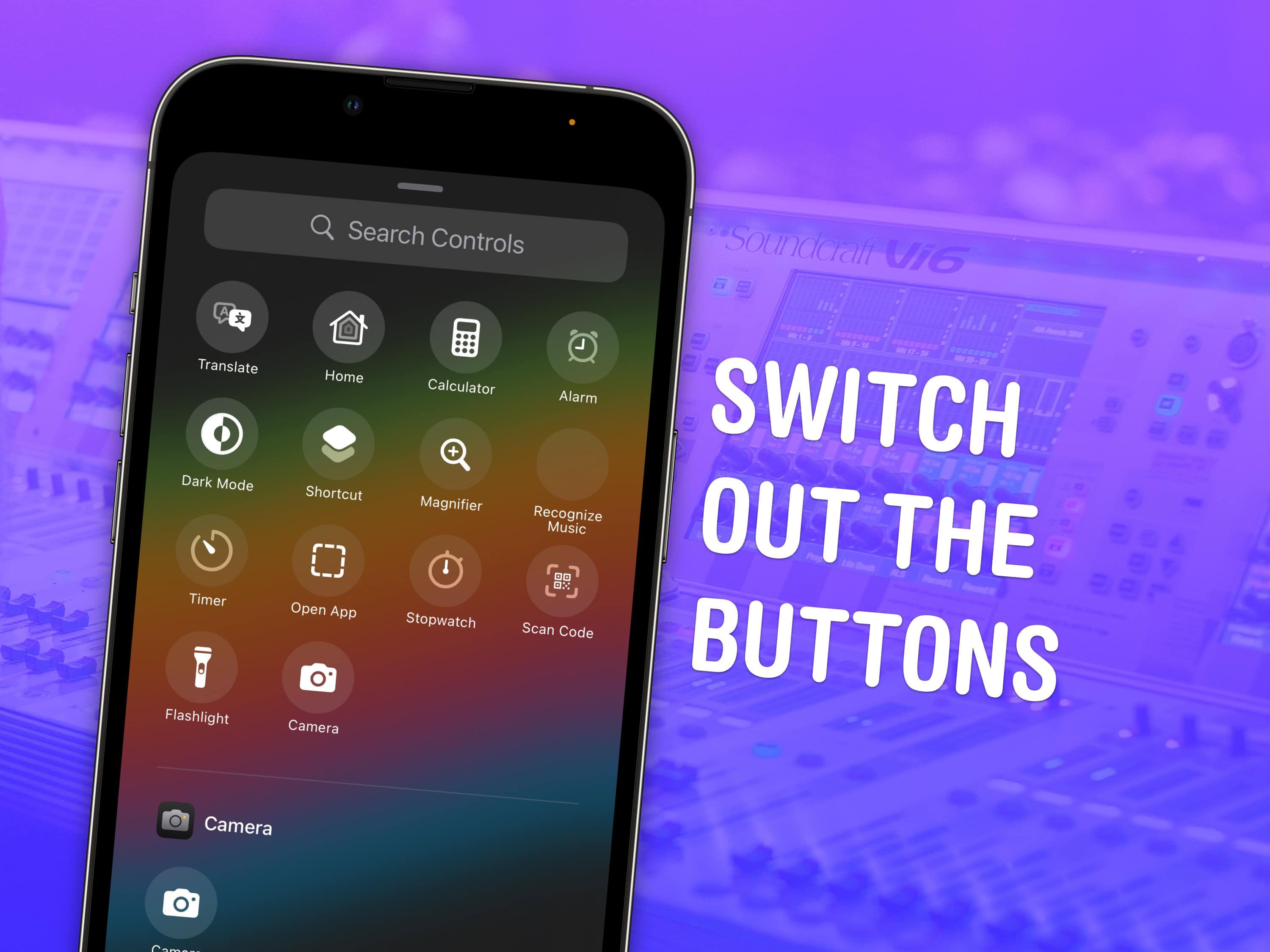
Switch out the buttons on the Lock Screen. Screenshot: D. Griffin Jones/Cult of Mac
In iOS 18, users can finally change out their iPhone Lock Screen buttons from the standard Flashlight and Camera to whatever they want. There’s a giant selection of buttons you can swap in their place.
In fact, any button you can put in iOS 18’s new customizable Control Center is a button you can put on your iPhone’s Lock Screen. Plus, you can add different shortcut buttons to different Lock Screens, making them context-dependent (and tied to a Focus Mode if you like).
Here’s how to swap out the iPhone Lock Screen buttons to put whatever you want at your beck and call.
A bunch of Apple Intelligence features — and, more excitingly, sudoku. Image: D. Griffin Jones/Cult of Mac
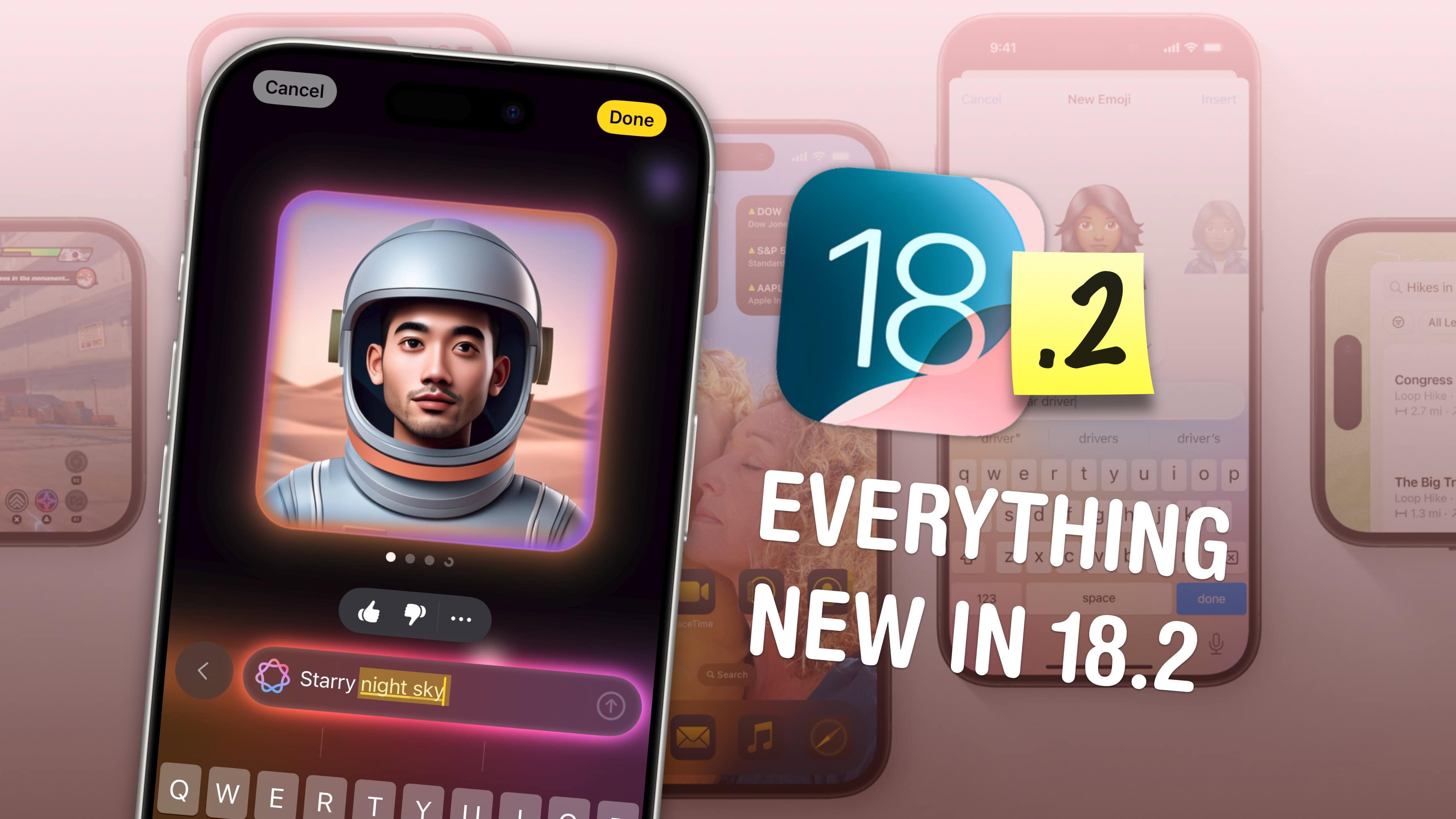
iOS 18.2 drops a huge number of new features onto the iPhone. The second major iOS 18 update, available now, expands the capabilities of Apple Intelligence — and adds plenty of goodies for everyone else, too.
Keep reading or watch our video on the new features awaiting iPhone owners in iOS 18.2.
Don’t wait: you can safely and easily put iOS 18.2 on your iPhone now. Here’s how. Image: Ed Hardy/Cult of Mac
iOS 18.2 will go out to iPhones everywhere next week, but you don’t need to wait. It’s possible to go ahead and install the iOS 18.2 release candidate — the final version before Apple pushes it to the public — this weekend. That way you’ll have time to play around with the AI-powered Image Playground and other new Apple Intelligence features.
Getting iOS 18.2 now doesn’t require doing anything dodgy or risky. You’ll download the final version of the upgrade straight from Apple … just a little earlier than scheduled.
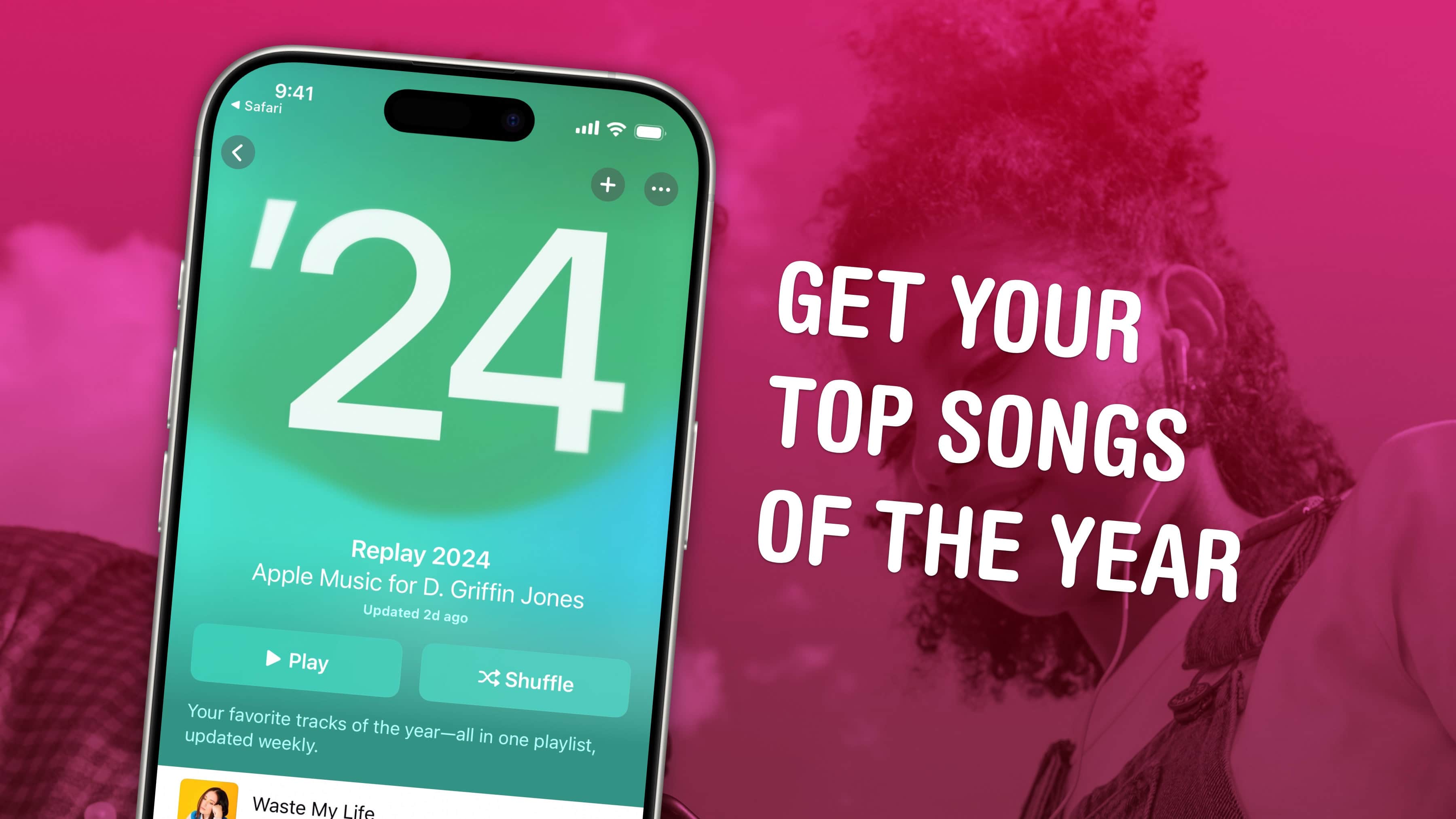
Find your top songs with Apple Music Replay. Image: D. Griffin Jones/Cult of Mac
Apple Music Replay is a great way to find your music stats for the past year: the most played songs, artists and albums in the last 12 months. Similar to Spotify Wrapped and the like, your annualApple Music Replay is a fun way to see what tracks you listened to most.
Fun fact: Apple usually publicizes Apple Music Replay in November, but it’s actually updated weekly and available throughout the whole year! You can check in whenever you want to see how 2025 is shaping up.
We’ll show you how to find it and how to share your top music of the year to your friends and social media.
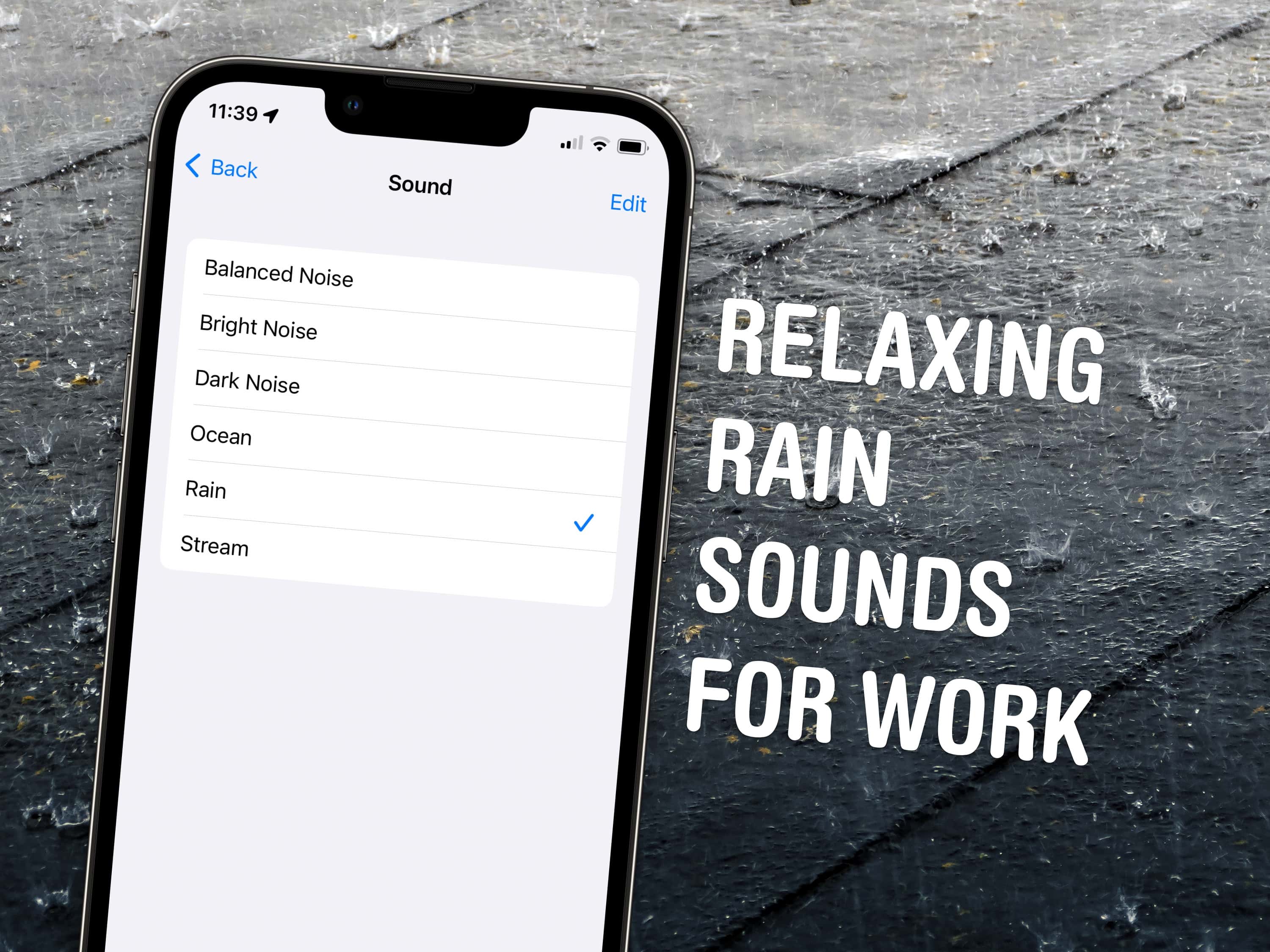
Chill out and silence the sounds of your environment with the sounds of rain, the ocean and more. Image: D. Griffin Jones/Cult of Mac/W.carter/Wikimedia Commons
Working in an office or in the city, you’re probably inundated with noise from people chattering, cars running and nearby music. Your iPhone has a built-in feature called Background Sounds for playing rain noises or white noise to tune it all out.
You don’t need to download any apps or pay a cent; it comes for free on your Mac and iPhone. Let me show you how it works.
Apple Music now has a karaoke feature for singing along. Image: Ronyyz/Wikimedia Commons, D. Griffin Jones/Cult of Mac
Apple Music has a karaoke mode for people who love to sing along as they listen. Apple Music Sing lets you turn down the lyrics so you can karaoke to your favorite hits with just one tap.
In fact, I’m using it right now to listen to some of my favorite music without the lyrics distracting me from reading and writing. Let me show you how it works!
Use these iPhone travel tips every time you hit the road or the skies. Photo: Unsplash
When traveling internationally with your iPhone, staying connected and avoiding unexpected surprises can be a bit of a balancing act. Whether it’s navigating unfamiliar streets, keeping in touch with family, or ensuring you don’t get hit with outrageous roaming fees, a little preparation goes a long way. Here’s how you can improve your iPhone use while traveling internationally.
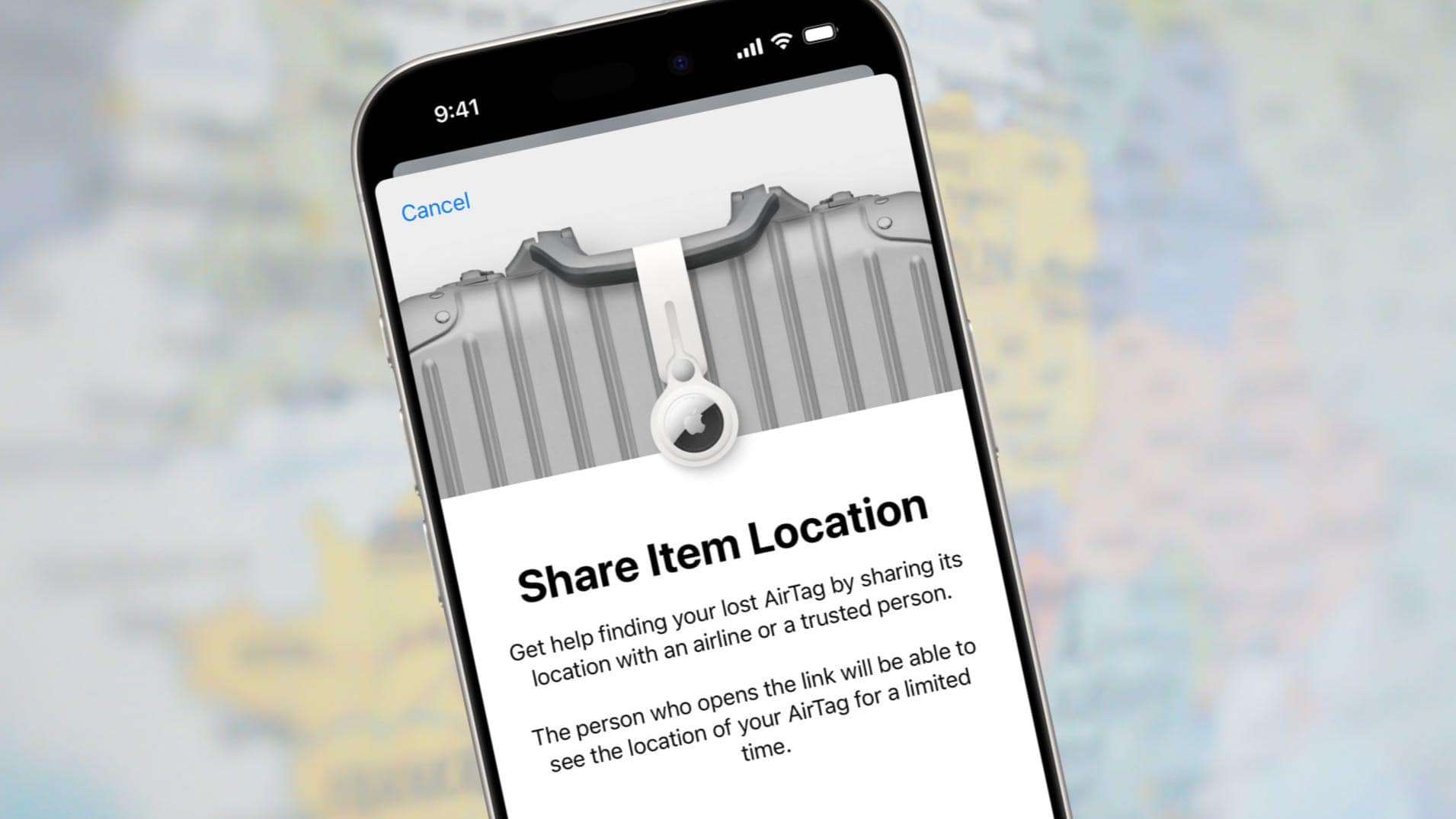
Now you can temporarily share the location of your lost bag with your airline. Image: Apple/Cult of Mac
Apple added Share Item Location to the Find My app to let AirTag users securely share with an airline the exact position of a tracking tag attached to lost luggage.
Here’s how to use the new feature to show an airline employee that your bag is actually just outside Concourse C in the Atlanta airport, not in Denver where they think it is. They can even see the exact position of the luggage.
Apple Watch makes for a good fitness tracker underwater. Photo: Apple
If your Apple Watch feels like it’s not responding to your taps, it could be in Water Lock mode. It’s easy to forget to turn off Water Lock Mode after you go for a swim or a shower.
There’s also a bit of confusion about how Apple Watch’s Water Lock feature works. Read on to see how to (and how not to) use it.
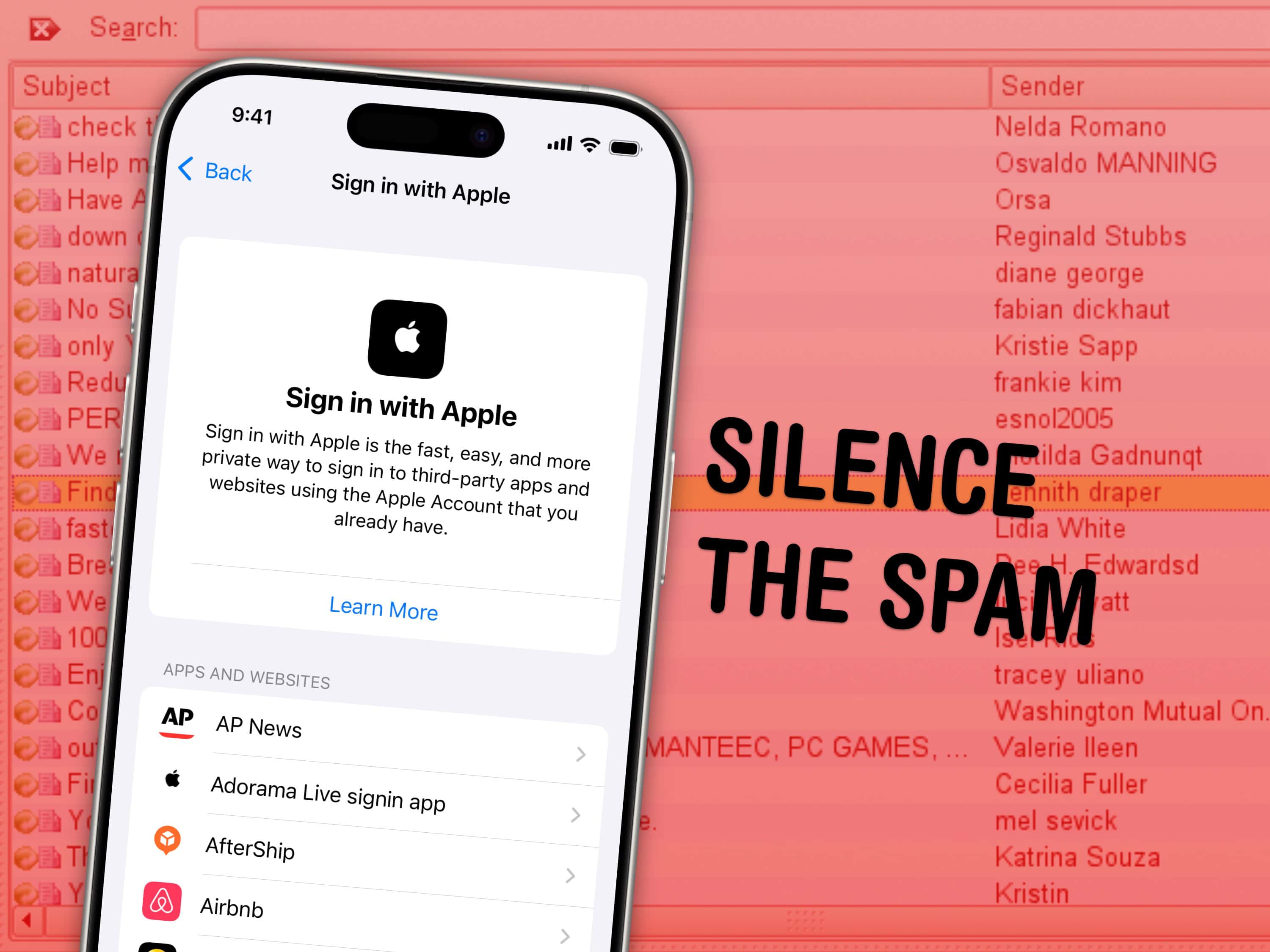
Apple’s privacy-focused features in Mail are really handy at keeping spam at bay, but you might still need to find that secret email address or delete an account after a while. Image: Ascánder/Wikimedia Commons/D. Griffin Jones/Cult of Mac
The Sign in with Apple feature, which lets you log into third-party accounts using your Apple ID while keeping your personal info private, is so easy to use that I utilize it everywhere. But that also means my disguised logins pile up, accumulating in the digital junk drawer that is iCloud Settings. If you ever need to manage or transfer yourApple purchases history, Apple now offers an option to migrate digital purchases between accounts.
I’ll show you where you can find, manage or delete these accounts. Perhaps you’re jumping ship from iPhone to Android, and you want to make sure you still have another way of signing into your Chipotle account.
The Hide My Email service is similar. It creates a temporary email address that forwards to your real one — handy if you’re signing up for a shady website, or if you need a public contact email. I’ll show you where you can create new ones and delete the old ones.
Here's why you might be having trouble exchanging images with your friend's iPhone over AirDrop, and how to fix it. Image: Ed Hardy/Cult of Mac
You’re at a party and your friend takes a great picture. You ask them to AirDrop you a copy and the two iPhones won’t connect. So frustrating … what the %^#* is wrong? Why can’t you share iPhone photos the way you used to? You probably just need to tweak a setting to turn on AirDrop’s capability to work with any iPhone.
You see, Apple changed the way AirDrop works in iOS 16. If you haven’t updated your AirDrop settings, it might not work the way you want. Here’s how to set the easy wireless file-transfer system so you can get that picture from your friend.
Never see another App Store rating popup. Image: Killian Bell/Cult of Mac
Sick of apps constantly asking you to rate them? There is a way you can block App Store rating requests completely on iPhone, iPad and Mac so that the pesky popups no longer appear. We’ll show you how.











![How to set AirDrop to exchange pictures with anyone's iPhone [Pro Tip]](https://cultofmac.lh2.online/wp-content/uploads/2023/12/AirDrop-To-Everyone.jpg "How to set AirDrop to share iPhone photos with anyone [Pro Tip]")