
People can spend a lot of time surfing the web in Safari and sometimes we get to a page that we cannot read. The reasons you cannot read the page might include having misplaced your reading glasses or perhaps you just want a better look at some fine print before buying something online then this tip is for you.
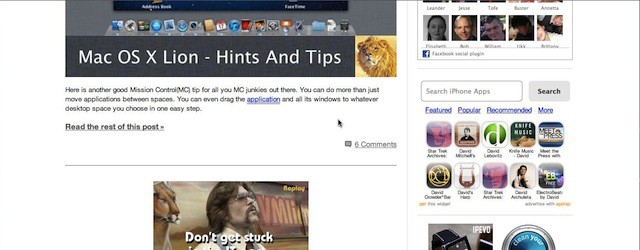
to this:
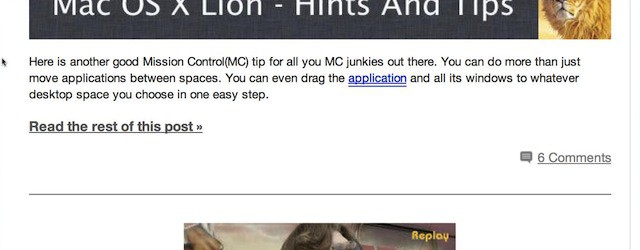
If you repeat the double tap the web page displayed in Safari will return to its normal magnification.

David W. Martin has more than 20 years of experience in the industry as a programmer, systems and business analyst, author, and consultant. David has written for CNET’s iPhoneatlas.com, MacLife.com, CultofMac.com, BYTE.com and recently for aNewDoman.net. He comes to Cult of Mac’s website with deep knowledge and passion for the all things Apple. Follow David on Twitter @david_w_martin or see what he’s up to now at davidwmartin.com.

10 responses to “Lost Your Reading Glasses? Try Double Tap To Zoom In Safari 5.1 [OS X Tips]”
And to zoom back out you do the same thing.
I was doing this unintentionally and it was making me crazy because I didn’t know how it was happening. I had to close the window because I didn’t know how to undo it. I was very glad to finally figure it out.
Cool. Thanks.
From some of the comments on the Apple Support Community Discussions pages, it is clear that not all Apple users realize that some (maybe many?) of the features in Lion are not applicable for those using older MacBooks– even though these have a Track Pad.
It may be time for list of features that work on all Macs (including Intels) and then a second list that includes all the other, cool features that only work on newer models or the external Track Pad.
Command-0 also returns to normal magnification.
Google Chrome needs to pickup on the new Lion gestures, as much as I love Safari, Chrome’s performance is better.