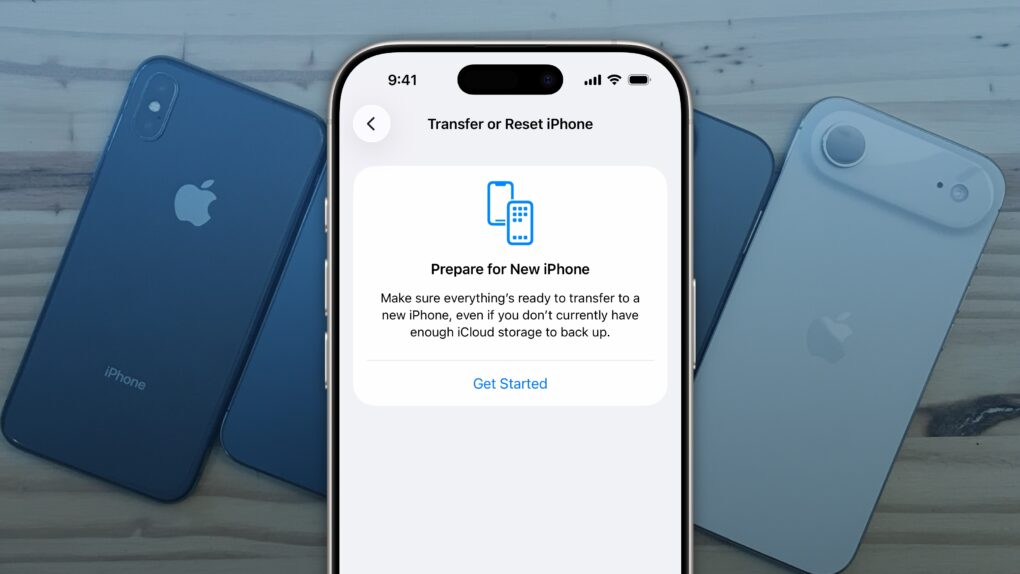
It’s easy to factory reset your iPhone. Image: D. Griffin Jones/Cult of Mac
You’ll want to reset your iPhone if you’re trading it in, selling it or passing it down to another family member. There’s a right way and a wrong way to do it.
If you don’t fully reset the phone, it’ll still be locked to your Apple Account — and the phone will be effectively useless to anyone who tries to use it.
Follow along to make sure you reset your iPhone the right way.
Apple made a simple change in iOS 26.1 that you’ll probably love. AI image: ChatGPT/Cult of Mac
My favorite change in iOS 26.1 has nothing to do with Liquid Glass, though cosmetic tweaks to the glossy user interface have drawn the most attention in the latest OS update. To me, the biggest improvement is the option to disable the Lock Screen swipe to open the iPhone’s Camera app.
I frequently pull out my iPhone to find the Camera app has been running in my pocket, draining the battery. It’s that damn Lock Screen swipe at fault. If this happens to you, too, here’s how to disable it in iOS 26.1.
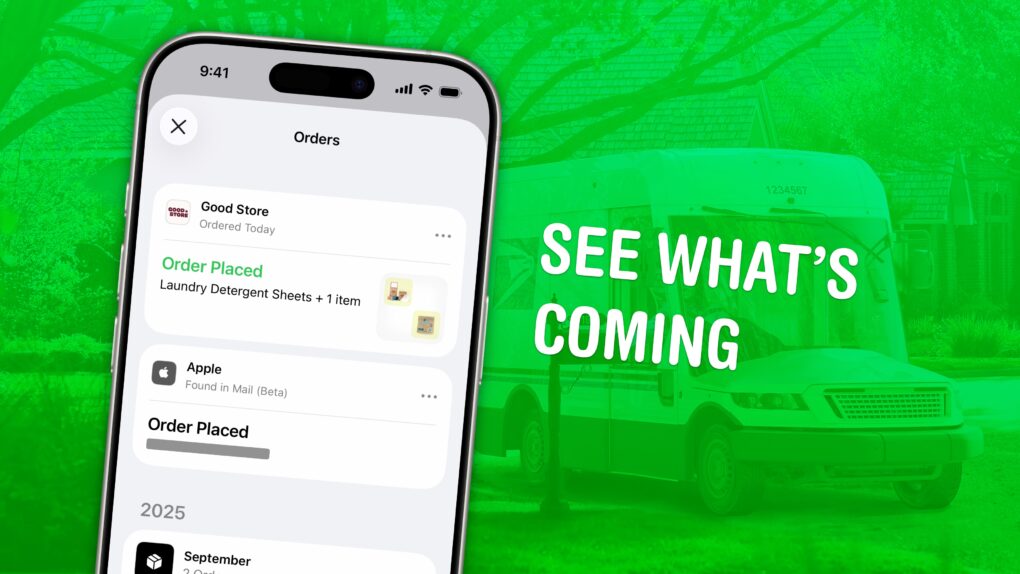
Be on the lookout for your packages. Image: D. Griffin Jones/Cult of Mac
You can use the built-in iPhone Wallet app for some basic order tracking with classic Apple ease of use. No need to fiddle with finding and copying tracking numbers — your orders will appear there automatically.
If you order something from an online store that doesn’t automatically integrate with the Wallet app, there’s a solution for that as well. If your device supports Apple Intelligence, it’ll scan your email inbox and add in all those Amazon orders, too.
Here’s how the iPhone’s order-tracking feature works.
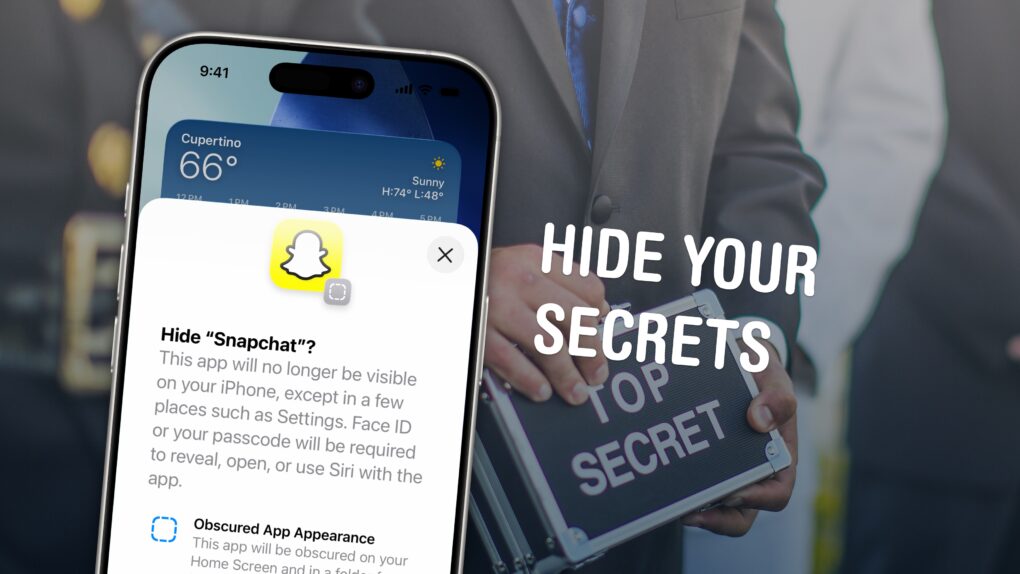
There’s an easy way to keep your apps hidden. Image: D. Griffin Jones/Cult of Mac
You can hide apps on your iPhone so they’re completely invisible, and you can lock all kinds of apps so they require Face ID to open.
Why would you want to? Maybe you have sensitive content you don’t want anyone to see, or you don’t want anyone to know you’re using dating or hookup apps. Hiding apps is also good for staying off social media or away from addictive games. Plus, it’s a great way to declutter your iPhone’s Home Screen. You can really clean things up without deleting apps you might want to keep.
There are, however, a few essential apps on your phone that can’t be hidden. Here’s how it all works.
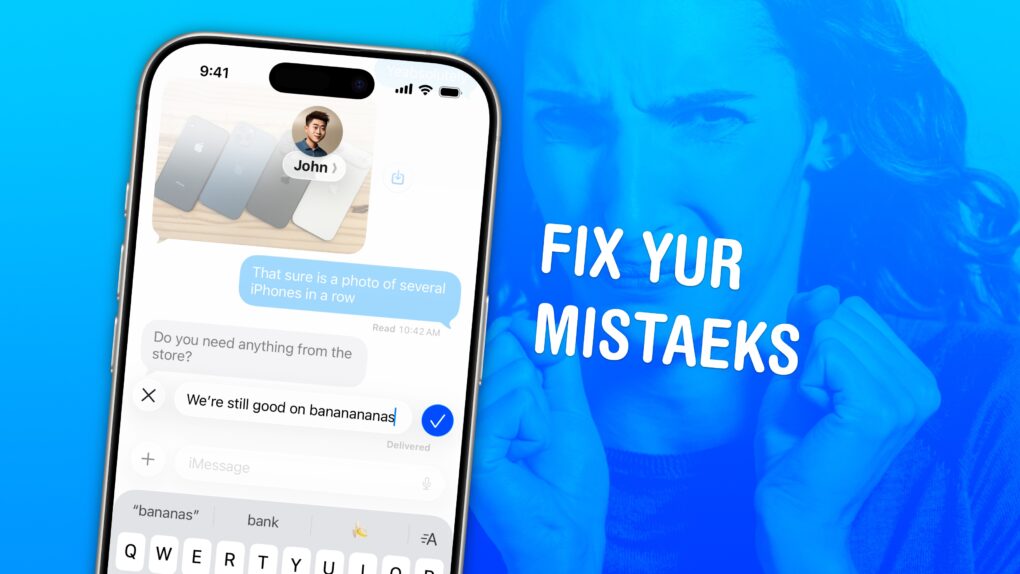
Correct the record. Image: D. Griffin Jones/Cult of Mac
Knowing how to edit or unsend iMessages on your iPhone could come in clutch. Like when you text your mom, “Finally got laid today” when you meant to say “paid.”
Thankfully, it’s easy to rewrite history in iMessage. Let me show you how this lifesaving feature works.
This feature could save you in a pinch. Image: D. Griffin Jones/Cult of Mac
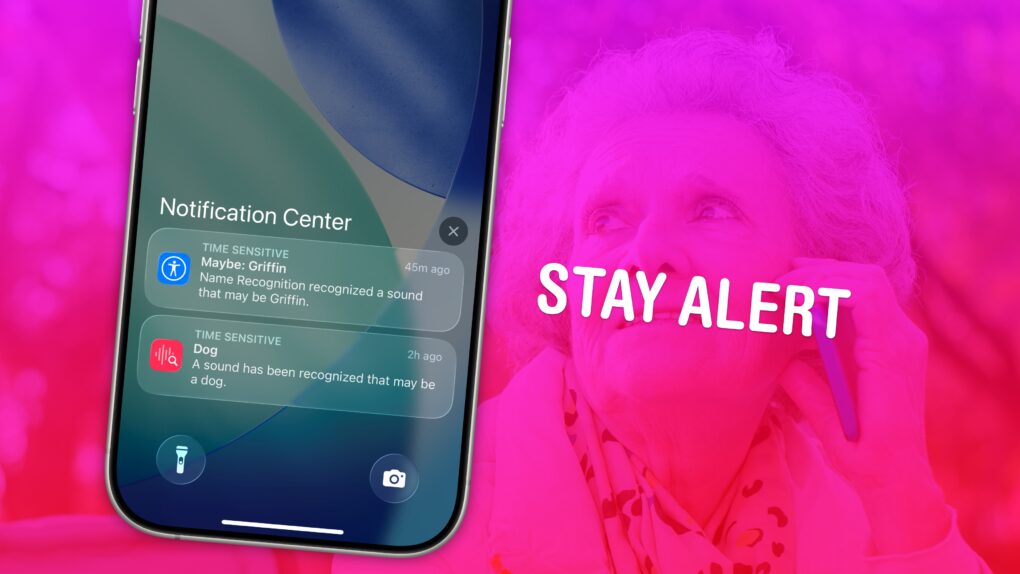
If you have trouble hearing, you might miss the sound of a knock on the door, a barking dog, or even worse — a smoke detector. Or, you might miss someone calling your name when they’re trying to get your attention. It’s less serious, but much more annoying. With Sound Recognition, you can get a prominent alarm and a buzz on your Apple Watch or iPhone when your phone hears the sounds you choose.
When Sound Recognition is enabled, your iPhone will continuously listen for dangerous sounds. It could, literally, be a lifesaving feature for you or a loved one. And Name Recognition lets you train your phone on how to recognize your name.
Here’s how to use these important safety and productivity features.
Get money back from the whole group at once. Image: D. Griffin Jones/Cult of Mac
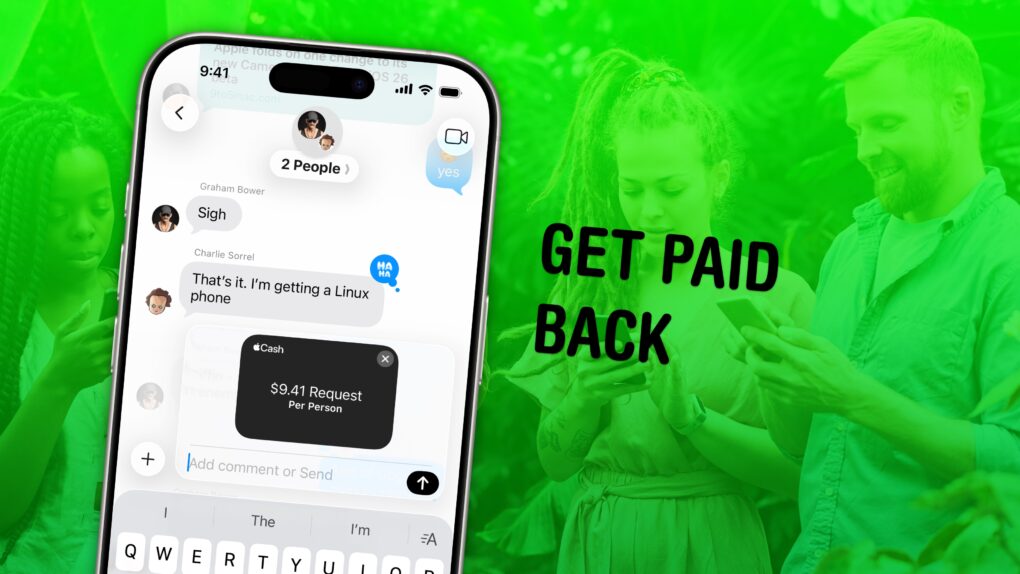
In iOS 26, you can use Apple Cash in a group chat to make it super-easy to split a bill. You won’t need to chase down everyone separately if you use this incredibly convenient feature.
Here’s how to request money and send payments using Apple Cash from a group chat.
Don’t be a victim of juice jacking. Change this iPhone setting today. AI image: ChatGPT
Your iPhone is too trusting of new USB accessories. Plug your handset into the wrong public charger at an airport or coffee shop and it might get hacked. Fortunately, there’s a setting you can (and should) change that prevents your iPhone from falling victim to data theft via juice jacking.
Here’s what to do. And don’t worry … it’s easy. I’ll walk you through it.
You can see all of the locations your iPhone thinks are significant and turn off the location features in Settings. Image: D. Griffin Jones/Cult of Mac
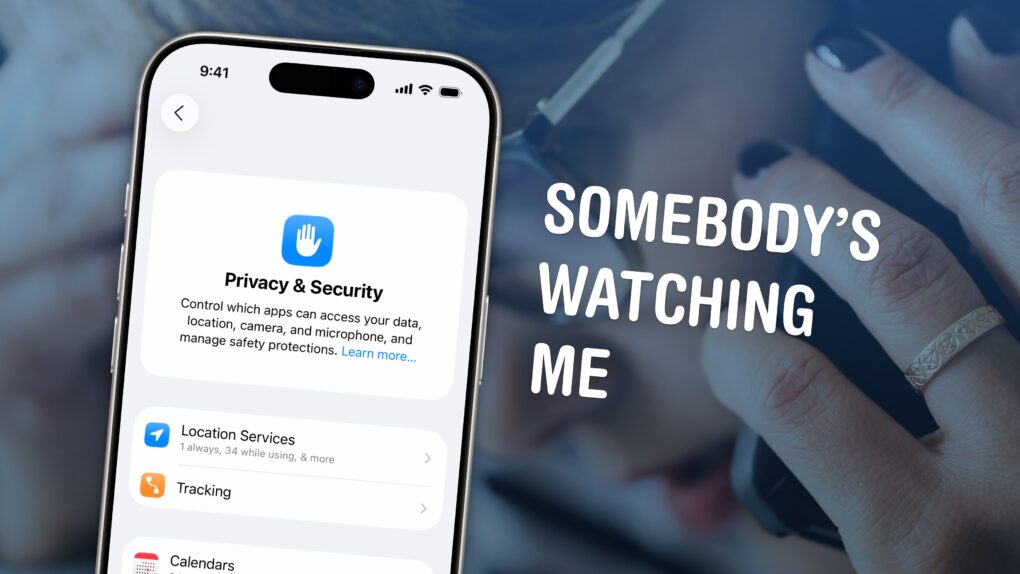
If you’re uncomfortable with social media apps tracking your movements, or worried about data falling into the wrong hands, here’s how to stop them using your iPhone’s built-in location settings.
If you find yourself traveling to a country with an authoritarian government, clearing your phone’s location history is a safe bet. Or if you’re moving to a different city or to a new job, it can be annoying seeing travel suggestions to the wrong place. Resetting your location history will start from a clean slate.
These moves may also protect you from shady data brokers, who spy on and sell your movements. Here’s how.
Decide before you waste your time. Image: D. Griffin Jones/Cult of Mac
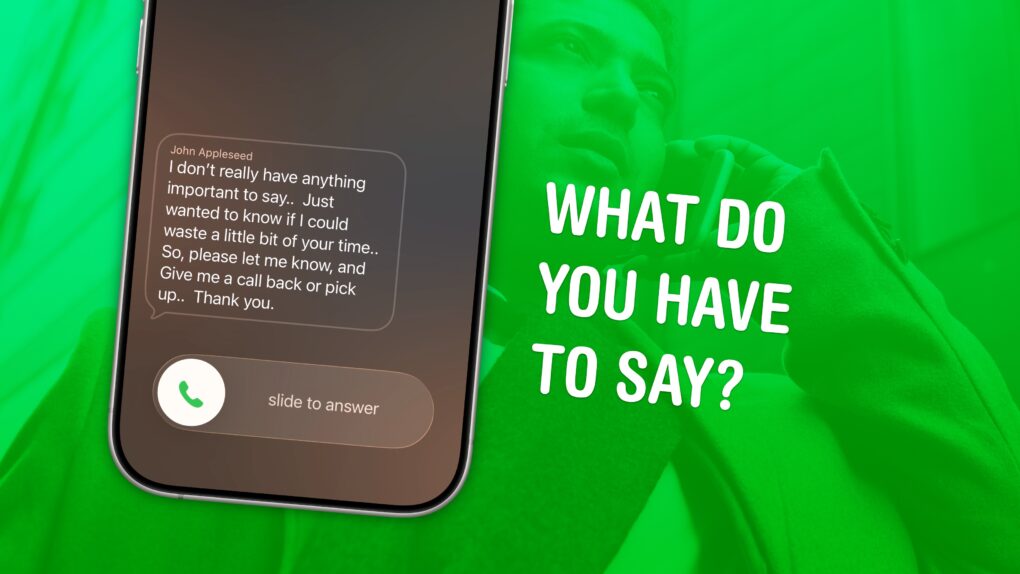
Screening calls on iPhone has finally gotten good. It’s now possible to block and screen all calls from unknown numbers and lead a life of peaceful zen. Apple has added a trio of features to iPhone to screen calls: one aptly named Call Screening, as well as Live Voicemail and Silence Unknown Callers.
Using these features together gives you a great way to stop unknown callers on iPhone. The Call Screening feature pairs very well with Live Voicemail. With both of these turned on, unwanted calls will be far less intrusive, but you will still be able to pick up important calls as they come in.
Here’s how to screen calls and other annoyances without missing any crucial conversations.
Record your screen, its audio, and your voiceover in one. Image: D. Griffin Jones/Cult of Mac
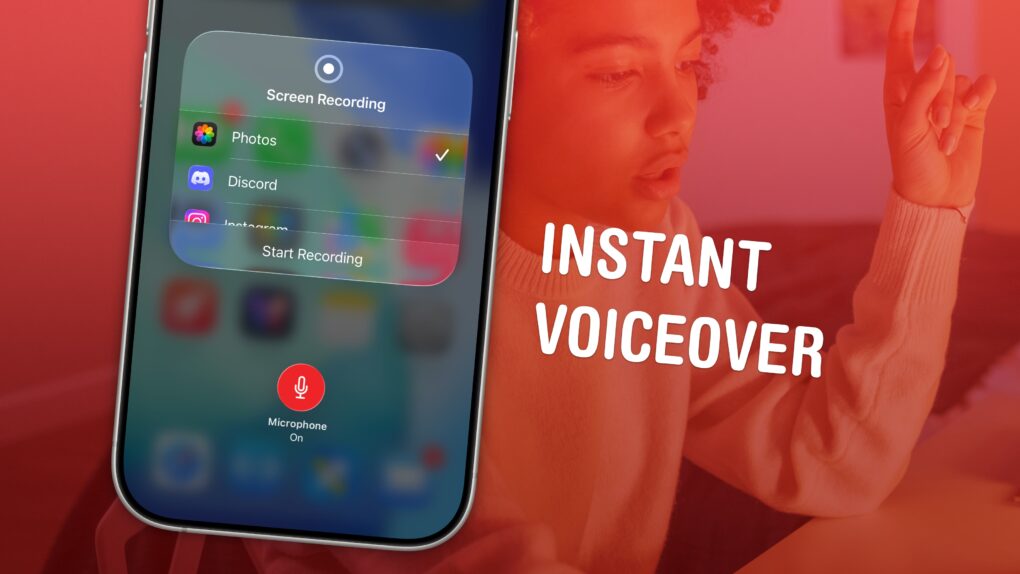
You can record your screen with audio (and a voiceover) on your iPhone to talk over your video. This functionality is built right into the iPhone. You don’t need to use a Mac or PC, or pay for an app to do it.
This can come in handy for making presentations or projects — and you don’t want to waste an hour or more editing a video yourself. You can also make a recording with your voiceover explaining how something works for helping someone out, testing an app, making a tutorial, recording your reaction to watching a video or more.
Here’s how to record your screen with audio — and add a voiceover — right from your iPhone.
Your iPhone can read text from websites and iMessages (and even words in photos). Here's how to make it happen. Image: D. Griffin Jones/Cult of Mac
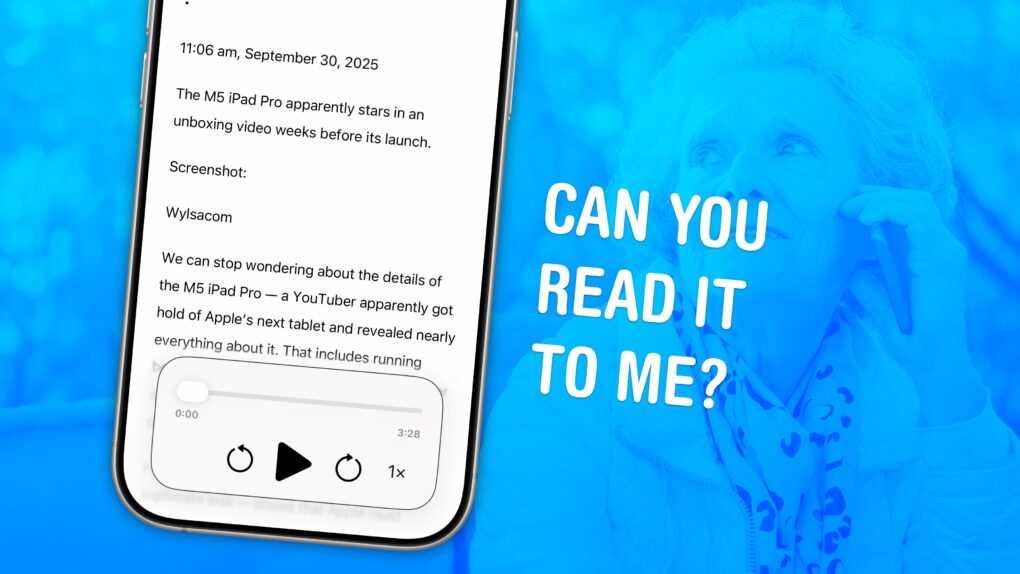
You can have your iPhone read out loud any text on its screen with a useful accessibility feature called Accessibility Reader. Apple designed this feature for people who have trouble reading small text, but you will find it handy even if you don’t — in lots of situations.
For instance, your iPhone can read recipes aloud while your hands are busy cooking. Or you can quickly hear how to pronounce a word you don’t know — that’s what I use Accessibility Reader for most often. You can even hear what you’re typing as you write.
The potential applications for everyday use are incredibly broad. Here’s how to use Accessibility Reader and all of the iPhone’s Read & Speak features.
Scan QR codes faster with these tips. Image: D. Griffin Jones/Cult of Mac
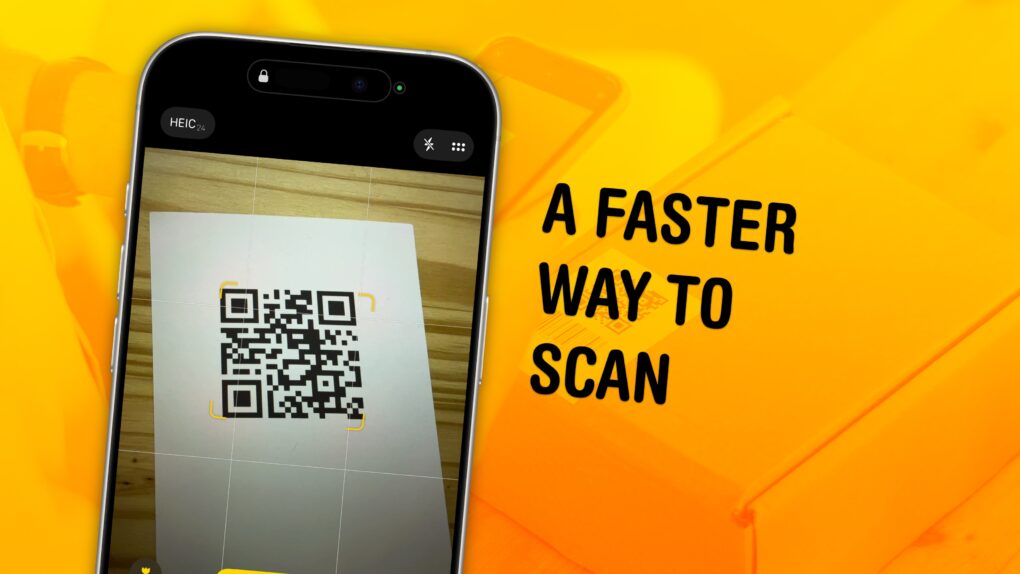
You can scan a QR code directly from your iPhone — you don’t need to download a third-party app to get the information you need. Apple even gives you three ways to do it. You can scan a QR code using your iPhone’s camera, using a shortcut in Control Center, or directly from an image in your Photos library
As QR codes become increasingly prevalent, it’s good to know these methods. If you’re in a restaurant and you want to open the digital menu or join the Wi-Fi network, you don’t want to fiddle with installing a third-party app.
To learn three ways you can scan a QR code using your iPhone, keep reading or watch our short video.
There are a few things you can use an old iPhone for. Image: D. Griffin Jones/Cult of Mac
There are a lot of things you can do with old iPhones. In fact, it might be worth keeping them around rather than trading them in. You can use an old iPhone as a DIY HomePod, a games console, a camera, a weather station, a smart display or a digital clock.
Here are the nine things you can do with an old iPhone. Keep reading or watch our video.
Not just of an old dog — a 3D old dog! Image: D. Griffin Jones/Cult of Mac
In iOS 26, the awesome new Spatial Scenes feature lets you convert an ordinary 2D photo to a 3D scene that moves in your hand. It doesn’t have to be a recent picture or one taken with a special camera, either. You can try out Apple’s new 3D effect on any decent photo, even if it’s from 20 years ago.
You can play with Spatial Scenes in the Photos app, converting images and seeing how the effect works. But the best part is that you can set one as your iPhone’s Lock Screen wallpaper, and see it every time you unlock your phone. It even works with the excellent Photo Shuffle feature, so you’ll keep getting new ones to gawk at.
Check out the GIFs below that show how Spatial Scenes work, or watch our hands-on demo video.
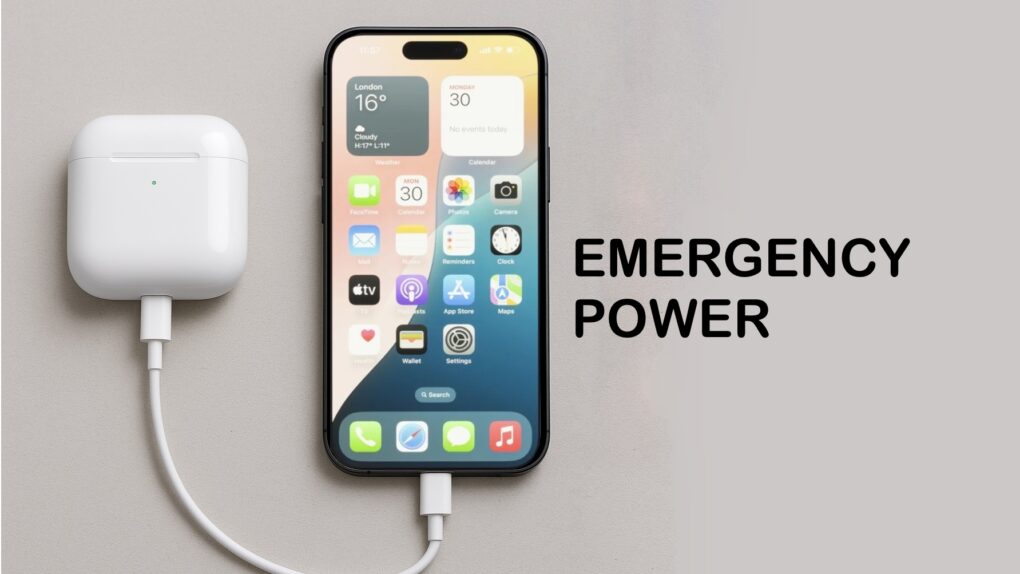
Your iPhone can charge your AirPods. It’s easy. Image: ChatGPT/Cult of Mac
In a pinch, you can charge your AirPods with your iPhone. This feature is very convenient if you know how to use it. You can also use your iPhone to charge your Apple Watch, or even another iPhone.
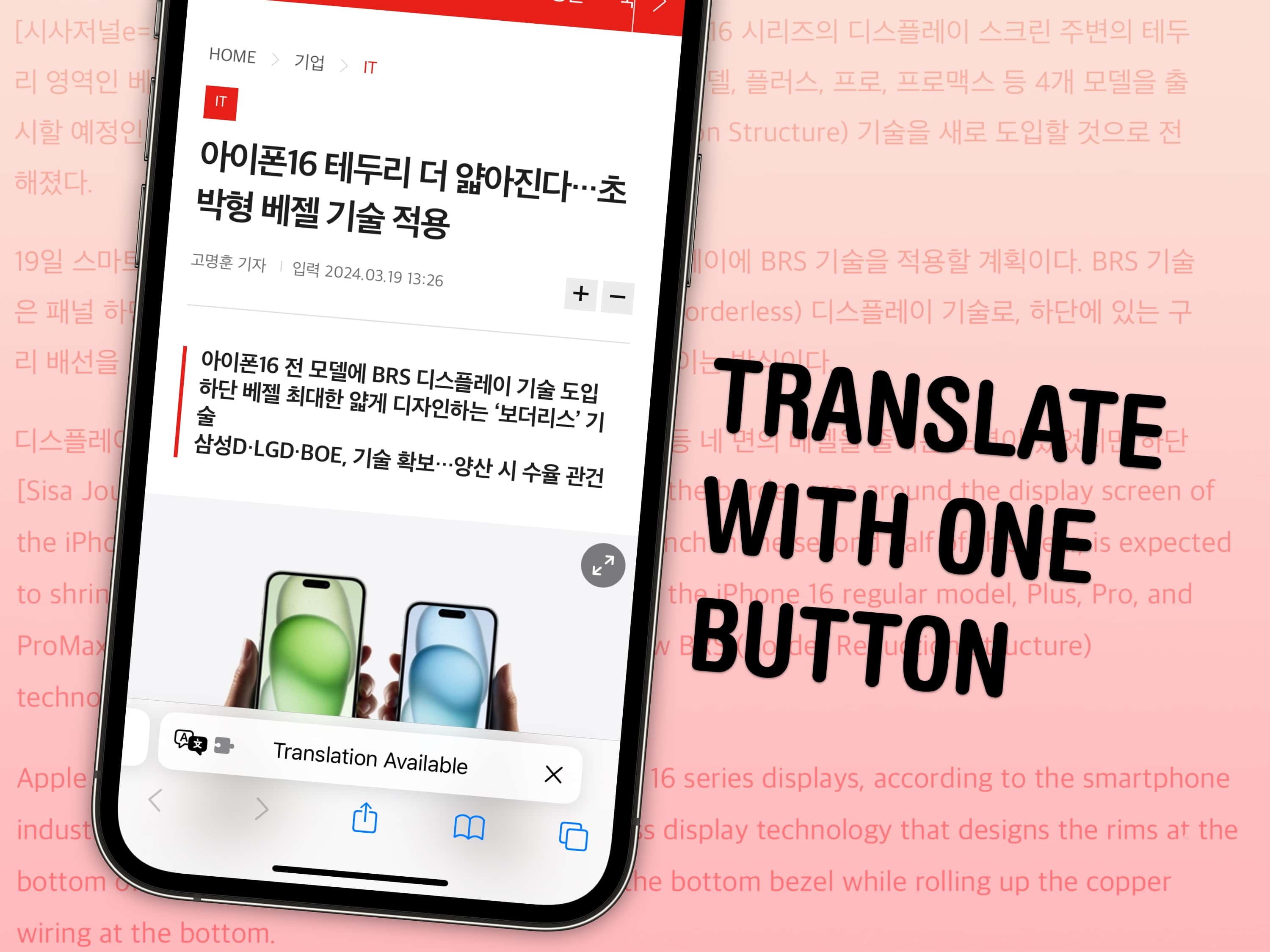
Get the whole page in your native language with a single button. Image: D. Griffin Jones/Cult of Mac
If you stumble across a webpage or a link in a different language, you can instantly translate the website to English directly from Safari. Unlike Google Chrome, Safari even translates the text inside images using Live Text.
And, if you accidentally change the language of a website to one you don’t speak, you can turn this feature on to help you change it back. At Cult of Mac, we use the feature to translate rumors or blog posts often written in Chinese, Korean or Japanese, like this.
You don’t need to select the words paragraph by paragraph and copy them into Google Translate (or even Apple’s own Translate app). Get the entire page in English at the tap of a button. Here’s how to make the most out of this handy Safari feature.
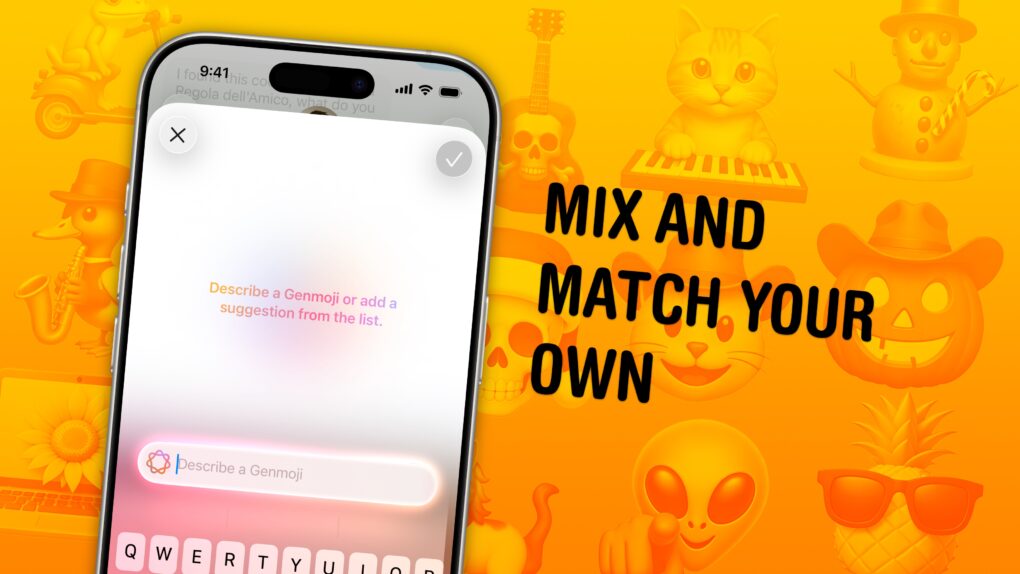
I highly recommend saxophone + duck. Image: D. Griffin Jones/Cult of Mac
You can combine two or more emoji into your own custom creation in iOS 26 using Apple’s upgraded Genmoji tool. In my testing, it’s great at adding sunglasses and cowboy hats to other emoji. It’s also pretty good at converting ordinary yellow-face emoji into cats, frogs, skulls, etc.
You can easily make a pumpkin cowboy, keyboard cat, pregnant Santa, banana phone or Easter Island statue snowman … the possibilities are endless. Well, not entirely endless — as fun as it would be to play geopolitics by combining national flags, all the flag emoji are restricted.
The best Apple Intelligence feature gets even more fun in iOS 26. Here’s how to use Genmoji‘s fun new feature.
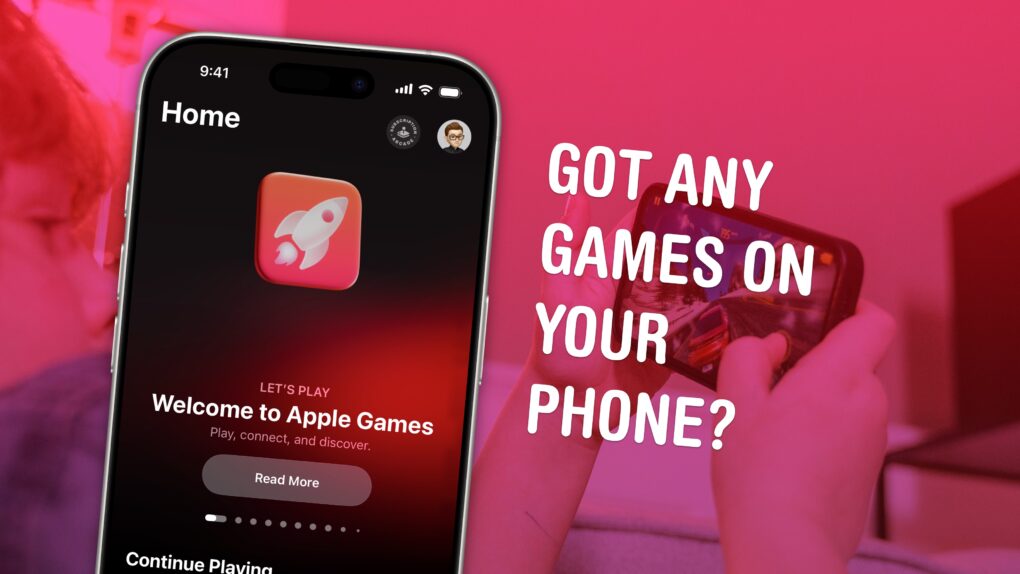
Launch games and find new ones in Apple Games. Image: D. Griffin Jones/Cult of Mac
The Games app is a new all-in-one destination for gaming on your Apple devices. You can create a custom profile, track your achievements, and add friends (and set challenges for them). It’s also a quick way to launch games you’re playing and discover new ones.
It doesn’t entirely replace Game Center, a few vestiges of which reamin in the Settings app. But if you care at all about iPhone gaming, you should check out the new Games app. It’ll help you find new games to play and let you know about exciting events in your old favorites.
Here’s everything you need to know about Apple’s new Games app.
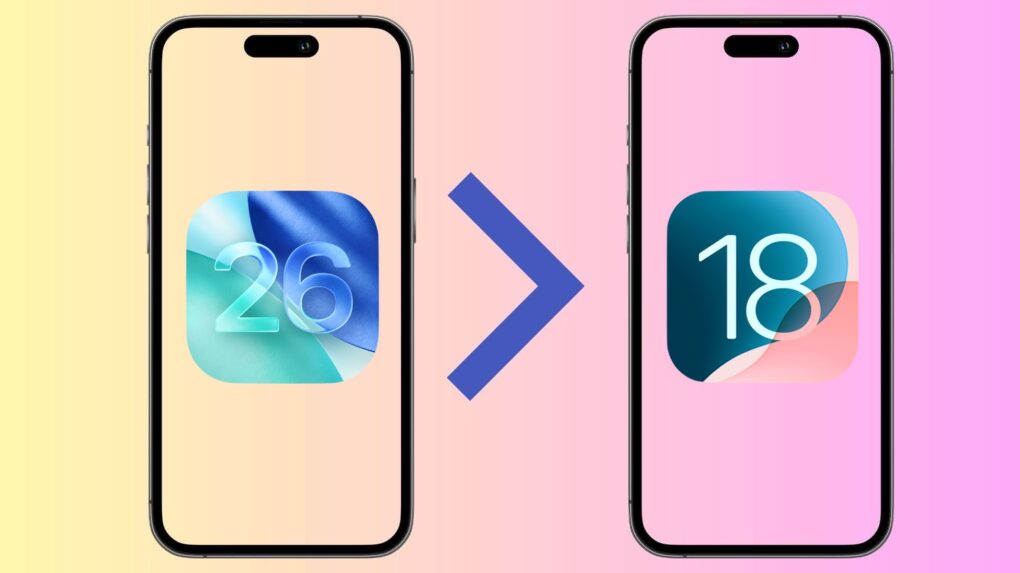
Yep, you can always go back to iOS 18 from iOS 26 beta. Photo: Rajesh Pandey/Cult of Mac
Installed iOS 26 public beta on your iPhone to try out Liquid Glass and other new features but regretting the decision due to crashes and bugs? Thankfully, you can easily remove the iOS beta and downgrade your iPhone to iOS 18.
The only catch? You will need to restore an older backup or start from scratch with your setup. If that doesn’t convince you to ride out the bugginess, follow the steps below to revert your iPhone to iOS 18 from the iOS 26 beta.
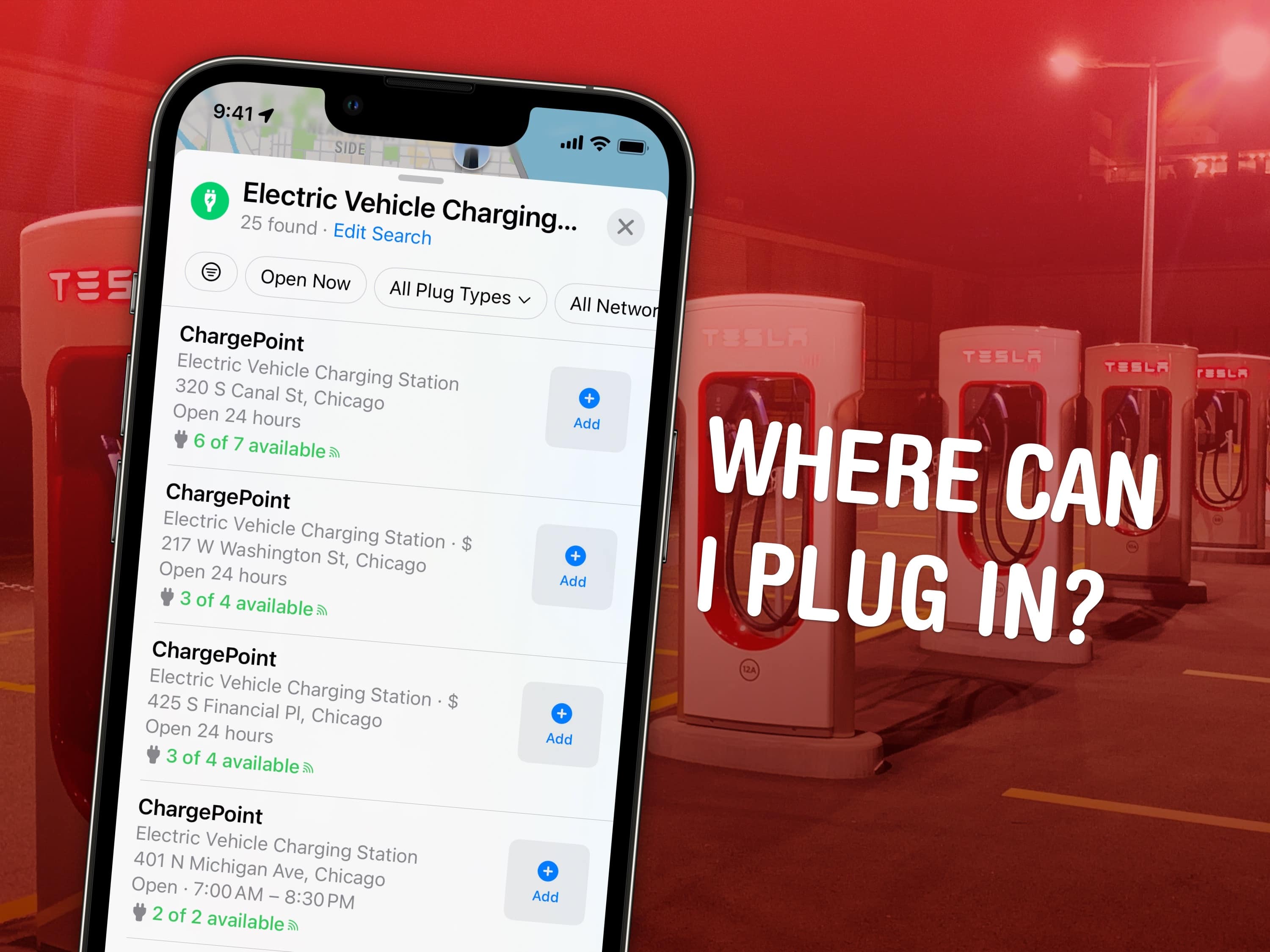
Find charging stations from Apple Maps. Image: Ank Kumar/Wikimedia Commons/D. Griffin Jones/Cult of Mac
Apple Maps makes it easy to find EV charging stations while you’re on the road to figure out where you can top up your electric car. Apple added some powerful new features in iOS 17 to simplify this sometimes-daunting process for EV owners.
Now you can see electric car charger availability, charging speeds and connector types in Apple Maps so you can find a way to juice up your vehicle when on a road trip. Here’s how it works.
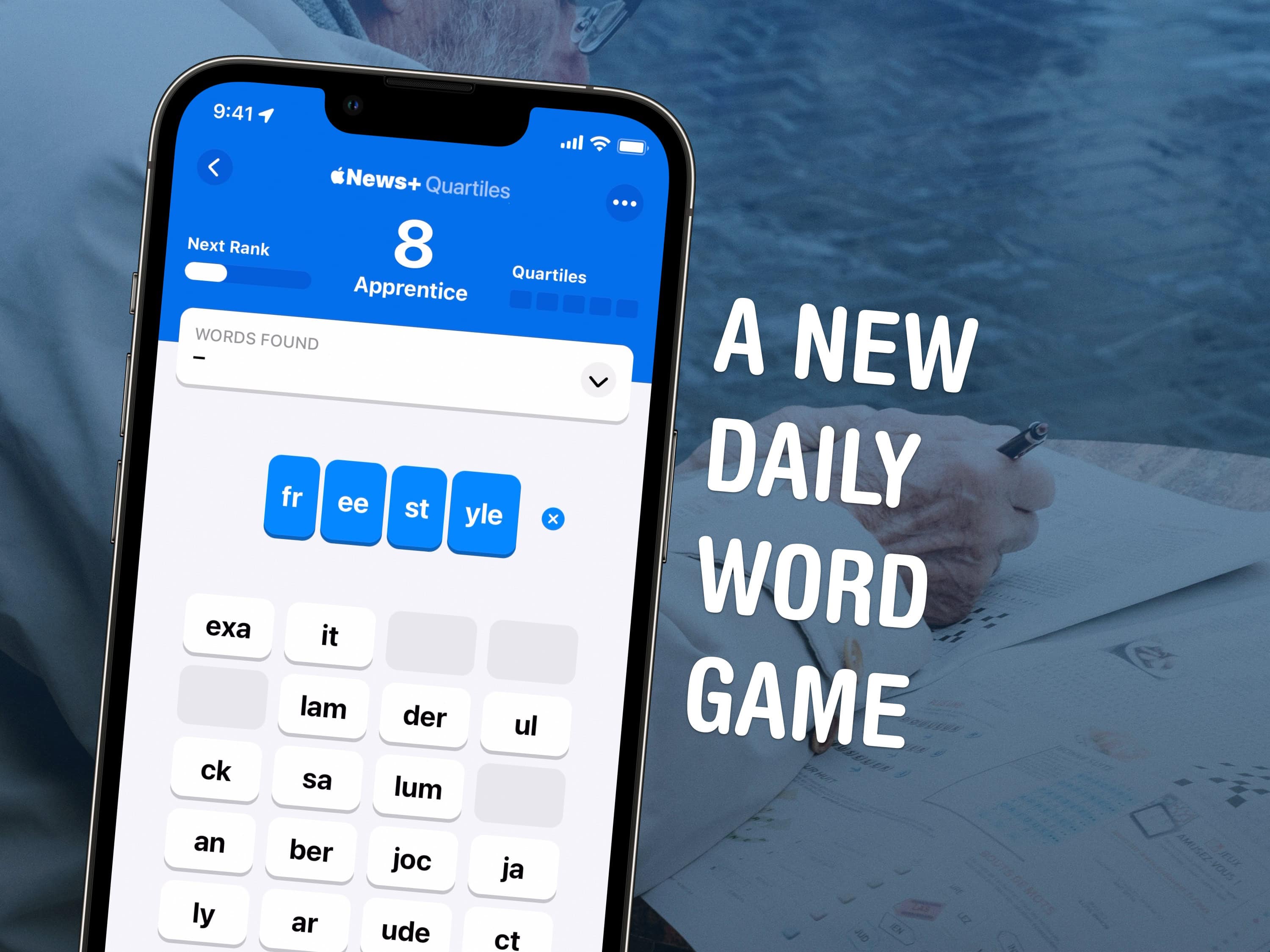
Note: Spoilers in this article for the Tuesday, May 14, 2024, game of Quartiles. Image: D. Griffin Jones/Cult of Mac
Quartiles is a daily word-building game for Apple News+ subscribers. It’s fun, with a clean interface and no ads. If you want to score maximum points each day, you’ll need to know how to play Quartiles and all the tips and tricks you need to succeed.
Get ready for your first look at what's next for iOS, macOS and more. Image: Cult of Mac
Apple revealed Tuesday that its annual Worldwide Developers Conference will kick off with a keynote on June 9. Apple traditionally uses WWDC to show off the next major upgrades for iOS, macOS and its other operating systems. WWDC25, which will run from June 9 to June 13, will be no different.
“We’re excited to mark another incredible year of WWDC with our global developer community,” said Susan Prescott, Apple’s vice president of Worldwide Developer Relations. “We can’t wait to share the latest tools and technologies that will empower developers and help them continue to innovate.”
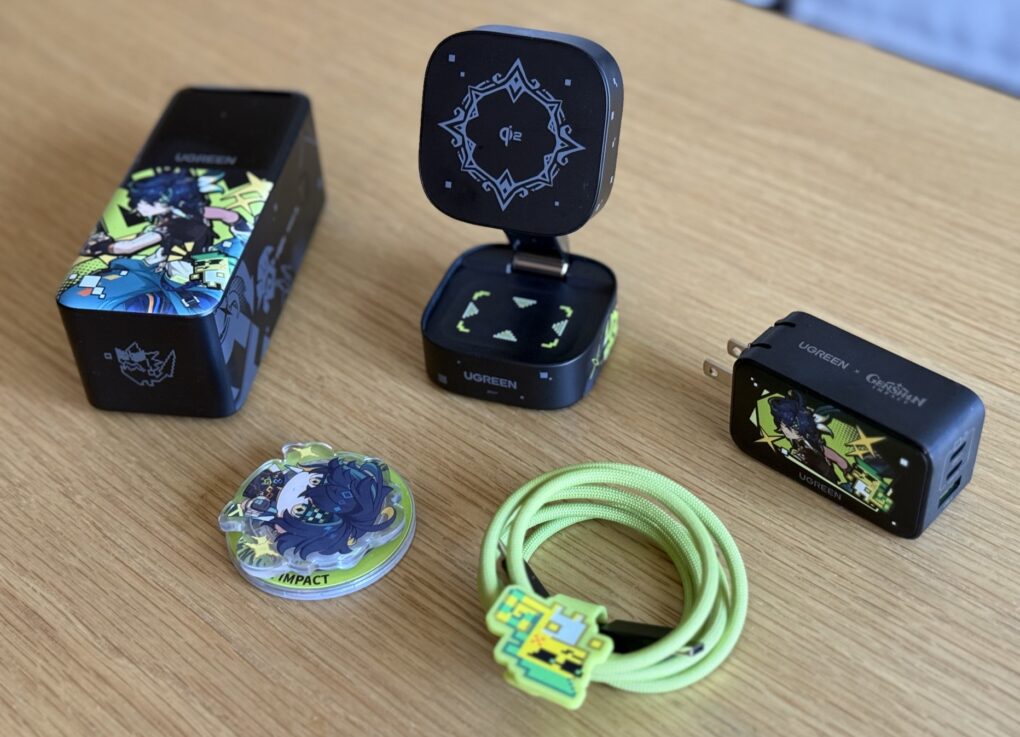
"Genshin Impact" players or anyone who wants less-boring chargers might enjoy this collection. Photo: David Snow/Cult of Mac
Apple users who enjoy the popular open-world adventure game Genshin Impact now have a stylish way to keep their devices powered up, Ugreen said Monday. Known for its charging accessories, the company said it partnered with game creators to launch a co-branded collection of four Ugreen Genshen Impact charging products. The company sent them to me. It looks like a fun collection.