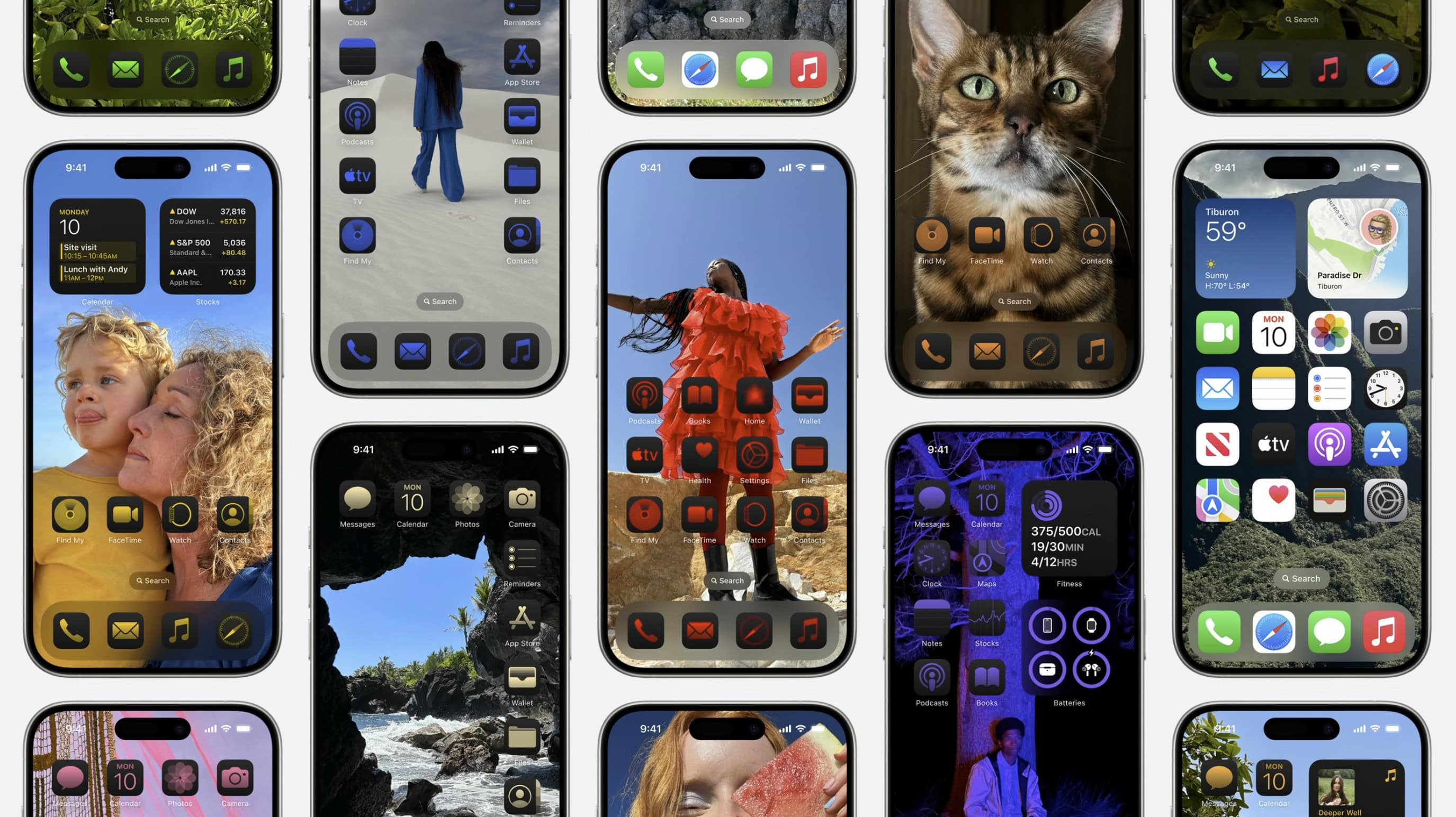
You’ve probably seen some of the beautiful custom iPhone Home Screens on social media after the iOS 18 launch. Some people go to great lengths to creatively customize their iOS 18 Home Screen layout, icons and widgets.
It makes sense. After all, you open your phone and look at your Home Screen dozens (or even hundreds) of times every single day. A custom Home Screen that matches your style can bring a little spark of joy to your daily life every time you whip out your iPhone. And iOS 18 makes Home Screen customization easier than ever.
Keep reading (or watch our video) for a quick introduction into the world of custom Home Screens. You’ll find out about new features coming in iOS 18, how to go above and beyond using Shortcuts, and how you can top off your iPhone aesthetic with widgets. I’ve scoured the internet (Reddit, mostly) to find the finest examples.
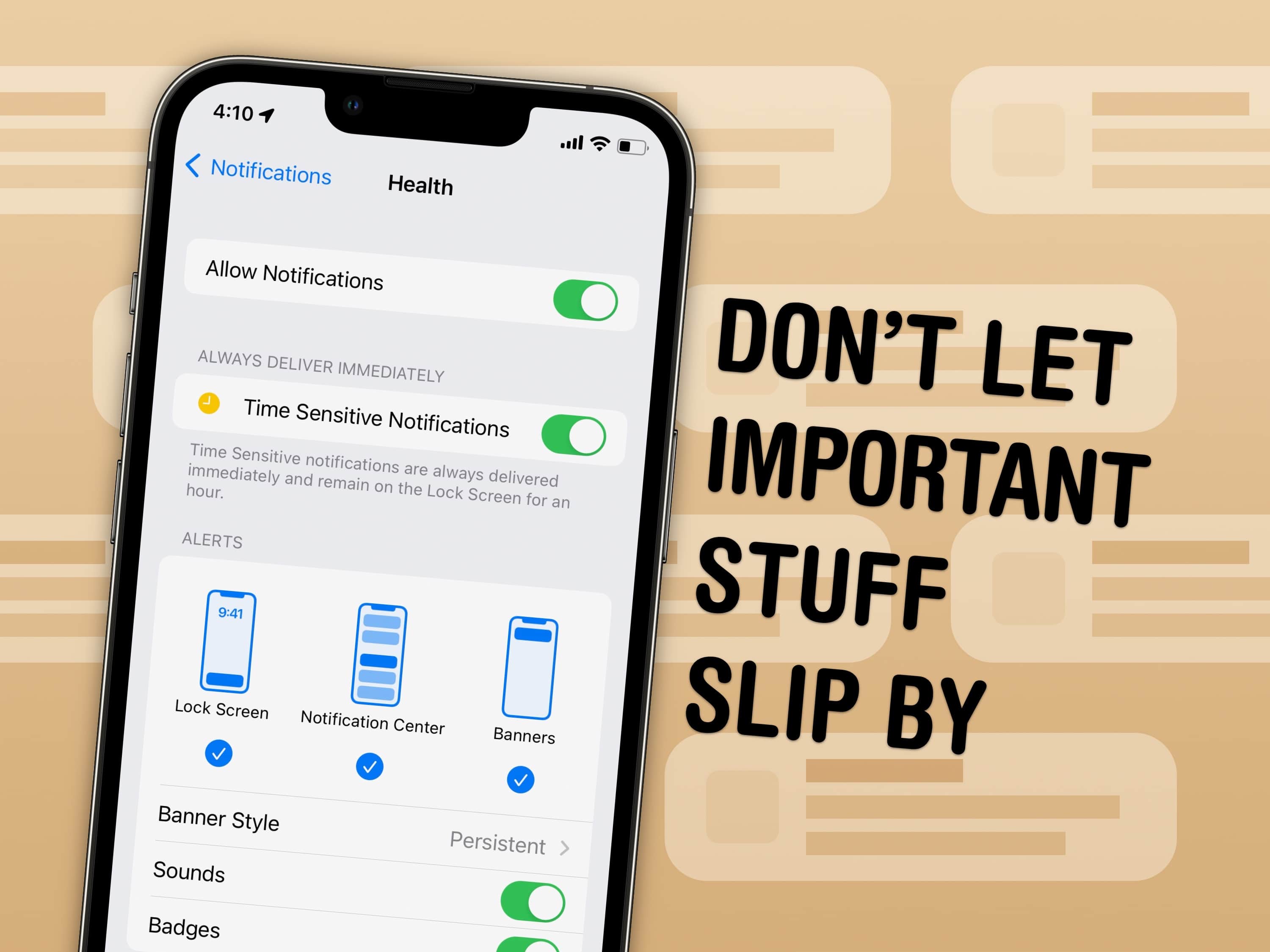
 You can set notifications from specific apps to stick to the top of your iPhone screen. With persistent notifications in iOS, when your phone is unlocked and an important alert comes in, it will stay visible at the top of the screen until you act upon it. It’s an easy way to make sure you don’t miss (or forget about) critical notifications on your iPhone.